





.svg)
.svg)
.svg)
.svg)

.svg)
.svg)
.svg)

“Add voice to OpenClaw” sounds like one feature until you try to set it up. Then you notice it’s really three separate parts that happen to sit next to each other.
TTS (Text-to-speech) makes OpenClaw speak replies. STT (Speech-to-text) turns voice notes into text so the agent can act on them. And live conversation is the continuous "listen >> think >> speak" loop people expect from 'Talk Mode'. If you separate these early you save yourself hours of weird debugging later...
If you’re new to the project a quick baseline is what OpenClaw is and how it works. If you already run it and you’re comfortable with skills you’ll also like OpenClaw skills guide because voice features end up being “config plus tools plus habits” in the same way skills are.
What “voice” means in OpenClaw
Before config blocks and providers it helps to be clear on what runs where.
TTS is outbound
OpenClaw generates a text reply then a TTS provider converts that text into an audio file. This works fine on a laptop, a home server, or a VPS because it’s just processing plus API calls.
STT is inbound
You send a voice note or an audio file. OpenClaw transcribes it. Then it treats the transcript like the message body. This is where “voice commands” come from because the transcript can contain slash commands that behave as if you typed them.
Live conversation is a node feature
For a real “mic on, talk back, interrupt me if I start speaking” experience you want a device with a microphone and a speaker. The clean pattern is running the gateway wherever you want stability, like a server, and running the microphone part on a paired device (macOS, iOS, Android). That’s the practical way to do it without trying to duct tape audio hardware into a headless box.
Speech-to-text voice commands
This is the feature most people actually keep using. You send a voice note that says “restart the service and tell me what failed” and it lands as text inside the session with the same command parsing rules as normal chat.
In OpenClaw this is configured under tools.media.audio in ~/.openclaw/openclaw.json. The official reference is audio understanding.
How the audio pipeline behaves
When an inbound message contains audio OpenClaw takes the first eligible attachment then checks size limits then tries the models in order until one works. That model chain can include hosted providers and local CLIs. If the first entry fails it moves on to the next one.
On success OpenClaw keeps the transcript around as {{Transcript}} for templates and formatting and it uses that transcript for command parsing. So saying “slash remind me tomorrow at 9” inside a voice note works like typed input.
A sane production model chain
I like a provider first with a CLI fallback. The provider handles most cases quickly and the fallback saves you during outages or rate limits. Here’s a simple pattern you can paste and adapt.
{
  "tools": {
    "media": {
      "audio": {
        "enabled": true,
        "maxBytes": 20971520,
        "models": [
          { "provider": "openai", "model": "gpt-4o-mini-transcribe" },
          {
            "type": "cli",
            "command": "whisper",
            "args": ["--model", "base", "{{MediaPath}}"],
            "timeoutSeconds": 45
          }
        ]
      }
    }
  }
}
A couple of small notes that save pain later. Make sure the gateway user can actually run the CLI on PATH. Also consider adding a transcript cap if you’re dealing with long meetings or rambly voice notes. Huge transcripts trash your context window fast.
Scope rules - so strangers can’t burn your STT budget
If you expose OpenClaw in public channels you want guardrails. The audio tool supports scoping so you can deny group chats or only allow DMs. This matters even for personal setups because people forget they enabled voice in a group, and suddenly you’re transcribing minutes of nonsense.
{
  "tools": {
    "media": {
      "audio": {
        "enabled": true,
        "scope": {
          "default": "deny",
          "rules": [
            { "action": "allow", "match": { "chatType": "private" } }
          ]
        }
      }
    }
  }
}
If you want to run OpenClaw on a server for uptime, harden it. The checklist in host OpenClaw securely on a VPS is still relevant even if your “VPS” is just a machine you control in a rack. And if your setup can read files and run commands you should also skim OpenClaw security best practices once.
Text-to-speech so OpenClaw speaks replies
TTS is under messages.tts in the same config file. The authoritative reference is OpenClaw TTS.
TTS is off by default. When you enable it you choose when it triggers and which provider to use. That “when” part is more important than people think because auto TTS on every reply gets old fast and it gets expensive fast.
Pick a TTS mode that matches how you actually talk to it
These are the modes that matter in practice.
- off for no auto TTS and manual use only
- inbound to speak back only when the user sent voice first
- tagged if you want to opt-in on specific replies
- always if you truly want every reply spoken
My default recommendation is inbound. It feels natural, it avoids spamming audio in chat apps, and it keeps cost under control without you thinking about it.
Provider choices and a minimal config
OpenClaw supports multiple TTS providers depending on what you configure. If you already have an OpenAI key and you want the simplest setup, start there. If you want “assistant voice” vibes and you care about expressiveness then ElevenLabs is the usual pick. Some setups also use Edge TTS for a no-key baseline.
{
  "messages": {
    "tts": {
      "auto": "inbound",
      "provider": "openai",
      "openai": {
        "model": "gpt-4o-mini-tts"
      },
      "maxTextLength": 4000,
      "timeoutMs": 30000
    }
  }
}
If you enable TTS and you also send long stack traces or logs, consider the maxTextLength limit seriously. Speaking a 300 line trace is not helpful. It’s also a nice way to rack up latency then you start blaming your server when it’s really your config.
Telegram and WhatsApp voice notes
Most messaging channels treat “audio file” and “voice note” as different shapes even if they’re both audio. OpenClaw’s channel support is documented on the features page. If you’re building multi-channel routing, your STT settings plus TTS rules should stay consistent across connectors, and the routing guide in OpenClaw multi-channel setup helps with that.
Live Talk Mode and why it usually belongs on a node
People try to do “live mic” on a server and it always turns into a mess. Not because it’s impossible, but because the server is not the right place to own microphone permissions and speaker output.
OpenClaw’s approach is pairing a node device that handles the microphone loop, then the gateway handles model calls and tools. The docs call this out in the Voice Wake section and it’s the closest thing to a clean “Talk Mode” workflow across devices.
The pattern that stays stable
- Run the OpenClaw gateway wherever you want stability
- Pair a node on a device that has a mic and speaker
- Enable voice wake or talk on the node so it can listen and speak back
The upside is obvious once you try it. Your audio experience stays local and snappy. Your gateway stays headless and boring, which is exactly what you want.
Practical onboarding flow and what the prompts mean
If you’re using an installer or template you’ll usually see a skills prompt early on. It’s not directly “voice” but it’s part of the same setup story because voice features rely on dependencies being present. If you see “Configure skills now” I’d say yes unless you have a reason not to.
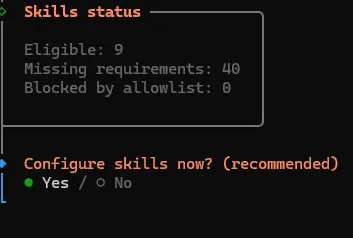
On macOS you’ll often see Homebrew recommended for dependencies. That’s normal. On Linux you’ll see system packages and language toolchains instead. The real goal is simple: install the stuff your enabled tools need so you don’t end up with half the skill list missing requirements.

If you accept the prompt you’ll see the install command. Again, the command is less important than the habit: when your setup says “missing requirements” it’s telling you why a tool will not run.
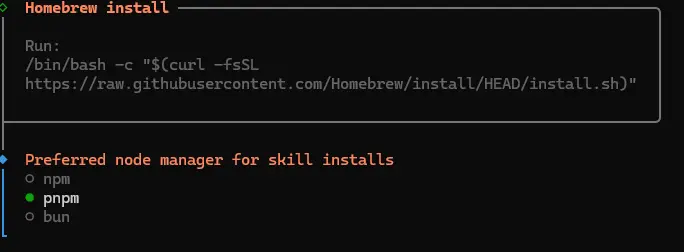
Then you’ll get a list of missing dependencies. Don’t blindly install everything. Pick what you actually use. If you’re adding voice, focus on audio tooling and whatever provider CLIs you rely on.

Control UI issues on remote servers
This one bites people because it looks like “OpenClaw is broken” when it’s really “your browser is refusing to do crypto”. If you open the dashboard over plain HTTP on a remote IP some browsers treat it as an insecure context, and WebCrypto features used for device identity can be blocked. That can lead to pairing or auth errors that feel random.
The long-term fix is using HTTPS for the Control UI. OpenClaw documents this behavior and the secure-context expectation in Control UI secure context.
If you’re running on a VPS
Not everyone needs a VPS. Plenty of people are happy running OpenClaw locally. A server becomes attractive when you care about uptime, stable paths, predictable dependencies, and keeping bot tokens away from your personal laptop. If that’s your situation, our OpenClaw VPS hosting article shows the fast path on Ubuntu 24.04.
If you do run it on a server, set cost controls for STT and keep TTS in inbound or tagged mode until you know you love listening to your bot talk. It sounds obvious but people skip this then wonder why their monthly bill looks weird.
My “don’t regret this later” checklist
This is the stuff I try to get right early so I don’t end up rewriting config at midnight.
- STT first because voice commands are the daily-use feature
- Scope rules so group chats don’t become an audio firehose
- TTS on inbound so you get voice back only when you used voice
- Text fallback always so replies still work when a provider fails
- Node for live mic because servers are great at compute and terrible at “being a microphone”
That’s it, in my opinion. Get the three layers separated, wire them up cleanly, then you can tweak voices and providers without breaking the basics.

