

Back to Article List

Immich external libraries for photos you already have

Immich external libraries for photos you already have

Updated and tested 1 May 2026

Everyone who installs Immich hits the same moment: the phone backup works beautifully, and then you remember the twenty years of photos already sitting in folders, on the NAS, from old cameras and older phones. Uploading them means surrendering their organization to Immich's storage. External libraries are the other door: Immich indexes your existing folders in place, read-only, giving them search, faces and the timeline without moving a byte. Here's the setup and the handful of rules that make it behave.

How external libraries differ from uploads

The contract, per the official external libraries docs: Immich reads the files where they are, never moves or renames them, and reflects changes on disk into the app when it scans. Your folder structure stays yours. The trade-offs that follow are logical once you hold that model. Deleting an external asset in the app removes it from Immich's index, not from your disk (with the newer file-deletion options being explicit opt-ins). The mobile app doesn't back up into an external library; uploads always go to Immich-owned storage. And the storage template engine ignores external files entirely, since not touching your structure is the whole promise, a division our storage template guide draws from the other side.

Step 1: mount the folders into the container

The Immich server can only index what its container can see, so the photo folders need a volume mount. In docker-compose.yml under immich-server:

volumes:
  - ${UPLOAD_LOCATION}:/data
  - /srv/photos/archive:/mnt/media/archive:ro

Keep the existing UPLOAD_LOCATION line and add yours below it. The :ro makes the mount read-only, and I consider it non-negotiable for archives: it converts every category of bug, misclick and future feature into a physical impossibility. Recreate the stack with docker compose up -d.
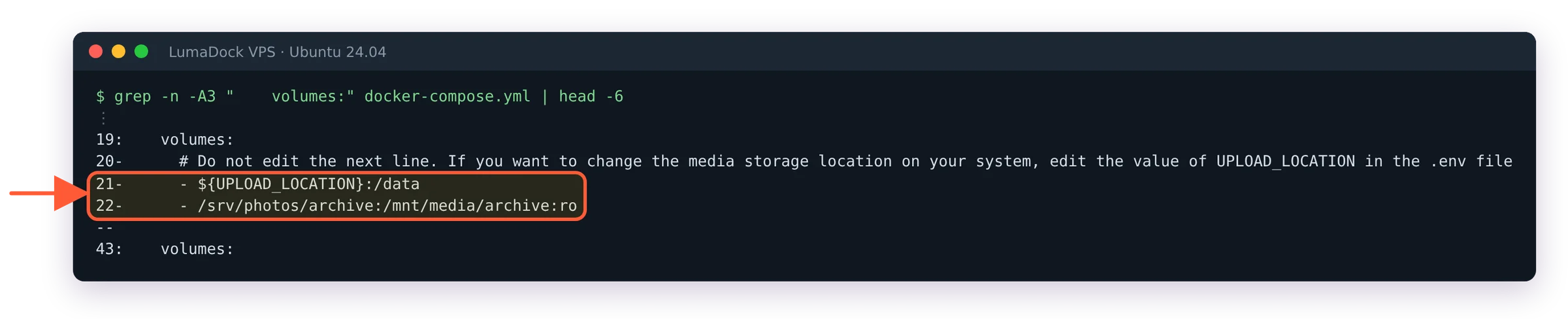
docker-compose.yml immich-server volumes: ${UPLOAD_LOCATION}:/data and /srv/photos/archive:/mnt/media/archive:ro

The archive mount sits under the stock UPLOAD_LOCATION line, read-only.

NAS folders work the same way once mounted on the host (NFS or SMB via fstab), with the classic caveat that the container sees the mount as it existed at start, so remounts on the host want a container restart after.

Step 2: create the library and import path

External libraries live in the admin area: Administration » External Libraries » Create library, pick which user owns it, then open the library and add the folder using the container-side path (/mnt/media/archive, not the host path, the single most common setup error). Exclusion patterns sit on the same page, glob-style, and two earn their place in almost every setup:

**/@eaDir/**
**/*_edited*

The first skips Synology's thumbnail droppings, the second is an example of trimming editor-generated duplicates; season to your own folder history.

Then hit scan and watch Administration » Job Queues light up: discovery first, then metadata extraction, thumbnails and the ML pass over everything found. On my test archive the scan imported the two originals and skipped both a file inside @eaDir and an _edited copy.
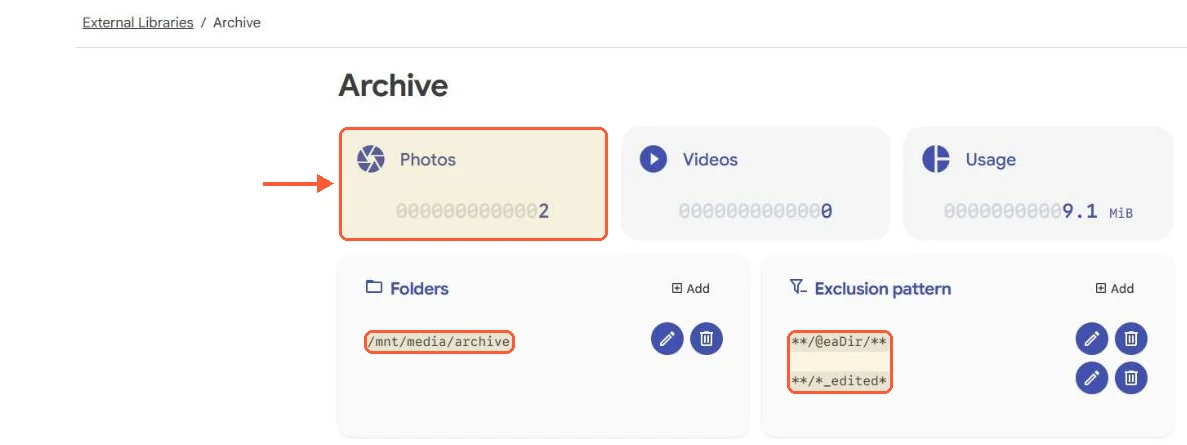
Immich external library Archive page: Photos 2, folder /mnt/media/archive, exclusion patterns **/@eaDir/** and **/*_edited*

After the scan my test archive held two photos: the @eaDir file and the _edited copy were skipped.

A large archive takes hours to fully enrich, and search over it sharpens as the queues drain.

Step 3: keep it in sync

When files change on disk, a scan picks it up: new files appear, changed files re-read and deleted files move to the trash (files a new exclusion pattern matches go offline instead). Scans trigger three ways, and the right mix depends on how alive the folder is. Manual scans from the library's menu suit a static archive that changes yearly. Scheduled scans (the library scan interval in admin settings) suit folders other software drops files into. And automatic watching (the library watch toggle) reacts to filesystem events in near real time, with the honest footnote that inotify events don't cross network mounts reliably, so NAS-backed libraries should lean on scheduled scans instead of trusting the watcher.


Never delete a memory again

Keep every photo and video of the people you love, on reliable storage with unmetered bandwidth and a cost that stays predictable as the years add up.
Ciclo de Facturación

VPS.H1

€6.37 Save  14 %
€5.46 Mensual
  • 1 vCPU AMD EPYC
  • 2 GB memoria RAM
  • ✔HDD disco
  • ✔Ilimitado ancho de banda
  • ✔ IPv4 e IPv6 incluidos El soporte IPv6 no está disponible en Francia o Países Bajos.
  • ✔Gestión de firewall
  • ✔Monitoreo gratis
  • ✔KVM virtualización

VPS.H3

€22.77 Save  20 %
€18.21 Mensual
  • 4 vCPU AMD EPYC
  • 8 GB memoria RAM
  • ✔HDD disco
  • ✔Ilimitado ancho de banda
  • ✔ IPv4 e IPv6 incluidos El soporte IPv6 no está disponible en Francia o Países Bajos.
  • ✔Gestión de firewall
  • ✔Monitoreo gratis
  • ✔KVM virtualización

VPS.H4

€33.25 Save  18 %
€27.33 Mensual
  • 6 vCPU AMD EPYC
  • 12 GB memoria RAM
  • ✔HDD disco
  • ✔Ilimitado ancho de banda
  • ✔ IPv4 e IPv6 incluidos El soporte IPv6 no está disponible en Francia o Países Bajos.
  • ✔Gestión de firewall
  • ✔Monitoreo gratis
  • ✔KVM virtualización

Common pitfalls: permissions, path overlap and reorganizing

Three learned-the-hard-way items. Don't overlap an external import path with UPLOAD_LOCATION; the two storage worlds are separate on purpose and pointing one at the other confuses ownership in ways that generate GitHub issues. Match permissions before blaming Immich: the container's user needs read on every level of the path, and a single unreadable parent directory silently empties the scan (the logs name the EACCES if you look). And treat the external tree as append-mostly: reorganizing folders wholesale means Immich sees mass deletions plus mass new files, so albums built from those assets survive via the app's records but any hand-curated offline references you kept don't. Reorganize before the big import, not after.

One more planning note, since external libraries are how big archives arrive: the ML indexing pass over 100,000 inherited photos is the heaviest thing your server will ever do, the one workday where hardware genuinely matters. The options ladder in our hardware acceleration guide exists for that day, and disk-wise an archive that lives on the server wants capacity planned up front (storage VPS territory once the numbers get serious).

Verify the import

Checks in order of reassurance: the library's asset count in admin matches roughly what you expected from the folder (wild undercounts mean permissions or exclusions ate something). A search for content you know is in the archive ("wedding", a person after the face pass) returns those photos. Deleting a test asset in the app leaves the file on disk untouched, proving the read-only contract. And a file added to the folder appears after the next scan, proving sync works in the direction you'll rely on. From there the archive is just part of the library: searchable, face-tagged and exactly where you left it on disk, which was the point all along.

Questions?

Why can't I edit dates or descriptions on photos in my external library?

Because the library is mounted read-only. Immich stores edits to the date, location, description and star rating in XMP sidecar files beside the photo, and with :ro it can't create them, as Immich's FAQ explains. Adding those photos to albums still works, since albums live in Immich's database. To edit the metadata, mount the folder read-write, which is the default, and accept that Immich then writes sidecars into your archive.

Never run out of space again

Keep backups, archives and media on reliable storage with unmetered bandwidth and a cost per gigabyte that stays low as the years add up. Your first VPS comes with a 30-day money-back guarantee.