





.svg)
.svg)
.svg)
.svg)

.svg)
.svg)
.svg)


Updated and tested 29 May 2026
Immich's networking is refreshingly small: one port faces you, everything else stays inside Docker's network. That hasn't stopped the confusion, partly because the default changed over the project's history and old guides still teach it wrong. Current state of the world: the Immich default port is 2283, and here's what listens where, how to change it and what a proper public setup exposes instead (spoiler: not 2283).
Default ports for each Immich container
A stock Immich stack runs four services, and their listening situation looks like this:
- immich-server: 2283, the only published port. Web UI, API and mobile app traffic all arrive here; there's no separate API port to configure, which keeps client setup honest.
- immich-machine-learning: 3003, internal only. The server calls it across the Docker network; nothing outside the host should ever see it.
- Postgres: 5432, internal only, deliberately unpublished. Your photos' metadata lives here and the official compose file correctly keeps it off the network.
- The Redis-compatible cache: 6379, internal only, same story.
Historical footnote that still generates confusion: older Immich versions mapped host 2283 to container 3001, so ancient guides and compose files reference 3001 everywhere. Modern releases listen on 2283 inside and out, and if you're carrying a years-old compose file with the 3001 mapping, that's one more nudge toward re-downloading the current official file during your next Immich update.
Change the Immich port
Change the mapping in docker-compose.yml, under the immich-server service:
ports:
  - "8080:2283"
Left side is the host port you want, right side stays 2283, and that one number is the whole change. After it, every client that stored the old address (each family phone, browser bookmarks) needs the new port typed in; the apps don't discover changes, they just fail politely.

Changing only the left number moved Immich to 8080 on my server, while the container kept listening on 2283.
Leave IMMICH_PORT in .env alone for this. It sets the port Immich listens on inside the container, and both Immich services read .env. When I set it to 8080, the mapping stayed 2283 to 2283, the server listened on 8080 inside and neither host port answered until I removed the line.
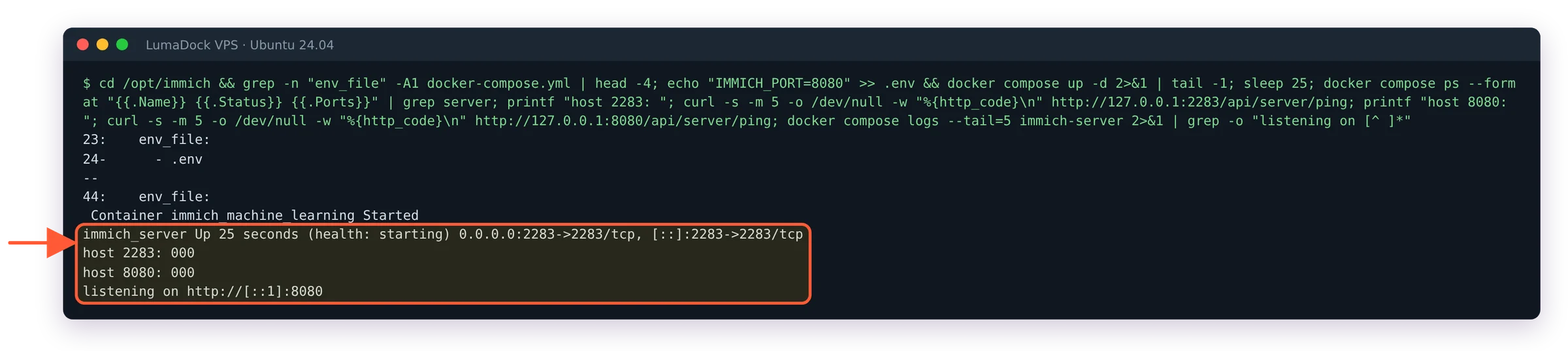
IMMICH_PORT=8080 moved the port inside the container, so on my server neither 2283 nor 8080 answered until I removed it.
What not to do: publish Postgres or the ML port to "check something". The database holds every face, location and album on your server, and exposed Postgres instances get found by scanners in hours. Anything you'd want to inspect is reachable with docker compose exec from the host, no published port required.
Firewalling: LAN server versus VPS
On a home LAN box the router keeps 2283 off the internet as long as you don't forward it, so devices on your network reach it directly and nothing else needs opening because nothing else is published. On a VPS the calculus changes, since every open port faces the whole internet. The arrangement that holds up: 2283 closed to the world, reachable only from localhost where a reverse proxy picks it up, with 80 and 443 as the public face. Docker publishes 2283 on every address in the official compose file, past any ufw rule you add, so the closing happens in the ports line:
ports:
  - "127.0.0.1:2283:2283"
The provider's cloud firewall is the second lock, and Docker can't open anything past it because it filters traffic before it reaches the server: allow 80, 443 and SSH there (on Immich VPS plans that's firewall management in the panel). The result: your phone talks HTTPS on 443 like it's any other website, and port 2283 becomes an implementation detail.
Reverse proxy configuration for Immich
Immich behind a proxy has two needs beyond vanilla forwarding, and missing them produces the classic "uploads fail at exactly 1 MB" and "timeline never live-updates" bugs. Body size limits must be huge (phone videos run to gigabytes) and websocket upgrade headers must be present. Caddy handles both with almost nothing:
photos.example.com {
    reverse_proxy 127.0.0.1:2283
}
Caddy does websockets and sane limits by default plus automatic HTTPS, which is why it's my recommendation for self-hosters who don't already run Nginx. On my server it had a Let's Encrypt certificate for the hostname a few seconds after it started, and the WebSocket upgrade to /api/socket.io came back 101 through it.

Caddy fetched a Let's Encrypt certificate for my Immich hostname on its own a few seconds after it started.
The Nginx version needs the explicit lines (client_max_body_size, proxy_read_timeout, the Upgrade/Connection headers), all listed in Immich's reverse proxy docs as copy-paste blocks; our Nginx reverse proxy walkthrough covers the surrounding setup if that layer is new to you. Once the proxy answers on the domain, point the mobile apps at https://photos.example.com with no port at all, and enjoy retiring the :2283 from every conversation with relatives.
Verify ports and firewall rules
Three probes confirm the whole design. From the server, curl -I http://localhost:2283 answers (Immich alive). From outside, the same against your public IP and 2283 times out or refuses (the 127.0.0.1 ports line doing its job). And https://photos.example.com loads the login page (proxy path healthy).
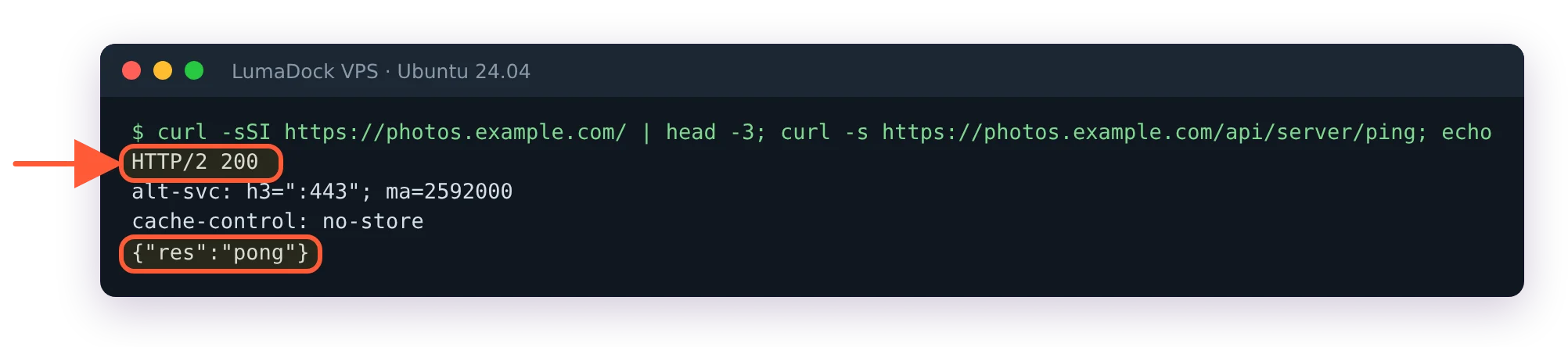
Probe three on my server: the domain answered over HTTPS and the API ping came back through the proxy.
If probe one fails, it's the app, not the network, and the container-health ladder in our web UI troubleshooting guide takes over. That trio, run in thirty seconds, distinguishes every port problem from every non-port problem, which is most of what a networking guide can promise you.