
Back to Article List

Jellyfin ports explained: 8096, 8920 and the rest

Jellyfin ports explained: 8096, 8920 and the rest

Updated and tested 26 October 2026

Every Jellyfin networking question eventually reduces to four port numbers, and most guides list them without saying which ones you can ignore. Here's the full map: what each port does, which ones deserve a firewall opening and the Docker networking wrinkle that generates that strange "published ports are discarded" warning.

The four Jellyfin default ports

These are the ports Jellyfin can use; a default install listens on 8096 and 7359 only:

  • 8096/TCP, the main one. The HTTP web interface and the API every client app talks to. When someone says "the Jellyfin port", this is it.
  • 8920/TCP, the optional HTTPS version of the same thing, used only if you configure a certificate inside Jellyfin itself. Most setups never touch it, for reasons below.
  • 7359/UDP, client auto-discovery. Apps on your LAN broadcast here to find servers, which is how the app magically lists your server at home. Useless across the internet, harmless on a LAN.
  • 1900/UDP, DLNA discovery (SSDP), only relevant if you use DLNA to feed old TVs and consoles. The DLNA feature moved to a plugin in modern Jellyfin, so on a fresh 12.4 server nothing listens on 1900 until you install the DLNA plugin from the catalog.

So the honest minimum is one port: 8096. On a LAN-only setup, add 7359 for the convenience of discovery. Everything else is situational.

Which ports to open where

Three scenarios cover nearly everyone.

Home server, watched only at home. Open nothing in the router. On the machine's own firewall allow 8096/TCP and 7359/UDP from the LAN. Done; this is the setup with no attack surface.

Server reachable from the internet through a reverse proxy. The public side exposes 80 and 443 only; the proxy forwards internally to 8096. In this layout 8096 should be reachable from localhost or the proxy container alone, not from the world, so a strict firewall rule there is the difference between "one login page exposed" and "login page plus raw API exposed". The proxy pattern itself is in our Jellyfin remote access guide.

Server on a VPS. Same as the proxy scenario, with one addition: VPS providers give you a cloud firewall in front of the machine (ours sits in the panel of every Jellyfin VPS plan), and the sane rule set is 443 open, 80 open for certificate renewal, 22 restricted to your IP and everything else, 8096 included, closed. Discovery ports mean nothing on a VPS; there's no LAN to discover you.

On a home server running Ubuntu the firewall side is two lines:

sudo ufw allow from 192.168.1.0/24 to any port 8096 proto tcp
sudo ufw allow from 192.168.1.0/24 to any port 7359 proto udp

Adjust the subnet to your home network. A VPS has no 192.168.1.0/24 behind it: your "LAN" is your home connection behind NAT, so the useful rule there is your own public address, sudo ufw allow from YOUR_HOME_IP to any port 8096 proto tcp, with no 7359 rule, because discovery only works on a LAN. For anything beyond your own access, the proxy-only layout above is still the better choice.

Make room for every file you'll ever keep

Keep your backups and media libraries on reliable storage with unmetered bandwidth and a cost that stays predictable as your archive grows.
Faktureras

VPS.H1

34.15 RON Save  14 %
29.27 RON Månadsvis
  • 1 vCPU AMD EPYC
  • 2 GB RAM-minne
  • ✔HDD lagring
  • ✔Obegränsad bandbredd
  • ✔ IPv4 och IPv6 ingår IPv6-stöd är för närvarande inte tillgängligt i Frankrike eller Nederländerna.
  • ✔Hantering av brandvägg
  • ✔Kostnadsfri serverövervakning
  • ✔KVM-virtualisering
Beställ nu Upptagen - Tillgänglig

VPS.H3

122.10 RON Save  20 %
97.67 RON Månadsvis
  • 4 vCPU AMD EPYC
  • 8 GB RAM-minne
  • ✔HDD lagring
  • ✔Obegränsad bandbredd
  • ✔ IPv4 och IPv6 ingår IPv6-stöd är för närvarande inte tillgängligt i Frankrike eller Nederländerna.
  • ✔Hantering av brandvägg
  • ✔Kostnadsfri serverövervakning
  • ✔KVM-virtualisering
Beställ nu Upptagen - Tillgänglig

VPS.H4

178.30 RON Save  18 %
146.54 RON Månadsvis
  • 6 vCPU AMD EPYC
  • 12 GB RAM-minne
  • ✔HDD lagring
  • ✔Obegränsad bandbredd
  • ✔ IPv4 och IPv6 ingår IPv6-stöd är för närvarande inte tillgängligt i Frankrike eller Nederländerna.
  • ✔Hantering av brandvägg
  • ✔Kostnadsfri serverövervakning
  • ✔KVM-virtualisering
Beställ nu Upptagen - Tillgänglig

*VAT excluded.

INCLUDED WITH EVERY PLAN

✓ No setup fees ✓1 Gbps network
✓ Free server monitoring ✓ Firewall management ✓24/7 support ✓ KVM virtualization

Changing the Jellyfin port

Dashboard » Networking, and the HTTP port field is right at the top. Change 8096 to whatever you need, save, restart the server. Two warnings from experience. Every client that stored the old address needs the new port typed in; there's no push update, and the "server not found" tickets after a port change are always this. And resist moving Jellyfin to 80 or 443 directly; those belong to a reverse proxy, which brings proper HTTPS and takes the renewal problem with it.

Behind a proxy, also fill in the "Known proxies" field on the same Networking page with your proxy's IP or container name, or every viewer in your logs appears to connect from the proxy's address, which turns the security log into porridge. Restart Jellyfin after saving it: the field's own help text says it needs one, and on my server it had no effect until the restart.

Port 8920: Jellyfin's built-in HTTPS

Jellyfin's built-in HTTPS on 8920 requires you to obtain, convert and manually renew a certificate, then teach every client the nonstandard port. A reverse proxy does all of that automatically on the port browsers expect. The built-in TLS made sense in the era before Let's Encrypt automation; today it's the harder path to a worse result. I keep 8920 closed everywhere and have yet to regret it.

Docker port mapping and the host-network warning

In a compose file, the mapping "8096:8096" publishes container port 8096 on the host. The left number is yours to change; "9096:8096" serves Jellyfin on host port 9096 with zero changes inside the container. This is the cleanest way to run two instances or dodge a conflict.

A Docker mapping also skips ufw. Docker diverts traffic for published ports before ufw's rules see it, so a "8096:8096" line opens 8096 to the internet on a server where ufw looks locked down. Publish it as "127.0.0.1:8096:8096" when only a reverse proxy on the same box should reach it, or filter it in the DOCKER-USER chain.

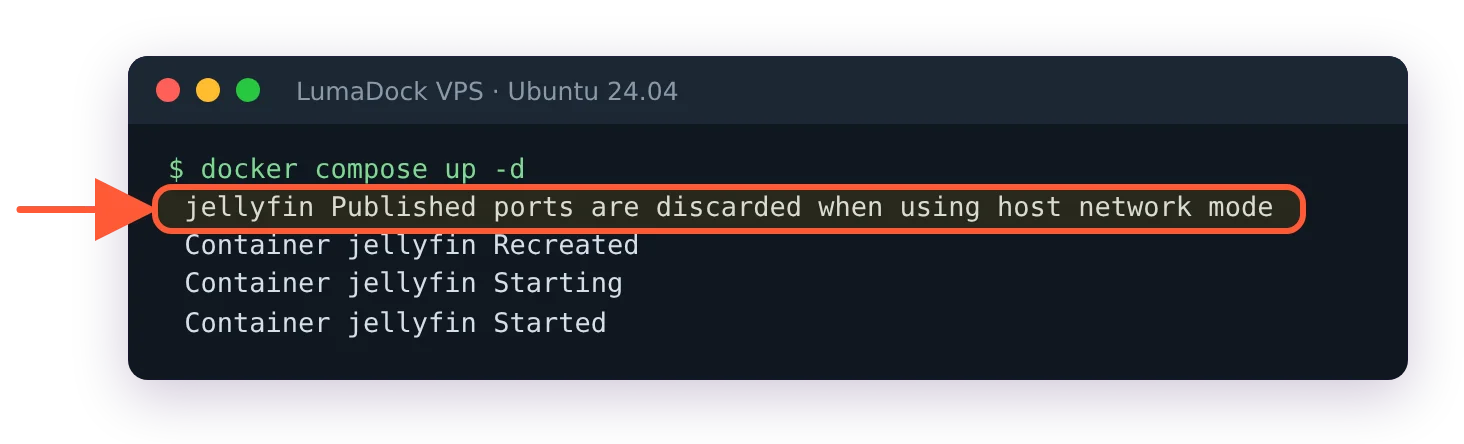
The famous warning, "published ports are discarded when using host network mode", appears when a compose file contains both network_mode: host and a ports: section. Host mode gives the container the host's network stack directly, so there's nothing to publish; the ports list is ignored and Docker tells you so.

Compose with network_mode: host plus a ports section warns: Published ports are discarded when using host network mode

The exact warning Compose printed when I added network_mode: host next to the ports section.

Fix it by deleting one of the two: keep the ports mapping for the isolated default (my choice on any internet-facing box, as argued in the install guide) or keep host mode when you genuinely need LAN discovery and DLNA to work from inside a container, accepting that every port Jellyfin listens on is now open on the host.

Check listening ports with ss and curl

When a client can't connect and you're not sure which layer is lying:

ss -tulpn | grep -E '8096|8920|7359|1900'

shows what Jellyfin is bound to locally. On a default install that's 8096/tcp and 7359/udp only: 8920 appears once you enable HTTPS inside Jellyfin, and 1900 only with the DLNA plugin.

ss -tulpn on a default 12.4 install lists only 7359/udp and 8096/tcp, both on 0.0.0.0, owned by jellyfin

A default 12.4 install on my server: 8096 and 7359 only, no 8920 and no 1900.

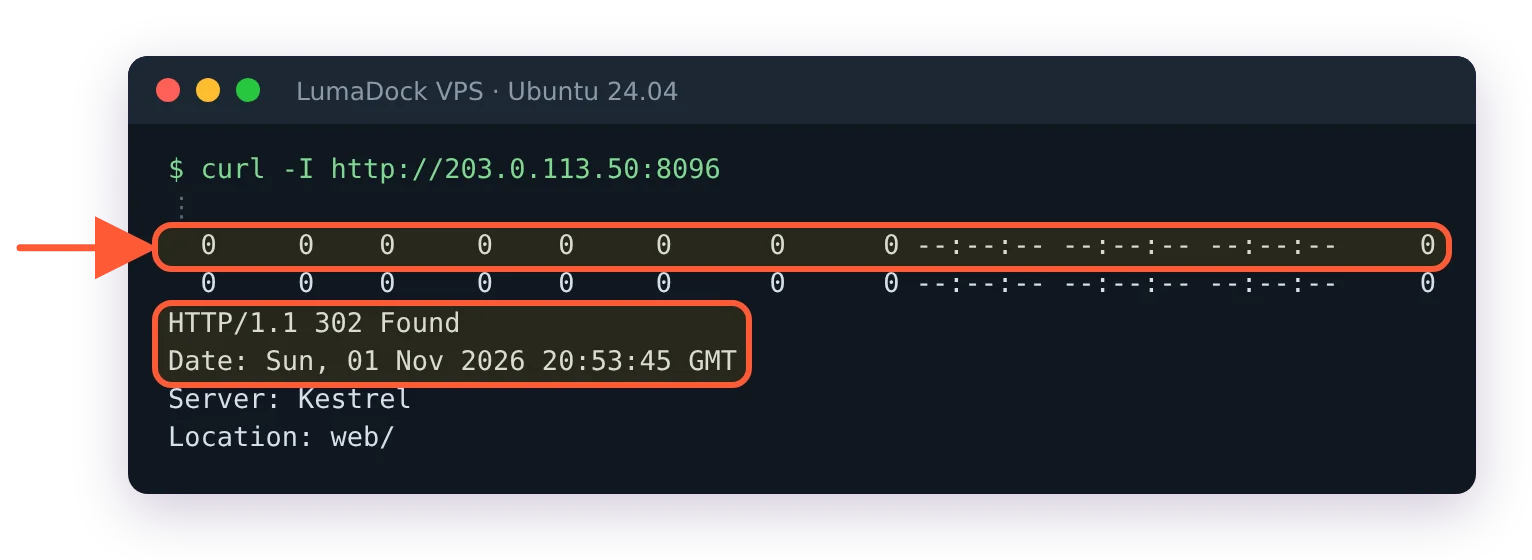
From another machine, curl -I http://SERVER_IP:8096 answers HTTP/1.1 302 Found with a redirect to web/ if the path is clear.

curl -I from another machine to port 8096 answers HTTP/1.1 302 Found, Server: Kestrel, Location: web/

From a second machine, port 8096 answered with a 302 redirect to web/.

Local yes, remote no means firewall or router; local no means Jellyfin isn't listening where you think, check Dashboard » Networking and the container mapping. That two-step test settles ninety percent of "is it the port?" mysteries before they cost an evening.

Questions?

Can I reach Jellyfin at a local name like jellyfin.lan?

Yes, with a local DNS entry that points the name at the server; Jellyfin's Networking docs use http://jellyfin.internal:8096 as the example. The same page warns that Chromecast and Google TV Streamer may ignore your network's DNS server and fail to resolve the name, and gives a workaround: publish an IPv6 record with a public DNS provider while the firewall keeps inbound traffic out. On a VPS an ordinary record for your domain does the job.

Ellie Grace Hayes
About the author

Ellie Grace Hayes

I grew up in Minnesota and started working remotely before I decided that travelling was going to become a permanent part of my life. And it kinda did, more or less... I tend to stay somewhere for a month or two, sometimes longer if I like the place (so "digital nomad" is technically accurate, even if most days are much less exciting than the term suggests). Usually I'm at a desk in a rented room trying to work out why a command behaved differently on two supposedly identical machines :)

I came into technical writing through support work & community tutorials. Linux was the first subject I wrote about, but since then I've wandered into containers, hosting, networking plus a lot of self-hosted software. I've played Minecraft since I was a kid and still go through phases where I get completely absorbed in it for a few weeks. I don't have a five-year plan. I've tried - it keeps becoming a six-month plan instead.

Never run out of space again

Keep backups, archives and media on reliable storage with unmetered bandwidth and a cost per gigabyte that stays low as the years add up. Your first VPS comes with a 30-day money-back guarantee.