

.svg)
.svg)
.svg)
.svg)

.svg)
.svg)
.svg)


Updated and tested 31 August 2026
The upgrade to 32 was supposed to take twenty minutes. Instead the updater died halfway through a migration, occ answered every command with "Nextcloud or one of the apps require upgrade - only a limited number of commands are available" and it was past 1 AM with the family calendar and a client's project files inside. What saved that Sunday (well, the following Sunday, the incident itself still ate one) was boring: a database dump from 01:30 that morning, an rsync copy of the data directory and a config folder in the restic repo. Restore, resync, back online before breakfast. I've cared about Nextcloud backups in a different way since.
This is the playbook I settled on. It's not clever. It's four things captured on a schedule, pushed offsite and restored twice a year as a drill.
The four things a Nextcloud backup must capture
The official backup documentation and my own scars agree on the list. First, the config/ folder, tiny and irreplaceable, because config.php holds the instance ID, the salt and the passwords that make your database and data directory belong to each other. Second, the data directory itself, which on my install is /srv/nextcloud-data (yours may be inside the webroot, check datadirectory in config.php). Third, the database, where shares, users, calendars, contacts and the file metadata cache live. Fourth, anything custom in apps/ or themes/, since a stock app can be re-downloaded but your patched theme can't.
The Nextcloud application directory itself doesn't make the list. It's a tar.bz2 on the mirror, identical for everyone running the same version. I still note the exact version next to each backup, because restoring a 34.0.3 database into a 34.0.1 tree is an argument you don't want to have at 2 AM.
There's also a fifth category no list mentions: the server config around Nextcloud. My Apache vhost, the PHP pool settings I've tuned and the www-data crontab all took real time to get right, so /etc/apache2/sites-available/ and a crontab -l -u www-data dump ride along in the same backup set. Rebuilding a server from a backup that contains everything except the config you spent an evening tuning is a special kind of annoying.
Consistent dumps with maintenance mode
Files and database describe each other, so backing them up at different moments creates a copy where the database mentions files that don't exist yet. For the nightly automated run I accept that tiny drift. For the weekly full backup, and always before upgrades, I flip maintenance mode on so nothing writes during the copy:
sudo -u www-data php /var/www/nextcloud/occ maintenance:mode --onThen dump the database with the flag that preserves 4-byte characters (emoji in file names are real, ask anyone with teenagers syncing a phone):
mysqldump --single-transaction --default-character-set=utf8mb4 \
  -u nextcloud -p nextcloud > nextcloud-db_$(date +%Y%m%d).sql
Postgres users swap in pg_dump and SQLite users copy one file, the docs show the exact equivalents.

mysqldump asks for the nextcloud user's password and writes a dated file; mine was 528 KB.
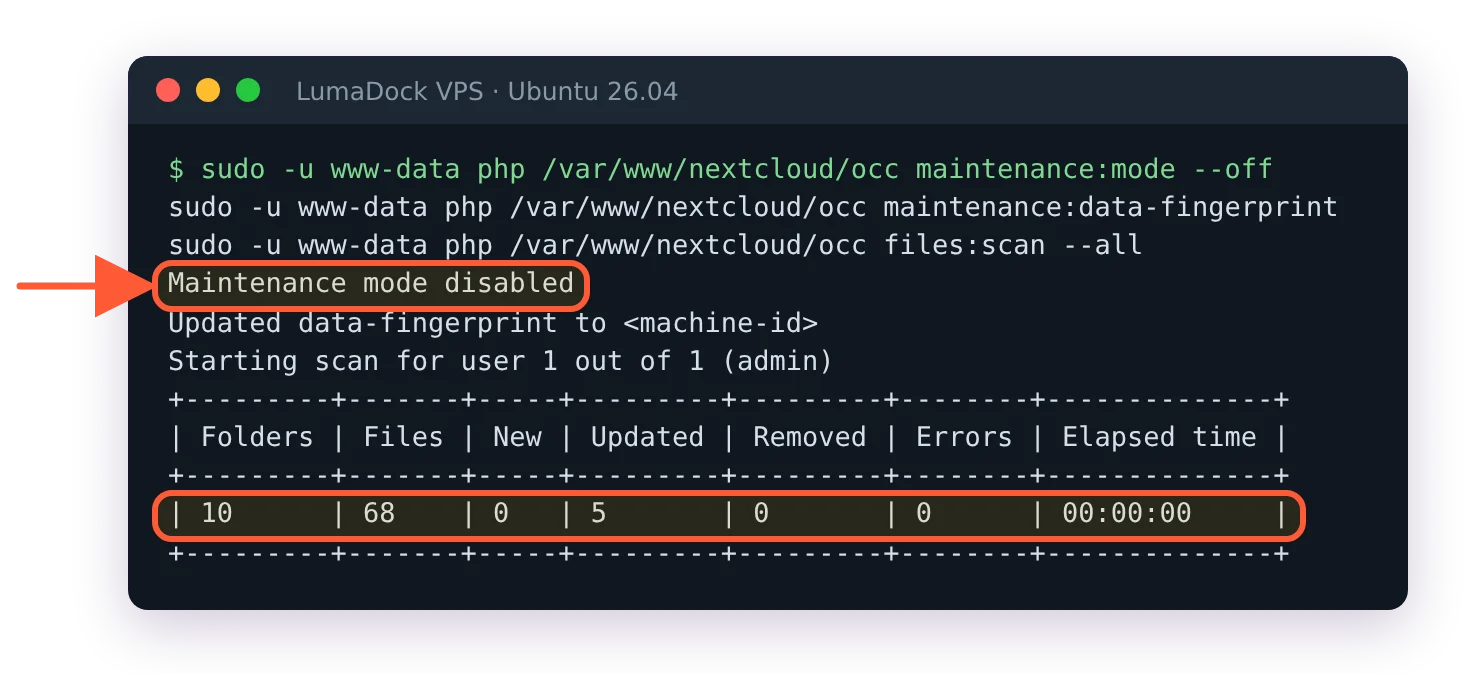
Afterwards, sudo -u www-data php /var/www/nextcloud/occ maintenance:mode --off brings the instance back. If it ever refuses to come back and clients keep seeing the maintenance page, that has its own set of causes and fixes, which I've collected in the guide to a Nextcloud stuck in maintenance mode.
Copying the data directory with rsync
For the file side, rsync with archive flags keeps ownership and permissions intact and only moves what changed since last night:
sudo mkdir -p /backup/dumps
sudo rsync -aHx --delete /srv/nextcloud-data/ /backup/nextcloud-data/
sudo rsync -a /var/www/nextcloud/config/ /backup/config/
sudo cp nextcloud-db_$(date +%Y%m%d).sql /backup/dumps/
On a fresh server /backup doesn't exist yet and rsync stops with mkdir "/backup/nextcloud-data" failed: No such file or directory, which is why the mkdir comes first. The second rsync keeps the copy of the config folder that the restore below reads, and the dump goes into /backup/dumps, where restic picks it up.
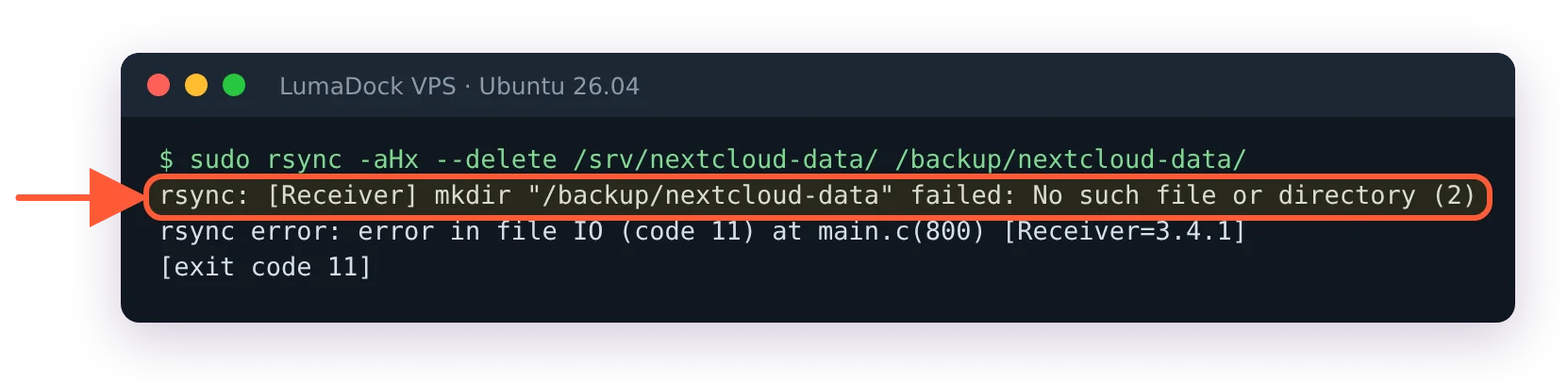
On a fresh server rsync stopped because /backup did not exist yet.
The trailing slashes matter, they're the difference between syncing contents and nesting a directory one level deeper every night. The --delete flag keeps the mirror honest; without it, files users deleted months ago pile up in the backup forever. One caveat: if you configured S3 as primary storage, your files aren't in a local directory at all and this section doesn't apply, the bucket and the database are the backup targets, a split I go into in the Nextcloud S3 primary storage guide.
Offsite with restic
A backup on the same machine survives a botched upgrade and nothing else. My actual habit is restic to an offsite repository: encrypted, deduplicated and cheap to run daily. With around 400 GB of photos and project files, the nightly restic run usually moves a few hundred megabytes and finishes in minutes, because dedup means unchanged files cost nothing.
restic isn't on a fresh Ubuntu 26.04 install, and a new repository needs one init before the first backup, or restic answers that the repository does not exist:
sudo apt install restic
restic -r sftp:[email protected]:/repo init
Then the nightly pair, backup and cleanup:
restic -r sftp:[email protected]:/repo backup \
  /srv/nextcloud-data /var/www/nextcloud/config /backup/dumps
restic -r sftp:[email protected]:/repo forget \
  --keep-daily 7 --keep-weekly 4 --keep-monthly 6 --prune
The retention line gives me a week of dailies, a month of weeklies and half a year of monthlies, which has covered every "when did this file disappear" question I've been asked. The repository end just needs disk and SSH; a storage VPS with a few terabytes of HDD is the natural home for it, and it's where my repo has lived for two years. Big media libraries deserve the same thinking on the primary side too: bulk data on bulk disk, database and OS on NVMe.
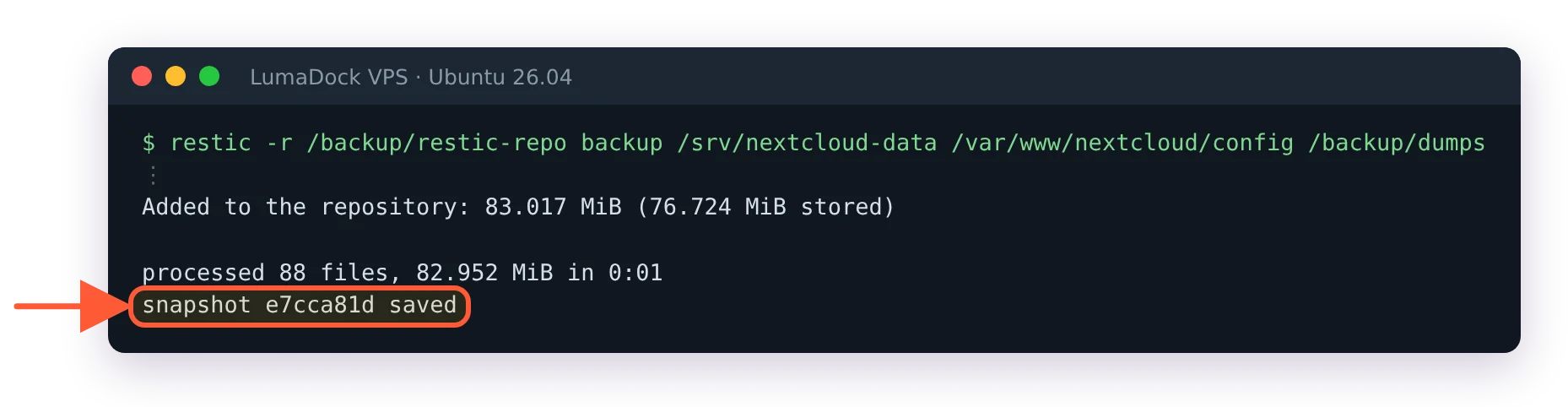
After restic init, the backup of the three folders went through; I tested with a local repository, not the SFTP one.
The schedule is plain cron on the Nextcloud host. At 01:30 a script flips maintenance mode on, dumps the database and flips it back off, a window of about two minutes that nobody has ever noticed. At 02:00 restic picks up the dump directory, the data directory and the config folder. That 01:30 dump is the exact file that rescued the botched 32 upgrade in the opening of this article, which is the closest a cron job has come to earning my personal gratitude. A monthly restic check, with the same -r repository option as the nightly run, rounds it out, verifying the repository isn't quietly rotting.