





.svg)
.svg)
.svg)
.svg)

.svg)
.svg)
.svg)


Updated and tested 29 October 2026
"Delete Jellyfin server" means two different things depending on who's asking: uninstalling the server software from a machine, or just removing a dead server entry from the app on your TV. Both live here, server surgery first. And one plea before any of it: if there's the faintest chance you'll want the watch history and users back someday, spend five minutes on a Jellyfin backup first. The archive costs nothing to keep and deleting without one is permanent in a way people only appreciate afterwards.
Uninstall Jellyfin on Ubuntu and Debian
A package install put three pieces on the system: the packages, the data and the repository definition. Copy anything you want to keep before you start: on my 12.4 server the purge below deleted the library database, the settings and the built-in backups in /var/lib/jellyfin/data/backups along with the packages. Removing all three, in that order:
sudo systemctl stop jellyfin
sudo apt purge jellyfin jellyfin-server jellyfin-web jellyfin-ffmpeg8
sudo apt autoremove
purge rather than remove takes the system config files with it. The ffmpeg package name carries a version suffix that moves over time (jellyfin-ffmpeg8 on 12.4; given the older ffmpeg7 name, apt only reports that it isn't installed and leaves the real one behind); apt list --installed | grep jellyfin shows exactly what's on your machine to purge.
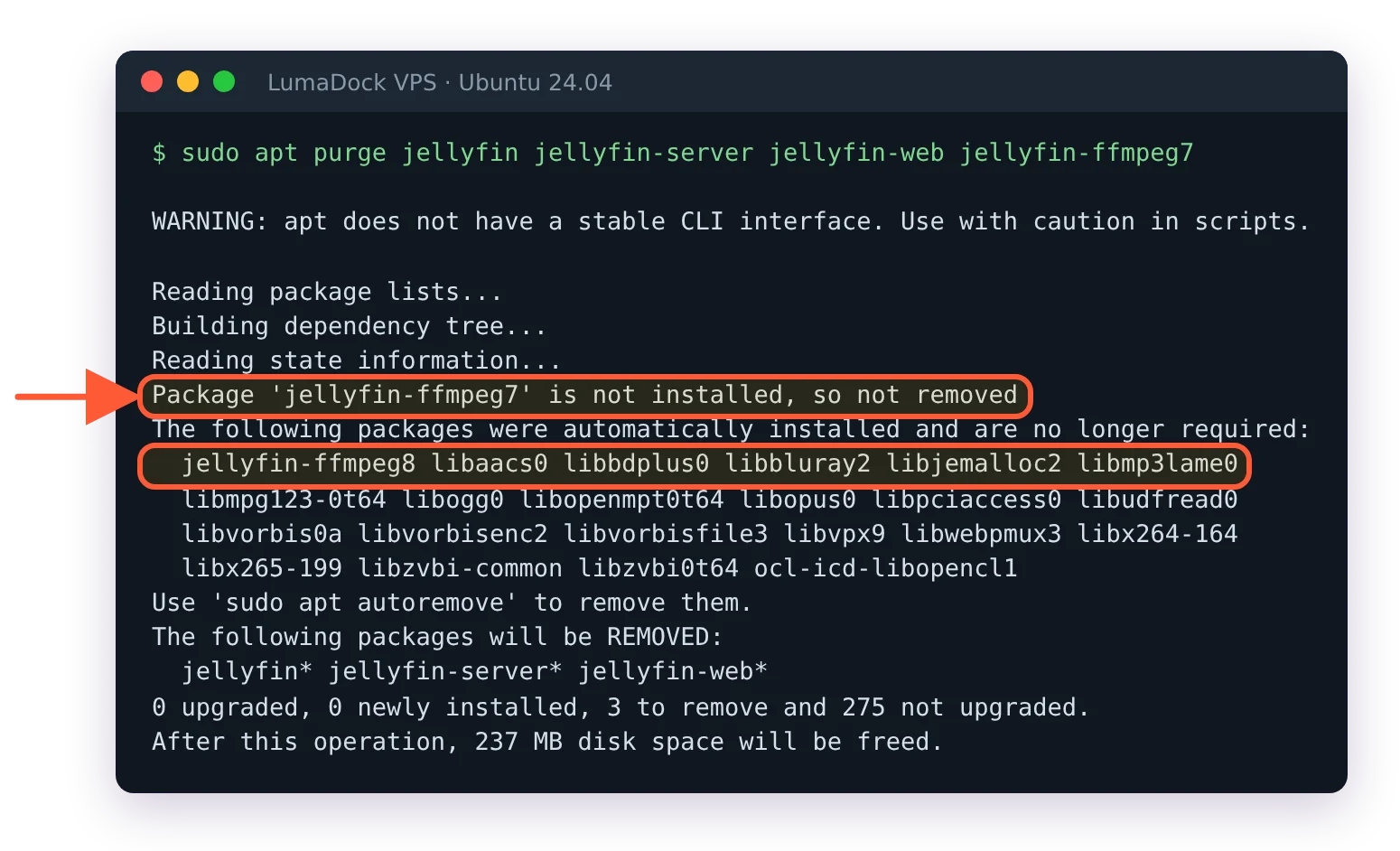
The old package name on a 12.4 server: apt skipped jellyfin-ffmpeg7 and left jellyfin-ffmpeg8 behind.
On my server the purge went beyond config files: /var/lib/jellyfin, /etc/jellyfin, the cache, the logs and the jellyfin user were already gone afterwards. If anything is left over on yours, take it out explicitly:
sudo rm -rf /var/lib/jellyfin /etc/jellyfin /var/cache/jellyfin /var/log/jellyfinThat's where the real disk space comes back; metadata images for a big library run to gigabytes, all of it under /var/lib/jellyfin. Your media files are untouched by any of this, Jellyfin never owned them.

What was left after apt purge on my 12.4 server, checked before any rm.
Last crumbs, the repo definition (the purge leaves it in place) and the service user if it survived:
sudo rm -f /etc/apt/sources.list.d/jellyfin.sources /etc/apt/keyrings/jellyfin.gpg
sudo deluser jellyfin 2>/dev/null
Repo file naming varies slightly by install era (older setups used jellyfin.list); ls /etc/apt/sources.list.d/ shows what's there. That's a complete removal, and a later reinstall starts genuinely fresh.
Delete a Docker Jellyfin
The container route earns its keep at exactly this moment. From the compose directory:
docker compose down
docker rmi jellyfin/jellyfin
Then delete the mounted folders, your ./config and ./cache or wherever the compose file pointed them: sudo rm -rf ./config ./cache from the compose directory (the container creates them as root). If the setup used named volumes instead of bind mounts, docker volume ls lists them and docker volume rm VOLUME_NAME removes each one; without a name, docker volume rm only prints its usage.
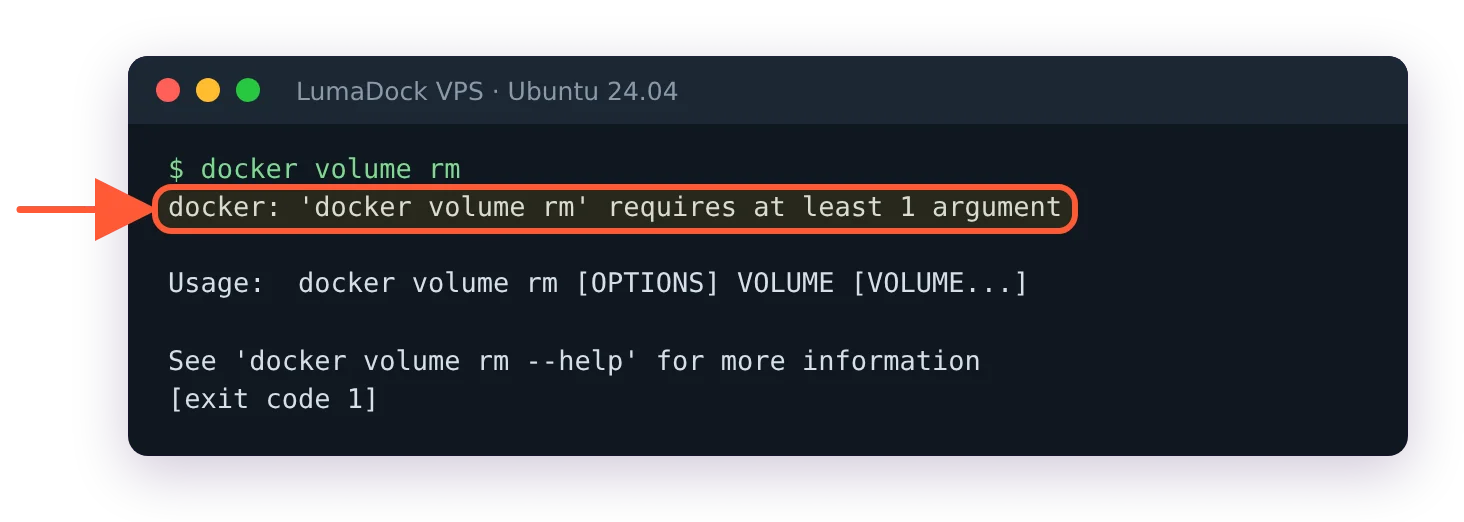
docker volume rm on its own only prints its usage; it needs the volume name.
Thirty seconds, nothing scattered across the filesystem, which is roughly half my argument for containers in the first place, made back in the install guide.
Uninstall Jellyfin on Windows
Windows: uninstall through Settings » Apps as usual, then delete the leftover data at %ProgramData%\Jellyfin (tray-style installs) or %LocalAppData%\jellyfin. The data-outlives-uninstall pattern is universal across platforms, so whatever the OS, the second step is finding and removing the data directory.
And if the "server" was a rented VPS running only Jellyfin, skip the surgery: destroy the instance from the provider panel and the entire machine ceases to exist, which is the cleanest uninstall ever invented.
Remove a server from the Jellyfin app (Fire TV and friends)
Now the other meaning: your Fire Stick's Jellyfin app still lists an old server (dead IP, retired NAS, ex-friend's box) and you want the entry gone. In the current apps: from the server select screen, long-press the server entry (or its edit icon) and choose the remove option; on clients without a visible list, sign out and you'll land back on server selection where entries can be managed. The stubborn cases where a phantom server refuses to leave are cached-data cases: Fire TV Settings » Applications » Manage Installed Applications » Jellyfin » Clear data, and the app forgets every server and starts clean. Clearing data also logs you out of your real server, so have the address and password ready to re-add.
Uninstalling the app itself (long-press the icon on the Fire TV home screen » uninstall) is only necessary when you're done with Jellyfin on that device entirely; for clearing a bad server entry it's the sledgehammer version of the clear-data step.
Verify the removal
Server side: systemctl status jellyfin should report the unit as not-found rather than stopped, port 8096 should refuse connections (curl http://localhost:8096 errors out) and du -sh /var/lib/jellyfin should say no such directory. Client side: the app's server list shows only what you kept. If some other machine on the network still shows the old server, that client cached it too; same clear-data cure. Delete confirmed, disk back, no ghosts.