Smart search: find photos by describing them
The search bar is Immich's best feature and the least discovered. It runs semantic (CLIP-based) search over image content, so you type what you remember, not what you tagged: "kids in the pool", "red car in the snow", "birthday cake candles". Nobody labeled anything; the machine-learning container indexed it all during backup. Search ranks by similarity and shows the whole library in that order: on my test library "waterfall" put the two waterfall photos first and every other photo after them. Search also filters by people, places, dates and cameras, and the filters stack, so "beach" plus a person plus 2024 narrows three ways at once.
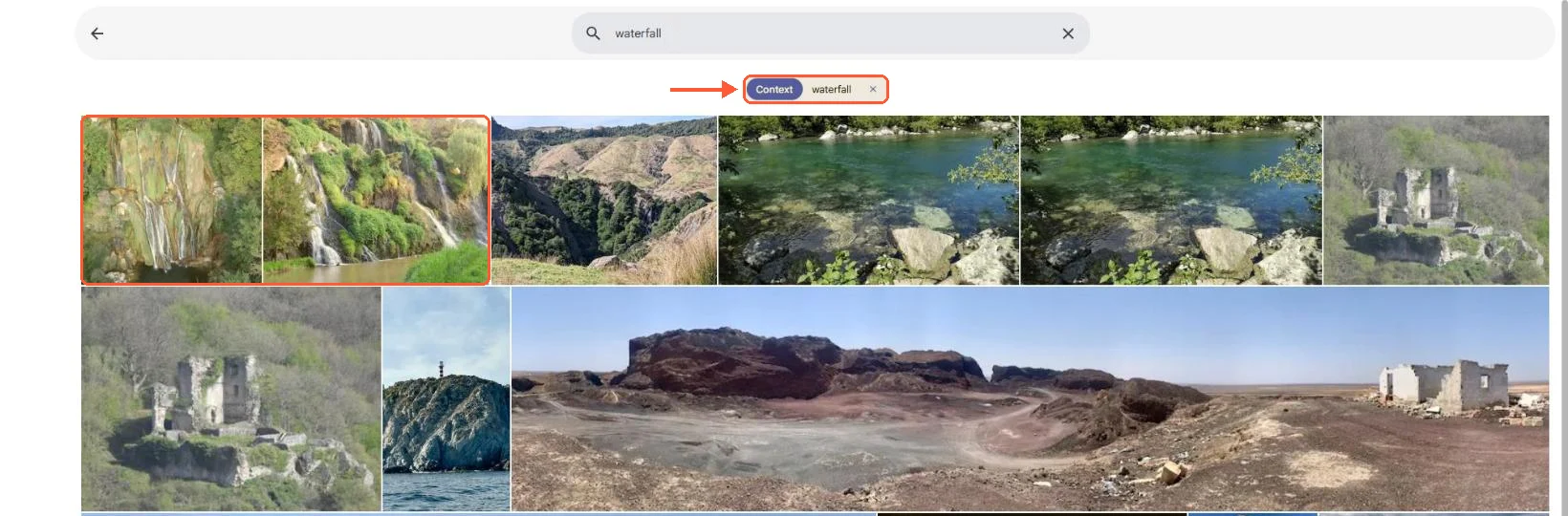
Searching "waterfall" on my test library put the two waterfalls first and then showed every other photo in ranked order.
Face recognition powers the people side. Visit Explore » People, name the faces Immich clustered and searches like "grandma at Christmas" start working. Merge duplicate face clusters when you see them (same person, two entries, the merge button sorts it) and hide the faces you don't care to index. The clustering runs as background jobs, so on a fresh library give it a day before judging accuracy.
Albums, share links and partner sharing
Albums work as expected (select photos, add to album, done), with the useful twist that albums can be shared three different ways and each fits a different person in your life:
- Shared albums with other accounts on your server: both people add photos, comments and likes work, right answer for the household.
- Public share links for people with no account: send grandma a link, optionally with a password and expiry, she sees the album in a browser and can even upload back into it if you allow it.
- Partner sharing, the one people miss: your partner's account grants you a live view of their entire timeline (and vice versa), no album curation required. For couples this replaces the "send me those photos" ritual entirely, and it's under account settings » sharing, not in the album UI at all.
Memories, map view, duplicates and archive
A few things worth switching on or knowing about, in the rough order I show people. Memories, the "one year ago" lane at the top of the timeline, is on by default and the reason to open the app with coffee. The Map page plots everything with GPS data and quietly becomes the best travel journal you didn't keep. The duplicate detection utility (Utilities » Duplicates) finds the copies your years of phone migrations created and lets you resolve them in bulk. It also pairs external-library files with uploaded copies of the same photo; on my server two of its three groups were exactly that. Archive hides photos from the timeline without deleting (screenshots, receipts, the documents you photograph), and favorites plus the trash's 30-day grace period behave exactly as you'd hope.
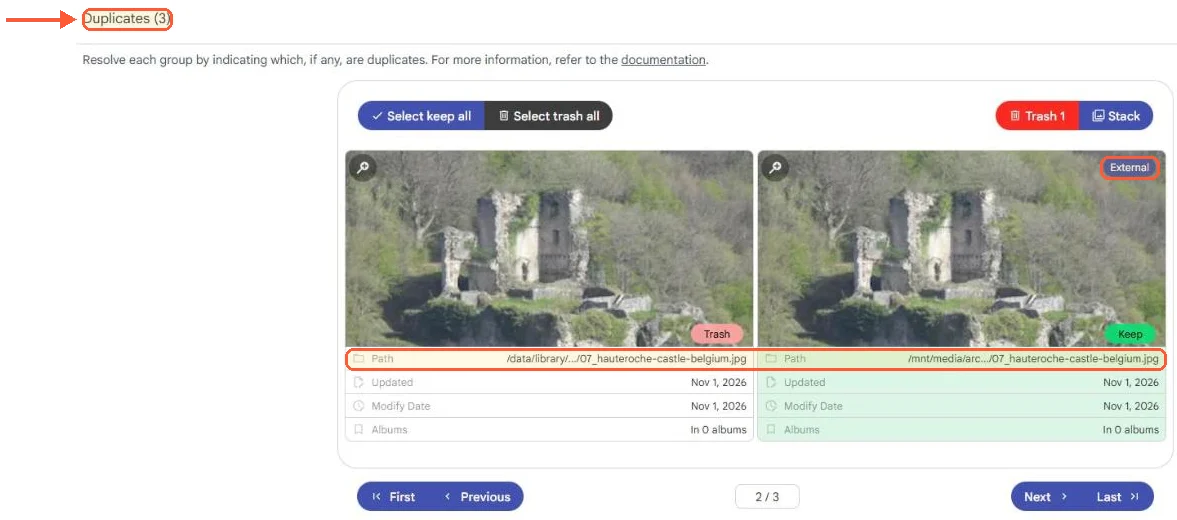
Two of the three duplicate groups on my server were uploads paired with their external-library copies.
Quota-wise, admins can cap each user's storage in Administration » Users, worth setting before your brother-in-law backs up his drone footage. And everything above works identically in the web UI at your server's address, which is where bulk operations (multi-select with shift-click, drag-select) go much faster than on a phone screen.
A day-to-day Immich routine
The steady state we've settled into after a couple of years: phones back up automatically, nobody uploads manually. Albums get made for events, partner sharing covers the everyday stream. Once a month someone runs the duplicates utility and empties the trash. The admin (me) reads release notes before updating, because Immich ships features fast and the occasional breaking change with them; the safe routine lives in our Immich update guide. And the whole arrangement sits behind HTTPS with real backups running, since a photo library is the one dataset in the house nobody's allowed to lose.
That's the honest answer to how to use Immich: set the backup correctly, name the faces, share with the people who matter and let the ML do the organizing you were never going to do by hand. The app fades into infrastructure, which is the highest compliment self-hosted software gets. If yours is still on the todo list, an Immich VPS plan can deploy it from a one-click template.






.svg)
.svg)
.svg)
.svg)

.svg)
.svg)
.svg)