





.svg)
.svg)
.svg)
.svg)

.svg)
.svg)
.svg)


Updated and tested 30 September 2026
Which Debian releases can install Webmin? All of them. Webmin's apt repository doesn't key off your Debian codename in any way. There is one suite, called stable, the packages are architecture-independent _all.deb files, and the identical repository line works on bookworm, on trixie and on whatever comes after. You will never be waiting for Webmin to add support for a Debian version. To install Webmin on Debian 12 or 13 you add that repository once and run apt.
Everything below behaves the same on a Debian VPS as it does on hardware in a rack. Two things differ between a Webmin installation on Debian and the same job on Ubuntu: the name of the keyring file the setup script writes, and which account works at the login screen. Both are covered below.
Debian 12, Debian 13 and where Webmin fits
As of October 2026, Debian 13 trixie is the current stable release (its latest point release, 13.7, came out on 12 September 2026), Debian 12 bookworm is oldstable and Debian 14 forky sits in testing, which you can confirm on the Debian releases page. Webmin installs identically on 12 and 13, and it'll go on to an 11 box too if you're still nursing one.
Debian's release names all come out of Toy Story, which is how testing ended up called forky. Sid, the branch that is permanently unstable by design, is named after the kid next door who breaks his toys. None of this changes the install.
What you can't do is install Webmin from Debian's own archive. It was dropped from Debian testing on 26 January 2006 and never returned. The Debian package tracker states flatly that the package is not part of any Debian distribution, which covers bookworm, trixie, forky and sid. So apt install webmin on a fresh machine gives you E: Unable to locate package webmin until you add the vendor's repository, which the Webmin developers maintain themselves and which is the only supported way in.
Add the Webmin repository on Debian
The setup script needs curl at /usr/bin/curl, and a Debian netinst without any tasks selected frequently doesn't have it. Install curl, pull the script down and run the lot as root:
apt update
apt install -y curl
curl -o webmin-setup-repo.sh https://raw.githubusercontent.com/webmin/webmin/master/webmin-setup-repo.sh
sh webmin-setup-repo.sh
The script prompts before writing anything and defaults to the stable channel, which is built with extra testing and is what you want on a machine that matters. Pass -f to skip the confirmation in an unattended run. There are --prerelease and --unstable channels as well, built from the latest tag and the latest commit respectively, and both are for reproducing a bug report on a throwaway box.
People argue about downloading the script to a file versus piping the URL into a shell. Both end up running the same code as root. I haven't got a view on it.
The files it writes
You end up with /etc/apt/sources.list.d/webmin-stable.list and a keyring at /usr/share/keyrings/debian-webmin-developers.gpg. That keyring filename is derived from the distribution ID, so the Ubuntu machine sitting next to this one has the same key under the name ubuntu-webmin-developers.gpg. Copying a sources line between the two without editing the signed-by= path is a reliable way to spend ten minutes puzzling over a signature error, and I've done it more than once.
deb [signed-by=/usr/share/keyrings/debian-webmin-developers.gpg] https://download.webmin.com/download/newkey/repository stable contribA third file goes to /etc/apt/preferences.d/debian-stable-package-priority, an ordinary apt pin carrying Package:, Pin: and Pin-Priority: at the default 500. Ignore it. Priority 500 is what apt already hands a normal repository, so the file changes nothing and there is no reason to think about it again.
The key itself is converted with gpg --dearmor and left readable at mode 644, which is what apt expects of a keyring referenced by signed-by=. Nothing is written to /etc/apt/trusted.gpg.d/ and apt-key is never invoked, so any guide from the mid-2010s that has you adding keys to the global trust store is describing software that no longer works that way.
Confirm apt has picked all of that up before you install:
apt update
apt-cache policy webmin
A candidate version with a download.webmin.com origin under it means you're ready to go. If the candidate is (none), the sources file is missing or apt update hasn't run since it appeared.
Install the Webmin package on Debian
apt-get install webmin --install-recommendsKeep the --install-recommends. Webmin's recommends are the Perl and system packages that its modules invoke behind the scenes, and dropping them leaves you with an install where a good half of the pages throw errors the moment you click into them. Recommends are on by default in a normal Debian install, so the flag is really insurance against a stripped base image or a policy file that has switched them off.
Debian gets the same build as every other platform, currently the 2.6x line, at 2.670 (released on 20 September 2026) after a steady run of roughly monthly releases through the year. It is the same _all.deb the Ubuntu boxes get, because there is no codename and no architecture anywhere in the repository path.
Program files land under /usr/share/webmin and the configuration is in /etc/webmin, the one path that is identical across every distribution. Inside it, miniserv.conf configures the built-in web server, miniserv.users is the user database and config stores core and module settings. A set of helper scripts sits in the same directory, of which /etc/webmin/restart is the one you'll reach for after editing miniserv.conf in an editor.
First login on Debian
Browse to https://YOUR_SERVER_IP:10000. Installation generates a self-signed certificate, so the browser interrupts you once with a warning before it lets the page through. Accept it for now and put a real certificate on the hostname later.
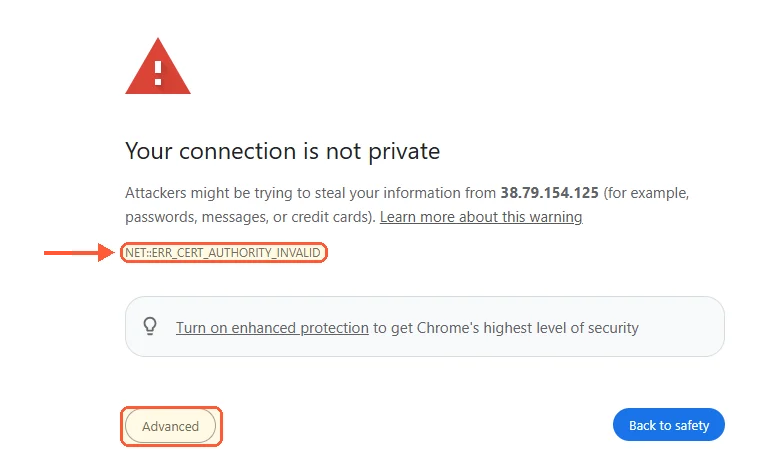
Chrome flags the self-signed certificate Webmin makes at install, on Debian as on any other system.
Here is where Debian and Ubuntu part company. The Ubuntu 24.04 install guide sends you to your sudo account, because Ubuntu leaves root locked. Debian's installer asks you to set a root password during setup, so on a machine built that way root has a password and logging in as root with it works on the first try. Webmin ships with no built-in credentials whatsoever, and the single account it creates at install time authenticates against a Unix account of the same name.
Cloud images muddy that a little. The guide to the Webmin default login and password goes through the account model in full, including the shell command that resets it when you've locked yourself out. If your Debian came from a provider image and not the installer, root often has no password there either, so use your sudo user and its system password. You are typing system credentials into that form in every one of these cases.
Let port 10000 through the firewall
Debian doesn't enable a host firewall by default, so on a plain install the login page loads and there's nothing to do in this section. If you've set one up, or your provider's image ships one, here are the two cases you're likely to be in.
nftables
Debian 12 and 13 both use nftables as the kernel firewall framework. If you're writing rules directly rather than through a front end, look at what's loaded before you add anything:
nft list rulesetThen add an accept rule for the port to whichever input chain is dropping traffic. Table and chain names vary between rulesets, so match the names to what the listing showed you and don't paste mine blindly:
nft add rule inet filter input tcp dport 10000 ct state new acceptThat takes effect immediately and disappears on reboot. Write it into the file your ruleset loads from, normally /etc/nftables.conf, to make it survive.
UFW
ufw allow 10000/tcpUFW is in Debian's archive and it's the quicker option when there's no nftables ruleset you care about. Putting CrowdSec on Debian in front of it deals with the noise from the other direction, and plenty of people move Webmin off its default port entirely, which is what the guide to changing Webmin's port away from 10000 covers. Narrow the rule to your own address where you can, with ufw allow from 203.0.113.42 to any port 10000 proto tcp, because an open management port on a public IP starts appearing in scan logs within hours of the machine coming up.
Both of those only govern the host itself. Anything your provider runs in front of the VM is a separate layer with its own rules, and forgetting it is the usual reason a correctly configured UFW still leaves you looking at a timeout.

