


.svg)
.svg)
.svg)
.svg)

.svg)
.svg)
.svg)

Updated and tested 17 September 2026
Nextcloud AIO leads a strange double life. It sits in the official docs as the recommended install method, and it's also the most argued-about container in r/selfhosted, where every thread about it splits into two camps within ten replies. One camp got Talk, Office and encrypted backups running in an afternoon and can't understand the complaints. The other camp watched a mastercontainer claim their Docker host and fight their reverse proxy for a whole weekend. Both camps are right. They're running different servers, and which one yours resembles is the entire decision.
My own instance is a manual install, Apache with PHP-FPM, MariaDB and Redis on a 4 GB VPS, running since around version 24. I'd still hand AIO to a friend who wants files synced and runs nothing else on the box. Holding both opinions at once takes some explaining, so here's the long version.
What Nextcloud AIO is
All-in-One is a mastercontainer. You start one Docker container, hand it the Docker socket, and it pulls and manages the rest of the stack for you: Nextcloud itself, PostgreSQL, Redis with APCu and notify_push for fast file change notifications. Then come the optional containers you toggle from its web interface, and this list is where AIO gets attractive: Talk with its own TURN server, document editing (Euro-Office out of the box, Collabora if you switch), Borg-based backups, Imaginary for fast previews, ClamAV scanning, a whiteboard and Elasticsearch full text search. The AIO readme documents every container and flag, and it's genuinely good documentation, if long. On the fresh AIO I set up for this guide, Talk, Imaginary, the whiteboard and Euro-Office came switched on, while ClamAV, full text search and Talk recording stayed off until ticked.
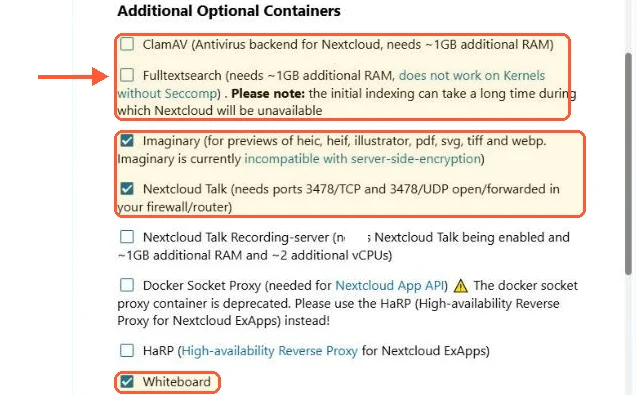
Out of the box AIO ticked Imaginary, Talk and the whiteboard and left ClamAV and full text search off.
The mastercontainer serves its own admin interface on port 8080 (self-signed certificate) or 8443 with a valid one, the bundled Apache container takes 443 and Talk wants 3478. Read that port list again. AIO expects to be the thing answering on your server's web ports.
The first visit has two traps. After you accept the self-signed certificate warning, type the address (https://your-server-ip:8080) into the address bar again yourself: on my server the browser's own "proceed" link, and any other address I didn't type by hand, got a plain "Forbidden". AIO also shows its passphrase only once. If you miss it, read it back on the server:
sudo docker exec nextcloud-aio-mastercontainer grep password /mnt/docker-aio-config/data/configuration.jsonThe next screen installs Nextcloud Hub 26 Spring (34) unless you tick "Install Nextcloud Hub 26 Summer". Moving to 35 later is a separate button in the AIO interface, with a backup warning next to it.
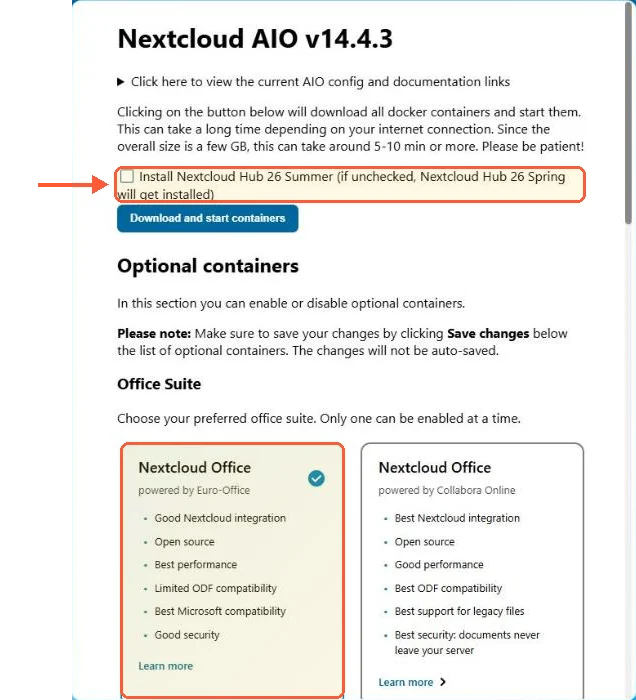
The AIO start page on my server: Hub 26 Summer unticked and Euro-Office preselected as the office suite.
On my server the pull and first start took about ten minutes. The containers page then showed the initial admin password in clear, so change it after the first login under Personal settings, Security.
What AIO does well
Updates first. The AIO interface has a button that updates every container in the correct order, database included, and it works. Compare that with a manual major upgrade: release notes, a PHP version check, occ upgrade and a nervous eye on the log until it finishes.
Second, Talk. Getting Nextcloud Talk working on a manual install means running coturn yourself, opening its ports and then debugging why calls connect on office WiFi and die on mobile data. AIO ships Talk with TURN already wired. For a family that wants video calls with their files, that alone can justify the whole model.
Third, backups. Flip a switch, set a passphrase, point it at a second disk, and AIO runs BorgBackup for the entire stack: deduplicated, encrypted and restorable from the same interface. Keep that passphrase somewhere off the server, since a Borg archive without it is a paperweight.
And a smaller fourth: sane defaults everywhere. Redis caching, background jobs, preview handling and the database config all arrive already set the way the docs recommend, which quietly removes the top five mistakes I see in fresh manual installs.
Where AIO bites
Everything above assumes AIO owns the box. The moment it doesn't, friction starts, and it starts early: during setup the mastercontainer validates that your domain reaches it on the expected port. On a clean VPS with a public IP and correct DNS, that check passes in seconds. Behind NAT, behind a CDN proxy or on a LAN with split DNS, it fails in ways that keep the project's issue tracker busy. The escape hatch is SKIP_DOMAIN_VALIDATION=true as an environment variable on the mastercontainer, and it exists precisely because enough people needed it.
The bigger collision is an existing reverse proxy. If nginx, Caddy or Traefik already answers on 443 for your other services, AIO's Apache container can't have the port, so you start the mastercontainer with APACHE_PORT=11000 and APACHE_IP_BINDING=0.0.0.0 (or 127.0.0.1 when the proxy is local) and point your proxy at that port. This works, I've set it up for someone else's server, but the AIO reverse proxy documentation deserves a slow, complete read before you type anything. Half the broken AIO-behind-proxy setups I've seen trace back to someone skimming that page and improvising the headers.
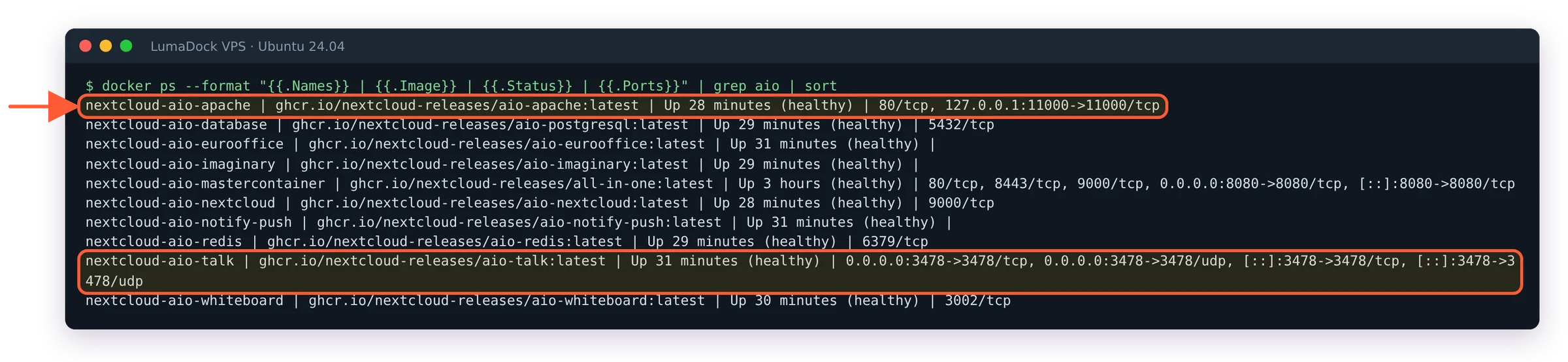
With APACHE_PORT=11000 and APACHE_IP_BINDING=127.0.0.1, the Apache container listened only on localhost, ready for the proxy.
Watch Client Push on that route. On my server it sat at "Starting" in the AIO interface until the proxy served the domain, and its self-test then reported a trusted-proxy problem. If yours does the same, run the self-test and follow its hint:
sudo docker exec --user www-data nextcloud-aio-nextcloud php occ notify_push:self-test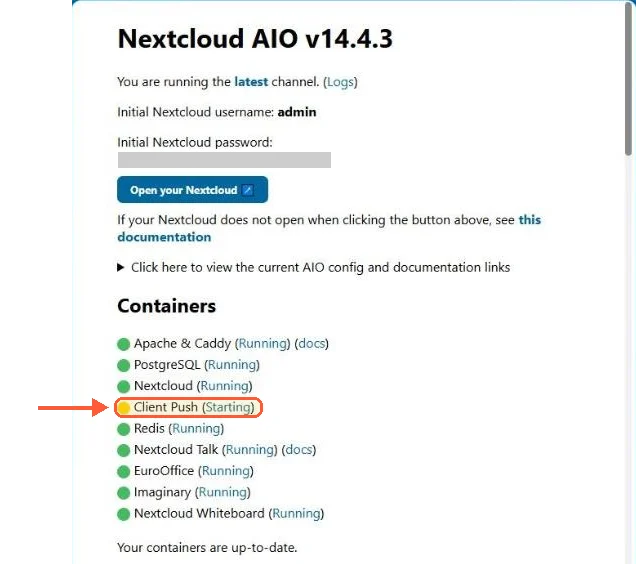
Before the proxy served the domain, Client Push stayed at Starting while every other container ran.
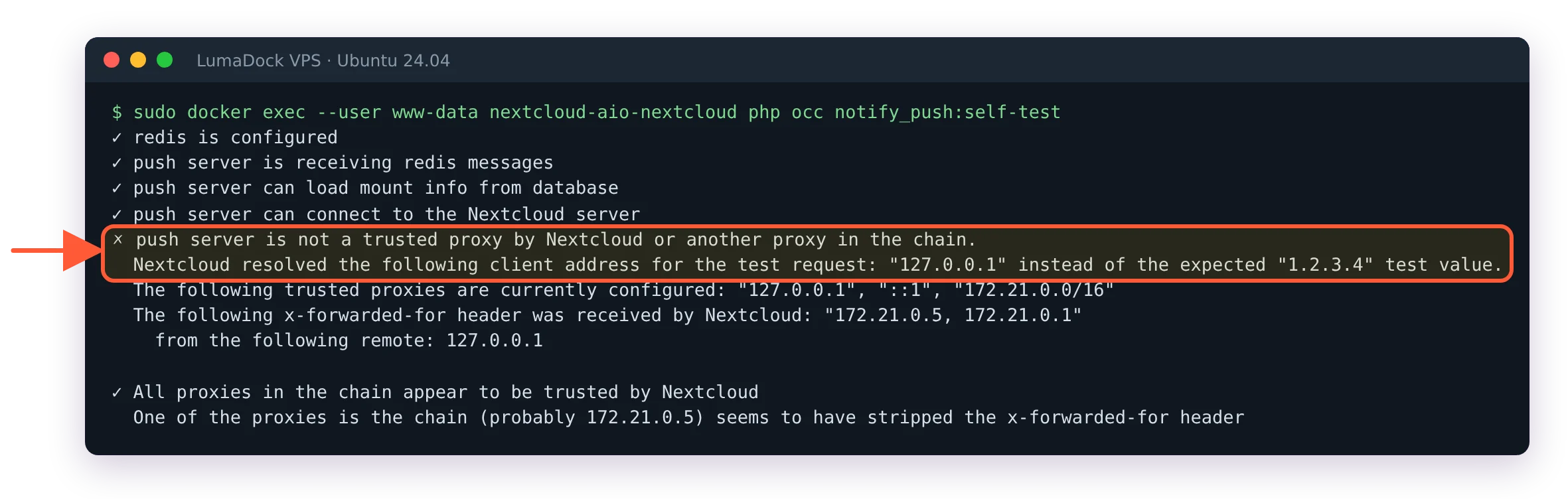
Behind my proxy the push self-test passed the first four checks and then named the problem.
There's also the philosophical bite. AIO manages containers through the Docker socket, decides their names and networks, and assumes its own update flow. If you're the kind of person who wants to know why a container restarted, you'll spend time learning AIO's logic on top of Docker's (I did, and it's coherent logic, but it's an extra layer of it).
What manual and compose give you instead
Control, mostly, plus the ability to share a server. With a manual install, which I've covered step by step in installing Nextcloud on Ubuntu, you know every layer because you placed it there: the Apache vhost, the PHP-FPM pool, the MariaDB database, the Redis socket. When something 500s at 2 AM there's no abstraction between you and the config file. You also get choices AIO doesn't offer. MariaDB instead of PostgreSQL is the one I care about, since it's what the docs default to and what most guides assume, though the Postgres people have a fair point about its query planner. The official source installation page is the reference for the manual path.
Compose sits in between, and for a Docker host that runs other things it's my default answer. My Nextcloud Docker Compose guide builds the stack from the official image: standard tooling, a normal docker compose pull update path and peaceful coexistence with every other container behind your existing reverse proxy. Nothing claims the Docker socket. Nothing validates your domain for you. It's boring in the way infrastructure should be boring.
Updates: The button vs apt vs an image bump
The three update models are honestly the clearest lens for this decision. AIO gives you one button (or a scheduled daily window) that updates containers in dependency order. Manual gives you apt for the OS layer plus occ upgrade for Nextcloud itself, which is more work and more visibility in equal measure. Compose gives you an image tag bump and a recreate, with the entrypoint running the upgrade routine on first start. All three work. The difference is what happens when an update goes wrong: on AIO you're reading someone else's orchestration logs, on manual you're reading your own upgrade log with full context, on compose you're somewhere in between with the option of pinning the previous image tag while you think. After losing a Sunday to a stuck upgrade at version 32, I'll take the visibility.