


.svg)
.svg)
.svg)
.svg)

.svg)
.svg)
.svg)


Updated and tested 18 August 2026
Last background job execution ran 4 hours ago. Something seems wrong. If your admin overview shows that line, background jobs on your instance are stalled, and this is a five minute fix, not a fifteen minute one. The fix is almost always the same: stop relying on AJAX mode and give the system a real cron job. I'll cover the crontab line, the logging mistake that stops it without a word, the APCu flag older releases needed and the Docker variants.
What Nextcloud background jobs do
A surprising amount of Nextcloud runs outside the request cycle. Background jobs expire the trash bin and old file versions, scan for changed files, send activity and share notification mails and run whatever the installed apps queue up (the mail app fetches on a job, preview pre-generation runs on a job, calendar reminders go out on a job). None of it is optional in practice. When jobs stop, the instance keeps working in the sense that files sync, while everything time-based quietly stops happening underneath.
The heavier housekeeping jobs also respect a maintenance window, so they can be herded into the small hours instead of competing with your users at 14:00. Setting the window's start hour is one command:
sudo -u www-data php /var/www/nextcloud/occ config:system:set maintenance_window_start --type=integer --value=1The value is an hour in UTC, so 1 means the expensive jobs begin at 01:00 UTC. On my instance the difference is visible in the morning load graphs, a fat spike at night and a flat line during the day, exactly where I want it. The window only gates jobs flagged as time-insensitive; anything user-facing, reminders and notifications included, still runs on the normal five minute cycle.
AJAX, webcron and cron: Pick cron every time
Nextcloud offers three execution modes, described in the background jobs configuration docs. AJAX is the default and it's a trap on small instances: it piggybacks one job onto page visits, so jobs only run while somebody has the web UI open in a browser. A family instance where everyone uses the mobile and desktop clients can go days without a single UI visit. Days without jobs. Webcron has an external service hit cron.php over HTTP on a schedule, which works and has one legitimate niche: shared hosting where you can't touch the crontab. On a server you administer, it's an outside dependency doing badly what one crontab line does well. System cron is what I run everywhere and what the docs themselves call the preferred method, since it executes on schedule regardless of who's logged in and runs with CLI limits instead of web request timeouts, so a long file scan can finish.
The mode switch lives in Administration settings under Basic settings, or from the shell:
sudo -u www-data php /var/www/nextcloud/occ background:cronThe first cron.php run from the command line switches the mode to Cron by itself, too, as it did on my test server. There are matching background:ajax and background:webcron commands, and the general shape of running these is in the occ command documentation.
The crontab line for www-data
The job has to run as the same user that owns the files, which on the stack from my Nextcloud install guide for Ubuntu is www-data. Edit that user's crontab, not root's:
sudo crontab -u www-data -eOne line does it:
*/5 * * * * php -f /var/www/nextcloud/cron.phpAdjust the path if your installation lives elsewhere. Every five minutes is the standard interval; the runner picks jobs off a queue, so a tighter schedule buys nothing. Confirm the line took with sudo crontab -l -u www-data, then wait five minutes.
Two small refinements from experience. Cron runs with a minimal PATH, so if your PHP lives somewhere unusual, write /usr/bin/php in full (on Ubuntu the plain php resolves fine). And while debugging, temporarily redirect the output so failures stop being invisible. www-data can't create files in /var/log, so create the log file first:
sudo touch /var/log/nextcloud-cron.log
sudo chown www-data /var/log/nextcloud-cron.log
Then the debug line goes into www-data's crontab:
*/5 * * * * php -f /var/www/nextcloud/cron.php >> /var/log/nextcloud-cron.log 2>&1Skip the first step and the redirect fails before PHP even starts. On my server the log file never appeared, cron threw the error away ("No MTA installed, discarding output") and background jobs stopped running.
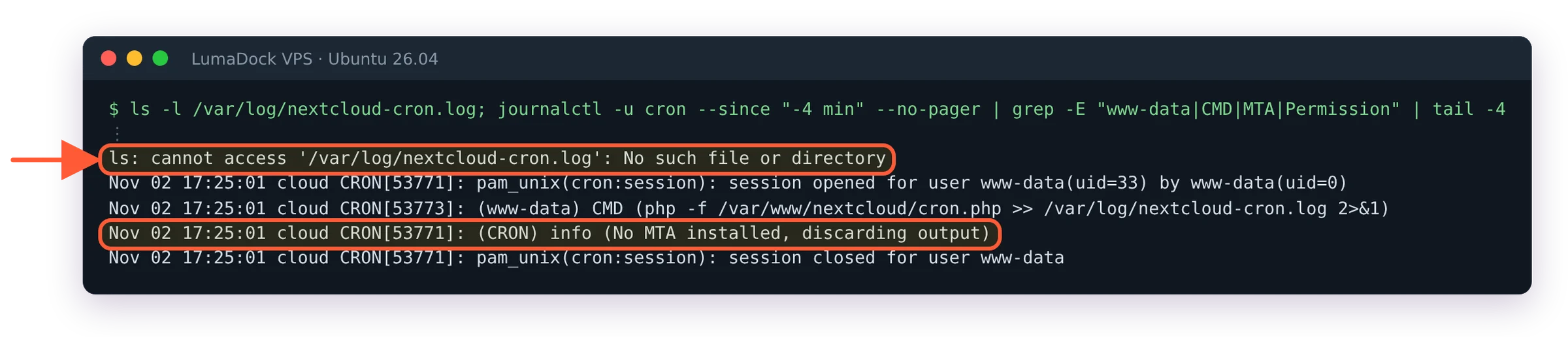
With the redirect pointing at /var/log, cron ran the line, the log file never appeared and the output was thrown away.
A healthy run writes nothing, which makes the log file a cheap dead-man's switch: if it starts growing, something inside cron.php is complaining. I drop the redirect again once things are stable, otherwise logrotate gains one more file to babysit.
apc.enable_cli and cron.php on current releases
This one used to generate most of the "nextcloud cron jobs not running" search traffic. PHP disables APCu for the CLI by default, and on older releases, with config.php setting 'memcache.local' to APCu, cron.php aborted with an error about \OC\Memcache\APCu not being available while the website worked perfectly. Since cron output goes nowhere by default, nothing told you. Current releases fall back instead: on my server, with Nextcloud 34.0.3, PHP 8.5.4 and apc.enable_cli off, cron.php exited 0 and the jobs ran.
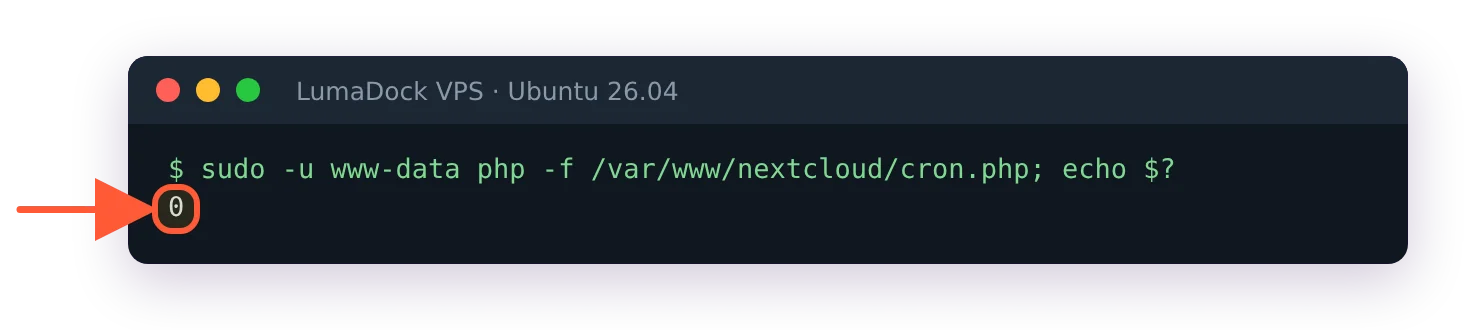
With apc.enable_cli still off, cron.php ran by hand on my server and exited 0.
Setting the flag costs nothing, and it's one line for the CLI configuration on PHP 8.5:
echo 'apc.enable_cli=1' | sudo tee -a /etc/php/8.5/mods-available/apcu.iniThen run the job once by hand and check the exit code:
sudo -u www-data php -f /var/www/nextcloud/cron.php; echo $?Silence followed by 0 means it worked. I've hit this on two separate servers over the years, and both times the instance had been coasting without jobs for weeks before the admin page tipped me off. A quick manual run after any PHP upgrade is cheap insurance, since a new PHP version brings a new apcu.ini that may not carry the flag.
Cron in Docker and AIO
Containers don't ship a crond next to Apache, so compose users pick one of two patterns. Either a host crontab entry that execs into the container:
*/5 * * * * docker exec -u www-data nextcloud-app-1 php cron.phpor, cleaner, a dedicated cron container running the same image with its entrypoint set to /cron.sh, sharing the app volume. The host crontab version depends on a container name that changes if you rename the project directory, and nothing warns you when it does; the cron container restarts with the stack, survives renames and shows up in docker compose ps where you'll notice it dying. I use the second, and the compose file in my Nextcloud Docker Compose guide includes it as a fourth service. The apc.enable_cli problem doesn't exist here, the official image ships with the flag handled. AIO users can skip this article's setup entirely, the master container schedules jobs itself, which is one of the honest arguments for AIO on a dedicated box.
Verifying that background jobs run
Back in Basic settings, the line under the mode selector should read "Last job ran" followed by something under five minutes, with a green check. Give it one full interval before concluding anything; I've watched people re-edit a perfectly good crontab because they checked after ninety seconds.
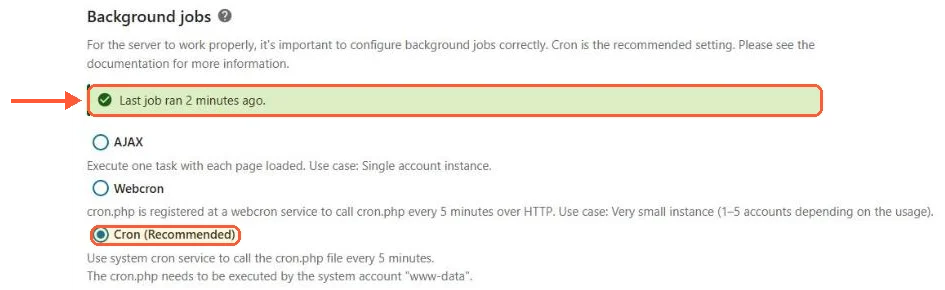
With the www-data crontab in place, Basic settings showed Cron selected and a job two minutes old.
For a deeper look, sudo -u www-data php /var/www/nextcloud/occ background-job:list prints the queue as a table (job ID, class, last run and argument), and a job whose last run sits days behind the others is your misbehaving app.
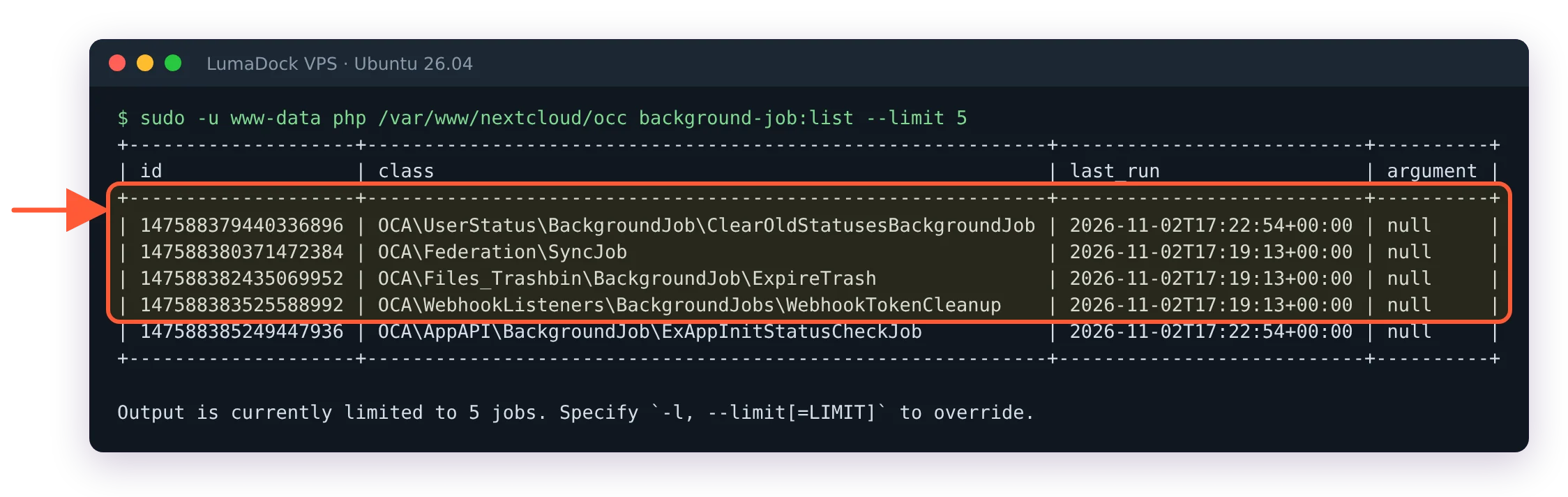
background-job:list with the full occ path; each row shows when that job last ran.
Failures land in nextcloud.log, which I've mapped out in where to find the Nextcloud logs; grep it for the job class name and you usually have the stack trace that explains everything.
What breaks when cron is dead
It's worth recognizing the symptoms, because they look unrelated until you check the overview page. The trash bin and file versions stop expiring, so disk usage climbs for no visible reason (on my instance, versions expiry reclaims a couple of gigabytes a month, and 400 GB of photos generates plenty of versions). Activity emails and share notifications arrive late or never. Apps that poll external services stop polling. New warnings pile up on the admin page. If your instance feels stale rather than broken, check the "Last job ran" line first; a dead cron also drags down the numbers I chase in the Nextcloud performance tuning guide, because cleanup that never runs turns into bloat the database carries on every query.
One more failure shape worth knowing: cron that runs but never finishes. A single enormous job, say a first file scan over hundreds of gigabytes, can hold the queue while the "Last job ran" counter stays suspiciously fresh, since the runner is technically alive. If the overview looks healthy while trash expiry clearly isn't happening, check for a php process that's been running for hours under www-data. Killing it and letting the next five minute run pick up the pieces has fixed that for me both times it happened.
Five minutes: one crontab line, one apcu.ini flag, one green check. That warning at the top of this page shouldn't survive your coffee.