


.svg)
.svg)
.svg)
.svg)

.svg)
.svg)
.svg)

Updated and tested 19 October 2026
On any box that hosts other containers, I run Nextcloud from the plain nextcloud:apache image with my own Docker Compose file instead of AIO. AIO wants to be the whole show: it brings its own reverse proxy assumptions, its own Borg backups and a master container that manages the rest. Great when Nextcloud owns the machine, awkward when it's one service among eight on a shared Docker host. With a hand-written compose file, Nextcloud is just another stack that plays by the same rules as everything else on the server.
I've written up the full decision in the AIO vs manual install comparison, so here's the short version: pick AIO for a dedicated box where you want Talk and an office suite preconfigured (Euro-Office by default, Collabora as the alternative), pick this compose setup when you want control and coexistence. The rest of this guide is the second path.
The Nextcloud Docker Compose file
This is the stack I'd deploy today on a Docker VPS: the official image from hub.docker.com/_/nextcloud, MariaDB 11.4 (supported; the Nextcloud 34 docs recommend 11.8), Redis for locking and caching, and a fourth container that handles background jobs. Save it as compose.yaml in its own directory:
services:
  db:
    image: mariadb:11.4
    restart: unless-stopped
    command: --transaction-isolation=READ-COMMITTED --binlog-format=ROW
    volumes:
      - db:/var/lib/mysql
    environment:
      - MYSQL_ROOT_PASSWORD=change-me-root
      - MYSQL_DATABASE=nextcloud
      - MYSQL_USER=nextcloud
      - MYSQL_PASSWORD=change-me

  redis:
    image: redis:7-alpine
    restart: unless-stopped

  app:
    image: nextcloud:34-apache
    restart: unless-stopped
    ports:
      - "8080:80"
    depends_on:
      - db
      - redis
    volumes:
      - nextcloud:/var/www/html
    environment:
      - MYSQL_HOST=db
      - MYSQL_DATABASE=nextcloud
      - MYSQL_USER=nextcloud
      - MYSQL_PASSWORD=change-me
      - REDIS_HOST=redis
      - NEXTCLOUD_TRUSTED_DOMAINS=cloud.example.com

  cron:
    image: nextcloud:34-apache
    restart: unless-stopped
    entrypoint: /cron.sh
    depends_on:
      - db
      - redis
    volumes:
      - nextcloud:/var/www/html

volumes:
  db:
  nextcloud:
A few choices worth explaining. The image tag pins the major (34-apache), so a routine docker compose pull can never jump you across a major release by accident. The MYSQL_* variables appear twice on purpose: the db container uses them to create the database, the app container uses them to find it. REDIS_HOST=redis is all the app needs to wire up Redis for file locking and distributed caching, and NEXTCLOUD_TRUSTED_DOMAINS takes a space-separated list if you serve more than one hostname, though the image only applies it during an unattended install. MariaDB gets the READ COMMITTED isolation level and row-based binlog on the command line, which is what Nextcloud expects and saves you a config file mount.
I use named volumes rather than bind mounts because Docker manages permissions for them correctly out of the box, and a chown fight with a bind-mounted webroot is a rite of passage nobody needs twice. If you want the passwords out of the file, move them into a .env next to the compose file and reference them as ${MYSQL_PASSWORD}; compose reads it automatically, and the yaml stops being a secret you can't commit anywhere.
First start and watching the logs
Bring it up and follow the app container while it installs:
docker compose up -d
docker compose logs -f app
The first start unpacks Nextcloud into the nextcloud volume and takes a minute or two. When the log settles down, open port 8080, create the admin account and pick MySQL/MariaDB as the database (it's prefilled from the environment). If you'd rather script that step, the image also accepts NEXTCLOUD_ADMIN_USER and NEXTCLOUD_ADMIN_PASSWORD and installs unattended. Once the install is done, any occ command runs through compose exec:
docker compose exec -u www-data app php occ statusThat should report installed: true with version 34.0.5 or newer. While you're there, confirm the Redis wiring took, because a Nextcloud that silently fell back to database locking works and then chokes the first time two clients sync one folder:
docker compose exec -u www-data app php occ config:system:get memcache.lockingExpected output is \OC\Memcache\Redis. If the app container restarts in a loop instead of installing, nine times out of ten the MYSQL_PASSWORD values in the two services don't match, and docker compose logs db shows the refused connections to prove it.
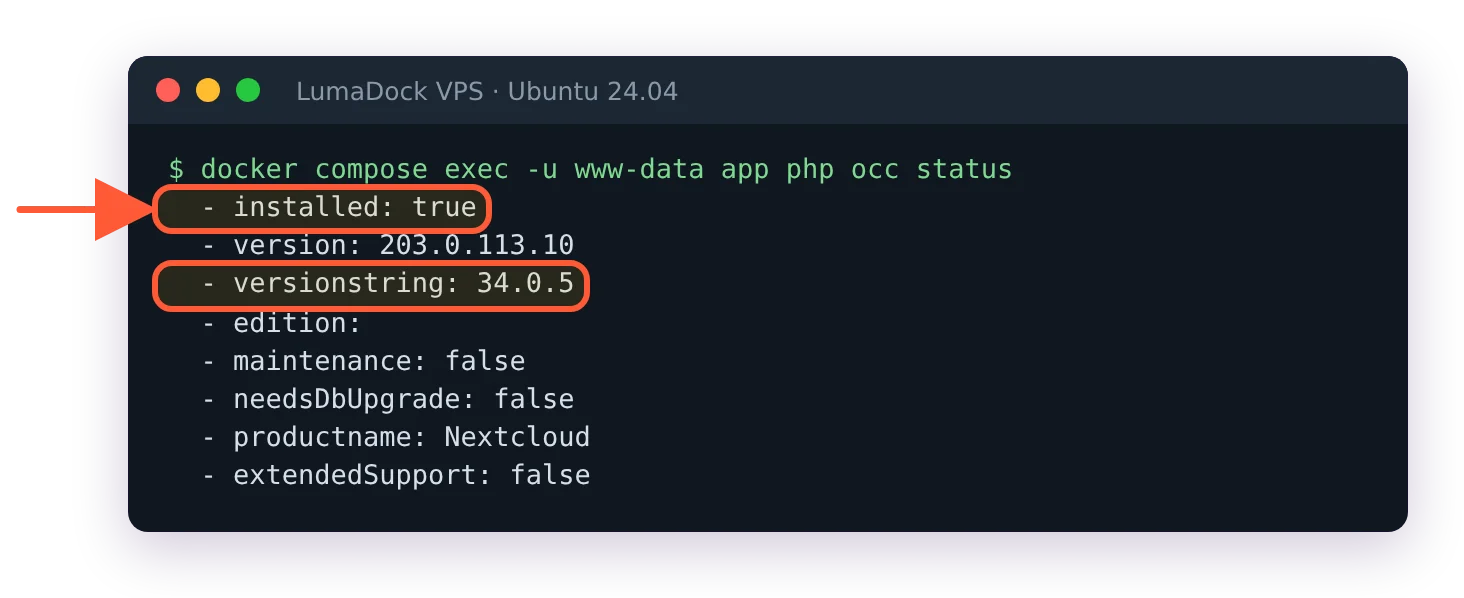
After the install, occ status on my 34-apache stack reported 34.0.5.
The wizard trusts only the address you opened it on, and the NEXTCLOUD_TRUSTED_DOMAINS line in the compose file doesn't change that, because the image reads it only when it installs unattended. On my server the domain answered "Access through untrusted domain" until I added it by hand:
docker compose exec -u www-data app php occ config:system:set trusted_domains 1 --value=cloud.example.comBackground jobs: The cron container
The fourth service is the part most first compose files miss. It runs the same image with the entrypoint switched to /cron.sh, which executes cron.php every five minutes against the shared volume. The pattern comes straight from the examples folder in the nextcloud/docker repository, and it means background jobs run on schedule with no crontab on the host. The lazier alternative, a host cron line calling docker exec -u www-data nextcloud-app-1 php cron.php, works too but breaks quietly when the container name changes.
The first run after the install can take a few minutes. On my server the first manual run took about four, exited 0 and switched background jobs to Cron by itself:

My first manual cron.php run took a few minutes, exited 0 and switched background jobs to cron by itself.
Why any of this matters, and how to tell when jobs silently stop, is its own topic: see the Nextcloud cron and background jobs guide.
Reverse proxy settings for Nextcloud in Docker
Port 8080 straight to the internet is fine for a first test and wrong for production. In practice this stack sits behind Caddy, Traefik or an nginx on the host that terminates TLS. I won't turn this into a proxy tutorial, but two settings decide if the result works or generates redirect loops and wrong share links. Nextcloud has to trust the proxy's IP (trusted_proxies, settable via the image's TRUSTED_PROXIES variable) and has to know the outside world speaks HTTPS (overwriteprotocol set to https, or the OVERWRITEPROTOCOL variable). Get the first one wrong and every client shows up in the logs as the proxy's IP; get the second wrong and logins bounce between http and https forever. For a proxy running on the same Docker host I set TRUSTED_PROXIES=172.16.0.0/12, which covers Docker's default bridge networks without chasing the exact container IP after every restart. Generated links pointing at port 8080 are the remaining symptom to watch for, cured by setting overwrite.cli.url to the public https address. The full parameter list lives in the reverse proxy configuration docs.
Once the stack is reachable from outside, the host deserves the same attention as the app. I run CrowdSec beside stacks like this one, in the same compose workflow, and the setup is in the CrowdSec Docker Compose guide.
Upgrading the Nextcloud image
Minor updates are boring, which is the point:
docker compose pull
docker compose up -d
The image detects the version change on start and runs the upgrade before serving traffic, so expect a maintenance page for a few minutes on bigger jumps. Watch docker compose logs -f app during that window; the migration steps scroll by, and if one fails you want to know which one rather than staring at a stuck maintenance screen. I take a snapshot or a fresh backup before pulling anything, since the upgrade rewrites the database schema and there's no downgrade path.
Majors are the part to respect. 35 is stable now (35.0.2 came out on 15 October 2026): to move, edit the tag from 34-apache to 35-apache in both the app and cron services, then pull and up. One major at a time, always; the updater refuses skips, and an image jump from 33 to 35 leaves you restoring from backup. I learned the one-major rule the hard way on my bare-metal instance during the 32 upgrade, and it cost me a Sunday. Docker makes the mechanics easier, the rule stays the same.
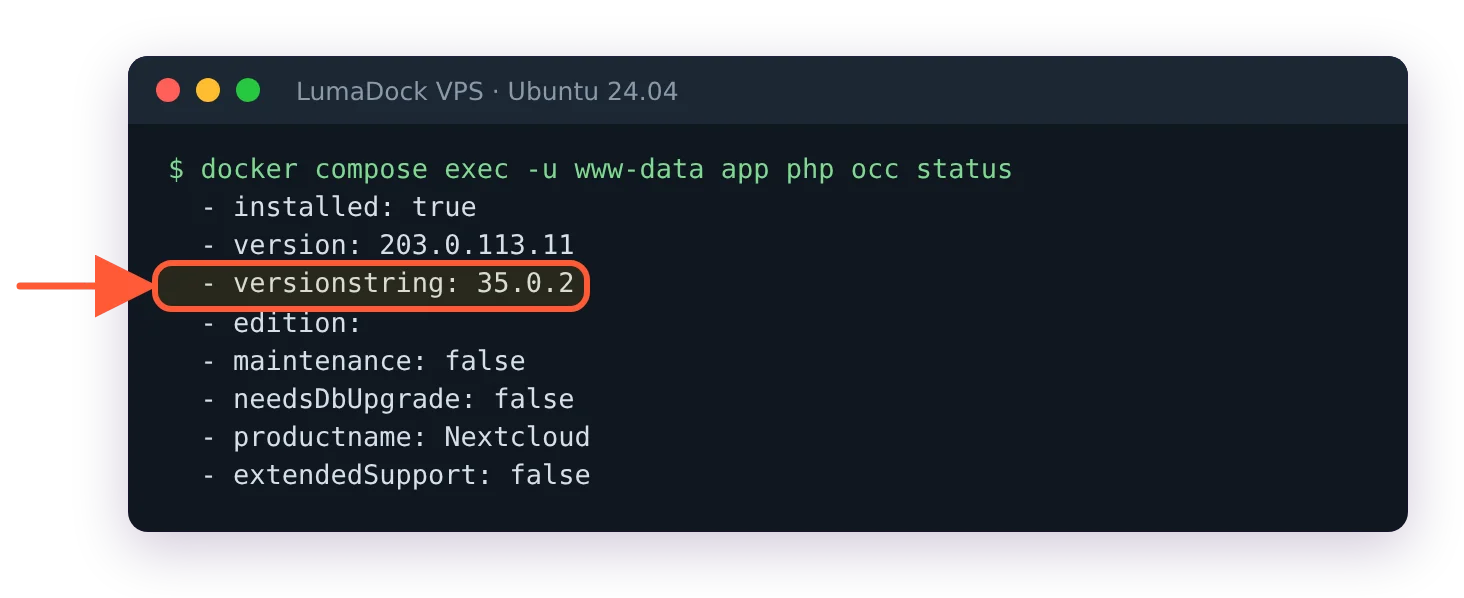
After the tag change from 34-apache to 35-apache, pull and up, occ status reported 35.0.2.
Afterwards, read the admin warnings. On my server the Administration overview page sat on "Checking your server ..." for minutes, because some of its checks make Nextcloud fetch its own public URL and from inside the container that request timed out. occ setupchecks runs the same checks from the shell and came back in seconds.
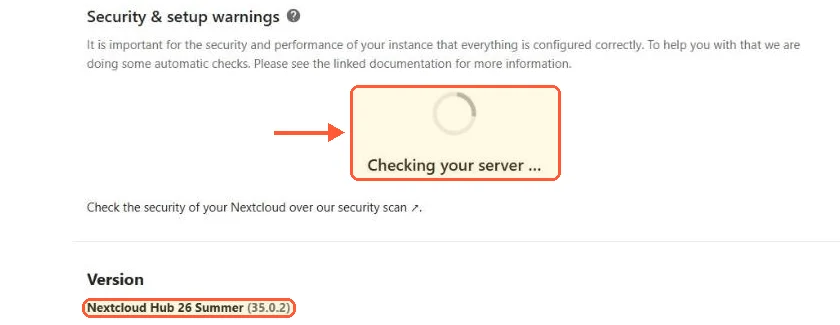
On my compose stack the overview page never got past Checking your server.
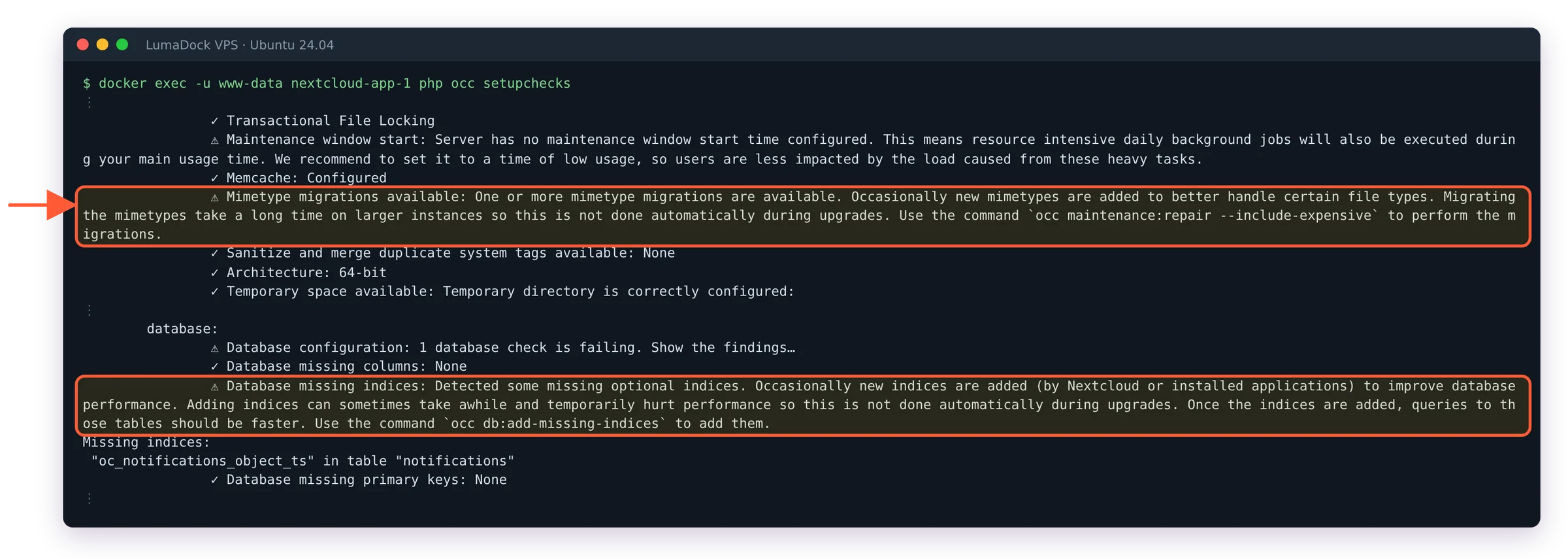
occ setupchecks gave me the admin warnings from the shell while the web page was still checking.
After my 34 to 35 upgrade it asked for a missing optional index and the pending mimetype migrations:
docker compose exec -u www-data app php occ setupchecks
docker compose exec -u www-data app php occ db:add-missing-indices
docker compose exec -u www-data app php occ maintenance:repair --include-expensive