


.svg)
.svg)
.svg)
.svg)

.svg)
.svg)
.svg)


Updated and tested 23 September 2026
Last spring my Nextcloud spent a month getting slower and I kept blaming the hardware. The file list took 6 seconds to draw. Photo thumbnails spun forever. The desktop client sat on "checking for changes" so long I assumed it had hung. This is a 4 GB VPS carrying roughly 400 GB of family photos and client project files, and I'd half convinced myself it needed 8 GB. It didn't. The fix was four config changes, none of them hardware: a memory cache, sane PHP-FPM sizing, two missing database indices and pre-generated previews.
This is the sequence I work through on any 2 to 4 GB box, starting with what pays off fastest. My install is Nextcloud 34.0.3 on Ubuntu with Apache, PHP-FPM and MariaDB, though every step applies to nginx setups too. A one-click Nextcloud template exists too, if you'd rather not build the stack yourself.
Check the admin overview warnings first
Before touching anything, I open Settings, then Administration, then Overview. Nextcloud audits its own configuration there and the warnings map almost one to one onto the steps below: no memory cache configured, "The PHP memory limit is below the recommended value of 512MB", the OPcache warning, missing database indices. Treat that screen as your checklist and this article as the explanation of each line. The server tuning page in the admin manual covers the same ground more formally, with less opinion about ordering.
Work the steps in order. They run from biggest win to smallest, and the later ones behave better once the earlier ones are in place.
Step 1: APCu and Redis caching
An uncached Nextcloud rebuilds a pile of state from the database on every single request: app lists, config values, share state and file metadata. That's the 6-second file list. The docs say a combination of APCu and Redis is the best choice for new installations, and after running exactly that for years I'll co-sign it. On Ubuntu the packages are php-apcu, php-redis and redis-server. Then this goes into /var/www/nextcloud/config/config.php:
'memcache.local' => '\OC\Memcache\APCu',
'memcache.distributed' => '\OC\Memcache\Redis',
'memcache.locking' => '\OC\Memcache\Redis',
'redis' => [
    'host' => '127.0.0.1',
    'port' => 6379,
],
APCu handles the small hot lookups inside each PHP process, Redis handles transactional file locking, which it's required for anyway, past one user I consider it non-negotiable. On a single box the memcache.distributed line matters less, but it costs nothing and saves a config edit if you ever split services out. The caching configuration docs walk through every key if you want the long version.
When Redis runs on the same machine, I switch it to a unix socket and skip the TCP round trip:
'redis' => [
    'host' => '/run/redis/redis-server.sock',
    'port' => 0,
],
For the socket variant, Redis has to create the socket and let www-data in. On Ubuntu 26.04 both lines ship commented out in /etc/redis/redis.conf, with a permission of 700 that would shut www-data out, so uncomment unixsocket /run/redis/redis-server.sock, set unixsocketperm 770, add www-data to the redis group and restart both services:
sudo usermod -aG redis www-data
sudo systemctl restart redis-server php8.5-fpm
Skip any of that and you'll get an instant internal server error on the next page load.
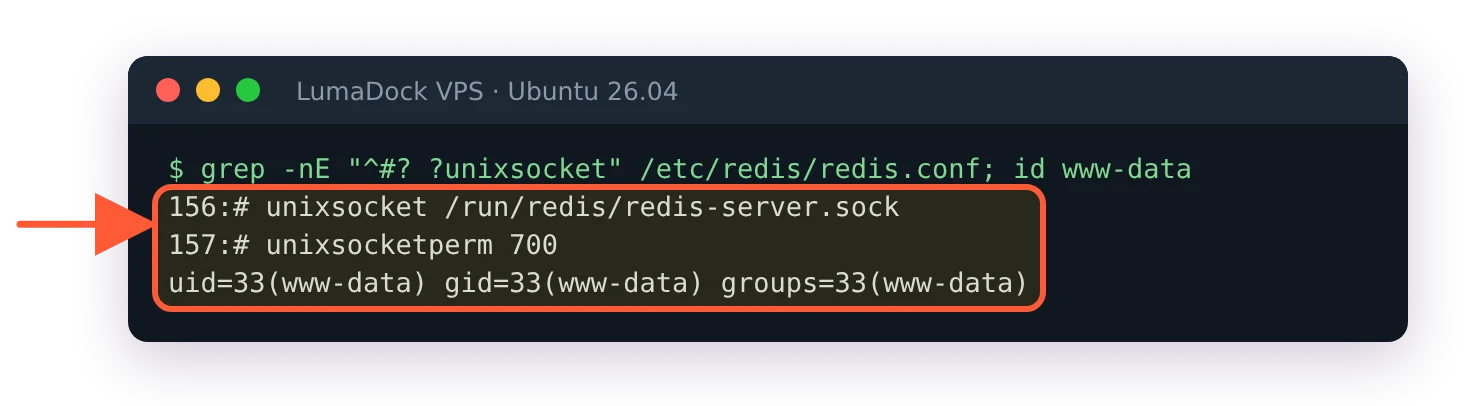
On a stock Ubuntu 26.04 install the socket lines are commented out and www-data isn't in the redis group.
One more gotcha: add apc.enable_cli=1 to your PHP CLI config, otherwise occ and cron jobs run without the local cache and occasionally complain about it.
What about memcached? The docs now file it under older alternatives, and it can't do file locking, so you'd run it alongside Redis rather than instead of it. Two cache daemons on a 4 GB box to do the job one does fine. Skip it.
Step 2: PHP memory limit, OPcache and pm.max_children
Three PHP settings carry this step. First, memory_limit. Nextcloud wants 512M and nags in the admin overview until it gets it. Set it in the php.ini your FPM pool reads (on Ubuntu 26.04 with PHP 8.5 that's under /etc/php/8.5/fpm/), then reload the service. Setting it in the CLI ini and wondering why the warning persists is a mistake I'll admit to making once.
Second, OPcache. It caches compiled PHP bytecode, and Nextcloud is a lot of PHP. Distribution defaults mostly leave it enabled but sized for smaller applications, which is why the admin overview so often shows the OPcache warning, usually pointing at opcache.interned_strings_buffer. On my instance I raised opcache.interned_strings_buffer to 32 and opcache.memory_consumption to 256 and the warning went away. Exact defaults shift between PHP releases, so trust the warning text on your own overview screen over any blog's copy-paste block, mine included.
Third, and this is the one that stops a small VPS from falling over: pm.max_children in the FPM pool. Every PHP-FPM worker eats real memory, and the default cap of 5 workers means the sixth simultaneous request queues behind the others. Sync clients issue lots of parallel requests, so a family photo upload can starve the web UI with the default. Raising it blindly is worse, because too many workers push the box into swap. So measure. With the instance warmed up:
ps --no-headers -eo rss,cmd | awk '/php-fpm: pool/ {sum+=$1; n++} END {printf "%d workers, %.0f MB average\n", n, sum/n/1024}'My workers average 85 MB with OPcache warm. The budget on 4 GB looks like this: MariaDB takes about 800 MB the way I run it and the OS with Apache and Redis idles around 500 MB. I also hold back a few hundred MB for previews and occ jobs. That leaves roughly 1.1 GB for PHP, and 1100 divided by 85 is about 13. I run pm.max_children at 12 on 4 GB alongside MariaDB, and it hasn't queued or swapped since. Do your own division with your own RSS number, a heavy app list changes it.

On my idle test server the one-liner counted 4 workers at 43 MB each; a warmed-up instance reads higher.
If the site 502s after you reload FPM, you've fat-fingered the pool file or the socket path, and the FPM log will say which. I keep a map of every log location in where are Nextcloud logs.
Step 3: Database indices and buffer pool
Nextcloud ships some indices as optional because adding them to a huge instance takes a while, so the installer skips them and the admin overview reminds you. Adding them is one command:
sudo -u www-data php /var/www/nextcloud/occ db:add-missing-indicesOn my instance this added two indices and cut the 6-second file list to about a second, the single best ratio of effort to result on this page. It's safe to run any time, it does nothing when nothing's missing.
Then give MariaDB a sane innodb_buffer_pool_size. The default of 128 MB means your file metadata keeps falling out of memory and getting reread from disk. The usual advice of 70 to 80 percent of RAM assumes a dedicated database server, which this box is not. On 4 GB shared with PHP I set 512M, and a 2 GB box gets 256M. Watch actual memory use for a day after changing it, MariaDB grabs the whole pool up front.
Step 4: Pre-generate previews
Every image in the web UI needs thumbnails at several sizes, and by default Nextcloud generates them the first time someone looks. That's the spinner over the photos tab. The fix is the Preview Generator app from the app store: it builds previews ahead of time so the UI only ever reads finished files.
Install it from the app store or with occ, then run the initial pass once:
sudo -u www-data php /var/www/nextcloud/occ app:install previewgenerator
sudo -u www-data php /var/www/nextcloud/occ preview:generate-all
Check the result before you leave it running. When I tested this on Nextcloud 34.0.3 with Preview Generator 5.15.0, preview:generate-all stopped after two folders with "Integrity constraint violation: 1052 Column 'file_id' in WHERE is ambiguous", while the incremental preview:pre-generate from the cron line below ran clean. That error came from a Nextcloud server bug in its preview queries (nextcloud/server#63229), not from the app, and the fix shipped in Nextcloud 34.0.4, so update Nextcloud before you plan the first big pass.
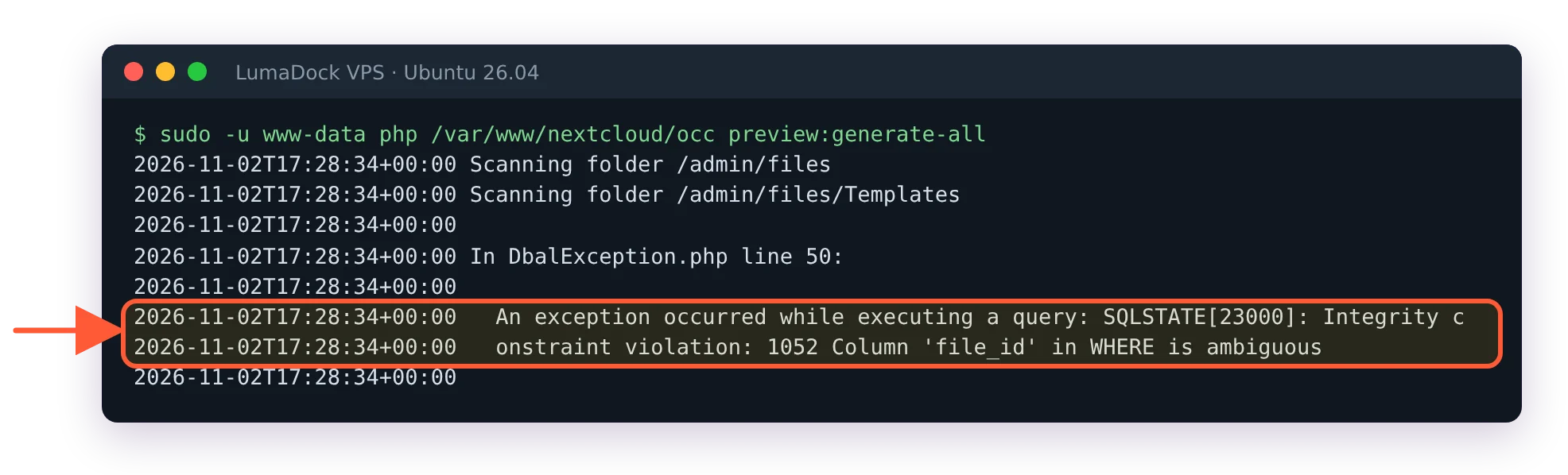
On Nextcloud 34.0.3 with Preview Generator 5.15.0, generate-all stopped after scanning two folders.
Budget for this honestly. On my 400 GB photo library the first run was a long one: it left about 25 GB of previews in the data directory and kept the CPU pinned the whole time. I ran it in tmux and let it grind. After that, the cheap incremental pass on a cron keeps up with new uploads:
*/10 * * * * php -f /var/www/nextcloud/occ preview:pre-generateThat line goes in the www-data crontab. Two config keys shrink the bill before you start. preview_max_x and preview_max_y cap the largest preview Nextcloud will render, and the out-of-the-box cap is far bigger than any screen you'll view photos on, I set both to 1024 and can't tell the difference. And enabledPreviewProviders controls which file types get previews at all. Trimming it to the types you store (for me, common image formats plus PDF and text) means the generator stops burning CPU on videos and office documents nobody browses as thumbnails.
Step 5: System cron for background jobs
New installs default to AJAX background jobs, which only run when someone has the web UI open. On a small family instance that can mean file scans and preview queues sit frozen for days. Switch the setting to Cron in the admin panel and give www-data a crontab entry firing cron.php every 5 minutes. I've written up the details, the Docker variants and the ways it silently breaks in Nextcloud cron and background jobs, so I'll keep this step short: do it, it's two minutes of work.