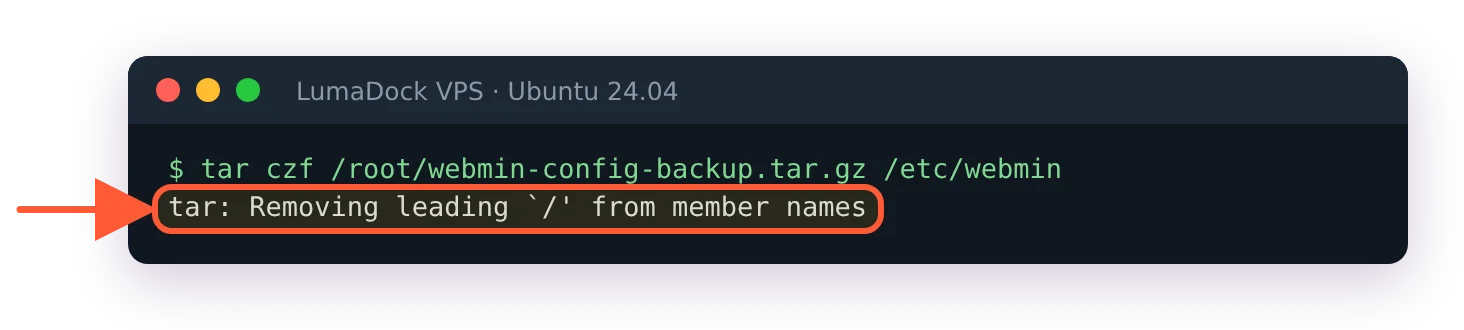
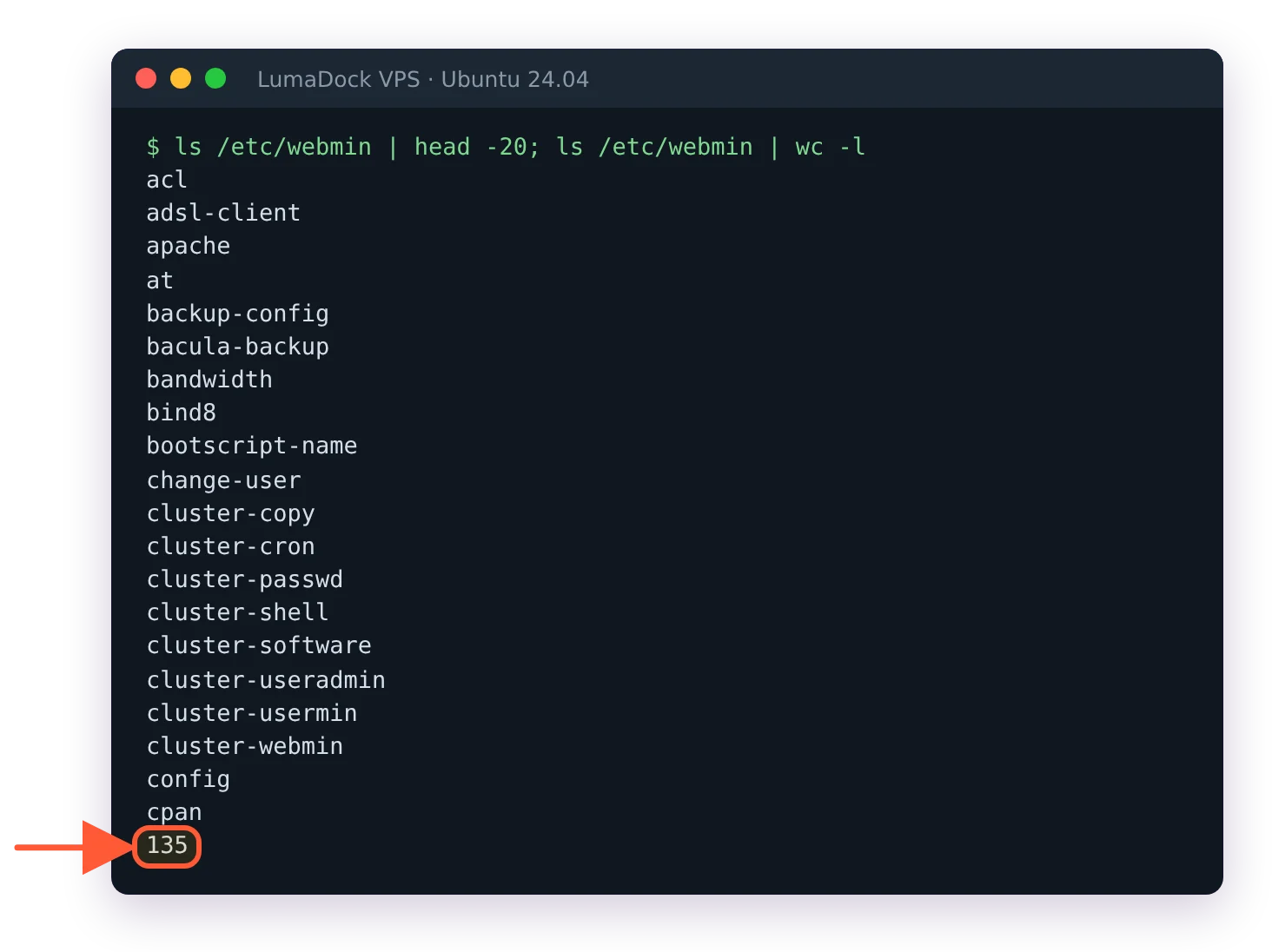
Try an upgrade before a reinstall
When Webmin is misbehaving and not missing, an upgrade is the better first move. It replaces the program code, keeps /etc/webmin untouched and fixes anything that was a bug in the release you happen to be on.
Webmin ships roughly monthly, so the gap between your build and current is often wider than you'd guess. This guide was tested on 2.670, where the upgrade command below answers webmin is already the newest version (2.670). on a current box.
apt-get update
apt-get install --only-upgrade webmin
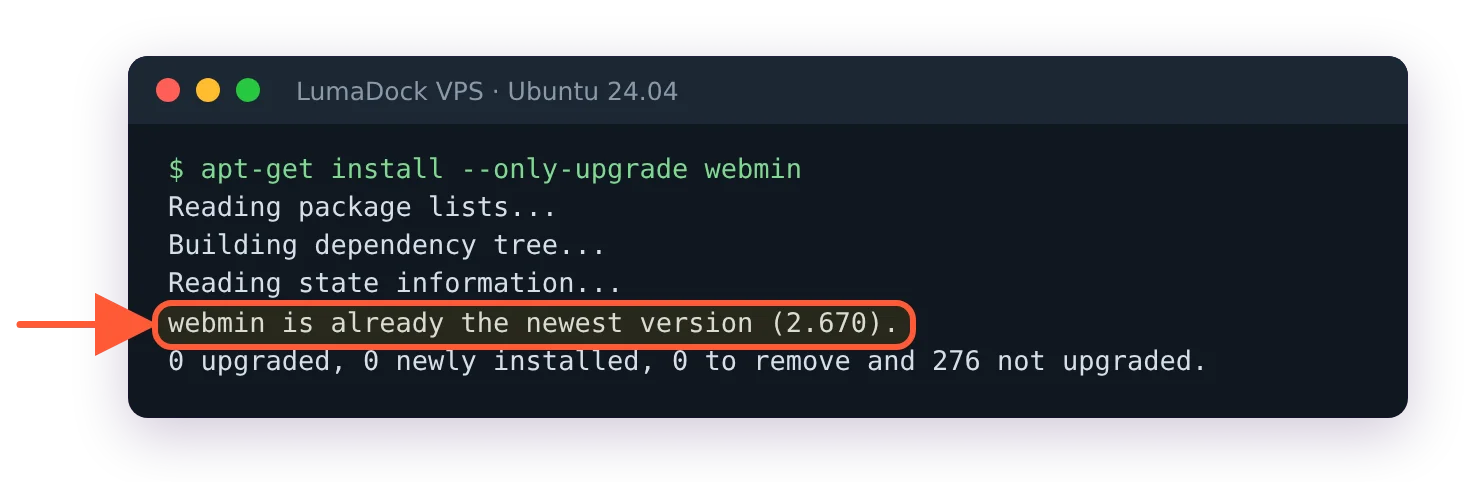
On a current box the upgrade has nothing to do.
On the RHEL family that's dnf upgrade webmin. If you can't yet name the symptom, the error strings collected in the notes on common Webmin errors will usually identify it faster than a rebuild will. If the symptom survives the upgrade, a reinstall is a reasonable next step.
If Virtualmin is installed, do not purge Webmin
Virtualmin is a module suite built on top of Webmin. Same team, same :10000 address, appearing as a tab inside the Webmin you're about to remove. Purging the webmin package pulls the platform out from under it and takes Virtualmin's interface with it, and you'll be rebuilding a hosting panel instead of fixing a login problem. Don't do it.
On a Virtualmin server, work from the Virtualmin download and install documentation and leave the package manager alone. Their installer knows what the stack is meant to look like. Virtualmin 8 landed in late January 2026 after more than three years on the 7.x line and was a substantial refactor, so an old install may be better served by an upgrade path than by any kind of removal.
Remove Webmin
Debian and Ubuntu
apt-get autoremove --purge webmin
That takes out the package, the dependencies nothing else needs and the configuration files apt considers its own. The command is the same to remove Webmin on Ubuntu and to uninstall Webmin on Debian. Then look at what's left:
ls -la /etc/webmin /usr/share/webmin
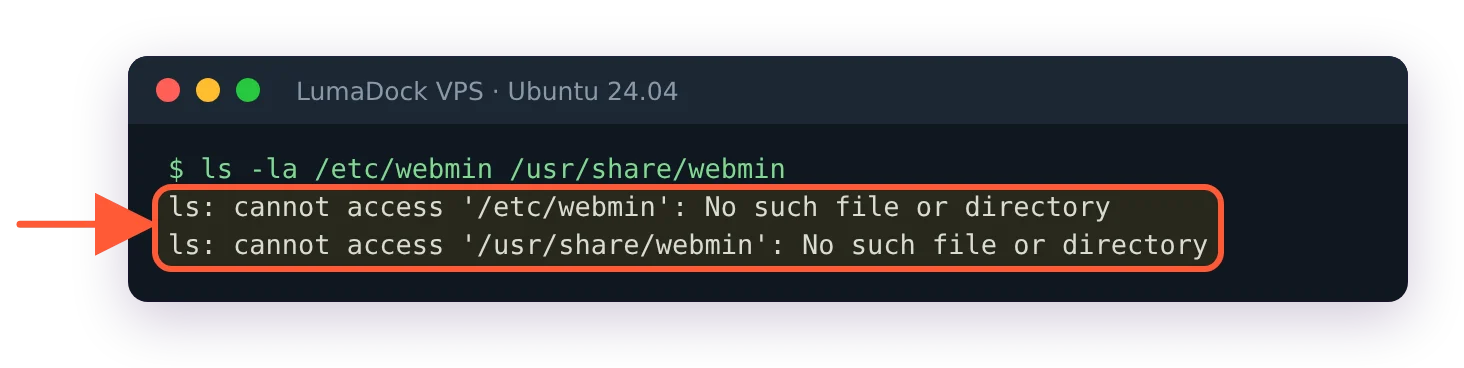
On Ubuntu 24.04 with 2.670 the purge removes both directories.
On Ubuntu 24.04 with Webmin 2.670 the purge removes both directories, and ls answers No such file or directory for each. Older installs can leave /etc/webmin behind, holding files generated after installation that the package never claimed. People argue about deleting it by hand against leaving it for the next install to overwrite. Both end up in the same place and I don't think it matters much, as long as your backup is confirmed safe somewhere else first. The repository files are a separate matter and the purge doesn't touch any of them.
AlmaLinux, Rocky and other RHEL rebuilds
dnf remove webmin
RPM leaves .rpmsave copies of configuration files it noticed you had modified, so check /etc/webmin and the program directory at /usr/libexec/webmin the same way. That suffix has been in RPM since long before Webmin existed, and it turns up all over a server that's been through a few years of upgrades. Anything left over is yours to delete.
Clear the leftover repository files
This is the step people skip and it's the reason the next install behaves strangely. The setup script writes files that no package owns, so removal leaves every one of them in place.
Debian and Ubuntu
Two artefacts after a normal run: the sources file and the keyring. A third, an APT pin under /etc/apt/preferences.d/, exists only if the script was run with --pkg-prefs; the rm -f line for it is harmless when it isn't there.
rm -f /etc/apt/sources.list.d/webmin-stable.list
rm -f /usr/share/keyrings/ubuntu-webmin-developers.gpg
rm -f /etc/apt/preferences.d/ubuntu-stable-package-priority
apt-get update
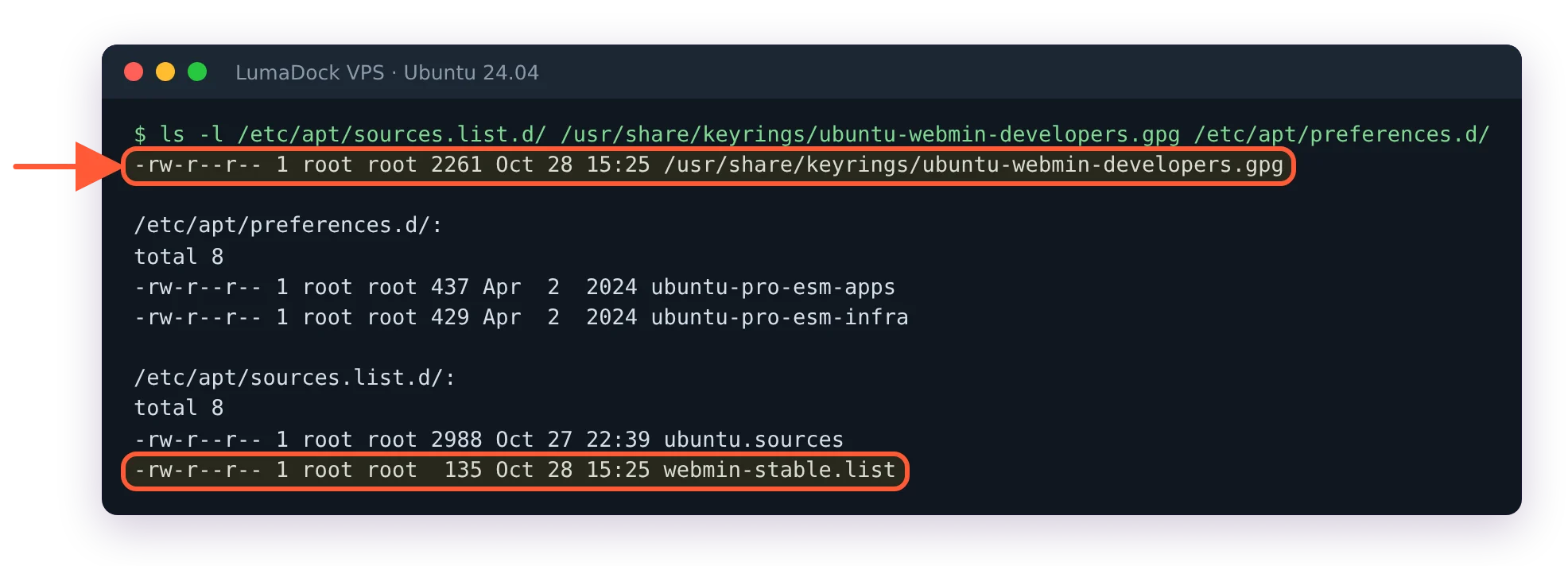
The purge leaves the keyring and the sources file behind, and there is no Webmin pin file.
On Debian, swap ubuntu for debian in the last two filenames, since the script names them after the distribution ID. If you ever ran the script in prerelease or unstable mode there will be a webmin-prerelease.list or webmin-unstable.list alongside the stable one, and those are the files most likely to be forgotten.
The prerelease list matters more than it looks. Switching back with --stable doesn't delete it, so apt keeps rc.download.webmin.dev as a source next to the stable one and installs release candidates on a box you thought you had moved back. Clearing all of it and running apt-get update gives the next install a clean index to work from.
AlmaLinux, Rocky and SUSE
Two files, and on SUSE the repo one lives under /etc/zypp/repos.d/.
rm -f /etc/yum.repos.d/webmin-stable.repo
rm -f /etc/pki/rpm-gpg/RPM-GPG-KEY-webmin-developers
dnf clean all
Reinstall Webmin from the official repository
The install Webmin on Ubuntu 24.04 walkthrough uses the same setup-repo script and package manager pair, and it works identically on a rebuild.
curl -o webmin-setup-repo.sh https://raw.githubusercontent.com/webmin/webmin/master/webmin-setup-repo.sh
sh webmin-setup-repo.sh
As root that works and asks Setup Webmin stable repository? (y/N); from a sudo account it must be sudo sh webmin-setup-repo.sh, or it stops with must be run as root!. Then apt-get install webmin --install-recommends on the Debian family or dnf install webmin on the RHEL family. The script defaults to the stable repository, which is what you want for a server anybody depends on. --prerelease and --unstable exist for testing a specific fix and should not be how you rebuild production.
The APT repository is one flat suite of architecture-independent packages. There's no codename to match and nothing to configure per release.
Without the repository, grab the package from the Webmin download page and install it locally with apt-get install --install-recommends ./webmin-current.deb or dnf install ./webmin-current.rpm. That gets you a working install with no automatic updates. Fine on an air-gapped box, and a bad trade anywhere else.






.svg)
.svg)
.svg)
.svg)

.svg)
.svg)
.svg)