


.svg)
.svg)
.svg)
.svg)

.svg)
.svg)
.svg)


Updated and tested 24 April 2026
Nextcloud writes its main log to a file called nextcloud.log inside the data directory. Which directory that is comes from datadirectory in config.php: /srv/nextcloud-data/nextcloud.log on the stack from my Ubuntu install guide, /var/www/nextcloud/data/nextcloud.log on many other manual installs. It's JSON, one object per line, and it holds nearly everything the server wants to tell you: warnings, errors, failed logins, app complaints. Everything below is variations on that one answer, where the data directory hides on each install type, how to read the JSON without going blind and which other logs matter when this one stays quiet.
Manual install: nextcloud.log in the data directory
If you installed from the tarball, the log sits next to your user folders in the data directory. The default path in most guides is /var/www/nextcloud/data/nextcloud.log, but plenty of setups (mine included) move data to a separate path like /srv/nextcloud-data. The authoritative answer comes from the config:
sudo -u www-data php /var/www/nextcloud/occ config:system:get datadirectoryOr grep 'datadirectory' out of /var/www/nextcloud/config/config.php when PHP itself is broken and occ won't run. The occ command reference lists the rest of the config:system family, it's worth a skim once.
One thing that trips people on a first visit: the file belongs to the web user and the data directory is (correctly) locked down, so reading it as your normal shell user fails with permission denied. sudo tail or a root shell solves it. Don't loosen the directory permissions to avoid typing sudo, Nextcloud checks them at startup and will refuse to run with a data directory it considers too open.
Docker: docker logs and the file in the volume
The official image gives you two different streams and people conflate them. docker logs nextcloud-app-1 shows container stdout, which is mostly Apache access and PHP process noise. The actual Nextcloud application log is the same nextcloud.log file, living in the data directory inside the container at /var/www/html/data:
docker exec -u www-data nextcloud-app-1 tail -f /var/www/html/data/nextcloud.lognextcloud-app-1 is the name the stack from my Docker Compose guide gets, and a plain docker logs nextcloud there answers "No such container". Swap in your own container name from docker ps. If you bind-mounted the volume to the host, you can also read the file straight from the host path without exec, which is friendlier for shipping into other tooling.
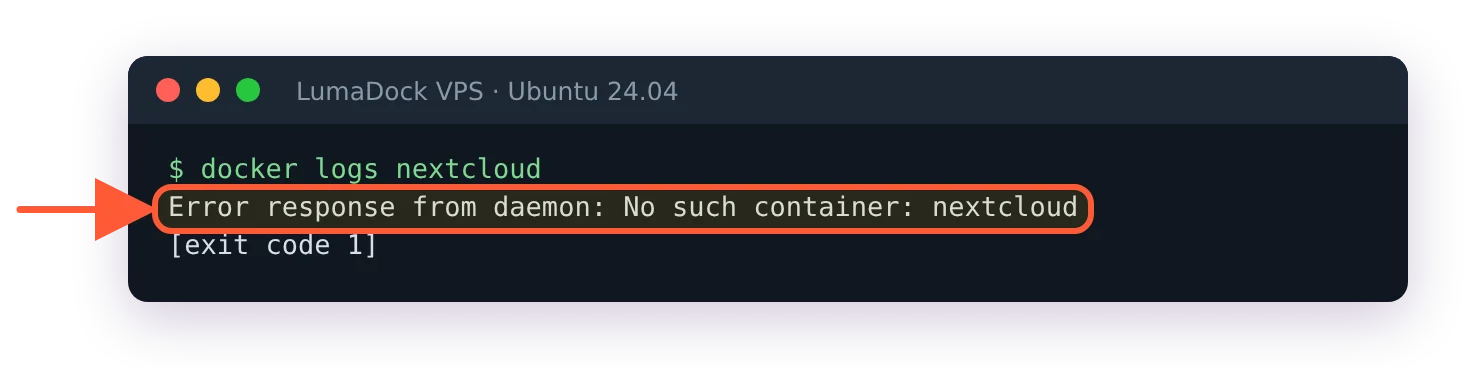
On a stack started from my Docker Compose guide there is no container called nextcloud.

docker ps shows the names Compose gave the containers; the app container is nextcloud-app-1.
Worth knowing while you're in here: with Docker's default json-file logging driver, the stdout stream from docker logs accumulates on disk with no size cap unless you've set one. On a busy instance I've seen that JSON file quietly outgrow the application log it was supposed to help debug. Capping it with max-size in the daemon config or the compose file is a two-line fix.
Nextcloud AIO: docker logs nextcloud-aio-nextcloud
All-in-One runs a fleet of containers and the one you want is the Nextcloud container itself, named nextcloud-aio-nextcloud:
docker logs nextcloud-aio-nextcloudThe nextcloud.log file exists inside that container's data directory too, same exec pattern as above. The master container's logs cover the AIO interface rather than the server, so a blank stare from nextcloud-aio-mastercontainer logs during an app error is normal.
Snap: Everything under /var/snap/nextcloud/
The snap keeps its whole world, config and data included, under /var/snap/nextcloud/, and the log is in the data directory somewhere beneath that. Rather than memorize the internal layout (it has shifted between snap revisions), I'd find it:
sudo find /var/snap/nextcloud -name nextcloud.logI ran the snap early on, around version 24, and left for a manual install largely because of this. Paths felt hidden, and when the server misbehaved at 11 PM I was spelunking snap internals instead of reading a log. The snap is fine as a self-contained appliance, I just debug faster when files live where the manual says they do.
Read the JSON log with jq
Raw nextcloud.log is unreadable past ten entries, each line is one dense JSON object. jq fixes that. The one-liners below read nextcloud.log from the current directory, so open a root shell with sudo -i and cd into the data directory from the datadirectory check above first. My most-used one-liner filters to errors and worse, keeping only the fields I care about:
tail -n 500 nextcloud.log | jq -r 'select(.level >= 3) | [.time, .app, .message] | @tsv'Drop the select to see everything, or filter on .app == "core" to silence a chatty third-party app.

On my server the errors-only filter found one entry, from two cron runs that overlapped.
The field worth knowing about is reqId: every entry from one HTTP request shares a request ID, so once an error names a reqId you can pull the full story of that single request out of thousands of lines.
Log levels 0 to 4 and how to change them
The loglevel setting in config.php runs from 0 to 4: debug, info, warning, error and fatal. The default is 2, so warnings and up. Level 1 is the interesting middle ground, it records logins and file activity without debug's firehose. When I'm chasing something reproducible I drop to 1 or 0, reproduce, then put it back, debug level grows the file fast:
sudo -u www-data php /var/www/nextcloud/occ config:system:set loglevel --value=0 --type=integerSet it back to 2 the same way once you've caught the culprit. The logging configuration docs cover the full option set, including sending the log to syslog or systemd instead of a file.
The logging screen in the admin UI
Settings, Administration, Logging shows the same file through the logreader app, with filters by level and a copy button that grabs the raw JSON entry for a forum post or a bug report. I use it for quick looks when I'm already in the browser, and the shell for anything serious. One caveat: when the server is broken enough that pages won't render, the screen that shows errors is itself an error page, which is exactly when you want the file paths above.
Log rotation with log_rotate_size
Nextcloud rotates the log itself once it passes the log_rotate_size threshold, renaming the old file to nextcloud.log.1. On current releases the default threshold is 100 MB, which on a quiet instance means months of history in one file. I leave it alone. If you set it smaller, remember that only one rotated file is kept, so anything older is gone, ship entries to syslog first if you need real retention.
Apache and nginx error logs
When nextcloud.log is quiet but the site is broken, the webserver saw something PHP never got to log. On Ubuntu that's /var/log/apache2/error.log, or /var/log/nginx/error.log on nginx. This is where fatal PHP startup errors land, a missing PHP module or a parse error in config.php kills the process before Nextcloud's own logging exists. A 500 in the browser with nothing new in nextcloud.log sends me here first.
PHP-FPM log
The FPM service log (on Ubuntu 26.04 with PHP 8.5, /var/log/php8.5-fpm.log) records pool-level trouble rather than application errors. The entry worth watching for is the warning that the server reached pm.max_children, which means requests queued and the instance felt hung without any error appearing anywhere else. Slow but error-free is an FPM sizing smell, and this log confirms it.
MariaDB log
Database trouble surfaces as vague 500s and locking errors in Nextcloud while the real story sits in journalctl -u mariadb or /var/log/mysql/error.log. Crashes, refused connections, aborted queries and InnoDB recovery messages all live here. If Nextcloud logs a flood of database exceptions with identical timestamps, read the MariaDB log for that minute before blaming Nextcloud at all.
Worked example: Tracing an untrusted domain hit
Say the browser throws the "Access through untrusted domain" page. The log makes this one easy once you lower the log level: these hits are logged at info level, so with the default loglevel 2 the filter below finds nothing. Set loglevel to 1 the way the log levels section shows, load the page again, then filter for the trusted domain error and read which hostname arrived:
tail -n 200 nextcloud.log | jq -r 'select(.message | test("trusted domain"; "i")) | .message'The entry names the exact Host header the request carried, an IP address, a www variant, a LAN hostname or a reverse proxy name you forgot about, which tells you precisely what to add to trusted_domains. The full fix, proxy cases included, is in fixing the Nextcloud untrusted domain error.

The untrusted-domain hit only reached the log once I lowered the log level to 1.
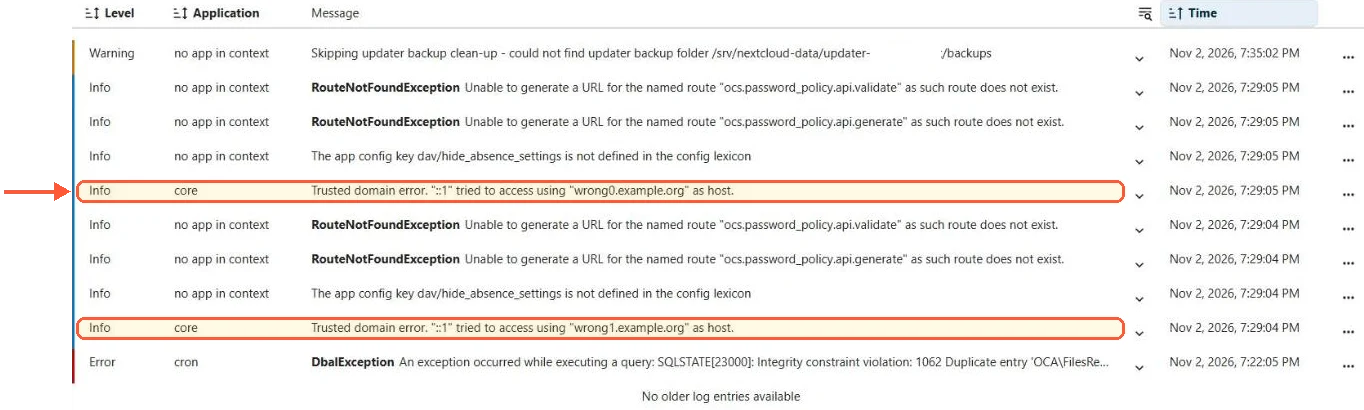
The admin Logging screen lists the same hits at Info level, which is why the default level hides them.
Put the log level back to 2 once you have the hostname.
Worked example: Tracing a 500
The generic failure page says "The server encountered an internal error and was unable to complete your request." and, helpfully, shows a request ID. Chase that ID:
grep 'REQUEST_ID_HERE' nextcloud.log | jq .Usually you get an exception with a stack trace naming the app or file at fault. If the grep comes back empty, PHP died before Nextcloud could write, and the Apache or FPM logs above take over. I've written the whole decision tree, empty-log case included, in fixing the Nextcloud internal server error.
Two habits close this out. First, timestamps in nextcloud.log are only trustworthy when background jobs run on schedule, an instance stuck on AJAX cron logs in bursts whenever someone happens to browse, which once cost me an evening of confusion, the setup that prevents it is in Nextcloud cron and background jobs. Second, when an error string means nothing to you, someone has hit it before, I keep the frequent ones with their fixes in a Nextcloud troubleshooting cheat sheet. The log tells you where it hurts. These tell you why.