
Back to Article List

Jellyfin backup and restore on Ubuntu and Docker

Jellyfin backup and restore on Ubuntu and Docker

Updated and tested 26 October 2026

Nobody backs up Jellyfin until the week a major upgrade breaks a migration, which is why "jellyfin 10.10.7 backup" spiked as a search the moment 10.11 landed with its database overhaul. Fair enough: the 10.11 migration rebuilt the server's internals onto a new database framework, it's one-way, and the users who could roll back were the users with a copy of the old data directory. Here's what to back up, the exact commands and the restore that proves your backup was real.

What needs backing up (and what doesn't)

Not the media. Your movies and music are the bulky part and the replaceable-from-source part; Jellyfin's irreplaceable state is small and lives in two places on a package install:

  • /var/lib/jellyfin, the data directory: the database (in data/jellyfin.db and friends), downloaded metadata and images, plugins and their configs. This is the one that matters. Users, watch history, library definitions, all of it lives here.
  • /etc/jellyfin, the config directory: networking settings, logging config, a handful of XML. Tiny, include it.

/var/cache/jellyfin is rebuildable cache (transcodes, image resizes); skipping it keeps backups dramatically smaller at zero cost. On Docker installs the split is simpler still: everything above lives inside whatever you mounted as /config and /cache, so the config volume is the backup target and the cache volume is the skippable one.

Built-in backup in the Jellyfin dashboard

Since 10.11 Jellyfin has its own backup, documented on the Backup and Restore page: Dashboard » Backups » Create Backup, with the server running. The dialog always includes the database; metadata, subtitles and trickplay data are tick boxes, all off by default.
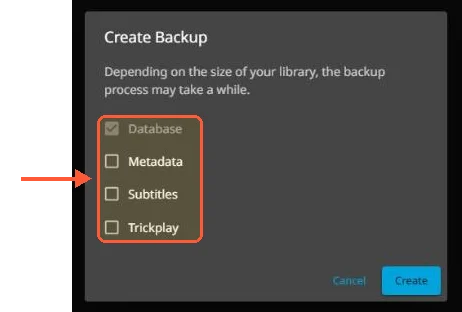
Jellyfin Create Backup dialog: Database ticked and greyed, Metadata, Subtitles and Trickplay unticked by default

The Create Backup dialog: the database is always in, everything else is opt-in.

On my 12.4 server a backup with the defaults landed as a zip in /var/lib/jellyfin/data/backups/, holding the database only.
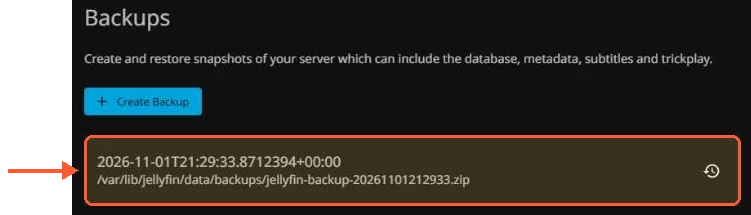
Jellyfin Backups page listing one backup zip in /var/lib/jellyfin/data/backups/

My backup with the defaults: one zip in the server's own data folder.

That zip sits on the same disk as the server, so copy it off the machine like any other backup. For a full copy with images and plugins, the tar route below is still the one I use.

Stop the server before copying the database

Jellyfin's database is SQLite, and copying a SQLite file while the server writes to it produces a corrupt copy often enough to matter. A backup you can't restore is a rabbit's foot, so take the 60-second outage:

sudo systemctl stop jellyfin

Docker: docker compose stop jellyfin. Yes, hot-backup techniques for SQLite exist; for a service whose users can tolerate a minute of downtime at 4 AM, cold copy is the version with no asterisks.

Backup commands for Ubuntu and Docker

sudo tar -czf jellyfin-backup-$(date +%F).tar.gz \
  /var/lib/jellyfin /etc/jellyfin
sudo systemctl start jellyfin

The archive lands in the current directory, owned by root with mode 644 so every user on the box can read it, and it carries jellyfin.db with the password hashes and API keys. Run sudo chmod 600 jellyfin-backup-*.tar.gz and keep it out of any web-served folder.
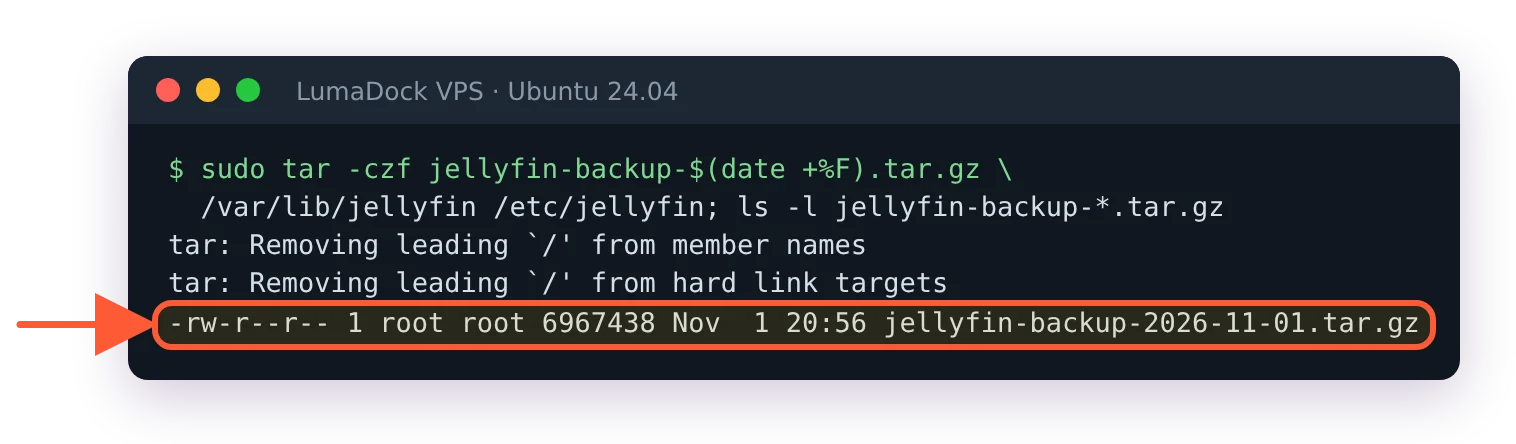
tar wrote a dated jellyfin-backup tar.gz of about 7 MB, owned by root with mode -rw-r--r--

The archive from my test server: 7 MB with three films indexed, and readable by every user until you chmod it.

Docker equivalent, from the compose directory:

docker compose stop jellyfin
tar -czf jellyfin-backup-$(date +%F).tar.gz ./config
docker compose start jellyfin

A cautionary note on size: metadata images for a large library add up to gigabytes. That's normal, still worth including (re-fetching metadata for 2,000 movies takes hours and loses any manual fixes), and compresses reasonably.

Then get the archive off the machine. A backup on the same disk as the server shares the disk's fate; scp it to another box, object storage or at minimum a second volume. Cron the whole sequence weekly and you're ahead of ninety percent of self-hosters. Create the target folder first:

sudo mkdir -p /backups && sudo chmod 700 /backups

Then the line for root's crontab:

0 4 * * 1 systemctl stop jellyfin; tar -czf /backups/jellyfin-$(date +\%F).tar.gz /var/lib/jellyfin /etc/jellyfin; systemctl start jellyfin

Note the escaped % signs (cron eats bare ones) and the semicolons. I first ran this line with && between the commands and no /backups folder: tar failed, && skipped the start, Jellyfin stayed down and cron threw the error away because no mail server was installed. With ; the start runs whatever tar does, and Jellyfin is offline only while the archive is written.
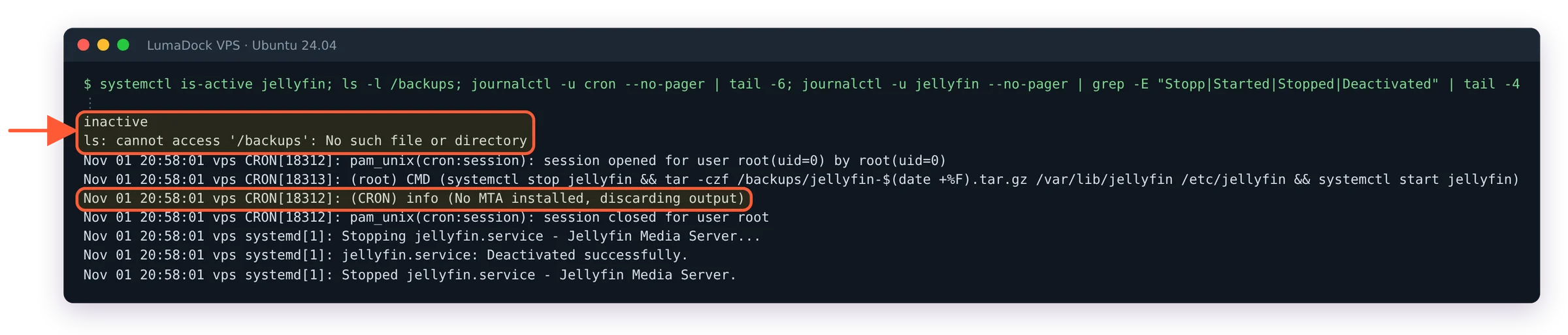
After the original cron line ran: jellyfin inactive, /backups missing, cron says No MTA installed, discarding output

The original cron line on my server: tar failed on the missing folder and Jellyfin stayed stopped.
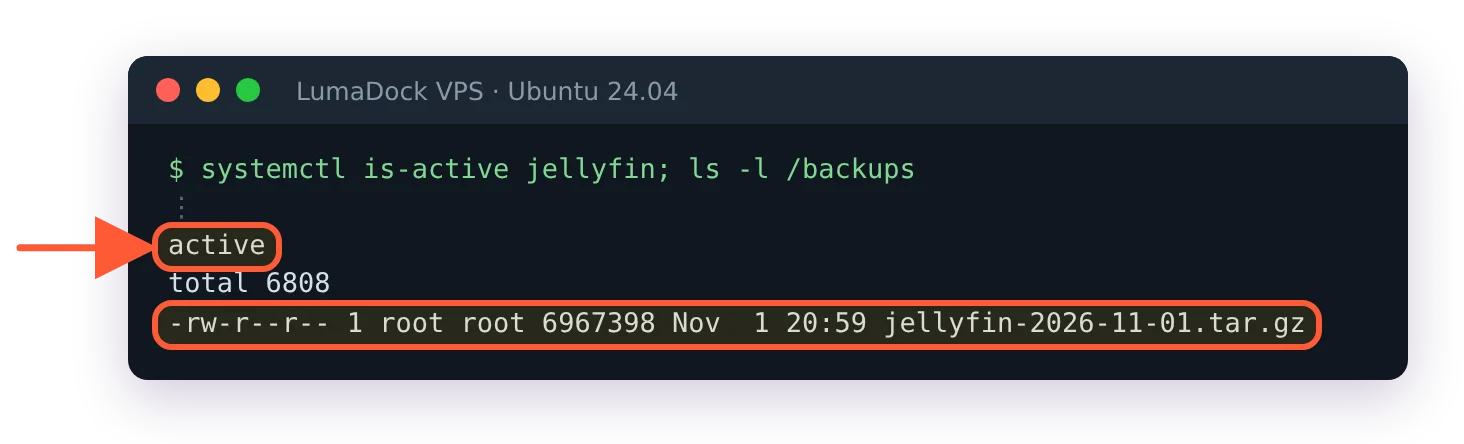
After the fixed cron line ran: jellyfin active and /backups holds the new dated tar.gz

With /backups created and ; between the commands, the same job wrote the archive and Jellyfin came back.

Add a second line that deletes the ones older than a month, or that folder fills up and becomes the next incident. If your VPS plan has snapshots in its panel, that's the lazier belt-and-suspenders option: it captures the whole server, this directory included, though I'd still stick with the tar habit because restoring one app from a whole-server image is the long way around.


Make room for every file you'll ever keep

Keep your backups and media libraries on reliable storage with unmetered bandwidth and a cost that stays predictable as your archive grows.
Ciclo di fatturazione

VPS.H1

$6.99 Save  14 %
$5.99 Mensile
  • 1 vCPU AMD EPYC
  • 2 GB memoria RAM
  • ✔HDD archiviazione
  • ✔Larghezza di banda illimitata
  • ✔ IPv4 e IPv6 inclusi Il supporto IPv6 non è attualmente disponibile in Francia o Paesi Bassi.
  • ✔Gestione firewall
  • ✔Monitoraggio server
  • ✔Virtualizzazione KVM

VPS.H3

$24.99 Save  20 %
$19.99 Mensile
  • 4 vCPU AMD EPYC
  • 8 GB memoria RAM
  • ✔HDD archiviazione
  • ✔Larghezza di banda illimitata
  • ✔ IPv4 e IPv6 inclusi Il supporto IPv6 non è attualmente disponibile in Francia o Paesi Bassi.
  • ✔Gestione firewall
  • ✔Monitoraggio server
  • ✔Virtualizzazione KVM

VPS.H4

$36.49 Save  18 %
$29.99 Mensile
  • 6 vCPU AMD EPYC
  • 12 GB memoria RAM
  • ✔HDD archiviazione
  • ✔Larghezza di banda illimitata
  • ✔ IPv4 e IPv6 inclusi Il supporto IPv6 non è attualmente disponibile in Francia o Paesi Bassi.
  • ✔Gestione firewall
  • ✔Monitoraggio server
  • ✔Virtualizzazione KVM

*VAT excluded.

INCLUDED WITH EVERY PLAN

✓ No setup fees ✓1 Gbps network
✓ Free server monitoring ✓ Firewall management ✓24/7 support ✓ KVM virtualization

Restore a Jellyfin backup

The restore is the mirror image, plus one permissions step people miss:

sudo systemctl stop jellyfin
sudo tar -xzf jellyfin-backup-YYYY-MM-DD.tar.gz -C /
sudo chown -R jellyfin:jellyfin /var/lib/jellyfin /etc/jellyfin
sudo systemctl start jellyfin

Put the date of the archive you're restoring in place of YYYY-MM-DD. The chown matters when restoring onto a rebuilt server, where the jellyfin user's numeric ID may differ from the old machine's; wrong ownership here produces a server that starts and then fails in odd ways. Restore onto the same Jellyfin version the backup came from, then upgrade; restoring a 10.10 data directory into a 10.11 server works via the migration, but doing both steps at once means an error tells you nothing about which step failed.

And test the restore once before you need it. Spin a throwaway VPS or container, restore into it, confirm the login and a library render, tear it down. Twenty minutes, and it converts your backup from a hope into a fact. This is also the honest dress rehearsal for upgrades: restore yesterday's backup to a scratch box, run the upgrade there, and the 10.11-style migrations lose their power to surprise you.

Backup before Jellyfin upgrades

Which brings us back to the search that sent you here. Before any major Jellyfin version jump, the routine is: fresh backup, read the release notes for migration warnings, upgrade, and keep the old backup for a couple of weeks rather than deleting it the moment things look fine (migration issues have a habit of surfacing on the first library scan, not the first boot). Downgrading across a migration without a backup ranges from painful to impossible, and 10.11's database rewrite made that concrete for a lot of people. With the tar file on another machine, the worst upgrade outcome becomes a ten-minute restore instead of a rebuild, and you get to be insufferably calm about it. Fresh installs have their own guide in our Jellyfin VPS install walkthrough; pair it with a restore and you've got server migration covered too.

Questions?

Can I use Jellyfin's built-in backup to move to a new server?

Not reliably: the 10.11 release notes say the built-in backup "can only restore systems on which the backup was originally made", so it isn't a migration tool. To move, install the same Jellyfin version on the new machine and restore a full copy of the data and config directories there. Keep the media at the same paths as well; the Migrating docs warn that Jellyfin's internal databases can't be adjusted easily, and a move into Docker needs exactly matching paths.

Ellie Grace Hayes
About the author

Ellie Grace Hayes

I grew up in Minnesota and started working remotely before I decided that travelling was going to become a permanent part of my life. And it kinda did, more or less... I tend to stay somewhere for a month or two, sometimes longer if I like the place (so "digital nomad" is technically accurate, even if most days are much less exciting than the term suggests). Usually I'm at a desk in a rented room trying to work out why a command behaved differently on two supposedly identical machines :)

I came into technical writing through support work & community tutorials. Linux was the first subject I wrote about, but since then I've wandered into containers, hosting, networking plus a lot of self-hosted software. I've played Minecraft since I was a kid and still go through phases where I get completely absorbed in it for a few weeks. I don't have a five-year plan. I've tried - it keeps becoming a six-month plan instead.

Never run out of space again

Keep backups, archives and media on reliable storage with unmetered bandwidth and a cost per gigabyte that stays low as the years add up. Your first VPS comes with a 30-day money-back guarantee.