





.svg)
.svg)
.svg)
.svg)

.svg)
.svg)
.svg)


Updated and tested 22 September 2026
The browser tab has been spinning for a minute and finally gives up with ERR_CONNECTION_TIMED_OUT against https://YOUR_SERVER_IP:10000. The package installed cleanly, systemctl status webmin reports the service as active, and still nothing answers. Three different problems get filed under a search for the Webmin port, and that timeout is the first of them.
The guide to installing Webmin on Ubuntu 24.04 covers the repo setup if the software is not on the box yet. Assuming it is: the second problem is moving Webmin off 10000 to a port you choose, and the third is cutting the set of addresses allowed to connect down to something small. All three come back to the same handful of keys in /etc/webmin/miniserv.conf. That file is where most of what follows happens.
Check the default Webmin port and what is listening
webmin list-config --option portThat reads the live value from miniserv.conf, the config file for miniserv.pl, the small Perl web server Webmin runs on. The default Webmin port is 10000 over HTTPS and a package install does not change it, though a repeat install or an old config directory can leave you with something else. The webmin CLI needs root, so open a root shell first with sudo -i.
Four keys decide where the daemon answers:
grep -E '^(port|bind|sockets|ssl)=' /etc/webmin/miniserv.confport is the main listening port. bind is the address it binds to, and when the key is missing Webmin answers on every interface. sockets holds extra port and address pairs, which is how you end up with Webmin still answering on 10000 after you thought you had moved it. ssl is 1 or 0 and decides which scheme the port speaks. On a default install the grep prints only port=10000 and ssl=1, because bind and sockets don't exist until something sets them.
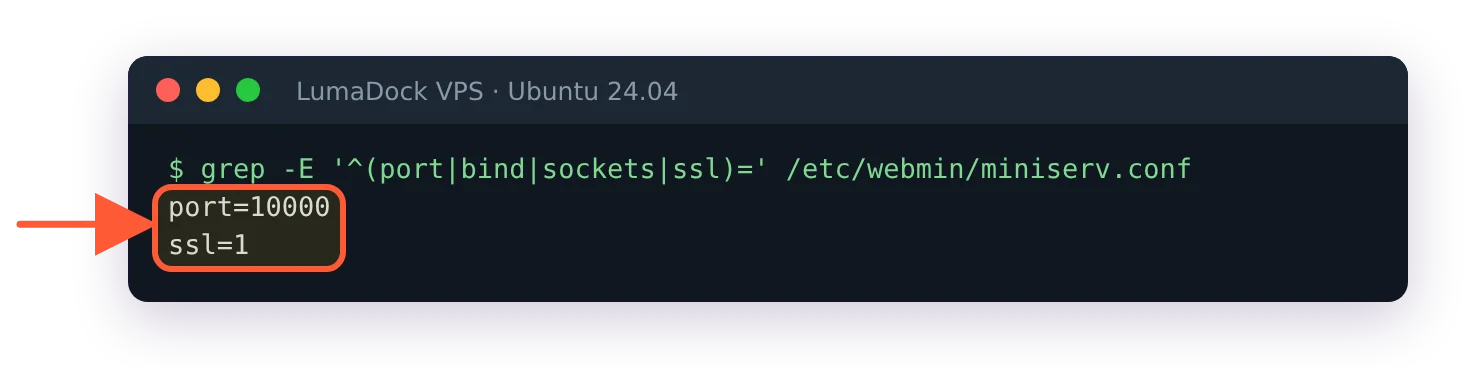
A default install has only port and ssl; bind and sockets appear once something sets them.
One more key confuses people later. listen=10000 is a UDP port for Webmin's server discovery broadcasts, and it stays on 10000 when you move the web port, so ss -lnup keeps showing 10000 after the move. That's normal. The Ports and Addresses page lists it as "Listen for broadcasts on UDP port".
Then confirm the socket is really open on the machine itself:
ss -lntp | grep miniserv![ss -lntp shows miniserv.pl listening on 0.0.0.0:10000 and [::]:10000](/templates/lagom2/assets/img/page-manager/lumadock-webmin-port-10000-miniserv-listening-10000.webp)
miniserv.pl listening on every IPv4 and IPv6 address.
A line showing 0.0.0.0:10000 means the daemon is fine and the problem sits between your laptop and the box. Nothing at all means Webmin is not running, and webmin server status will say why.
Port 10000 times out from outside
The guide to common Webmin errors covers the neighbouring symptoms, but a clean timeout is its own thing: something is discarding the packet silently and sending nothing back. A refused connection would mean something answered. On a fresh VPS that discarding is done by the host firewall or by the provider's network firewall, often both.
UFW on Ubuntu and Debian
Look at ufw status before you add anything. On LumaDock's Ubuntu 24.04 image it says Status: inactive, which means nothing is dropping packets on the server and a timeout comes from somewhere else. It also means port 10000 is open to everyone already. Allow SSH before you run ufw enable, or the session you're typing in goes with it.
ufw allow 10000/tcp
ufw status numbered
That opens the port to the entire internet. Ten minutes of it while you finish setting the box up is survivable. Leaving it there is not. The narrower version takes a source address:
ufw allow from 203.0.113.42 to any port 10000 proto tcpYou need your real public address for that, and the what is my IP address tool gives it to you in one page load. The number your router shows you is usually not it. Home connections on dynamic addresses change the address under you every few days, which is what makes allowlisting from home irritating.
firewalld on AlmaLinux, Rocky and RHEL
firewall-cmd --permanent --add-port=10000/tcp
firewall-cmd --reload
Same caveat as UFW. A rich rule narrows it to one source:
firewall-cmd --permanent --add-rich-rule='rule family="ipv4" source address="203.0.113.42" port port="10000" protocol="tcp" accept'
firewall-cmd --reload
nftables
On a box running plain nftables with no wrapper, add the rule to the input chain:
nft add rule inet filter input tcp dport 10000 ct state new acceptThat is live immediately and gone at the next reboot. Put the same line inside the input chain in /etc/nftables.conf and enable the service with systemctl enable --now nftables so it survives. Chain and table names vary by distro, so read the file before you append to it. On Ubuntu with UFW there is no inet filter table at all, and the command above fails with Error: Could not process rule: No such file or directory; use UFW there. I have not checked which table names the Debian and AlmaLinux nftables packages ship by default.
The provider network firewall
This layer runs outside the machine, usually in the hosting control panel as a network firewall or a security group, and it does not care what UFW thinks. It produces the same symptom as a host firewall rule: a clean timeout with no error. If ss shows the daemon listening and your host firewall says the port is allowed, that upstream rule set is the only thing left.
Change the Webmin port
Reasons to move off 10000: another service already has it, your office egress rules only permit 443 or the login attempts that automated scanners generate against the default have made the log unreadable. That last one is noise reduction and nothing more, though a log short enough to skim in the morning does get skimmed.
Do the firewall work first. Open the new port, change Webmin, close the old one. Reversing that order is how people end up on the provider console.
Port 10000 is registered with IANA to NDMP, the Network Data Management Protocol that backup appliances speak. Webmin took the number anyway and nothing anywhere enforces the registry. You will probably never meet an NDMP daemon on a VPS.
With the webmin command
webmin set-config --option port --value 8443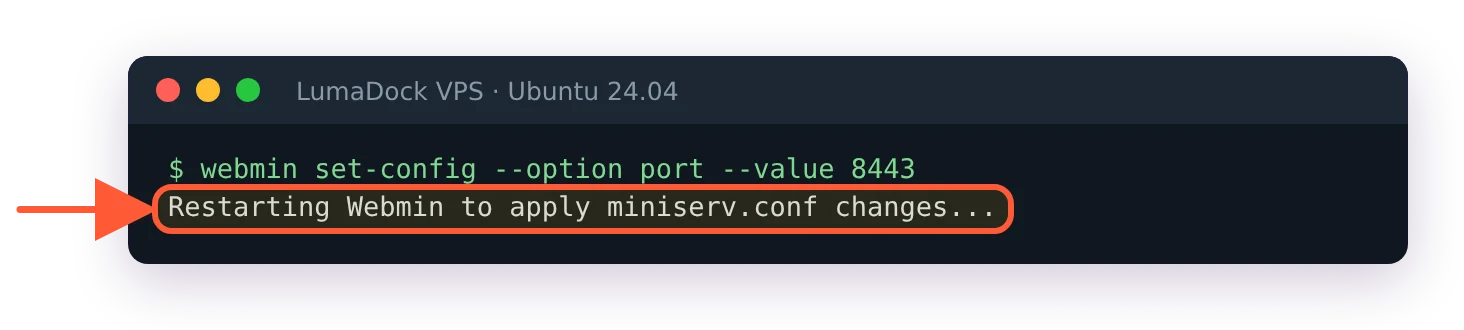
set-config writes the port and restarts Webmin in one step.
The Webmin command line reference describes both forms of set-config, along with the server subcommand behind webmin server restart. Used without --module, the command writes to miniserv.conf and restarts Webmin straight after, so your current session drops the moment it returns. With --module it edits a module's own configuration and leaves the service running.
![ss -lntp after the change shows miniserv.pl on 0.0.0.0:8443 and [::]:8443](/templates/lagom2/assets/img/page-manager/lumadock-webmin-port-10000-miniserv-listening-8443.webp)
After the restart Webmin answers on 8443 only.
From the Ports and Addresses page
Webmin, then Webmin Configuration, then Ports and Addresses. The Webmin Configuration documentation still calls the address field "Listen on IP address". On 2.670 the form says Bind to IP address (set to Any address by default) and Listen on port: pick the address in the first, enter the port in the second. Below them sits an "Open new ports on firewall?" checkbox, ticked by default. I didn't save a port change through this page, so I can't say which firewall it opens; check ufw status afterwards either way. Save it and Webmin restarts itself onto the new port while your browser sits on the old one, which looks like a crash and is not.
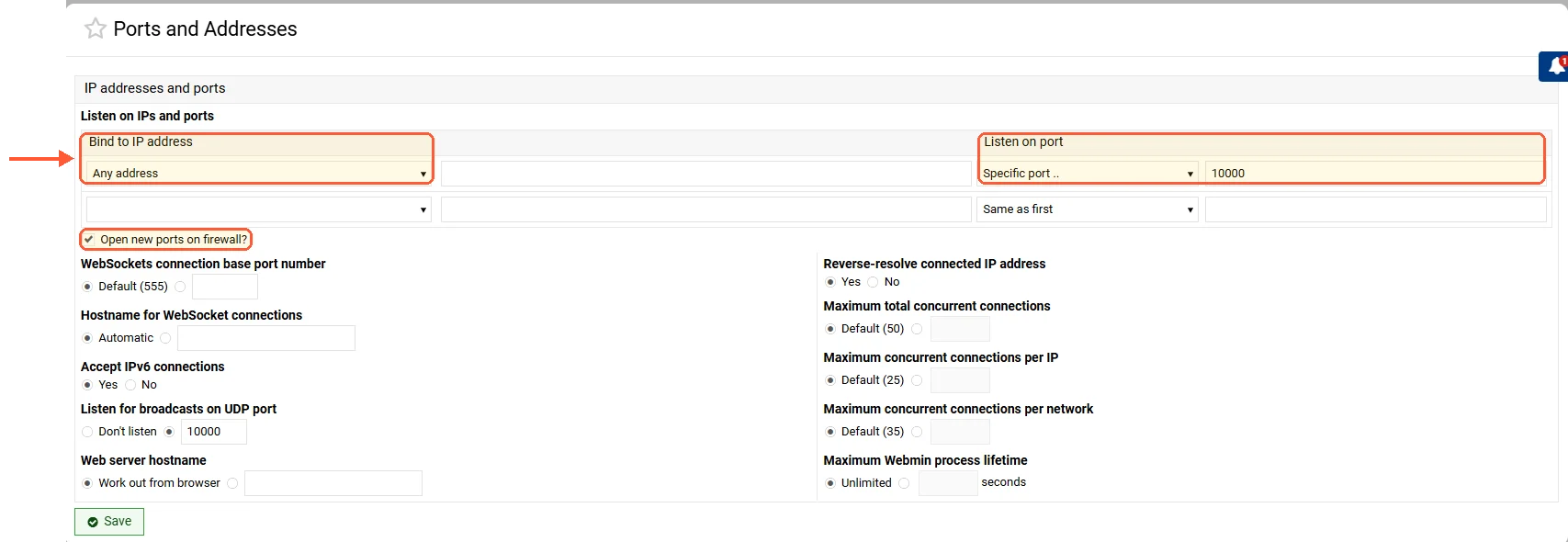
Ports and Addresses on 2.670: the field names differ from the documentation.
By editing miniserv.conf
The file is plain key=value text, so a one-liner works:
sed -i 's/^port=10000/port=8443/' /etc/webmin/miniserv.conf
/etc/webmin/restart
Webmin's own FAQ tells you to run /etc/webmin/restart after hand-editing that file. Its siblings /etc/webmin/start, /etc/webmin/stop and /etc/webmin/restart-by-force-kill sit in the same directory, and systemctl restart webmin does the same job through the webmin.service unit. If Webmin is still answering on 10000 after all of that, the sockets line has a leftover pair in it.
Restrict who can reach Webmin remotely
An open 10000 puts a root-equivalent login form in front of every scanner on the internet, and the wider argument for keeping it private is made in the piece on Webmin security hardening. Webmin's own advisory history includes a two factor authentication bypass, so a strong login form is not a permanent property of the software. Three mechanics for reaching Webmin remotely without publishing the port.
Bind to 127.0.0.1 and tunnel over SSH
This is what I run on the two boxes I administer alone. Webmin stops listening on the public interface entirely:
webmin set-config --option bind --value 127.0.0.1
Bound to loopback, Webmin no longer listens on the public address.
Then reach it from your laptop through a forwarded port:
ssh -L 10000:127.0.0.1:10000 admin@YOUR_SERVER_IPLeave that session running and open https://127.0.0.1:10000 in the browser. The left-hand 10000 is a port on your laptop and the right-hand one is the port on the server, which is obvious written down and much less obvious the day you pick 8443 on one side and type 10000 on the other. Nothing on the public interface responds any more, so the port scans stop mattering. They keep happening. They just hit a closed port.
The certificate is the awkward part. No publicly issued certificate will ever match 127.0.0.1, so the browser warns you every time even after you have gone to the trouble of getting a real one, and the guide to Webmin SSL with Let's Encrypt goes through why that warning is correct behaviour and not a failed installation. Some people put the server's hostname in their laptop's hosts file pointing at 127.0.0.1 so the name matches. That works, and it is one more piece of state on a laptop, which you will have forgotten about in a year when the name resolves somewhere unexpected. I have not settled on which of those two annoyances I prefer.
Binding to loopback also means Webmin is unreachable whenever SSH is unreachable, and SSH being unreachable is one of the situations you would like a panel for. A provider console covers that gap. So does leaving bind unset on a machine that already sits behind a private network.
IP Access Control
Webmin can filter clients itself, using the allow and deny keys in miniserv.conf. The page is the first one in the Webmin Configuration module, and the documentation puts it like this: "Select Only allow from listed addresses and enter a list of hostnames, IP addresses and networks into the adjacent text box." The file side of the same setting:
allow=203.0.113.42 192.168.1.0/24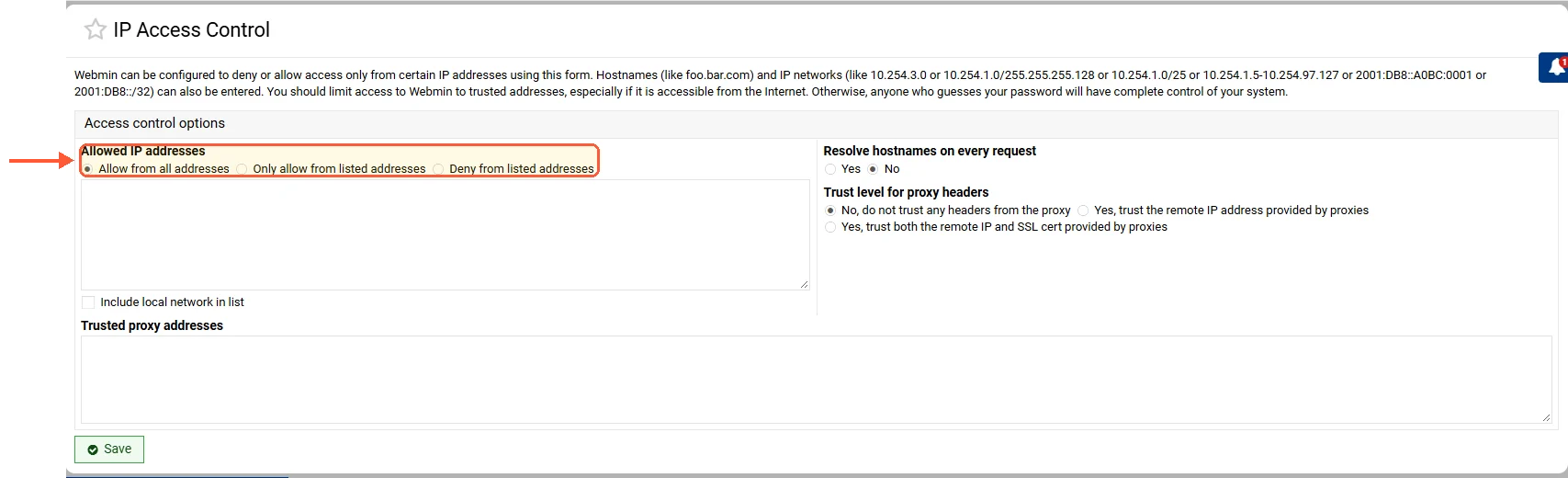
The IP Access Control page writes the allow and deny keys in miniserv.conf.
A wrong mask locks you out as effectively as a wrong password, and the IPv4 subnet calculator is faster than working the boundaries out on paper. The check itself happens inside miniserv.pl after the TCP connection has been accepted, so a client outside the list still connects and gets HTTP/1.0 403 Access denied for followed by its own address. That makes Webmin IP access control a second line behind a packet filter and never a replacement for one.
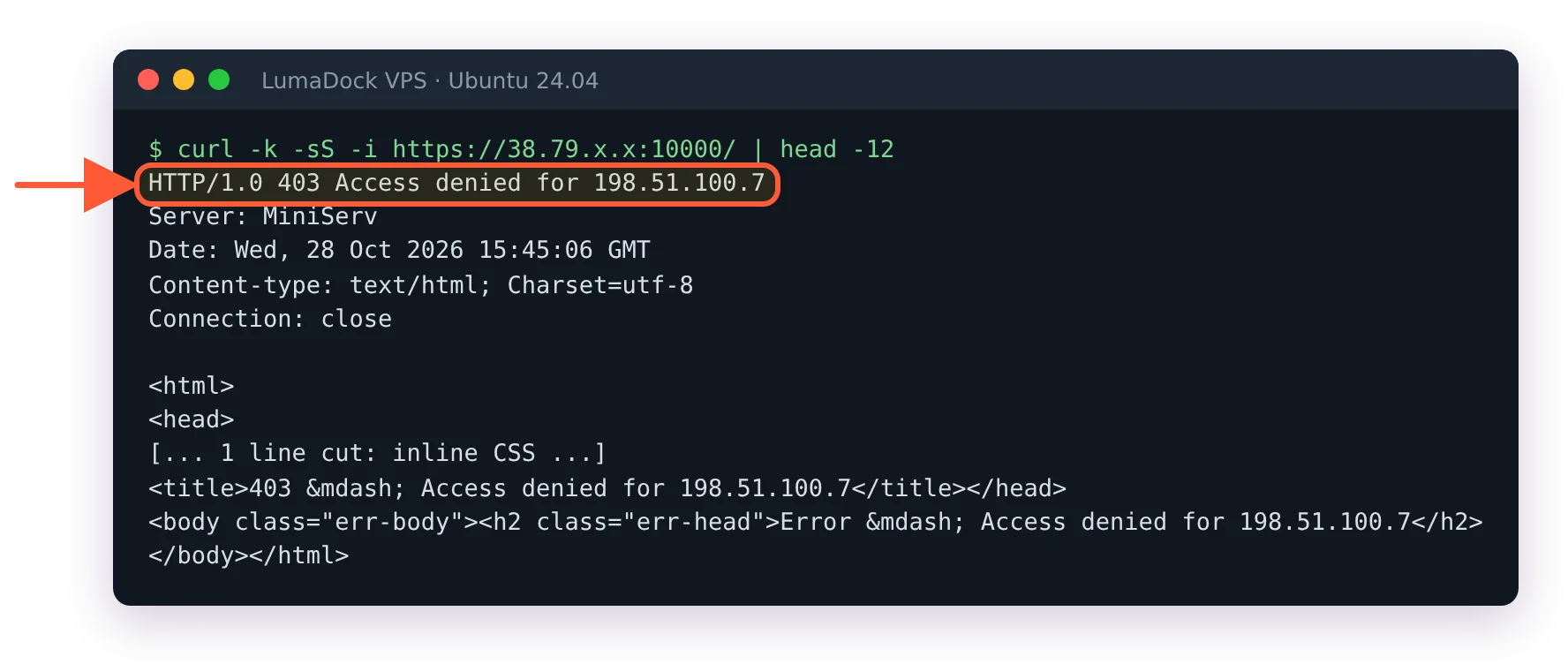
A client outside the allow list still connects, then gets a 403.
Reachable only over a VPN
For anything with more than one administrator, this is the shape that holds up. Put WireGuard on the server, bind Webmin to the VPN interface address and let key management decide who gets to see the login page at all. Adding a person is a peer entry. Removing one is a deletion, and neither involves editing a firewall rule you forgot about six months ago.

