





.svg)
.svg)
.svg)
.svg)

.svg)
.svg)
.svg)

Updated and tested 24 September 2026
Open https://YOUR_SERVER_IP:10000 for the first time and the browser refuses to show you the login page. Nothing is broken. The installer generated a self-signed certificate so Webmin could speak HTTPS from the very first request, and no browser trusts a certificate that no public authority signed. A Webmin Let's Encrypt certificate fixes that.
The field labels used below are read out of the shipping code in the webmin/webmin repository. Webmin's own Configuration page does not document the Let's Encrypt form, so there is nothing in the manual to quote from. They match what Webmin 2.670 shows on screen. Replacing the certificate takes about five minutes once you know which tab to open, and it is not the tab older guides name.
Where Webmin keeps its SSL settings
Webmin, then Webmin Configuration, then SSL Encryption. The Webmin Configuration documentation sums that page up as somewhere that "can be used to turn on or off SSL mode for Webmin, and to generate a new SSL certificate for the server", which undersells a page carrying seven tabs, in this order.
- SSL Settings
- Current Certificate
- Per-IP Certificates
- Self-Signed Certificate
- Certificate Signing Request
- Upload Certificate
- SSL Provider
Let's Encrypt is the last of them. Older tutorials, and a fair number of forum answers, send you to a "Let's Encrypt" tab that current Webmin does not have. Look for SSL Provider.
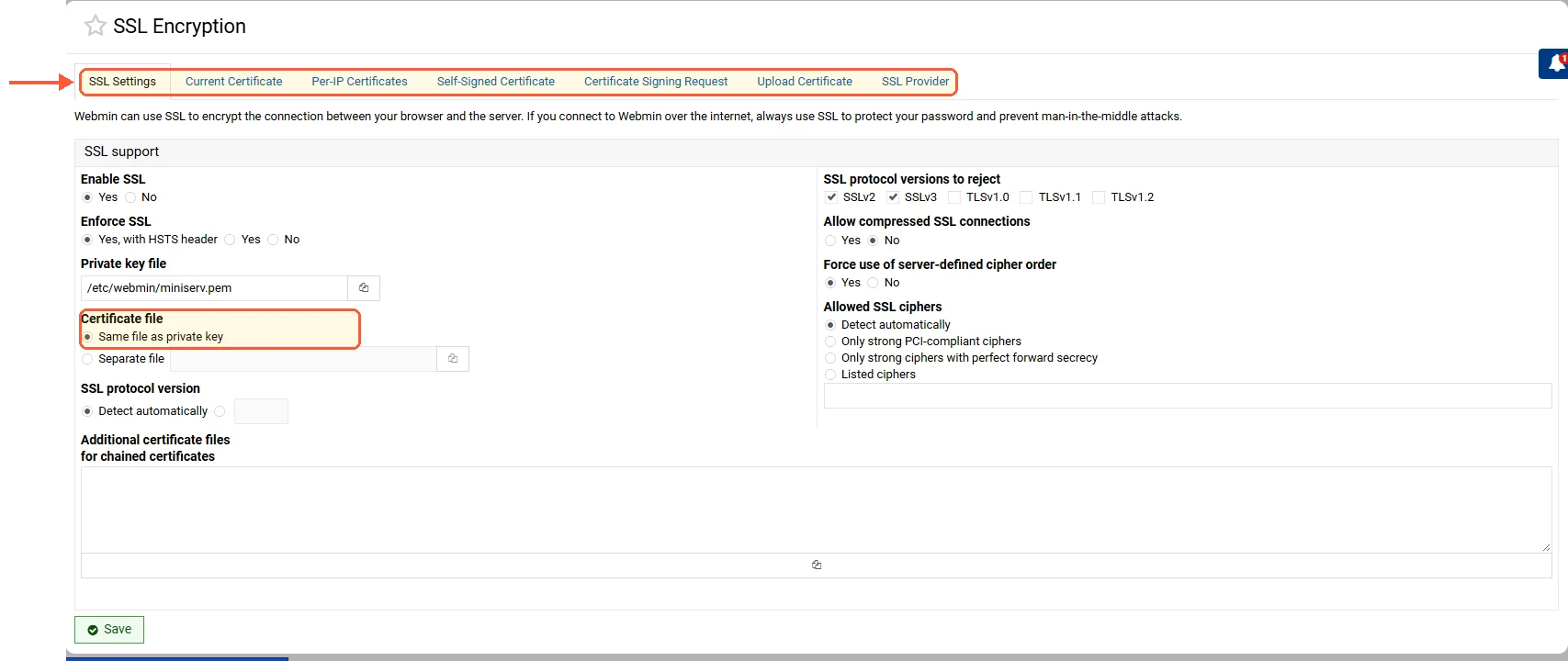
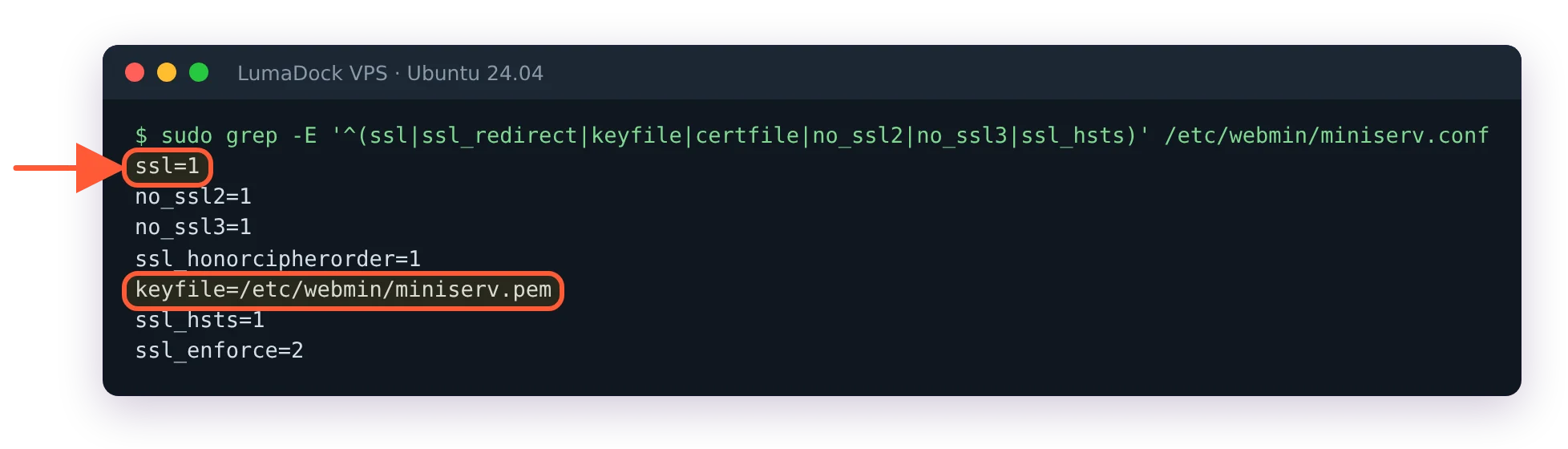
On a default install the key and certificate share miniserv.pem, so there is no certfile line.
SSL Encryption on 2.670: Let's Encrypt lives under the last tab, SSL Provider.
DNS records and reachability
A certificate is issued for a name, so the name has to exist and has to point at this machine. An A record for panel.example.com aimed at your server address is the whole requirement, and the free DNS checker will tell you in a few seconds if the record the world sees is the one you think you set. Propagation is usually minutes. Sometimes longer, if you dropped the TTL late.
Validation does not use port 10000. It uses port 80 or DNS, depending on which method you pick.
Request a Webmin Let's Encrypt certificate under SSL Provider
The form opens with a section headed Certificate request options. It is short, and every field on it does something you care about.
Hostnames or IP addresses for certificate
A textarea, one name per line. Put the name you want in the browser address bar first. Extra names all go on the same certificate and every one of them has to validate, which is what Skip unverifiable hostnames or IP addresses? is for: switch it on and Webmin drops the names that fail and keeps going with the rest. Leave it off on a first attempt so failures are loud. Turn it on for a multi-name certificate that renews unattended.
Validation method
Up to five options, and Webmin lists only the ones your server can use. On a fresh server with no web server, no BIND and no certbot, the drop-down holds a single entry, Other webserver document directory. The others appear once Apache, BIND or certbot is installed. With everything in place the list reads:
Apache virtual host matching hostnamefor an Apache server that already has a vhost for the nameSelected Apache virtual hostwhen you want to name the vhost yourselfOther webserver document directory, the webroot option, for nginx or anything else serving that hostname on port 80DNS validation using BIND, which writes the challenge record into a zone Webmin already managesCertbot built-in webserver, which stands up a temporary listener of its own
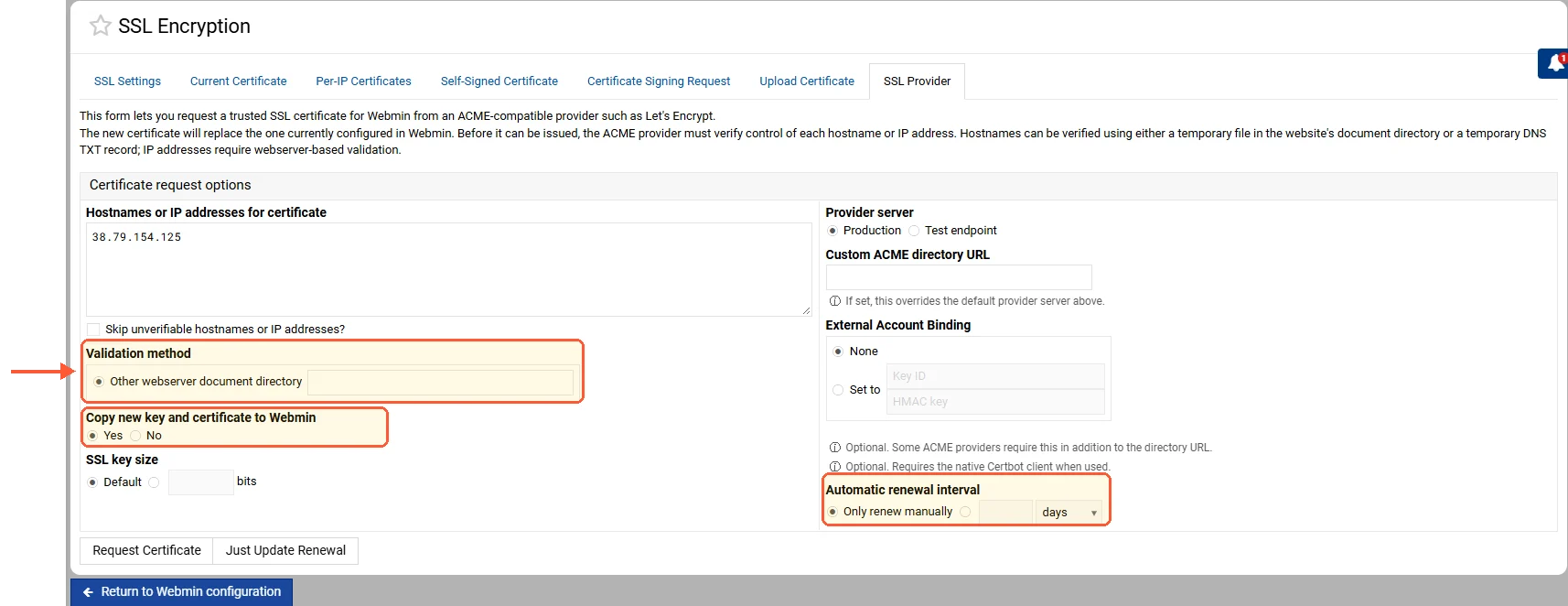
On a server with no web server, the form offers one validation method.
Renewal and copying the certificate into Webmin
Automatic renewal interval takes a number and a unit of months or days, with Only renew manually as the opt-out. Only renew manually is the default, so change it on the first request. Let's Encrypt certificates last ninety days today, so a two month interval leaves a comfortable margin. The default lifetime is due to fall to 64 days on 10 February 2027 and to 45 days on 16 February 2028, and two months would be too long for either. An interval of 30 days works for all three.
Copy new key and certificate to Webmin? is on by default. Leave it on. Switched off, Webmin fetches a perfectly good certificate that it then does not use, and you keep staring at the same warning wondering what went wrong. On, the new pair becomes Webmin's own certificate.
The form has a few more fields that older guides skip: SSL key size, Provider server (the production endpoint or Let's Encrypt's test endpoint), a custom ACME directory URL and External Account Binding, the last two for certificate authorities other than Let's Encrypt. The test endpoint is useful while you're still getting DNS and port 80 right, because failures there don't count against the production rate limits.
Two buttons finish the page. Request Certificate does the work now. Just Update Renewal saves the settings for the next automatic run without going to the authority, which is what you want when you are only changing the interval on a certificate that is already valid.
Choosing between Certbot, webroot and BIND validation
If BIND is already running on the machine, DNS validation using BIND is the one to use. It never touches port 80, so nothing has to be opened, freed or stopped, and it keeps working on a box whose only public service is Webmin on a high port. That is a narrow case. Most people reading this do not run BIND, and the option writes the challenge into a zone Webmin itself manages, so it does nothing for you if your DNS lives at your registrar. Can it be pointed at a zone hosted somewhere else? I have not tested that.
Everything else needs port 80 reachable from the outside. On a bare server that has only Other webserver document directory to offer, that means putting a web server or certbot on the box before the first request. I couldn't issue a certificate while testing this guide (no hostname pointed at the test server), so the steps from Request Certificate on are from the code and the documentation, not from a run. Certbot built-in webserver binds 80 briefly for the challenge, so the port must be open in the firewall and free at that moment, which rules it out on any server already running a web server. The webroot option, Other webserver document directory, wants the opposite situation: a web server already running on 80 and serving that hostname, with a document root you point Webmin at so it can drop the challenge file where the authority will look for it. The Apache options are the same idea with the vhost lookup done for you.
Which leaves the firewall, and the decision there is less clean than it first looks. Opening 80 is a firewall change like any other, and the guide to the Webmin port and access control covers which layer is dropping your packets when the change does not seem to take. The complication is renewals. They repeat the same validation, unattended, two months later, so a port you open for the first request and close again afterwards will fail that run with nobody watching. You can leave 80 open permanently with nothing listening behind it, which is a small exposure and an irritating one to explain in an audit. You can script the open and close around a manual renewal, which is work you then have to remember. Or you can run BIND on the box and move to DNS validation, which is the largest change and the only one that ends the problem outright. Leaving 80 open is the compromise most people land on, on the grounds that a closed TCP port with no daemon behind it is not much of a target.
Get the record and the port sorted before the first request. Let's Encrypt allows five failed validations per hostname and account every hour, so a run of failed attempts against the same hostname locks you out of new orders for a while. The error text Webmin shows after a failure names the hostname that would not validate, which is usually enough to separate a DNS problem from a firewall one.
Check what Webmin is serving afterwards
Reload Webmin and the warning should be gone. Confirm it from the shell, because a browser will cache a redirect and let you believe the change applied:
grep -E '^(ssl|certfile|keyfile)=' /etc/webmin/miniserv.confssl=1 means the port speaks HTTPS. certfile and keyfile point at the certificate and private key that miniserv.pl loads at startup, and after a successful request with copying enabled they reference the new pair. On a default install the grep prints only ssl=1 and keyfile=/etc/webmin/miniserv.pem, with no certfile line, because the self-signed key and certificate share that one file. SSL Settings says the same thing as "Certificate file: Same file as private key". The Current Certificate tab shows the same information in the browser.
For the outside view, ask the port directly:
openssl s_client -connect panel.example.com:10000 -servername panel.example.com < /dev/null 2>/dev/null | openssl x509 -noout -issuer -subject -dates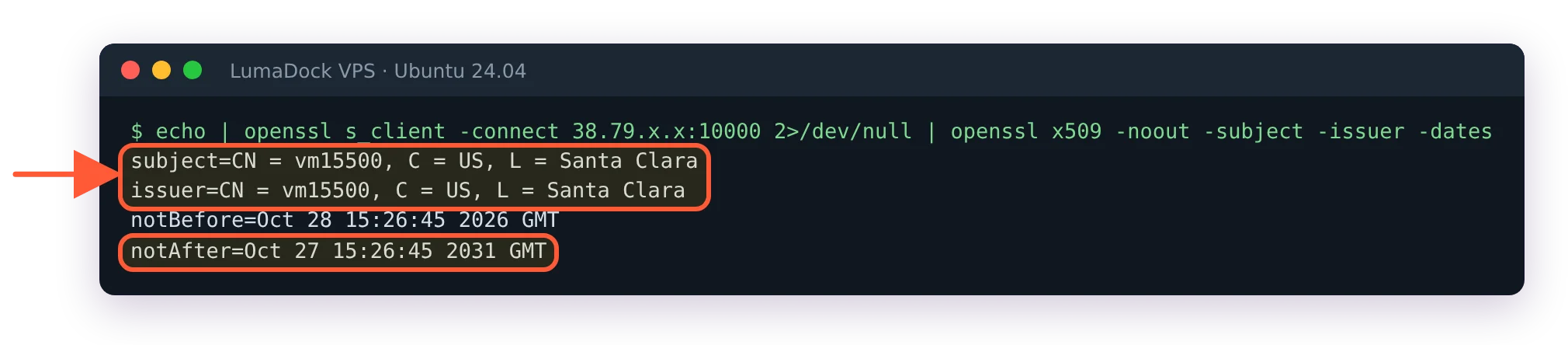
Before a Let's Encrypt request: self-signed, issued to the machine's own hostname.
An issuer line naming Let's Encrypt and a notAfter date roughly ninety days out is what you are looking for. A subject still carrying the machine's own hostname means the copy step did not happen, and the SSL Provider tab wants another visit with that checkbox on.
Connection errors on port 10000 after an SSL change
Webmin's FAQ covers the restart procedure for hand edits to miniserv.conf, and webmin server restart handles it from the CLI. You will want one of those, because a protocol error on a port that worked an hour ago is almost always a scheme mismatch: ssl=0 in the file while the browser requests https://. Chrome reports it as ERR_SSL_PROTOCOL_ERROR ("sent an invalid response"), and curl as wrong version number. The reverse case no longer errors: with ssl=1, a plain http:// request gets a redirect to https://. Check the key with grep '^ssl=' /etc/webmin/miniserv.conf and set it back with webmin set-config --option ssl --value 1.
The tunnel case looks like a failure and is not. Reach Webmin through an SSH forward on https://127.0.0.1:10000 and no publicly issued certificate will ever match that address, so the name mismatch warning is the correct result.

