Back to Article List

Docker on a VPS: Sizing, storage driver and the ufw bypass

Docker on a VPS: Sizing, storage driver and the ufw bypass - Docker on a VPS: Sizing, storage driver and the ufw bypass

Updated and tested 20 October 2026

One caveat before the install command, because it shapes everything after it: when Docker publishes a container port, it writes its own rules into the host firewall, and traffic to that port never passes through the chains ufw manages. A -p 5432:5432 on a Postgres container puts the database on the public internet with ufw reporting "deny incoming" the whole time. Every other section of this article is ordinary sysadmin work. That one is the reason people get breached on their first Docker VPS, so it gets the longest section, and I'd read it before running a single container that publishes a port.

Commands are for Ubuntu 24.04 LTS on a KVM VPS, with Docker Engine 29 from Docker's own repository.

Why Docker needs a KVM VPS

Containers are processes on the host kernel wearing namespaces and cgroups, which means the kernel has to be yours. On a KVM VPS it is: the guest boots its own kernel, loads overlayfs, br_netfilter and whatever else Docker asks for, and the daemon behaves exactly as it would on a laptop. On an OpenVZ or LXC container plan the kernel belongs to the host, nested containers work only if the provider enabled them, and the failure modes are odd errors about cgroups or overlay mounts that no amount of reinstalling fixes. The explainer on KVM VPS has the one command to check what you're on. If systemd-detect-virt says anything other than kvm (or none), ask the provider before assuming Docker will run.

Sizing a Docker VPS

Sizing is per container, and the classes are more predictable than people expect. A reverse proxy (Caddy, Traefik, Nginx) idles at 20 to 60 MB. A Go or Rust service, similar. A Node or Python application sits at 100 to 300 MB and grows with traffic. Postgres wants 256 MB as a floor and as much as you'll give it for cache; MySQL and MariaDB the same. Anything on the JVM (Keycloak, Jenkins, Elasticsearch) starts at 512 MB and 1 GB is a more honest floor. Add those up, add 500 MB for the host OS and the daemon and add 25% headroom, because containers don't share memory the way separate processes on a bare host do and a spike in one lands on the whole box.

That arithmetic is why a 1 GB VPS is a bad Docker host. A proxy, a small app and a database fit on paper, and then the app's first traffic spike pushes the box into swap, the database's cache gets evicted and every request waits on disk. 2 GB runs a handful of small services comfortably; 4 GB is where I'd start for anything with a JVM or more than one database. On the CPU side Docker adds nothing, so vCPU count is whatever the applications need, and two vCPUs is plenty for a box of light services.

Disk grows in four places. Images, where each pull of a new tag keeps the old layers until you prune. Container logs, which by default are unbounded (more on that below). Build cache, if you build images on the box. And volumes, which are your data and grow as data does. A 40 GB disk holds a lot of containers, and I've still seen it fill inside a month on a box with a chatty application logging JSON at debug level, so the rotation section is not optional.

Install Docker Engine from Docker's apt repository

Ubuntu's own docker.io package lags upstream and conflicts with Docker's. Remove any of those first:

sudo apt remove $(dpkg --get-selections docker.io docker-compose \
  docker-compose-v2 docker-doc docker-buildx podman-docker containerd \
  runc | cut -f1)

On a fresh image it prints a "no packages found matching" line for each name and removes nothing, which is the result you want. Then add Docker's repository. This is the current form from the Docker Engine install guide for Ubuntu, which uses the deb822 .sources format and lists 22.04, 24.04 and 26.04 as supported:

sudo apt update
sudo apt install ca-certificates curl
sudo install -m 0755 -d /etc/apt/keyrings
sudo curl -fsSL https://download.docker.com/linux/ubuntu/gpg \
  -o /etc/apt/keyrings/docker.asc
sudo chmod a+r /etc/apt/keyrings/docker.asc

sudo tee /etc/apt/sources.list.d/docker.sources <<EOF
Types: deb
URIs: https://download.docker.com/linux/ubuntu
Suites: $(. /etc/os-release && echo "${UBUNTU_CODENAME:-$VERSION_CODENAME}")
Components: stable
Architectures: $(dpkg --print-architecture)
Signed-By: /etc/apt/keyrings/docker.asc
EOF

sudo apt update
sudo apt install docker-ce docker-ce-cli containerd.io \
  docker-buildx-plugin docker-compose-plugin

The Suites: line resolves to noble on 24.04. Confirm the daemon is up with sudo docker run hello-world, and check docker compose version; Compose ships as the docker-compose-plugin package and is invoked as docker compose with a space. The old Python docker-compose with a hyphen was retired in 2023, and any tutorial still using it is older than it looks. The plugin is on its fifth major version now, and the file format has stayed compatible, so old compose.yaml files keep working.

If you'd rather skip the repository dance, the provider's knowledge base usually has the same steps for its own images; the Docker Engine install article is the LumaDock version, and a one-click template such as the Docker VPS boots with the daemon already installed and the repository configured, which saves ten minutes per box and nothing else.

The docker group is root

The post-install guide offers sudo usermod -aG docker $USER so you can drop the sudo. Skip it and every docker command needs sudo in front, docker compose up -d included, or the client stops at "permission denied while trying to connect to the docker API at unix:///var/run/docker.sock". Do it knowing what it means: the Docker daemon runs as root, the socket is owned by root and any member of the docker group can run docker run -v /:/host and edit /etc/shadow from inside a container. Docker's own documentation says the group "grants root-level privileges to the user", and that's the whole story. On a single-admin VPS I add my user to the group because I'm already root on that machine. On a box with a deploy user for CI, that deploy user is now root, and if that's unacceptable the answer is rootless mode or a socket proxy.

Docker and ufw: the published port bypass

Here is what happens. When the daemon starts it enables IP forwarding, sets the default policy of the FORWARD chain to DROP and creates its own chains in the filter table: DOCKER-USER, DOCKER-FORWARD, DOCKER and a few more, plus a DOCKER chain in the nat table for the port mappings. A packet arriving for a published port is DNAT'd in PREROUTING to the container's address and then handled in FORWARD, where Docker's chains accept it. It never enters INPUT, and INPUT is where ufw's rules live. Docker's packet filtering and firewalls page states it flatly: the two are incompatible, and published ports ignore your ufw configuration. This applies to bridge networks, which is every default docker run -p and every Compose service; host networking and macvlan create no Docker rules at all.

You can check it in thirty seconds. Publish something, then look at the FORWARD chain:

sudo docker run -d --name test -p 8080:80 nginx
sudo iptables -L FORWARD -n --line-numbers | head
sudo iptables -t nat -L DOCKER -n
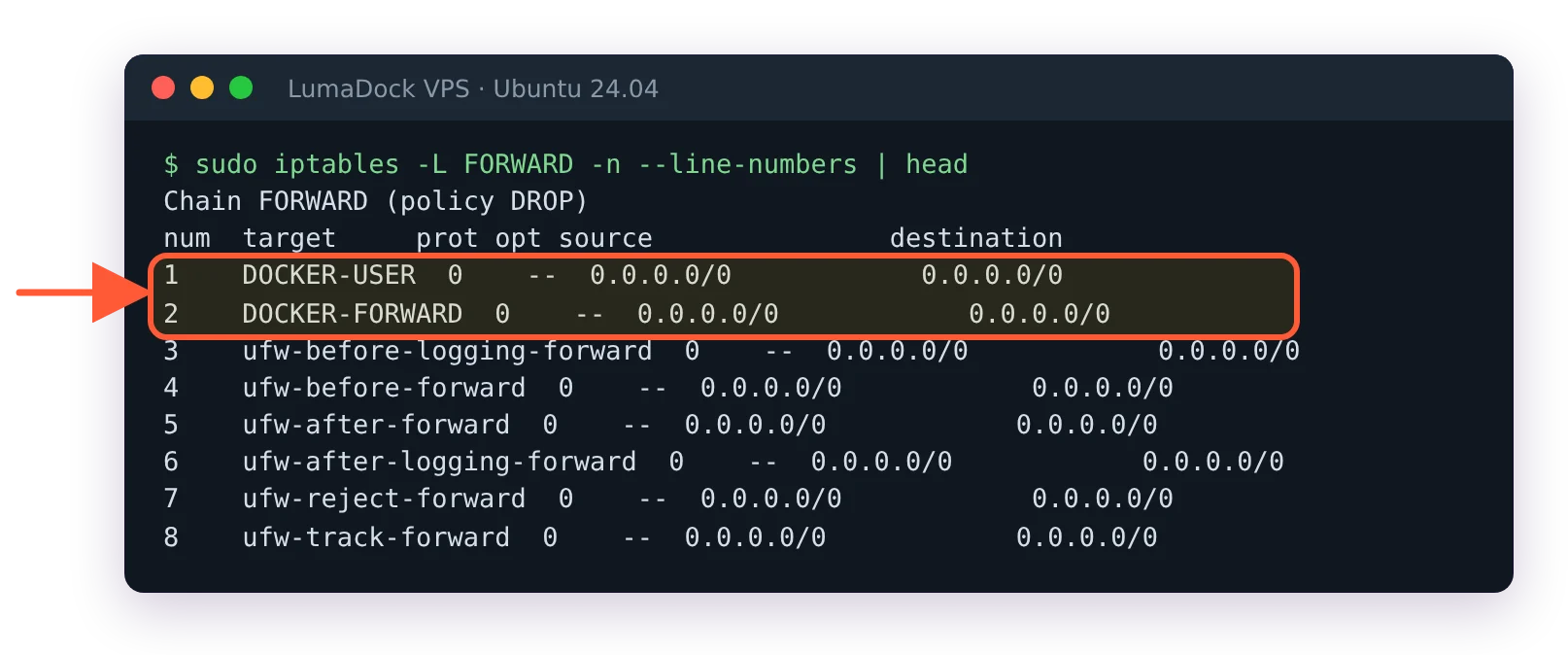
iptables FORWARD chain: DOCKER-USER and DOCKER-FORWARD at positions 1 and 2, the ufw chains after them

Docker's chains sit at the top of FORWARD, so container traffic is decided before ufw sees it.

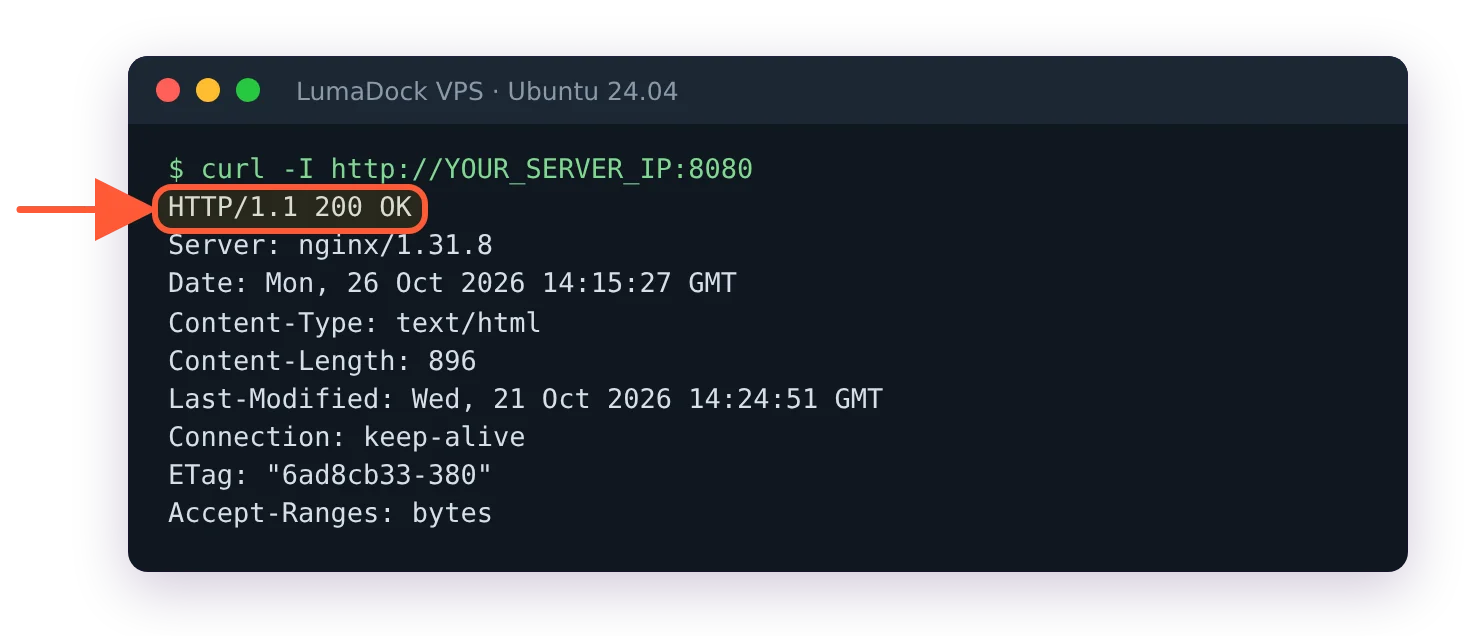
The nat DOCKER chain shows the DNAT for 8080 and the FORWARD chain jumps into DOCKER-USER and DOCKER-FORWARD before anything ufw added. From another machine, curl http://YOUR_SERVER_IP:8080 answers even with ufw default deny incoming active. Remove the test container afterwards with docker rm -f test.
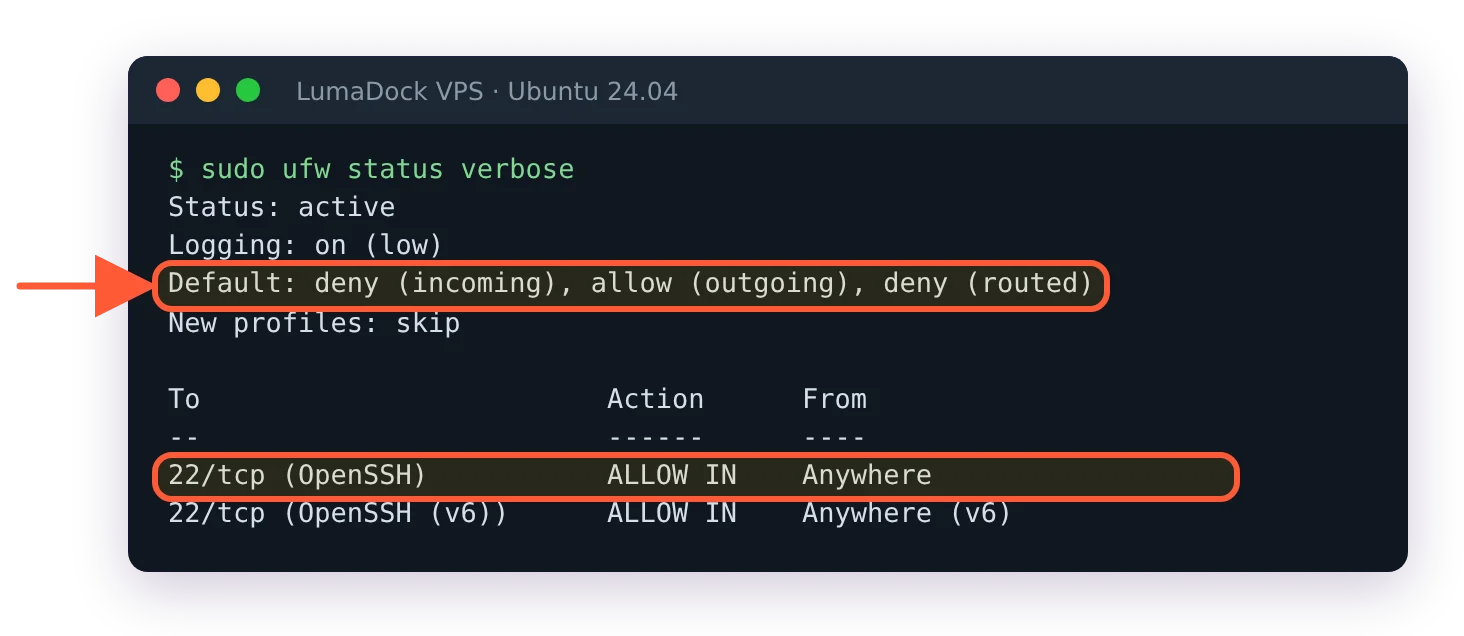
ufw status verbose during the test: deny incoming, only 22/tcp OpenSSH allowed

ufw says only SSH is allowed in...

curl -I from another machine to port 8080 returns HTTP/1.1 200 OK from nginx despite ufw

...yet the published port answers from another server on the internet.

Fix 1: Bind published ports to 127.0.0.1

The simplest fix, and the one I use on every single-host setup: publish to the loopback address and let a reverse proxy on the host, or in another container on the same Docker network, be the only thing with a public port.

docker run -d -p 127.0.0.1:5432:5432 postgres:16

In Compose the same thing is ports: ["127.0.0.1:5432:5432"]. A port bound to loopback is reachable from the host and from nothing else: re-run the test container as -p 127.0.0.1:8080:80 nginx and the curl from another machine now times out, because ufw drops the packet without a reply. Services that only talk to each other don't need ports: at all, since containers on a shared user-defined network reach each other by service name on the container port. Docker's documentation notes that before Engine 28.0 hosts on the same L2 segment could reach loopback-published ports, which is one more reason to be on 29.
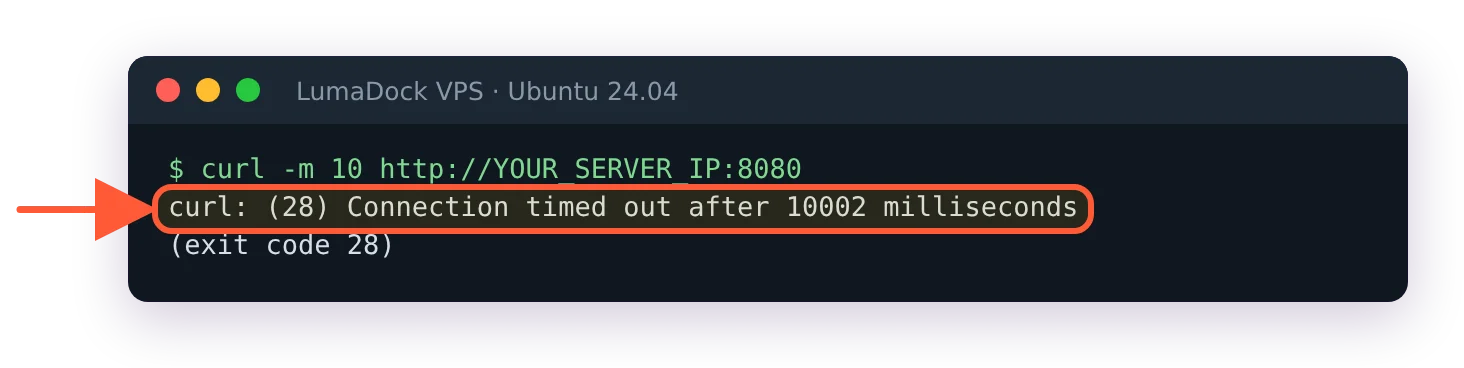
curl -m 10 to port 8080 from outside: curl (28) Connection timed out after 10002 milliseconds

Bound to 127.0.0.1, the port no longer answers from outside; the request times out.

To make loopback the default for anything published without an address, set it in /etc/docker/daemon.json. For the default bridge:

{
  "ip": "127.0.0.1"
}
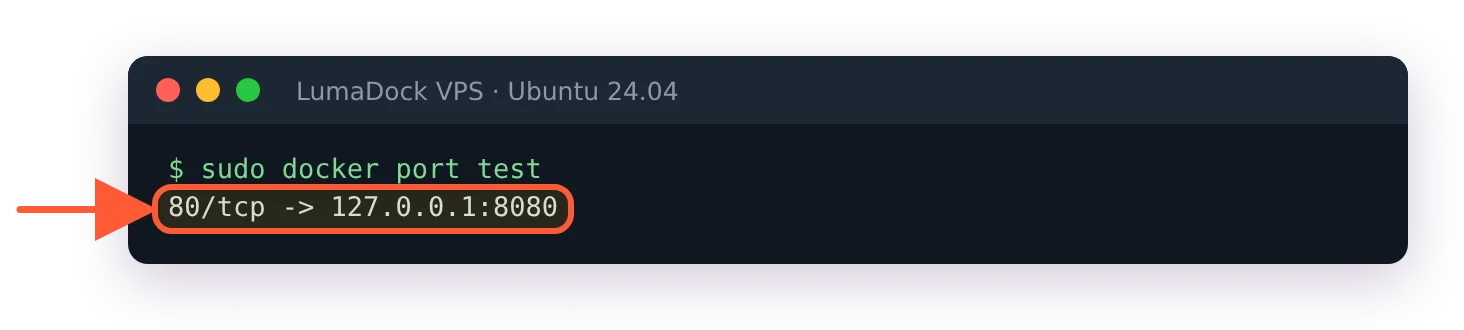
docker port test after setting "ip": "127.0.0.1" in daemon.json: 80/tcp -> 127.0.0.1:8080

With "ip": "127.0.0.1" in daemon.json, a plain -p 8080:80 binds to loopback.

For user-defined bridge networks (which is what Compose creates) the equivalent is the default-network-opts key with com.docker.network.bridge.host_binding_ipv4 set to 127.0.0.1, and the port publishing docs show the exact JSON. Restart the daemon after either change; existing containers keep their old bindings until recreated.

Fix 2: Filter in the DOCKER-USER chain

When a port has to be public but only to some addresses (a database reachable from one application server, an admin panel reachable from the office), the supported place for your rules is the DOCKER-USER chain, which Docker's iptables documentation describes as a placeholder for user rules processed before Docker's own. Rules appended to FORWARD run after Docker's accept and never see the packet; rules in DOCKER-USER run first. The pattern from the docs, with the external interface and the allowed source filled in:

sudo iptables -I DOCKER-USER -i eth0 ! -s 203.0.113.0/24 -j DROP
sudo iptables -I DOCKER-USER -m state --state RELATED,ESTABLISHED -j ACCEPT
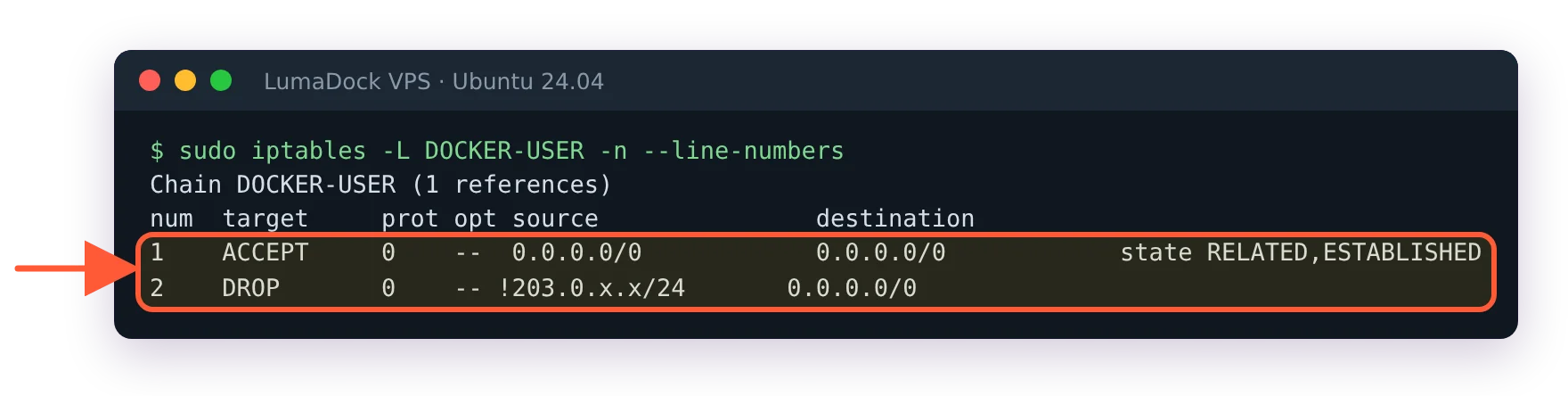
DOCKER-USER chain: rule 1 ACCEPT RELATED,ESTABLISHED, rule 2 DROP from outside 203.0.113.0/24

The working order: established flows accepted first, then everything else from outside the allowed range dropped.

Read the order carefully: -I inserts at the top, so the second command ends up above the first, and the chain reads "accept established flows, then drop anything else arriving on eth0 that isn't from 203.0.113.0/24". The established rule has to be on top because containers make outbound requests (DNS, package mirrors, webhooks), and the replies arrive on eth0 from addresses outside the allowed range. With the DROP above it they never reach the ACCEPT, and a container can't even resolve a hostname: wget inside one fails with "bad address".

Replace eth0 with your interface from ip -br link; on many Ubuntu VMs it's ens3 or enp1s0. Two more details from the same page: by the time a packet reaches DOCKER-USER it has already been DNAT'd, so matching on the original public port means using the conntrack extension with --ctorigdstport, and iptables rules don't survive a reboot on their own, so install iptables-persistent and run netfilter-persistent save once the rules are right. Also: ufw's own after.rules file is a legitimate place to put DOCKER-USER rules so ufw reloads them, and several popular "ufw-docker" scripts do exactly that. I keep them in a plain file and load it from a systemd unit, because I want to see the rules in one place, but either works.

Fix 3: iptables false, and what breaks

The daemon option "iptables": false in daemon.json stops Docker from creating most of its rules. It sounds like the clean answer, and for most people it's a trap with a config key. Docker's own page says it's "likely to break container networking": with no masquerade rule, containers on bridge networks can't reach the internet, and with no filter rules their ports are open to any host on the local network. You then own every NAT and forwarding rule by hand, for every network Docker creates. I've done it once, on a host that already had a strict nftables ruleset managed elsewhere, and it was a week of surprises. Bind to loopback, filter in DOCKER-USER and leave the option alone unless you're that host.

One line for completeness: Engine 29 added an experimental nftables backend selected with "firewall-backend": "nftables". The chain names and the DOCKER-USER pattern differ there, so the rules above are for the default iptables backend.
Your idea deserves better hosting

24/7 support 30-day money-back guaranteeRefund covers the VPS plan on your first order. Cancel anytime
Billing Cycle

VPS.S1

23.65 zł Save  17 %
19.70 zł Monthly
  • 2 vCPU AMD EPYC
  • 2 GB RAMMEMORY
  • 30 GB NVMeSTORAGE
  • Unmetered bandwidth
  • IPv4 & IPv6IPv6 is currently unavailable in France, Finland or the Netherlands. included

VPS.S3

59.18 zł Save  33 %
39.44 zł Monthly
  • 4 vCPU AMD EPYC
  • 6 GB RAMMEMORY
  • 70 GB NVMeSTORAGE
  • Unmetered bandwidth
  • IPv4 & IPv6IPv6 is currently unavailable in France, Finland or the Netherlands. included

VPS.S4

78.92 zł Save  20 %
63.13 zł Monthly
  • 6 vCPU AMD EPYC
  • 8 GB RAMMEMORY
  • 80 GB NVMeSTORAGE
  • Unmetered bandwidth
  • IPv4 & IPv6IPv6 is currently unavailable in France, Finland or the Netherlands. included

EPYC VPS.P1

35.49 zł Save  22 %
27.60 zł Monthly
  • 2 vCPU AMD EPYC
  • 4 GB RAMMEMORY
  • 40 GB NVMeSTORAGE
  • Unmetered bandwidth
  • IPv4 & IPv6IPv6 is currently unavailable in France, Finland or the Netherlands. included
  • Free auto backupsIncludes one backup slot you can set to run daily, weekly or monthly.

EPYC VPS.P2

67.08 zł Save  24 %
51.28 zł Monthly
  • 2 vCPU AMD EPYC
  • 8 GB RAMMEMORY
  • 80 GB NVMeSTORAGE
  • Unmetered bandwidth
  • IPv4 & IPv6IPv6 is currently unavailable in France, Finland or the Netherlands. included
  • Free auto backupsIncludes one backup slot you can set to run daily, weekly or monthly.

EPYC VPS.P4

118.40 zł Save  23 %
90.76 zł Monthly
  • 4 vCPU AMD EPYC
  • 16 GB RAMMEMORY
  • 160 GB NVMeSTORAGE
  • Unmetered bandwidth
  • IPv4 & IPv6IPv6 is currently unavailable in France, Finland or the Netherlands. included
  • Free auto backupsIncludes one backup slot you can set to run daily, weekly or monthly.

EPYC VPS.P5

157.88 zł Save  25 %
118.40 zł Monthly
  • 8 vCPU AMD EPYC
  • 16 GB RAMMEMORY
  • 180 GB NVMeSTORAGE
  • Unmetered bandwidth
  • IPv4 & IPv6IPv6 is currently unavailable in France, Finland or the Netherlands. included
  • Free auto backupsIncludes one backup slot you can set to run daily, weekly or monthly.

EPYC VPS.P6

236.84 zł Save  25 %
177.62 zł Monthly
  • 8 vCPU AMD EPYC
  • 32 GB RAMMEMORY
  • 200 GB NVMeSTORAGE
  • Unmetered bandwidth
  • IPv4 & IPv6IPv6 is currently unavailable in France, Finland or the Netherlands. included
  • Free auto backupsIncludes one backup slot you can set to run daily, weekly or monthly.

EPYC VPS.P7

276.32 zł Save  29 %
197.36 zł Monthly
  • 16 vCPU AMD EPYC
  • 32 GB RAMMEMORY
  • 240 GB NVMeSTORAGE
  • Unmetered bandwidth
  • IPv4 & IPv6IPv6 is currently unavailable in France, Finland or the Netherlands. included
  • Free auto backupsIncludes one backup slot you can set to run daily, weekly or monthly.

Genoa VPS.G2

98.66 zł Save  20 %
78.92 zł Monthly
  • 2 vCPUAMD EPYC Genoa 4th generation 9xx4 with 3.25 GHz or similar, on Zen 4 architecture. AMD EPYC G4
  • 4 GB DDR5MEMORY
  • 50 GB NVMeSTORAGE
  • Unmetered bandwidth
  • IPv4 & IPv6IPv6 is currently unavailable in France, Finland or the Netherlands. included
  • Free auto backupsIncludes one backup slot you can set to run daily, weekly or monthly.

Genoa VPS.G4

177.62 zł Save  22 %
138.14 zł Monthly
  • 4 vCPUAMD EPYC Genoa 4th generation 9xx4 with 3.25 GHz or similar, on Zen 4 architecture. AMD EPYC G4
  • 8 GB DDR5MEMORY
  • 100 GB NVMeSTORAGE
  • Unmetered bandwidth
  • IPv4 & IPv6IPv6 is currently unavailable in France, Finland or the Netherlands. included
  • Free auto backupsIncludes one backup slot you can set to run daily, weekly or monthly.

Genoa VPS.G6

355.28 zł Save  22 %
276.32 zł Monthly
  • 8 vCPUAMD EPYC Genoa 4th generation 9xx4 with 3.25 GHz or similar, on Zen 4 architecture. AMD EPYC G4
  • 16 GB DDR5MEMORY
  • 200 GB NVMeSTORAGE
  • Unmetered bandwidth
  • IPv4 & IPv6IPv6 is currently unavailable in France, Finland or the Netherlands. included
  • Free auto backupsIncludes one backup slot you can set to run daily, weekly or monthly.

Genoa VPS.G7

631.64 zł Save  22 %
493.46 zł Monthly
  • 8 vCPUAMD EPYC Genoa 4th generation 9xx4 with 3.25 GHz or similar, on Zen 4 architecture. AMD EPYC G4
  • 32 GB DDR5MEMORY
  • 250 GB NVMeSTORAGE
  • Unmetered bandwidth
  • IPv4 & IPv6IPv6 is currently unavailable in France, Finland or the Netherlands. included
  • Free auto backupsIncludes one backup slot you can set to run daily, weekly or monthly.

AMD Ryzen VPS.R1

67.08 zł Save  18 %
55.23 zł Monthly
  • 1 dedicated CPU AMD Ryzen 9 7950X with 4.5 GHz or similar, on Zen 4 architecture. vCPU
  • 4 GB DDR5MEMORY
  • 50 GB NVMeSTORAGE
  • Unmetered bandwidth
  • IPv4 & IPv6 included IPv6 support is currently unavailable in France, Finland or the Netherlands.
  • Auto backup included

AMD Ryzen VPS.R2

118.40 zł Save  17 %
98.66 zł Monthly
  • 2 dedicated CPUs AMD Ryzen 9 7950X with 4.5 GHz or similar, on Zen 4 architecture. vCPU
  • 8 GB DDR5MEMORY
  • 100 GB NVMeSTORAGE
  • Unmetered bandwidth
  • IPv4 & IPv6 included IPv6 support is currently unavailable in France, Finland or the Netherlands.
  • Auto backup included

AMD Ryzen VPS.R4

434.24 zł Save  18 %
355.28 zł Monthly
  • 8 dedicated CPUs AMD Ryzen 9 7950X with 4.5 GHz or similar, on Zen 4 architecture. vCPU
  • 32 GB DDR5MEMORY
  • 400 GB NVMeSTORAGE
  • Unmetered bandwidth
  • IPv4 & IPv6 included IPv6 support is currently unavailable in France, Finland or the Netherlands.
  • Auto backup included

*VAT excluded.

INCLUDED WITH EVERY PLAN

✓ No setup fees ✓1 Gbps network
✓ Full root access on KVM ✓ Free server monitoring ✓ Firewall management ✓24/7 support

Log rotation in daemon.json

By default Docker captures every container's stdout and stderr to a JSON file under /var/lib/docker/containers/<id>/ with no size limit. The json-file driver documentation gives max-size a default of -1, meaning unlimited, and that is how a 40 GB disk fills. Set limits daemon-wide:

{
  "log-driver": "json-file",
  "log-opts": {
    "max-size": "10m",
    "max-file": "3"
  }
}

Both values are strings, quotes included, or the daemon refuses to start. Merge this with any other keys already in the file (the ip setting above, for example), since daemon.json is one JSON object. sudo systemctl restart docker applies it to containers created from then on; containers that already exist keep their old logging config until you recreate them, which with Compose is a docker compose up -d --force-recreate. Thirty megabytes of logs per container is enough to debug yesterday and small enough to forget about.

overlay2, the containerd image store and pruning

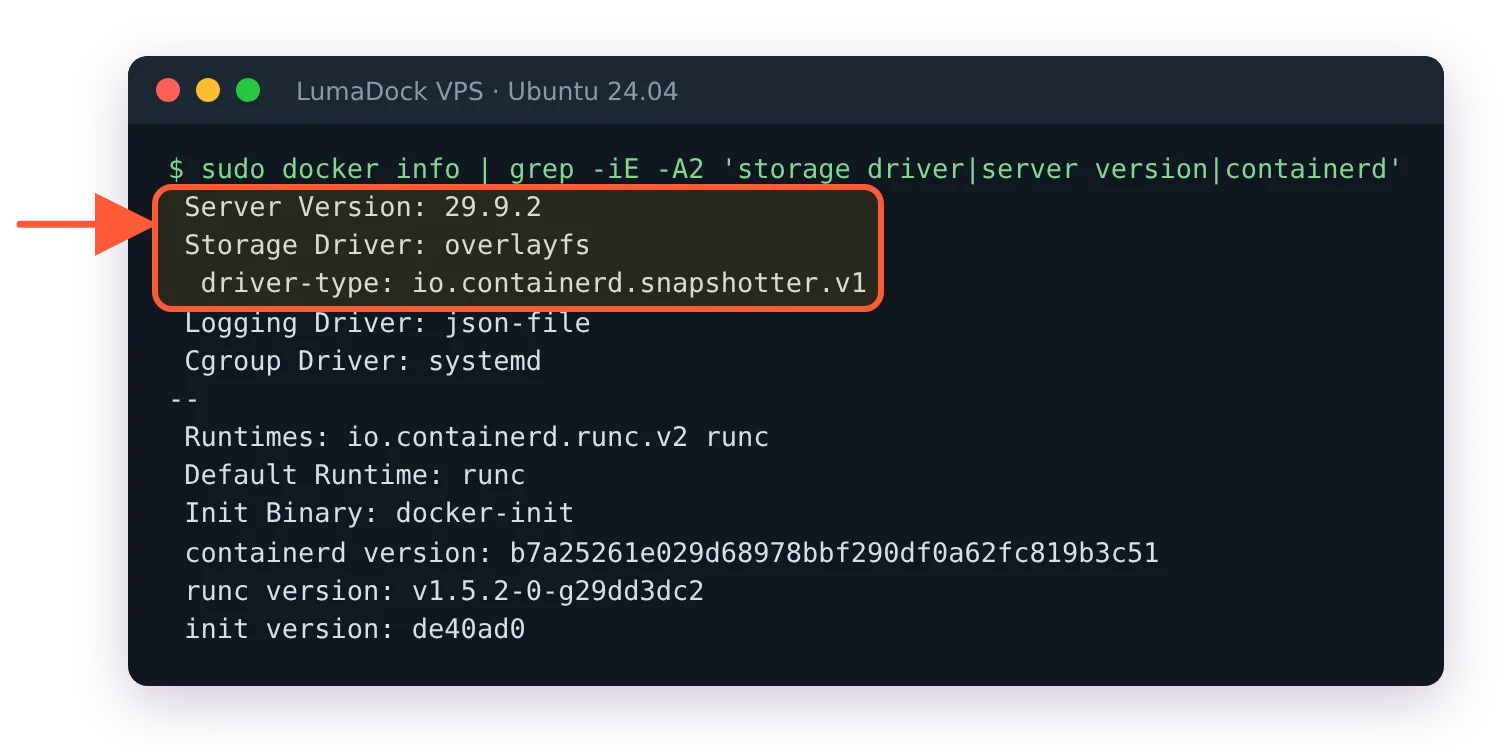
Since Engine 29.0, released 10 November 2025, a fresh install uses the containerd image store with the overlayfs snapshotter, and a host upgraded from an older version keeps the classic overlay2 driver until you switch. Both sit on the kernel's OverlayFS and both work on the ext4 root filesystem an Ubuntu template ships with. docker info shows which one you have under Storage Driver. There's no reason to change it on a VPS, and if you ever do, existing images become invisible until you switch back, so don't do it on a box with running services you haven't exported.

docker info on Engine 29.9.2: Storage Driver overlayfs, driver-type io.containerd.snapshotter.v1

A fresh Docker Engine 29 install uses the containerd image store, not overlay2.

What you do need is a habit around disk. Start with the accounting:

docker system df

It lists images, containers, local volumes and build cache with a "reclaimable" column. Then:

docker system prune

removes stopped containers, networks no container uses, dangling images and unused build cache, and asks first. It does not touch volumes, by design. docker system prune -a also removes every image not used by a running container, which is usually what you want on a server (the next deploy pulls again) and occasionally a surprise when a service was stopped for maintenance and its image vanishes. --volumes prunes anonymous volumes and I never pass it on a production host; named volumes are safe from it, anonymous ones are the ones an unlabelled database might be living in. I run docker system prune -f weekly from cron and -a by hand.

Restart policies

The default policy is no. Set --restart unless-stopped (or restart: unless-stopped in Compose) on anything that should come back after a reboot or a crash; it restarts on failure and on daemon restart, and stays down if you stopped it yourself. always differs only in that a container you stopped by hand comes back when the daemon restarts, which is rarely what anyone wants on a server. on-failure:5 restarts only on a non-zero exit and gives up after five attempts, useful for one-shot jobs. A policy takes effect only after a container has stayed up for 10 seconds, so a container that dies instantly doesn't loop forever, and docker update --restart unless-stopped $(docker ps -q) fixes a box where nobody set one.

Volumes and backups

Bind mounts (-v /srv/app/data:/data) put the data at a path you chose and can back up with any tool. Named volumes (-v appdata:/data) live under /var/lib/docker/volumes/<name>/_data and are equally backable, just less obvious to find. I use bind mounts under /srv for anything whose files I want to see, and named volumes for databases. For backup, either stop the container or, for a database, dump it (docker exec db pg_dump -U app app > app.sql) and back the dump up alongside the volume; a file-level copy of a running Postgres data directory is a coin flip. The guide to automated VPS backups with restic and Borg covers the schedule and the off-box target, and a provider snapshot of the whole VM is the coarse backup that catches everything, including the things you forgot were in a volume.

Save your best work

Send your backups to a storage VPS with room for years of archives, unmetered bandwidth and a cost per gigabyte that stays low.

Reverse proxy, monitoring and management

With every service bound to loopback or unpublished, one thing owns ports 80 and 443. Caddy is the smallest answer: a Caddyfile of a few lines per site, certificates from Let's Encrypt handled without configuration, and it runs fine as a container on the same network as the services it fronts. Nginx Proxy Manager is the same idea with a web UI, good for people who'd rather click through hosts and certificates than edit a file. Traefik reads labels off the containers themselves, which is elegant on a busy host and more than a five-service box needs.

Monitoring a Docker host is monitoring the host plus a per-container view; docker stats is the live one, and the piece on how to monitor a VPS covers the tools that keep history and alert. Container restarts are the metric I'd watch first, since a service in a restart loop under unless-stopped looks healthy from a port check.

Portainer and Coolify sit above all this. Portainer is a UI over the Docker API on a host you still manage yourself, and the note on the Portainer port covers getting at it safely. Coolify is closer to a self-hosted Heroku, with git deploys and its own proxy, and the comparison of Coolify alternatives is where to look if that's the shape you want. Both help when you're running ten services and stop helping when you need to understand why one of them is slow, at which point you're back to docker logs and docker stats in an SSH session.

What I haven't measured is how much the containerd image store changes pull and disk behaviour on a small VPS compared to overlay2 in practice. The docs describe lazy pulling and better multi-platform handling, and my hosts that have it are the fresh ones, so I have no like-for-like comparison to give you. Ask me in a year.

Questions?

Can Docker containers use swap?

Yes, as long as the host has swap configured: a container with no memory limit uses the host's swap like any other process, and one with a limit but no memswap_limit (--memory-swap on the command line) may use as much swap again as its memory limit. Setting memswap_limit equal to the memory limit takes swap away from that container, which suits a database you'd rather see restarted than paging to disk. When the host runs out of both, the kernel's OOM killer starts ending processes, and Docker lowers the OOM priority of its own daemon while leaving containers at normal priority, so the process killed is one of your services. Swap on a Docker VPS buys time before that point, and a box that swaps all day needs more RAM or fewer containers.

Ellie Grace Hayes
About the author

Ellie Grace Hayes

I grew up in Minnesota and started working remotely before I decided that travelling was going to become a permanent part of my life. And it kinda did, more or less... I tend to stay somewhere for a month or two, sometimes longer if I like the place (so "digital nomad" is technically accurate, even if most days are much less exciting than the term suggests). Usually I'm at a desk in a rented room trying to work out why a command behaved differently on two supposedly identical machines :)

I came into technical writing through support work & community tutorials. Linux was the first subject I wrote about, but since then I've wandered into containers, hosting, networking plus a lot of self-hosted software. I've played Minecraft since I was a kid and still go through phases where I get completely absorbed in it for a few weeks. I don't have a five-year plan. I've tried - it keeps becoming a six-month plan instead.

Deploy your next project in seconds

Bring your winning ideas online faster, with modern hardware and unmetered bandwidth. Join a European cloud trusted by thousands of developers and businesses worldwide.