





.svg)
.svg)
.svg)
.svg)

.svg)
.svg)
.svg)


Updated and tested 23 October 2026
How do you find out the site is down before a customer tells you? That's the whole question, and it has three separate answers because a VPS fails in three separate ways. Sometimes the machine is fine and the world can't reach it (a firewall rule, a DNS change, an expired certificate), which only a check from outside can see. Sometimes the machine is reachable and slowly sinking (disk filling, a neighbour stealing CPU, memory creeping toward the OOM killer), which needs metrics on the host. And sometimes one process has died overnight and everything else is fine, which wants something that notices within a minute and restarts it without waking anyone. Uptime Kuma, Netdata and Monit cover those three in that order, they're all free and self-hosted, and none of them needs more than a few minutes to install on Ubuntu 24.04 LTS, which the commands below assume.
Outside-in uptime checks with Uptime Kuma
Uptime Kuma has to run somewhere other than the VPS it watches. That sounds obvious and I still see it installed on the same box, where it reports 100% uptime through an outage because it went down with everything else. A second small VPS at a different provider, a Raspberry Pi at home with a stable connection, a container on a friend's server: anywhere with a different failure domain. Small is fine for CPU and RAM, but leave about 3 GB of disk free for it, because the 2.x image takes roughly 2.5 GB once pulled. If you'd rather not run a second machine, most panels offer server checks of their own, and a provider's page on creating and configuring server checks gets you HTTP and ping monitoring from their side in a couple of clicks. That covers reachability. What it won't do is the keyword and push checks below, which is why I run Uptime Kuma as well.
On the second box, with Docker installed, a directory and a compose file. If your user isn't in the docker group (the trade-off is covered in Docker on a VPS), the last line needs sudo in front of it.
mkdir -p ~/uptime-kuma && cd ~/uptime-kuma
cat > compose.yaml <<'EOF'
services:
  uptime-kuma:
    image: louislam/uptime-kuma:2
    container_name: uptime-kuma
    restart: unless-stopped
    ports:
      - "127.0.0.1:3001:3001"
    volumes:
      - ./data:/app/data
EOF
docker compose up -d
Uptime Kuma 2 running from the compose file and listening on loopback only.
That's the compose file from the project's own repository with one change: the port is bound to 127.0.0.1, so the setup pages (the database choice, then the admin account, which the first visitor gets to create) aren't on the public internet, and a reverse proxy with TLS goes in front of it. The :2 tag is the current 2.x line, which the Uptime Kuma install wiki uses in its docker run line; 1.x installs need the migration guide before switching tags. The ./data bind mount holds the SQLite database (once you pick SQLite on the first setup page) and it's the only thing to back up.
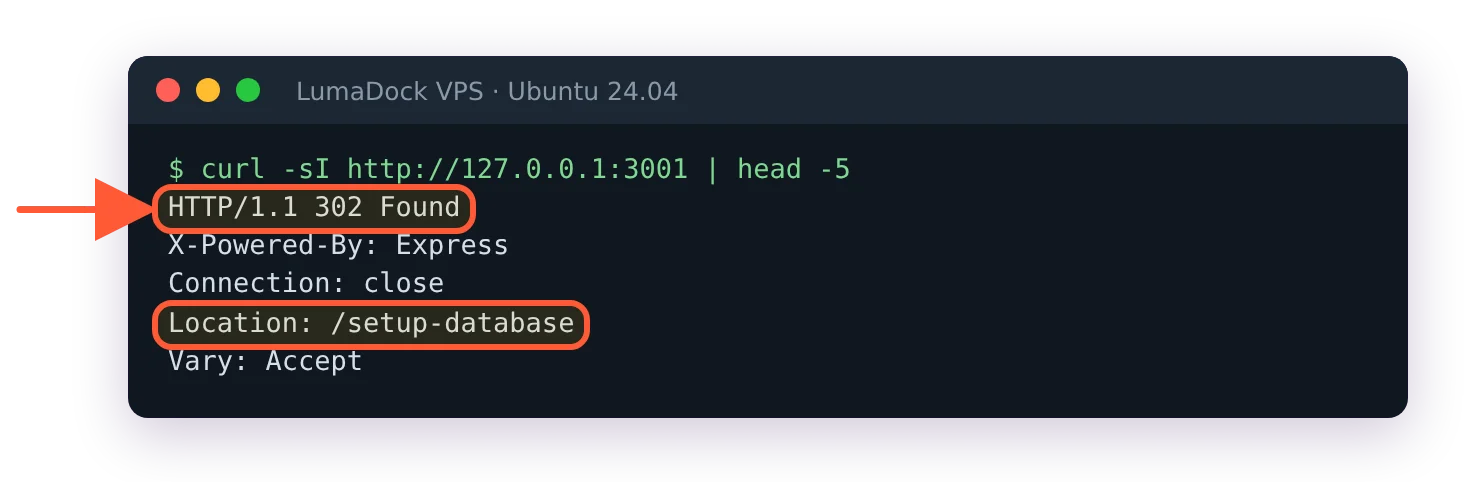
A fresh Uptime Kuma 2 sends the first visitor to the database setup page.
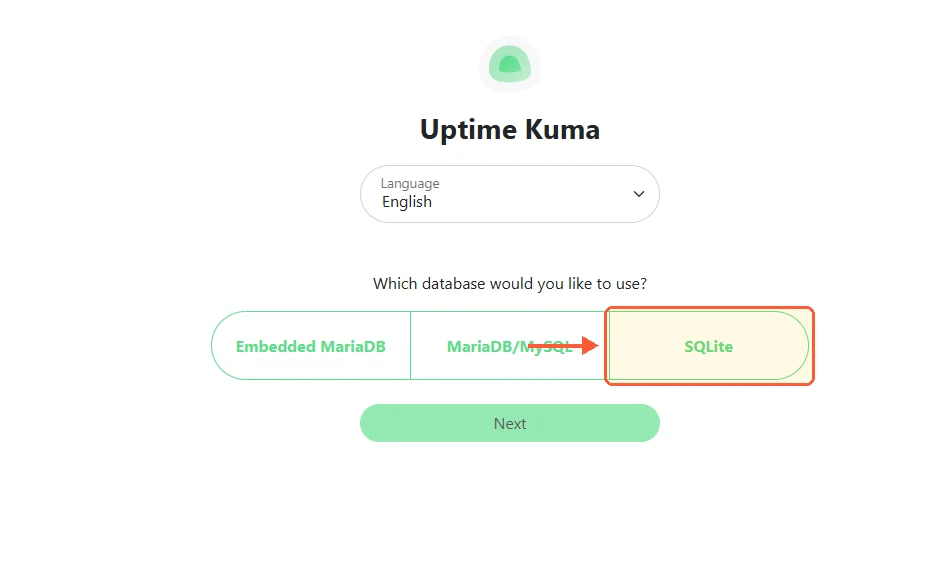
The first setup page in Uptime Kuma 2: pick the database, then create the admin account.
Four monitor types do most of the work on a VPS. HTTP(s) Keyword fetches a page and fails unless a string you choose appears in the body, which catches the case where nginx answers 200 with a maintenance page or a PHP error while a plain HTTP check stays green; I use a word from the footer. TCP Port for anything that isn't HTTP: 22 for sshd, 5432 for a Postgres you expose to a peer, 25565 for a game server. Ping for the bare "is the IP up" signal, which is what separates "the VM is down" from "the web server is down" in the alert you get. DNS Record, pointed at your domain with the expected A record value, catches an expired domain or a hijacked zone; I added mine after a registrar auto-renew failed on a domain I'd assumed was safe. The monitor form already defaults to a 60-second interval but sets Retries to 0, so raise it to 1 on the checks that page you and a single dropped request won't send an alert; 300 seconds is enough for the rest.
Notifications go per monitor or as a default applied to all new ones. Telegram is the one I use, because it's a bot token and a chat ID and it reaches a phone; email through an SMTP relay is the second, and Uptime Kuma lists over ninety providers if your team lives in Slack or Discord. Then there's the push type. It's a URL that something on the VPS calls, and Uptime Kuma alerts when the call stops arriving, which turns a nightly backup timer or a cron job into a monitored thing; the curl line for it sits in the service unit in automated VPS backups with restic or Borg as the last ExecStartPost, so it only fires after a successful run. Set the notification channel up before the monitors, tick "default enabled", and every monitor you add afterwards inherits it.
On-host metrics with Netdata
wget -O /tmp/netdata-kickstart.sh https://get.netdata.cloud/kickstart.sh
sh /tmp/netdata-kickstart.sh --release-channel stable
The kickstart script picks native packages where Netdata publishes them (it does for 24.04) and falls back to a static build otherwise. It installs the agent, starts it, enables it and sets up its own updater; --no-updates turns the updater off if you'd rather apt handle everything. It doesn't connect to Netdata Cloud unless you pass a claim token, so by default you get a fully working standalone agent, and that's what I run on a single VPS. The summary at the end can list a "non-fatal" printf error from the script itself; it's harmless. Cloud adds a hosted dashboard across many nodes, alert routing and the mobile app; for one or two boxes it's a login for something the SSH tunnel below already gives you.
What you get, at one-second resolution, with no configuration: every CPU state including steal time, which on a VPS is the number that tells you the host is oversubscribed and that VPS CPU steal time and noisy neighbours explains how to read; per-disk latency (the await charts, in milliseconds per operation), which is how you tell a slow database from a slow disk; memory with the page cache separated out; network per interface; and a per-application breakdown that answers "what is eating the CPU" without opening htop. Netdata also ships with a set of alerts already on, disk space and RAM and a few dozen others, which fire into the dashboard and to whatever notification method you configure with sudo /etc/netdata/edit-config health_alarm_notify.conf (the file isn't in /etc/netdata until edit-config copies the stock one there).
Retention defaults, from the Netdata database documentation: three storage tiers, with tier 0 at per-second resolution kept for 14 days or 1 GiB, tier 1 at per-minute for three months, tier 2 at per-hour for two years, each also capped at 1 GiB. Change the dbengine tier 0 retention time and retention size keys in the [db] section of netdata.conf if a small system disk needs the space back.
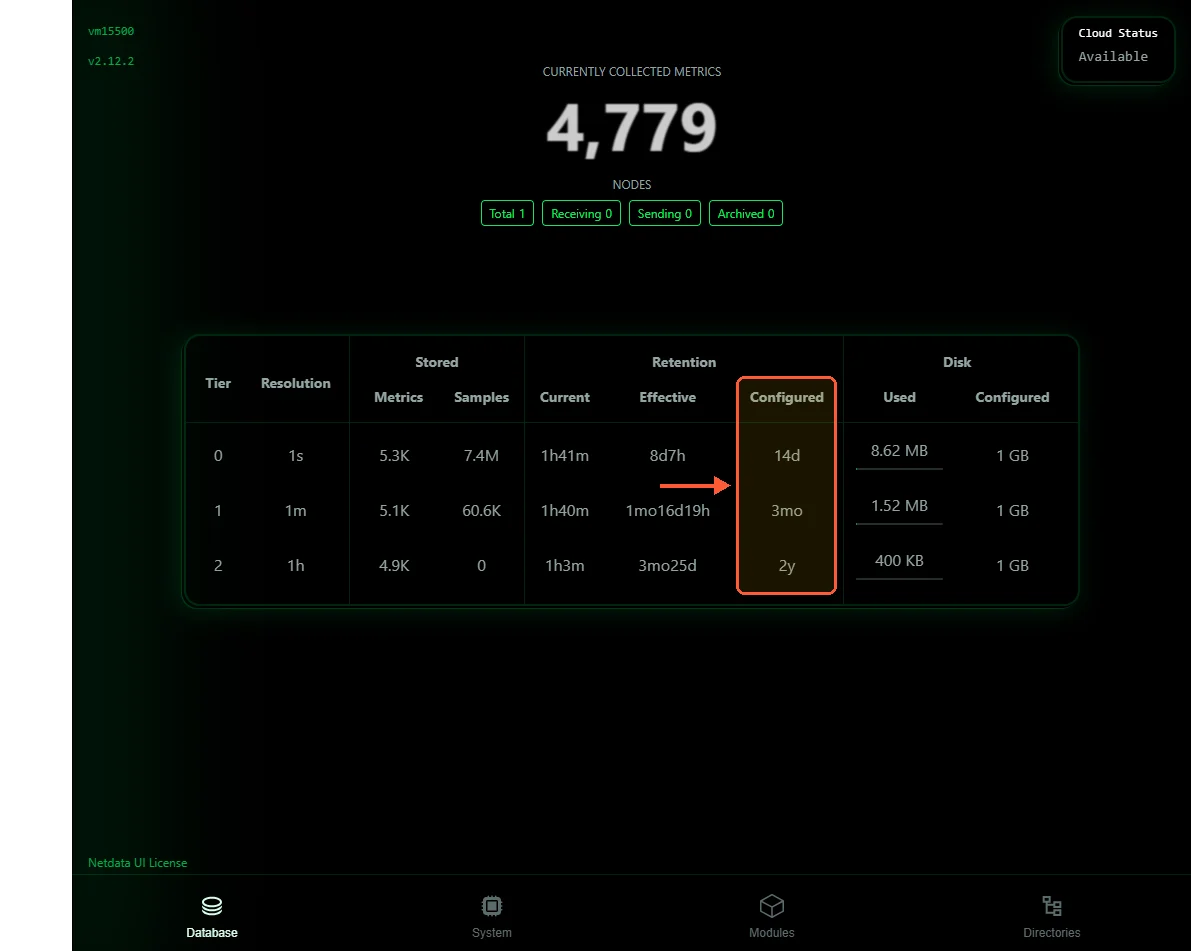
Netdata's three storage tiers and the retention each is configured for.
The agent listens on port 19999 on every interface, IPv4 and IPv6, with no authentication, and on a public IP that means anyone can read your metrics. Two lines fix it:
sudo /etc/netdata/edit-config netdata.confThe stock file is only a few lines of comments with no [web] section, so add these two lines at the end and save:
[web]
    bind to = 127.0.0.1
After the bind change Netdata listens on loopback only.
Restart with sudo systemctl restart netdata. Netdata's own page on securing agents lists this alongside a reverse proxy with authentication and the mode = none option that turns the local dashboard off entirely. To look at the dashboard from your laptop, an SSH tunnel: ssh -L 19999:127.0.0.1:19999 deploy@YOUR_SERVER_IP, then http://localhost:19999 in the browser. The dashboard opens on a Netdata Cloud sign-in page; the "Skip and use the dashboard anonymously" link at the bottom gives you the full local dashboard. If you have a WireGuard interface on the box already (a WireGuard VPS template gives you one at deploy time), bind to that interface's address instead and the dashboard is reachable from any peer with no tunnel to remember. A ufw rule for 19999 is unnecessary either way, since the default-deny policy from how to secure a VPS already drops it and the point of binding to loopback is that the port is never on the public interface at all.
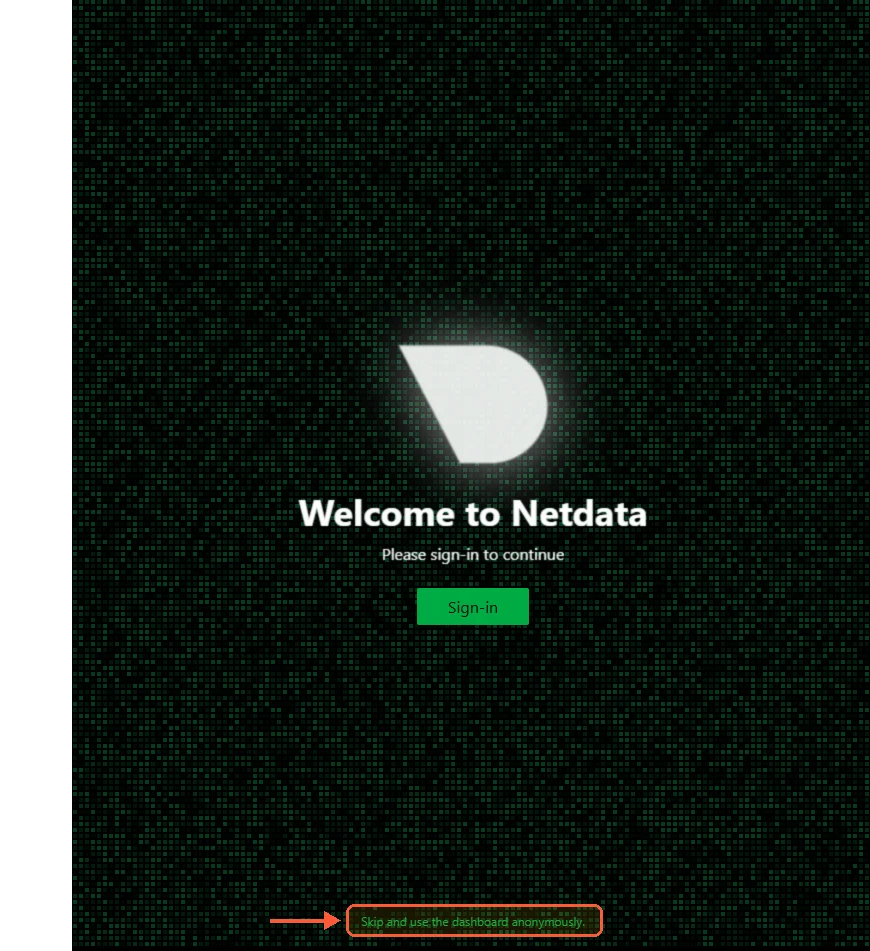
The dashboard opens on a Netdata Cloud sign-in page; the small link at the bottom skips it.
One thing I can't tell you: what Netdata's built-in anomaly detection costs on a 1 vCPU box. It trains a small model per metric and the docs say the overhead is modest, but I turn it off on the smallest plans out of habit and have never measured the difference properly. On 2 vCPUs and up I leave it on and haven't noticed it.
Process supervision and restarts with Monit
Monit is a single small daemon that checks things every N seconds and runs a command when a check fails. It's been doing that since the early 2000s, it has a config syntax that reads like English and one binary with no dependencies, and while the same company sells M/Monit as a paid dashboard across many hosts, the open-source Monit on one VPS has everything the job needs. The apt package on 24.04 is 5.33.0; upstream shipped 6.0.0 on 15 June 2026 and everything in the config below is old enough to work on either.
sudo apt install monitUbuntu's /etc/monit/monitrc is already set to 0600 (Monit refuses to start otherwise), sets the check interval with set daemon 120 and includes everything under /etc/monit/conf.d/. It also ships templates in /etc/monit/conf-available/ for nginx, ssh, postfix and a dozen others, though they still reference /etc/init.d scripts so I write my own and leave the templates alone. Below is one file with everything a typical web VPS needs. Before you run it, swap every CHANGE_ME and example.com for real values (with the placeholders, alert mail only piles up in /var/lib/monit/events) and delete the nginx block if the box doesn't run nginx, or Monit will try to start it every cycle until it hits the restart limit.
sudo tee /etc/monit/conf.d/vps.conf >/dev/null <<'EOF'
set daemon 60
set httpd port 2812 use address 127.0.0.1
    allow 127.0.0.1
    allow admin:CHANGE_ME

set mailserver smtp.example.com port 587
    username "[email protected]" password "CHANGE_ME"
    using tls
set alert [email protected] not on { instance, action }

check system $HOST
    if loadavg (5min) > 4 then alert
    if memory usage > 85% for 3 cycles then alert
    if cpu usage > 90% for 5 cycles then alert

check filesystem rootfs with path /
    if space usage > 85% then alert
    if inode usage > 85% then alert

check process nginx with pidfile /run/nginx.pid
    start program = "/usr/bin/systemctl start nginx"
    stop program  = "/usr/bin/systemctl stop nginx"
    if failed port 80 protocol http request "/" then restart
    if 5 restarts within 5 cycles then unmonitor

check process sshd with pidfile /run/sshd.pid
    start program = "/usr/bin/systemctl start ssh"
    stop program  = "/usr/bin/systemctl stop ssh"
    if failed port 22 protocol ssh then restart
EOF
sudo sed -i 's/^set daemon/#set daemon/' /etc/monit/monitrc
sudo monit -t
sudo systemctl restart monit
sudo monit summary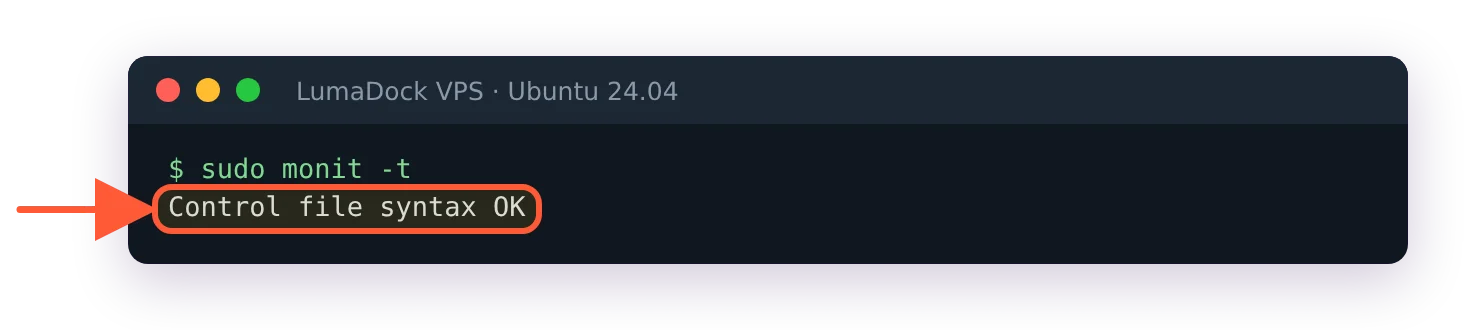
Monit checks the whole configuration before you restart it.
Line by line, briefly. set daemon 60 overrides Ubuntu's 120-second cycle (the sed comments out the original so the two don't conflict); 60 is quick enough to restart nginx before most outside checks notice. The web interface on 2812 is bound to loopback and reached through the same SSH tunnel trick as Netdata, or you skip it and use monit summary and monit status nginx from the shell. check system alerts on load and memory; the for 3 cycles guard stops a single spike from mailing you. The filesystem check is the disk-full alert most people wish they'd had. The nginx block is the reason Monit is here: if a GET on port 80 fails, Monit runs the start program, and if that happens five cycles in a row it stops trying and mails you, because a service that dies every minute has a problem restarts can't fix. Nginx on Ubuntu writes its pid to /run/nginx.pid; a different service means checking its unit file or ls /run for the right path, or using matching "process-name" when there isn't one.
monit -t validates the syntax and prints Control file syntax OK; a typo produces a line number, which is more than most config formats give you. monit summary after a restart lists every check and its state, and the first run shows Initializing for a cycle before settling. Mail from a VPS is its own topic, and the short version is that port 25 outbound is commonly blocked by providers by default and unblocked on request, so the config above sends through an authenticated relay on 587 and never tries to deliver directly. Every other test type (check host for remote ports, check file for a size or checksum, check program to wrap any script whose exit code you trust) is in the Monit manual, which is one long page and worth reading top to bottom once.
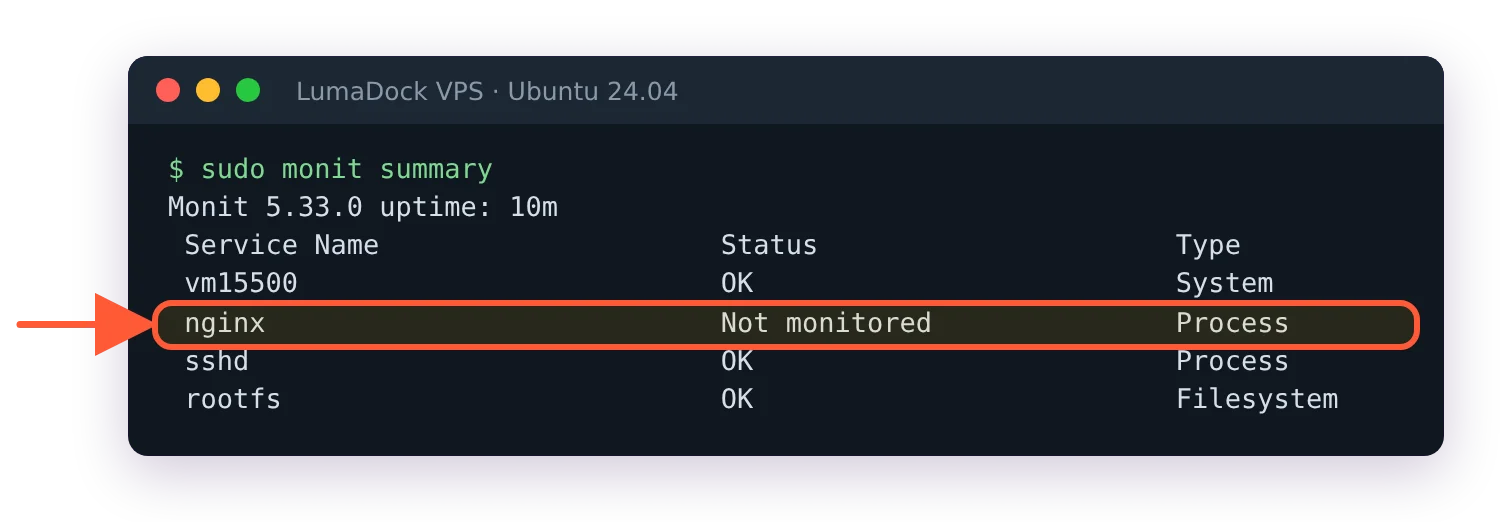
After five failed restarts in five cycles Monit stops trying and marks the service Not monitored.
Disk-full alerts and expiring TLS certificates
These two cause more avoidable outages on small servers than anything else, and both are quiet until they aren't. A full root filesystem stops Postgres from writing, fills the journal, breaks apt and makes sshd logins fail in odd ways; the Monit check filesystem above catches it at 85% and Netdata's built-in disk space alert catches it independently. Two alerts for the same thing is deliberate here, because the disk check is the one you most want twice. Add a second check filesystem block for any mounted data volume, since rootfs only covers /. If the panel offers resource usage notifications for disk and CPU, turn those on as well, because they run outside the VM and keep working when the VM is wedged.
Certificates expire on a schedule and still take sites down every week. Let's Encrypt renewals fail silently when a DNS record changed, a firewall rule blocked port 80 or a cron entry was lost in a reinstall, and the first symptom is a browser warning 90 days later. Uptime Kuma checks the certificate on every HTTPS monitor and, when "Certificate Expiry Notification" is ticked on the monitor (it's off by default, while the newer Domain Name Expiry Notification box in the same form comes ticked), alerts at 21, 14 and 7 days before expiry by default (the thresholds are a settings value, tlsExpiryNotifyDays, in the source). Monit can do the same from the box itself with if failed port 443 protocol https and certificate valid > 14 days then alert, but only an outside check also notices the wrong certificate being served.
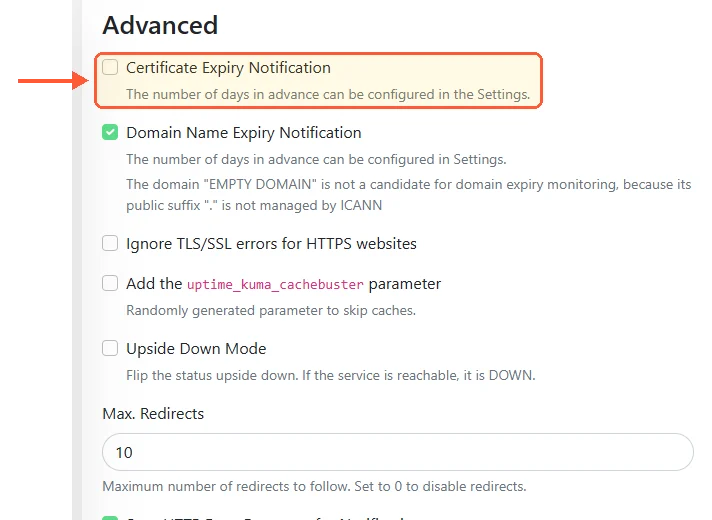
Certificate expiry alerts are off by default in Uptime Kuma; tick the box on each HTTPS monitor.
Log-based alerts with journalctl
None of the three tools above read your logs for patterns. For a single VPS the smallest thing that works is a script on a timer that greps the journal for the last hour and mails or pushes if it finds anything:
#!/bin/bash
hits=$(journalctl --since "-1h" -p err --no-pager -q | grep -vE "known-noise-pattern" | head -20)
[ -n "$hits" ] && printf '%s\n' "$hits" | mail -s "errors on $(hostname)" [email protected]
-p err filters to error priority and above, which on a healthy box is a few lines a day. The grep -v is where the noise patterns go as you find them, and you will find them. Monit's check program can wrap the same script and turn a non-zero exit into an alert with retry logic already built. When the number of hosts or the volume of logs grows past what grep on one box handles, the self-hosted step up is Promtail shipping the journal to a Loki instance and alert rules there, which is a larger install than this article is about and only worth it when you have log volume to search across machines.


