





.svg)
.svg)
.svg)
.svg)

.svg)
.svg)
.svg)


Updated and tested 31 July 2026
One condition before any of this: know how you'd get back in if SSH stopped answering. On a KVM VPS that's the console in the provider's panel (noVNC or a serial console), and it works when the network config, the firewall or sshd itself is broken, because it talks to the virtual machine's screen and keyboard and not to its IP. Open that console once, log in with the root password from the welcome email, then close it. Now you know the path exists, and every step below is reversible from it. The whole list takes under an hour on a fresh box, and the order matters more than the individual steps: keys before you disable passwords, the SSH rule before you enable the firewall, a password on your own account before you lock root's.
Commands assume Ubuntu 24.04 LTS, which ships OpenSSH 9.6p1 and gets standard security maintenance into 2029, so a box built on it today doesn't need a distro upgrade for years.
Step 1: Create a sudo user and stop logging in as root
Log in as root one last time and make the account you'll use from now on:
adduser deploy
usermod -aG sudo deploy
adduser asks for a password. Set one, a real one, and don't skip this because you plan to use keys: sudo prompts for it, and the console in the panel needs it if SSH is ever broken. Some images (the cloud ones built for cloud-init) already have a user like ubuntu with passwordless sudo and no password at all; if that's what you've been handed, passwd ubuntu gives it one and you can keep using it. Confirm the new account works before going on:
su - deploy
sudo -v
If sudo -v accepts the password without complaint, the account is ready. From here every command runs from that account with sudo in front.
Step 2: SSH keys and the sshd_config.d directory
Generate an ed25519 key and copy it
On your laptop, not on the server:
ssh-keygen -t ed25519 -C "laptop-2026"
ssh-copy-id deploy@YOUR_SERVER_IP
ed25519 keys are short, fast and have no parameter choices to get wrong, which is why every guide written since about 2015 recommends them over RSA. (The curve came out of Daniel J. Bernstein's group in 2011 and OpenSSH 6.5 added the key type in January 2014; the year or so after that is how long the default advice took to catch up.) Give the key a passphrase; ssh-agent means you type it once per session. Then, in a second terminal, log in as deploy with the key and leave that session open. That's the session you keep alive through the rest of this step, because a mistake in sshd config is caught by the next test login and never by the one you already have.
Turn off password and root login in a drop-in file
On 24.04 the main file /etc/ssh/sshd_config has Include /etc/ssh/sshd_config.d/*.conf near the top, so the included files are read before the rest of it, in lexical order. The sshd_config man page says that for each keyword "the first obtained value will be used", which means whichever file sets PasswordAuthentication first wins and later mentions are ignored. On a VPS built from a cloud image, cloud-init has already written a file in that directory with PasswordAuthentication yes in it (50-cloud-init.conf on Canonical's own images, 01-cloud-init.conf on some providers' templates, sometimes with PermitRootLogin yes as well), and that file is why so many people set no in the main config, restart sshd and find passwords still work. Look before you write anything:
ls /etc/ssh/sshd_config.d/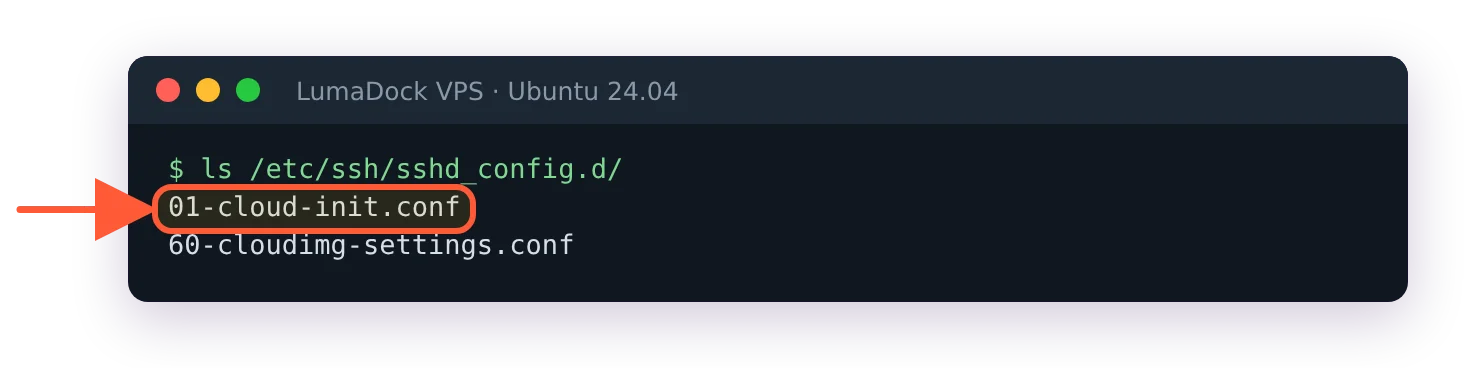
This image's cloud-init file starts with 01, so a hardening file has to start with 00 to be read first.
Your drop-in has to sort before every file that command lists, and 00- sorts before all of them:
sudo tee /etc/ssh/sshd_config.d/00-hardening.conf >/dev/null <<'EOF'
PasswordAuthentication no
KbdInteractiveAuthentication no
PermitRootLogin no
EOF
sudo sshd -t && sudo systemctl restart ssh
The number in the name is the whole fix. On a fresh 24.04 VPS whose image ships 01-cloud-init.conf, the same three lines lost as 99-hardening.conf and still lost as 10-hardening.conf: sshd -T kept reporting permitrootlogin yes and passwordauthentication yes, and a test login was still offered a password. Saved as 00-hardening.conf they won. You can also delete the cloud-init file, and cloud-init won't rewrite it on a normal reboot, but the low number is the fix that survives someone else re-running cloud-init later. PermitRootLogin no is stricter than the OpenSSH default of prohibit-password, which already blocks root's password but still lets a root key in. If you have automation that genuinely needs root over SSH with a key, use prohibit-password; otherwise no and let the sudo user be the only door.
Confirm with sshd -T, then test from a third terminal
sshd -T prints the effective configuration after every include and match block has been resolved, which makes it the only honest way to check:
sudo sshd -T | grep -iE "^(passwordauthentication|permitrootlogin|kbdinteractive)"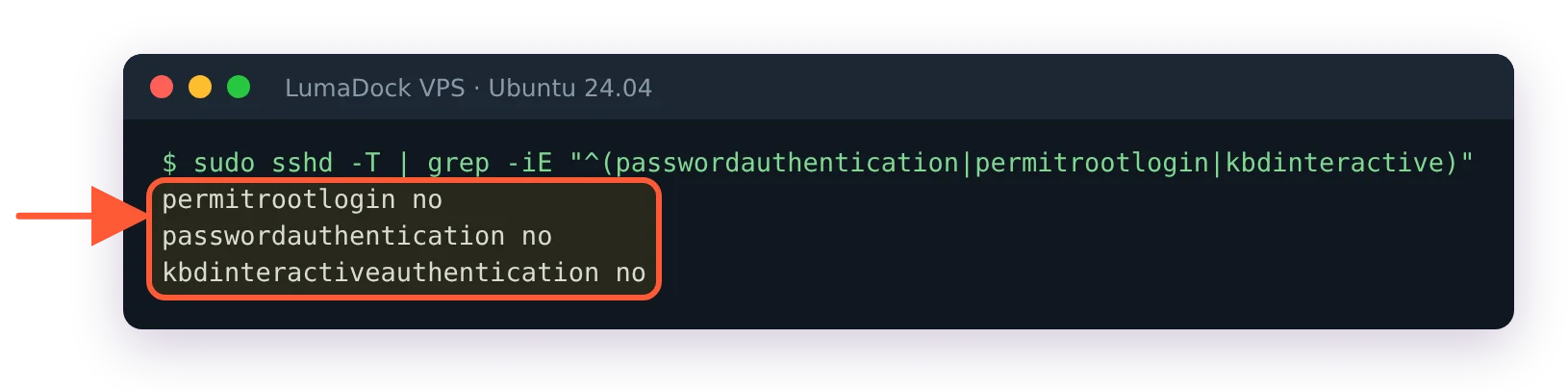
With the drop-in named 00-hardening.conf, sshd -T reports all three settings off.
You want passwordauthentication no, kbdinteractiveauthentication no and permitrootlogin no. Then open a new terminal and try ssh -o PubkeyAuthentication=no deploy@YOUR_SERVER_IP; the right answer is Permission denied (publickey) with no password prompt. Only then close the session you kept open.
A word on the port, because every checklist has it. Moving SSH to 2222 cuts the log noise from bots that only try 22 and does nothing against anyone who runs a port scan first, which is every attacker who matters. It also costs you: a non-standard port breaks ssh-copy-id defaults and confuses colleagues and monitoring, and on 24.04 sshd is socket-activated, so a changed Port needs systemctl daemon-reload and a restart of ssh.socket on top of the usual service restart, which catches out everyone who follows a guide written for 20.04. Keys plus no passwords is the security control. Port 22 with those two settings is safer than port 2222 with a password.
Step 3: ufw with default deny, OpenSSH allowed first
sudo ufw default deny incoming
sudo ufw default allow outgoing
sudo ufw allow OpenSSH
sudo ufw enable
sudo ufw status verbose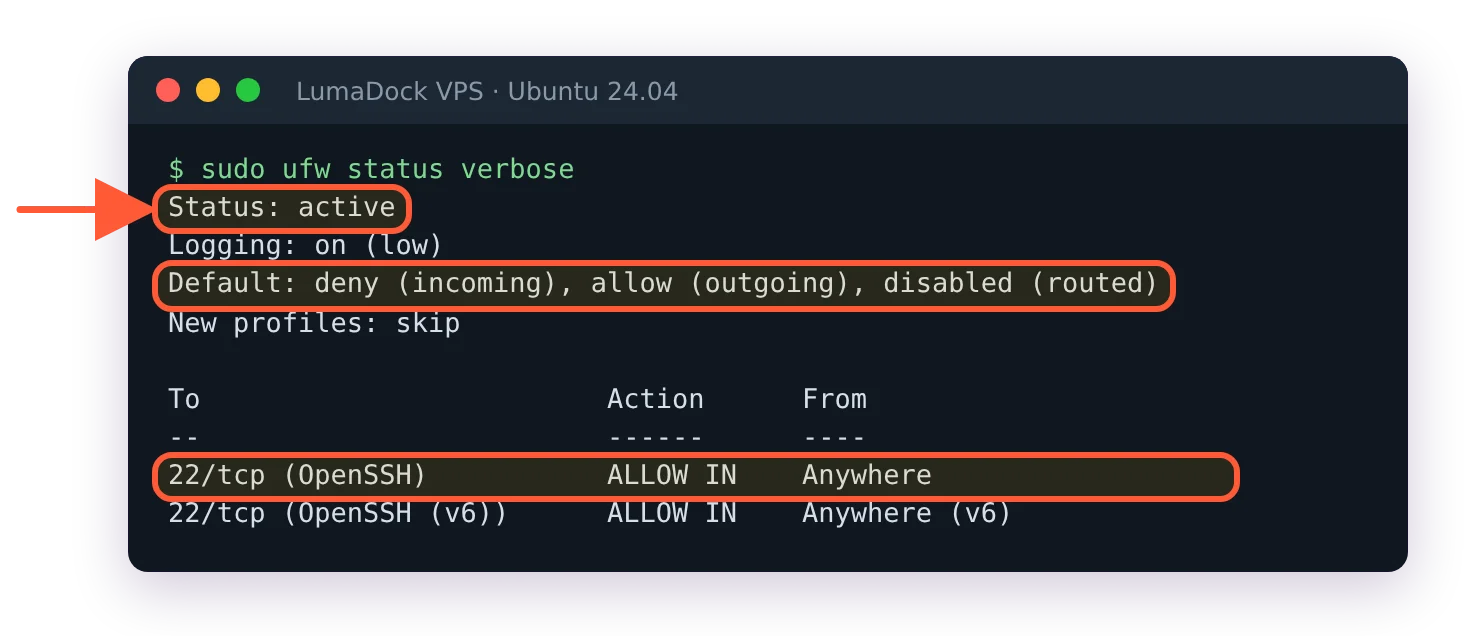
ufw on, SSH allowed in, every other incoming connection denied.
Over SSH, ufw enable stops to ask Command may disrupt existing ssh connections. Proceed with operation (y|n)?, and with the OpenSSH rule already added y is safe. The order is the point. allow OpenSSH before enable, every time, because ufw applies the deny policy the moment it's enabled and an open SSH session doesn't help you add a rule to a firewall that's already dropping the packets for a new one. OpenSSH is an application profile shipped by the openssh-server package (see ufw app list) and it means 22/tcp; if you ignored the advice above and moved the port, ufw allow 2222/tcp is the rule. Add web ports only when there's a web server to answer them: sudo ufw allow 80,443/tcp.
If Docker is going on this box, ufw will not protect published container ports. Docker inserts its own rules in the nat table ahead of ufw's chains, and the Docker packet filtering documentation states plainly that traffic to a published port "gets diverted before it goes through the ufw firewall settings". The fixes (binding to 127.0.0.1 with a reverse proxy in front, or rules in the DOCKER-USER chain) belong in Docker on a VPS, and the bypass is the single most common way a "firewalled" VPS ends up with a database on the public internet.
Most panels also have their own firewall, applied at the hypervisor or the network edge, and it filters before a packet ever reaches your kernel. I use both: the panel firewall as the coarse outer wall (SSH from my ranges, 80 and 443 from anywhere, nothing else) and ufw for the per-service detail. A provider's guide to enabling the firewall for a VPS covers the panel side; the two aren't alternatives, and the outer one keeps working when a Docker install has just punched through the inner one.
Step 4: Unattended security upgrades and the reboot-required file
The unattended-upgrades package is installed on 24.04 already. What it does is controlled by /etc/apt/apt.conf.d/20auto-upgrades, and on a stock server that file reads:
APT::Periodic::Update-Package-Lists "1";
APT::Periodic::Unattended-Upgrade "1";
Both at 1 means the apt-daily and apt-daily-upgrade timers refresh the lists and install anything from the noble-security origin every day. If either line is 0 or the file is missing, sudo dpkg-reconfigure -plow unattended-upgrades writes it. The policy of which origins get installed lives in /etc/apt/apt.conf.d/50unattended-upgrades, and the default there is the security pocket (plus the release pocket, which doesn't change after release day), never noble-updates. For a server that's the right default.
It also means nothing happens until the timer's next run, often the following morning, and the image you deployed was built months ago. A fresh 24.04 VPS can list a few hundred upgradable packages on its first apt update, so bring it up to date by hand now and reboot if the reboot file below appears:
sudo apt update && sudo apt upgradeKernel and libc updates ask for a reboot by creating /var/run/reboot-required, and nothing reboots the machine unless you say so. The Ubuntu automatic updates guide documents the switch. In 50unattended-upgrades the line ships as //Unattended-Upgrade::Automatic-Reboot "false";, so uncomment it and change the value to "true", then uncomment //Unattended-Upgrade::Automatic-Reboot-Time "02:00"; a few lines below it, and the box reboots itself at two in the morning when that file exists. On a single VPS with no HA in front of it I turn that on. A minute of downtime at 02:00 beats running a patched kernel on disk and an unpatched one in memory for three months, which is what happens otherwise. Check the file by hand whenever you log in: cat /var/run/reboot-required prints *** System restart required *** if a reboot is pending (and "No such file or directory" if not), and sudo unattended-upgrade -v --dry-run shows what the next run would do. On a box that hasn't been upgraded yet, that dry run takes several minutes and prints hundreds of lines, one block per package.
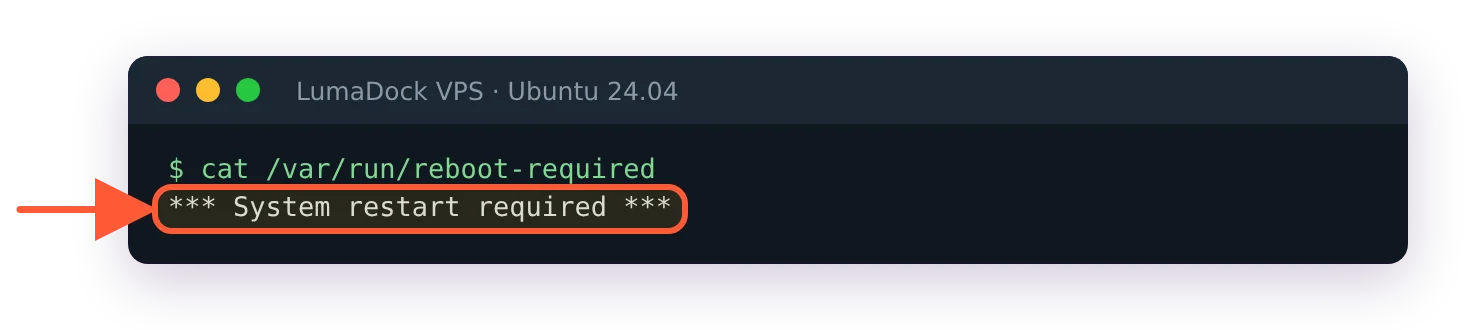
After a kernel or libc update this file appears, and it stays until you reboot.
Step 5: fail2ban or CrowdSec
Either one bans addresses that fail SSH logins repeatedly. fail2ban is local and dumb in the good sense: it reads your logs, counts failures per IP, adds a firewall rule for ten minutes. CrowdSec does the same locally and also pulls a community blocklist of addresses caught misbehaving elsewhere, so it blocks a share of scanners before their first attempt. My pick for a single VPS is fail2ban, for two reasons: it's one apt install with nothing to sign up for, and on 24.04 it's correctly configured before you touch it. The package ships /etc/fail2ban/jail.d/defaults-debian.conf with backend = systemd, banaction = nftables and the sshd jail enabled. That systemd backend matters because some 24.04 images come without rsyslog and therefore without /var/log/auth.log; older fail2ban guides that point at that file fail to start on such a box, while the journal backend doesn't care.
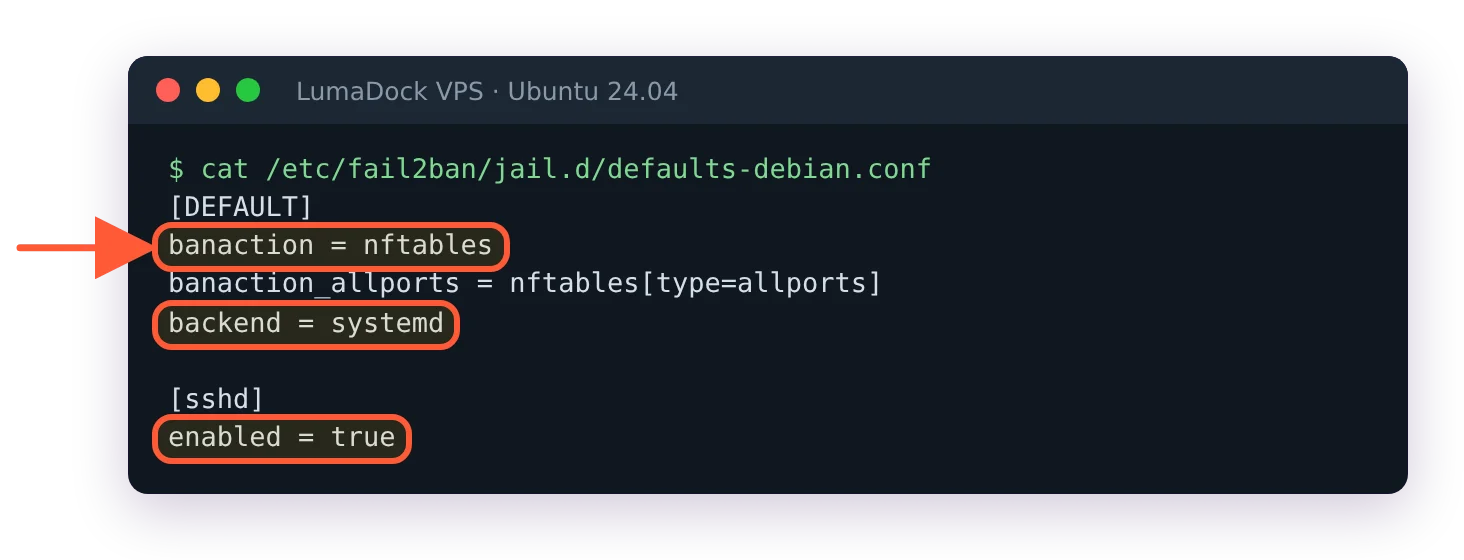
fail2ban on Ubuntu 24.04 comes configured: nftables, the systemd journal and the sshd jail on.
sudo apt install fail2ban
sudo systemctl enable --now fail2ban
sudo fail2ban-client status sshd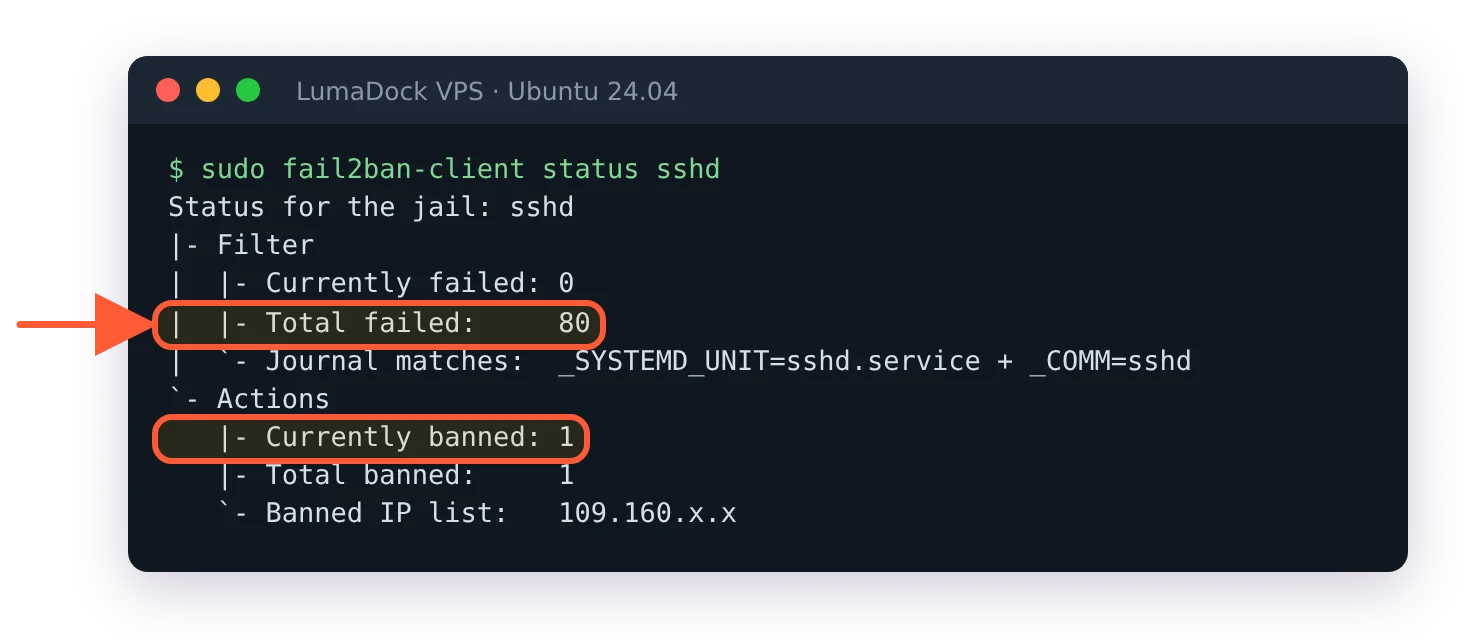
Minutes after install on a public IP, fail2ban had already counted 80 failed logins and banned one address.
The defaults in jail.conf are bantime 10m, findtime 10m, maxretry 5. If you want a longer ban, put it in /etc/fail2ban/jail.local under [DEFAULT], never in jail.conf, which the next package update overwrites. Add your own address as ignoreip in the same block if you type passwords badly.
CrowdSec wins once you run more than two or three servers, because the blocklist and the shared decisions across your fleet do something fail2ban structurally can't. The install is the repository script from install.crowdsec.net, then apt install crowdsec crowdsec-firewall-bouncer-nftables, and the setup wizard finds the SSH journal on its own. What it is and how the decision engine works is in what is CrowdSec. Run one or the other, never both; two tools racing to insert nftables rules for the same IP is a debugging session you don't need.
Step 6: Disable unused services found with ss -tulpn
sudo ss -tulpnEvery line is a socket listening on the network. On a clean 24.04 server you expect sshd on 22 and systemd-resolved on 127.0.0.53:53, and nothing on 0.0.0.0 or [::] besides SSH. Provider images sometimes add things: a monitoring agent, a leftover MTA, rpcbind, a panel agent on a high port. For each one you don't recognise, systemctl disable --now NAME after reading what it is; for an MTA you don't want, apt remove it. Postfix on a box that only sends cron mail can bind to localhost instead, which is what inet_interfaces = loopback-only in main.cf does. Repeat ss -tulpn after and the list should be short enough to read in one glance.
Step 7: Lock the root password and check the clock
With PermitRootLogin no the root password is only usable at the console, and after step 1 you have a sudo account with its own password for that. So lock it:
sudo passwd -l rootIt answers passwd: password changed., which reads oddly for a lock; sudo passwd -S root shows an L in the second field when it worked.
Do not run that before step 1 is done and tested at the panel console, because a locked root plus a passwordless deploy user leaves no way to log in from the console at all. The reverse mistake is also common: locking root and then giving the sudo user a password so weak that it undoes the point. sudo prompts for it on every session, so a long passphrase in a password manager is the arrangement that holds up.
Time sync is a three-second check that saves confusing hours later, because TLS certificates, 2FA codes and log correlation all depend on it. timedatectl should show System clock synchronized: yes and NTP service: active; 24.04 server runs systemd-timesyncd for this by default, and sudo timedatectl set-ntp true turns it back on if an image disabled it.
Step 8: Two-factor on the provider account
The panel account can reinstall the VM, mount an ISO, reset the root password through the console and read the backups. All of the SSH hardening above is worth nothing if that account is protected by a reused password. Turn on two-factor authentication there (a TOTP app or a hardware key, not SMS) and store the recovery codes somewhere that isn't the same laptop. This is also the account that receives abuse reports and billing warnings, so the email on it needs to go to a mailbox someone reads.
Step 9: Backups as a security control
A ransomware process, a mistaken rm -rf from a script with a bad variable and a compromised account that wipes the disk all end the same way, and the only thing that changes the outcome is a copy of the data somewhere the attacker's shell can't reach. That means off the VM, with credentials that can write new snapshots but not delete old ones, tested by an actual restore. A provider snapshot is a convenience for you and reachable by anyone with your panel login, which is exactly the person you're worried about in the paragraph above. The full setup with restic, a systemd timer and a restore drill is in automated VPS backups with restic or Borg, and I'd do it in the first week even if the box holds nothing valuable yet. It will.
Step 10: Weekly log review with journalctl, last and lastb
Three commands, once a week, five minutes:
sudo journalctl -u ssh --since "-7d" | grep -iE "accepted|failed|invalid" | tail -50
last -n 20
sudo lastb -n 20
journalctl -u ssh is the sshd log (the unit is ssh.service on Ubuntu, not sshd), and every Accepted publickey for deploy from line is a login you should recognise. last lists successful logins from /var/log/wtmp; lastb lists failed ones from btmp, and after a week on a public IP it's thousands of lines of root, admin and ubuntu attempts from addresses you've never heard of. That's normal and it's the reason step 2 exists. What's not normal is an accepted login from a country you've never been to, a new user in /etc/passwd or a process in ss -tulpn that wasn't there last week. When the box matters enough that weekly is too slow, the alerting setup from how to monitor a VPS can run the same three checks on a timer and page you, and the weekly look becomes a habit you keep anyway.
The number I can't give you with confidence is how quickly a new IP gets its first password guess. On the boxes I've watched it was under an hour, but I've never measured it properly across providers and address ranges, and I'd be surprised if it didn't vary a lot by which /16 the address comes from.

