





.svg)
.svg)
.svg)
.svg)

.svg)
.svg)
.svg)

Updated and tested 3 October 2026
Install one package and write one file. That's the whole server side of WireGuard on Debian 12; the rest is a firewall rule and a peer block per device. You end up with a wg0 interface at 10.100.0.1 on the VPS and a first client that reaches it over UDP port 51820, with the handshake visible in wg show. The design is DNS-only: clients route nothing into the tunnel except traffic for the server itself, which is the shape a private Pi-hole needs and the shape that skips IP forwarding and NAT. Full-tunnel routing is Step 7, for the readers who want it.
If you ordered the one-click WireGuard template, the server side is already done: WireGuard is pre-installed and the first client config comes as a QR code or a file to load. Run sudo wg show to confirm the listening port, then pick up at Step 5 when you need more devices. The knowledge base covers the Ubuntu 22.04 install under WireGuard VPN installation on a LumaDock VPS. The steps below are Debian 12, with the Ubuntu 24.04 differences marked where they exist.
You need a Debian 12 VPS with a public IPv4 address and root or sudo, plus an SSH session you keep open while the firewall in Step 4 goes in. The kernel side is already there. WireGuard has shipped inside mainline Linux since 5.6, which Jason Donenfeld announced on the project's mailing list in March 2020, and Debian 12 runs 6.1. Nothing to compile, no DKMS module.
Step 1: Install wireguard and wireguard-tools
sudo apt update
sudo apt install wireguard wireguard-tools qrencode
On Debian, wireguard is a metapackage and wireguard-tools carries the two commands you'll use from here on, wg and wg-quick. Debian 12 and Ubuntu 24.04 both ship wireguard-tools 1.0.20210914, so every command and every man page quoted below applies to either. qrencode is for Step 5, where it draws a client config as a QR code in the terminal for the phone app.
Check that the module loads before going on:
sudo modprobe wireguard
lsmod | grep wireguard
Silence from modprobe is success. If you get RTNETLINK answers: Operation not supported later, at the point where wg-quick creates the interface, the running kernel has no WireGuard module. On a VPS that points at container-style virtualisation or a custom provider kernel; the fix is a kernel that has the module, which means a conversation with the provider.
Step 2: Generate the server key pair
sudo -i
cd /etc/wireguard
umask 077
wg genkey | tee server.key | wg pubkey > server.pub
cat server.pub
The umask 077 line makes every file created in this shell readable by root only, so the private key never spends a second world-readable. wg genkey prints a random base64 private key, tee saves it and wg pubkey derives the public key from it. Keep server.pub handy; every client config needs it. Stay in this root shell for Step 3.
Step 3: Write /etc/wireguard/wg0.conf
cat > /etc/wireguard/wg0.conf <<EOF
[Interface]
Address = 10.100.0.1/24
ListenPort = 51820
PrivateKey = $(cat server.key)
EOF
chmod 600 /etc/wireguard/wg0.conf
exit
The heredoc inlines the private key from Step 2, so it never crosses a clipboard. The config format is INI with two section types, [Interface] and [Peer], and these are the Interface keys you'll meet on this page:
- Address: the server's tunnel address and the subnet it owns. 10.100.0.1/24 makes the whole of 10.100.0.0/24 the tunnel's range; clients take .2, .3 and so on.
- ListenPort: the UDP port the server answers on. The wg(8) man page calls it optional and says that without it the port is "chosen randomly", which is fine for a laptop and useless behind a firewall rule. 51820 is the number in the project's own examples; the Pi-hole project's WireGuard guide uses 47111 and the Ubuntu server docs use 51000. Any 16-bit port works, and this page uses 51820 throughout so the firewall rule and the client configs agree.
- PrivateKey: the server's key from Step 2. Required.
- PostUp and PostDown: shell snippets wg-quick runs after the interface comes up or goes down, with
%iexpanded to the interface name. Needed only in Step 7. - DNS: a client-side key that tells wg-quick to run
resolvconf. A server-only wg0 doesn't want it, and on a Debian 12 machine without systemd-resolved a DNS line is the usual way to meet resolvconf: command not found for no benefit.
Bring the interface up and enable it at boot in one command:
sudo systemctl enable --now wg-quick@wg0
sudo wg show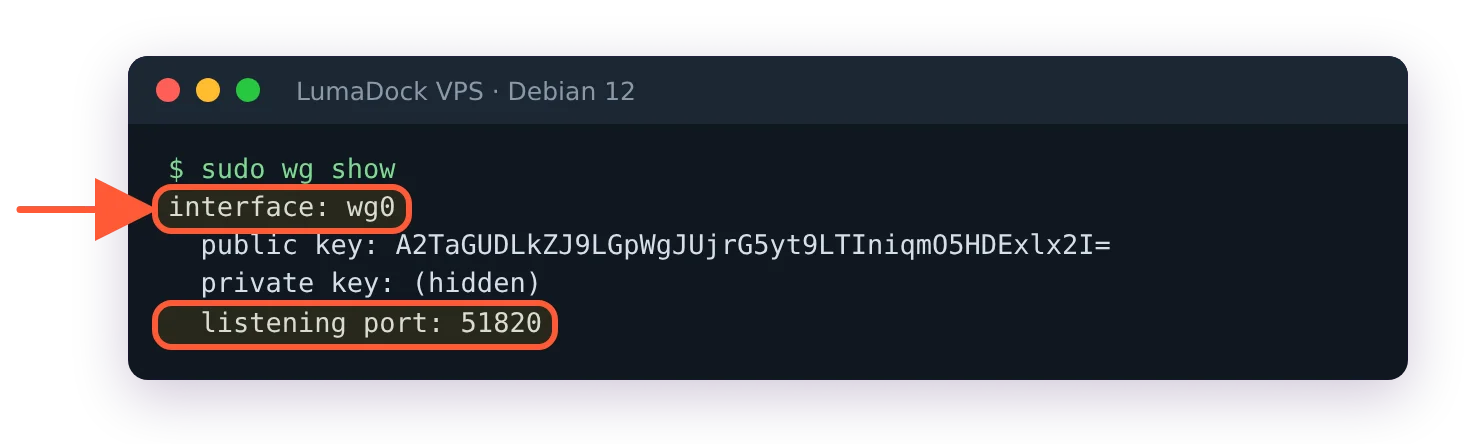
Right after enable --now: the interface is up and listening, with no peers yet.
Output: interface wg0, its public key, listening port 51820. No peers yet. The unit is [email protected] with the interface name after the @; it runs wg-quick up wg0, which reads the file named after the interface in /etc/wireguard. One error to recognise early: wg-quick: `wg0' already exists is what a manual sudo wg-quick up wg0 prints once systemd has already started the interface. Use sudo systemctl restart wg-quick@wg0 for a full restart, or the syncconf line in Step 5 for a change that shouldn't drop sessions.
Step 4: Open UDP 51820 in the firewall
LumaDock's Debian 12 image ships without nftables (nft isn't even on the path), so install it first and write the input policy as one file, so a reboot loads the same rules:
sudo apt install nftables
sudo tee /etc/nftables.conf > /dev/null <<'EOF'
#!/usr/sbin/nft -f
flush ruleset

table inet filter {
  chain input {
    type filter hook input priority 0; policy drop;
    iif "lo" accept
    ct state established,related accept
    tcp dport 22 accept
    udp dport 51820 accept
    ip protocol icmp accept
    ip6 nexthdr icmpv6 accept
  }
}
EOF
sudo nft -c -f /etc/nftables.conf
sudo systemctl enable --now nftables
nft -c -f parses the file without loading it, so a typo stops here and never reaches your SSH session. The policy is drop, so anything not listed is gone, including SSH on a non-standard port if you didn't change the 22. Keep the session you're typing in open and test with a second one before closing it, the same habit the guide to rolling out CrowdSec without locking yourself out builds on. If the firewall in your provider's panel exists, 51820/udp has to be open there too. The two icmp lines keep ping working through the tunnel for Step 6, and the IPv6 one also keeps neighbour discovery alive on a VPS that has IPv6.
On Ubuntu 24.04 the same step is sudo ufw allow 51820/udp with ufw already enabled. Nothing else opens for the tunnel. DNS and the web UI, when Pi-hole arrives, get rules on wg0 only and never on the public interface.
A UDP scan against the VPS shows 51820 as open|filtered after this, and that's correct. The protocol page describes the server as silent to any client it can't authenticate, so nmap gets no answer for an open WireGuard port and no answer for a closed one, and reports the ambiguity as such. There's nothing to fix.
Step 5: Add the first peer
Each client is a key pair plus a preshared key, a [Peer] block on the server and a config file on the device. Back in a root shell in /etc/wireguard:
sudo -i
cd /etc/wireguard
umask 077
name=phone
wg genkey | tee "${name}.key" | wg pubkey > "${name}.pub"
wg genpsk > "${name}.psk"
The preshared key is optional in WireGuard's design; wg(8) describes it as a symmetric layer mixed into the public-key handshake "for post-quantum resistance". It costs one line per side, so this page uses it. Generate a different one for every peer and never reuse it.
Append the peer to the server config:
cat >> /etc/wireguard/wg0.conf <<EOF

[Peer]
# ${name}
PublicKey = $(cat "${name}.pub")
PresharedKey = $(cat "${name}.psk")
AllowedIPs = 10.100.0.2/32
EOF
AllowedIPs on the server side is the client's tunnel address with a /32. It stays 10.100.0.2/32 whatever the client puts in its own AllowedIPs, and the next peer gets 10.100.0.3/32. Load the new block without touching the sessions of peers already connected:
wg syncconf wg0 <(wg-quick strip wg0)The wg-quick(8) man page gives exactly this pairing. Ubuntu's WireGuard common tasks page wraps the same thing as systemctl reload wg-quick@wg0 and notes that a change to Address or PostUp still needs a full restart. strip removes the wg-quick-only keys (Address, DNS, PostUp) so that wg syncconf sees a plain wg config, and syncconf applies only what differs from the running interface.
Now the client file, in the same root shell:
cat > "${name}.conf" <<EOF
[Interface]
Address = 10.100.0.2/32
DNS = 10.100.0.1
PrivateKey = $(cat "${name}.key")

[Peer]
PublicKey = $(cat server.pub)
PresharedKey = $(cat "${name}.psk")
Endpoint = YOUR_SERVER_IP:51820
AllowedIPs = 10.100.0.1/32
PersistentKeepalive = 25
EOF
qrencode -t ansiutf8 < "${name}.conf"
exit
Replace YOUR_SERVER_IP with the VPS's public address, the one you SSH to. AllowedIPs = 10.100.0.1/32 is the DNS-only shape: the client routes exactly one host (the server) into the tunnel and the rest of its traffic leaves the way it always did. The other two shapes, the whole tunnel subnet and the full tunnel, are laid out in the guide to a WireGuard split tunnel for DNS only. PersistentKeepalive = 25 sends an empty authenticated packet every 25 seconds so the NAT mapping on a home router or a mobile carrier stays alive; 25 is the example interval in the wg(8) page for a NAT'd peer.
The DNS = 10.100.0.1 line points the device at a resolver that doesn't exist yet. Installing one is the job of the guide to running Pi-hole behind this tunnel. Until then, delete the line or expect name lookups on the client to fail while the tunnel is up, because on iOS and macOS the official app sends every query to the tunnel's DNS server once one is set.
On a phone, scan the QR code from the official WireGuard app's plus button. On a laptop, copy the file to /etc/wireguard/wg0.conf and run sudo wg-quick up wg0. Check systemctl is-active systemd-resolved first. If it prints active, systemd-resolved already provides the resolvconf command (Ubuntu 24.04 and some Debian 12 images, LumaDock's included) and nothing needs installing; installing openresolv there would remove systemd-resolved. If it prints inactive, install openresolv, because wireguard-tools only suggests it and wg-quick stops at the DNS line without it. The client's private key is in that file, so move it over SSH or the QR code and delete the copy on the server afterwards if you don't want keys for every device sitting in /etc/wireguard.
Step 6: Verify the handshake
sudo wg show wg0 latest-handshakesEach peer prints as its public key and a Unix timestamp, tab-separated. A 0 means no handshake has ever completed with that peer. Switch the tunnel on at the client and run it again; the number becomes the current time within a second or two. Then from the client:
ping -c 3 10.100.0.1Replies mean packets travel both ways. If the handshake timestamp moves but the ping gets no reply, the tunnel is fine and the firewall is dropping ICMP: check that the Step 4 file has the two icmp lines and that sudo nft list ruleset shows them. A timestamp that stays at 0 has four usual causes: a blocked UDP port, a wrong Endpoint, keys swapped between the two sides or an AllowedIPs mismatch. The page on a WireGuard handshake that never completes takes them in the order to check. Plain sudo wg show adds the transfer counters, the quickest way to see the ping bytes moving through wg0.
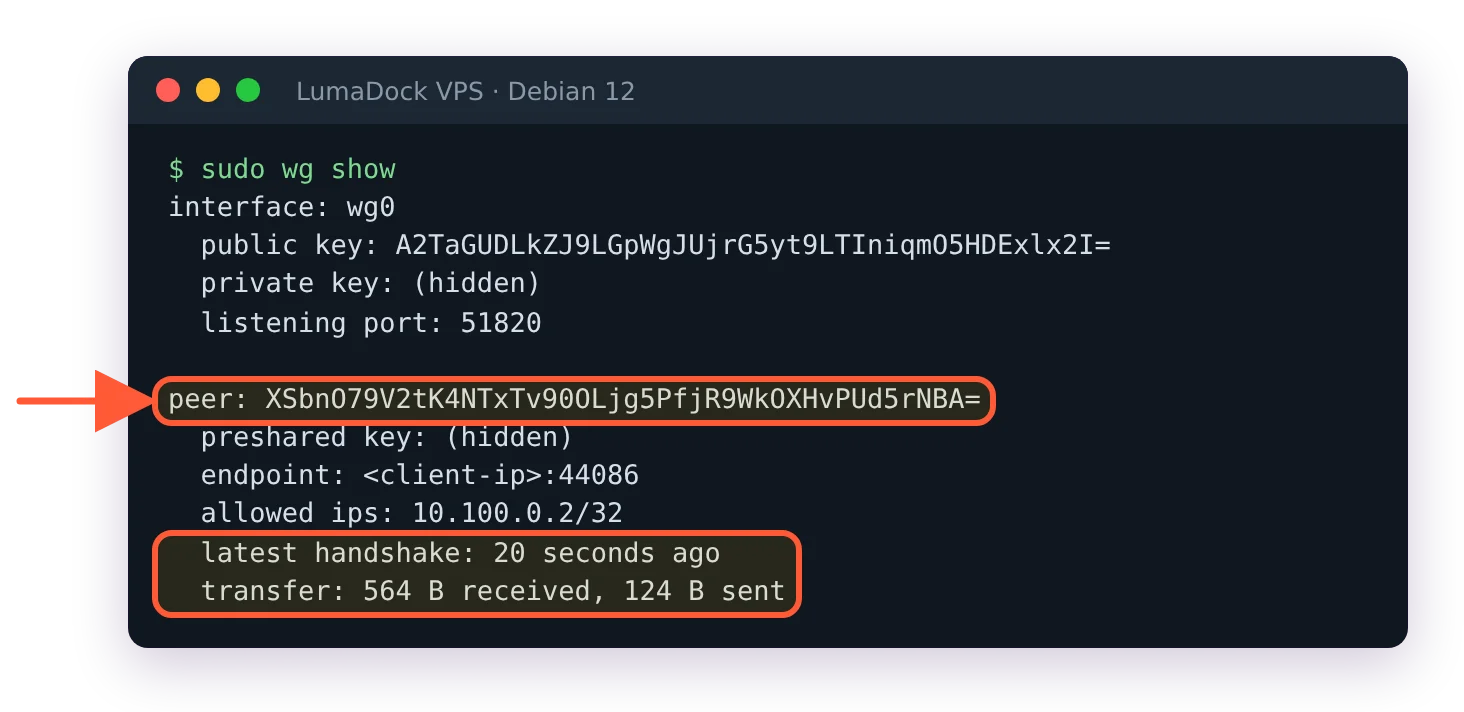
With the client connected, the peer shows a recent handshake and both transfer counters move.
Step 7: Route all client traffic through the VPS (optional)
Skip this for a DNS-only resolver. It's for the client that should send everything through the VPS, on hotel Wi-Fi for instance. The client's AllowedIPs becomes 0.0.0.0/0, ::/0, and the server needs two changes: forwarding switched on, and source NAT so replies find their way back to the tunnel.
echo "net.ipv4.ip_forward = 1" | sudo tee /etc/sysctl.d/99-wireguard.conf
sudo sysctl --system
The output repeats the line if it took, and cat /proc/sys/net/ipv4/ip_forward prints 1. Then add two lines to the [Interface] section of wg0.conf. They start from the nftables lines on the Pi-hole project's page on reaching internal devices through WireGuard, with the IPv6 half removed because the base tunnel here has no IPv6, and with the masquerade limited to traffic from the tunnel subnet leaving through the public interface. They go above the first [Peer] block:
PostUp = nft add table ip wireguard; nft add chain ip wireguard wireguard_chain {type nat hook postrouting priority srcnat\; policy accept\;}; nft add rule ip wireguard wireguard_chain ip saddr 10.100.0.0/24 oifname "eth0" masquerade
PostDown = nft delete table ip wireguard
Replace eth0 with the public interface ip -br a shows on your VPS (it's eth0 on LumaDock's Debian 12 image). Why not a bare masquerade, as the Pi-hole page has it? Without the two matches the rule also rewrites the VPS's own connections to 10.100.0.1 to come from the public address, and once Pi-hole's admin page only accepts the tunnel subnet, the pihole command on the server gets locked out of its own API with "API not available". PostUp is a wg-quick key, so this change needs sudo systemctl restart wg-quick@wg0; syncconf won't apply it. That first restart can log Error: Could not process rule: No such file or directory from the stop half, because the new PostDown runs before its table exists; the unit still ends active, which systemctl is-active wg-quick@wg0 confirms. Connected clients pause until their next handshake after any restart, up to about 25 seconds with the keepalive above. The symptom when forwarding is missing is described on the project's page about routing everything through the tunnel: clients "will apparently have no Internet connection whilst local connections may still work".
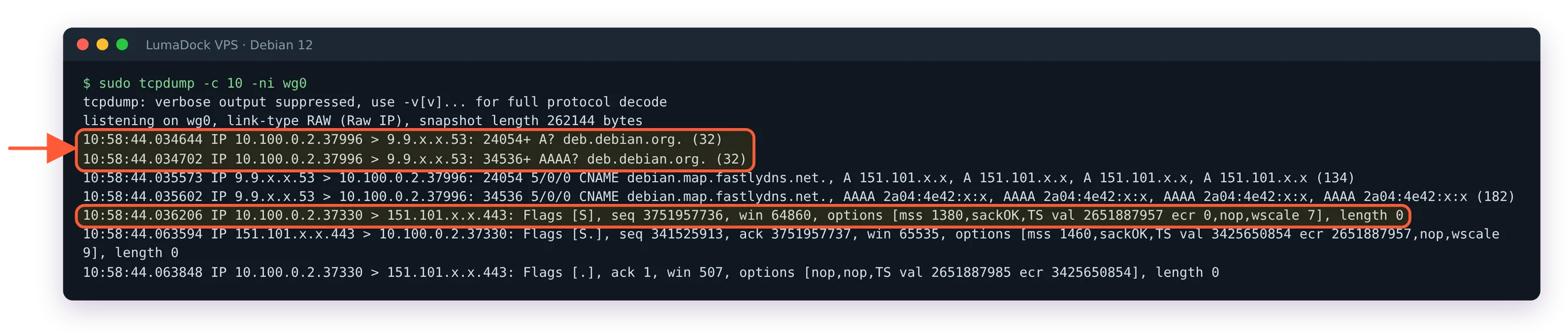
With AllowedIPs = 0.0.0.0/0 on the client, its DNS and HTTPS traffic arrives on wg0 at the server.
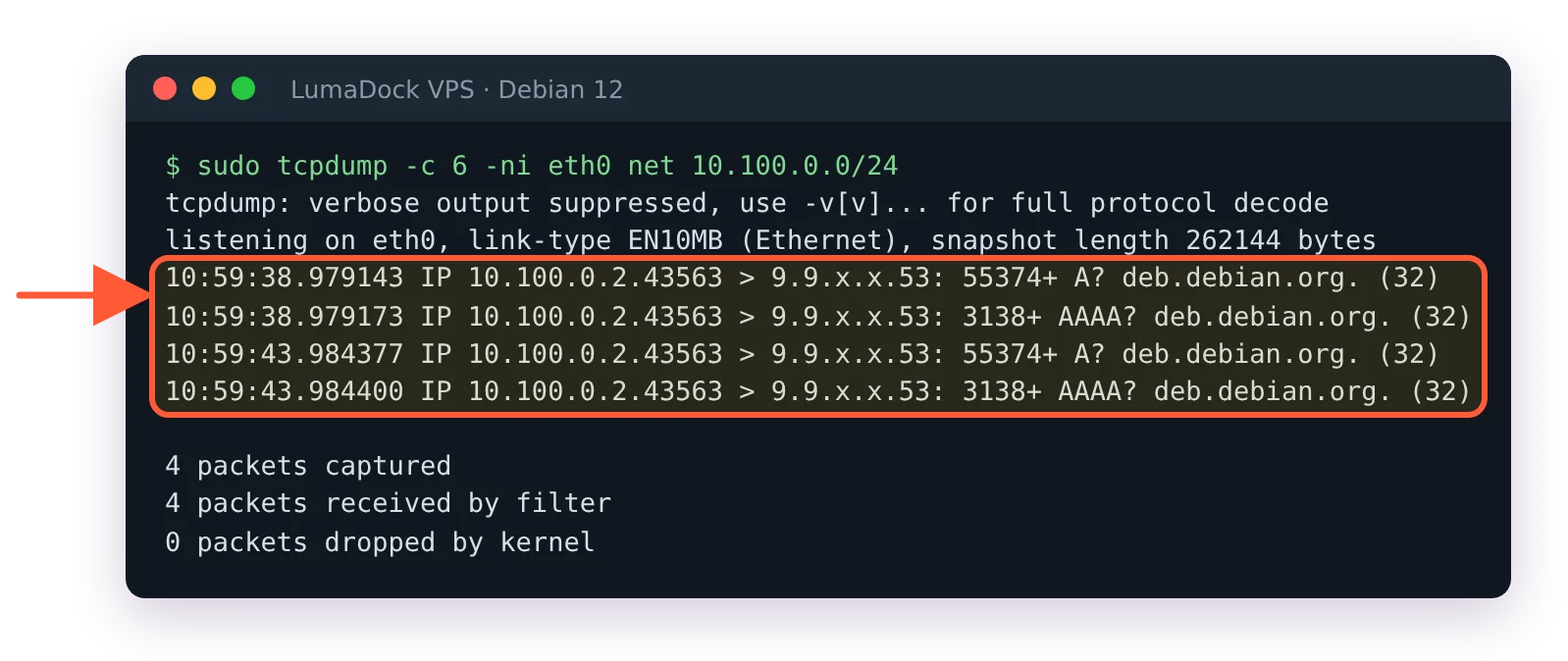
Without the PostUp NAT line, client packets leave the VPS with their private tunnel address and nothing answers.
To undo Step 7, stop the interface with sudo systemctl stop wg-quick@wg0 before you delete the PostUp and PostDown lines, then start it again. Delete them first and the stop no longer knows the PostDown, so the NAT table stays loaded until sudo nft delete table ip wireguard or a reboot. If you add the firewall from the Pi-hole guide afterwards, its forward chain needs two extra rules for this full tunnel; that page has them.

