.svg)
.svg)
.svg)
.svg)

.svg)
.svg)
.svg)

Self-hosting Windmill on a VPS takes about an hour, and a good part of that hour is Docker downloading images. Windmill's own self-host page gets you to docker compose up -d and a login screen on port 80. This guide carries on from there to a Windmill on your own domain, with HTTPS, a replaced default account and a backup that restores. Everything below was run on a clean Ubuntu 24.04 server on 29 October 2026, Windmill CE 1.852.0 upgraded to 1.853.1 along the way.
You need a VPS running Ubuntu 24.04 with root access, and a domain or subdomain whose A record already points at the server's IP. If you came here from n8n, the n8n self-hosting guide covers the same ground for that tool, and the two installs look alike until the worker section. The commands assume you're logged in as root, which is how a fresh Ubuntu VPS hands itself over; prefix them with sudo if you work from another user.
Which server size Windmill needs
A VPS with 4 vCPU and 8 GB of RAM runs Windmill's default compose with room for normal use; 16 GB is the comfortable choice when memory-heavy jobs can land on every worker at once; and the disk should be 40 GB or more. Those are our figures, inferred from a test on a bigger server, so here is what they rest on.
| Resource | Windmill says | We measured (8 vCPU / 16 GB server, compose as shipped) |
|---|---|---|
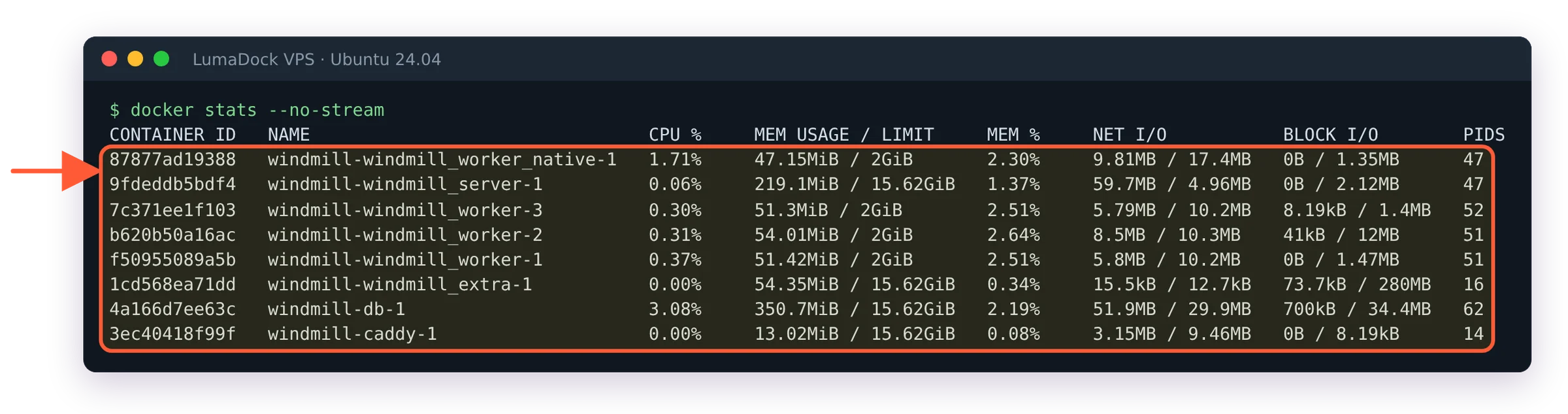
| RAM | 2 CPU cores, 4 GB and 20 GB of disk "can run the full stack" (the "No-ops self-host" page); 1 worker per vCPU and 1 to 2 GB per worker (the self-host docs) | 633 MiB at idle across all eight containers, 819 MiB peak with 66 jobs submitted at once; 1.6 GB used on the whole host, load average 1.39 |
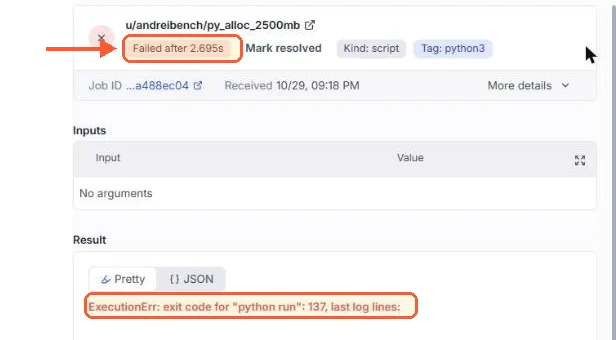
| Worker caps | three default workers and one native worker, each limited to 2 GB in the compose file | 8 GiB if all four hit their cap at once; one job that tried was killed at the cap, see the RAM section |
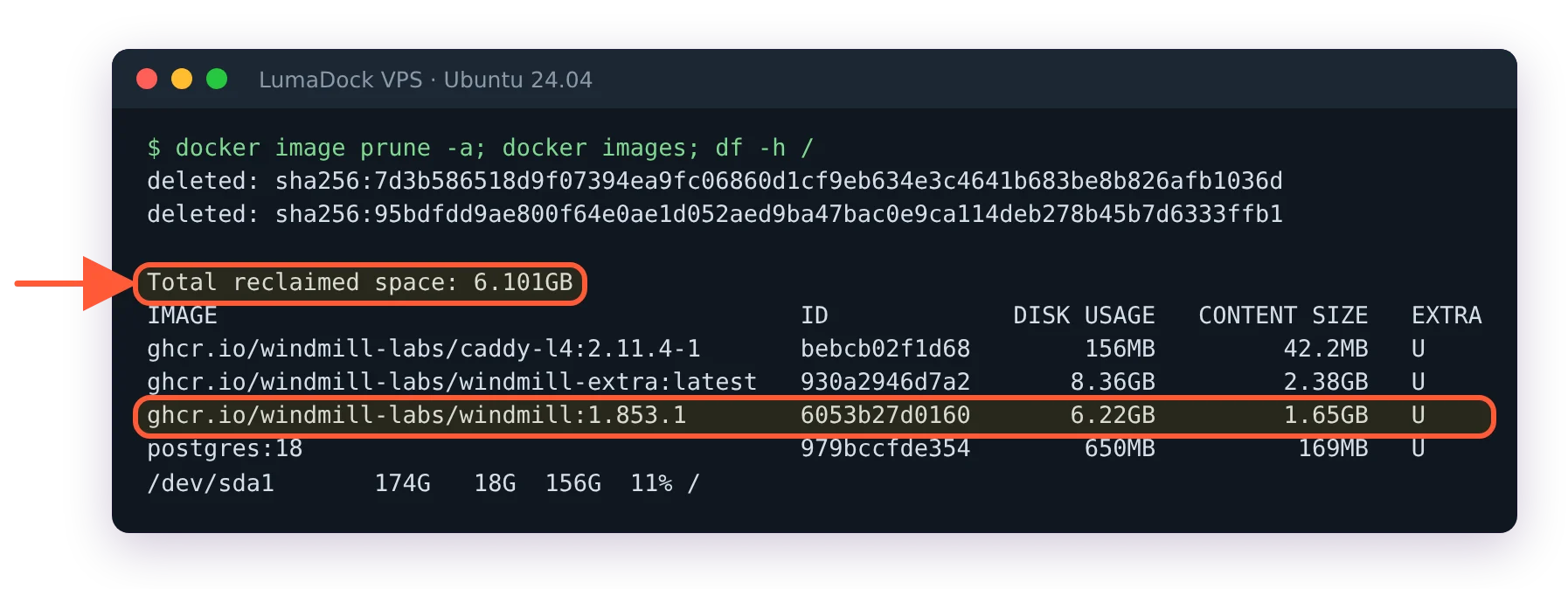
| Disk | 20 GB | 15.2 GB of images right after install, 21.3 GB during an upgrade while the old image was still there |
The 2 GB figures are ceilings, so Windmill's 4 GB minimum matches what the stack used at idle and under our load. The caps only cost memory when a job uses it. Our Ubuntu image ships without swap, so on an 8 GB server four jobs at their cap at the same time would leave the kernel choosing what to kill; 16 GB covers that case, 8 GB covers everything else we saw.
Step 1: Install Docker Engine on Ubuntu 24.04
Windmill's compose file wants Docker Engine with the Compose plugin, and the version in Ubuntu's own repositories lags. Docker's Install Docker Engine on Ubuntu page is the source for the block below; it changes from time to time, so if the page shows something different from this, follow the page. A server deployed from LumaDock's Docker template already has Docker installed, so skip to step 2 in that case and run only the two checks at the end of this one; they also tell you if the Compose plugin is there.
The first line Docker's page gives removes packages that could conflict. On a fresh server every one of them is missing, so it prints eight lines of dpkg: no packages found matching ... and then 0 to remove. That's the expected result.
sudo apt remove $(dpkg --get-selections docker.io docker-compose docker-compose-v2 docker-doc docker-buildx podman-docker containerd runc | cut -f1)Then the repository. The current page writes a deb822 file at /etc/apt/sources.list.d/docker.sources instead of the old one-line docker.list that older guides describe.
sudo apt update
sudo apt install ca-certificates curl
sudo install -m 0755 -d /etc/apt/keyrings
sudo curl -fsSL https://download.docker.com/linux/ubuntu/gpg -o /etc/apt/keyrings/docker.asc
sudo chmod a+r /etc/apt/keyrings/docker.asc

sudo tee /etc/apt/sources.list.d/docker.sources <<EOF
Types: deb
URIs: https://download.docker.com/linux/ubuntu
Suites: $(. /etc/os-release && echo "${UBUNTU_CODENAME:-$VERSION_CODENAME}")
Components: stable
Architectures: $(dpkg --print-architecture)
Signed-By: /etc/apt/keyrings/docker.asc
EOF

sudo apt update
sudo apt install docker-ce docker-ce-cli containerd.io docker-buildx-plugin docker-compose-plugin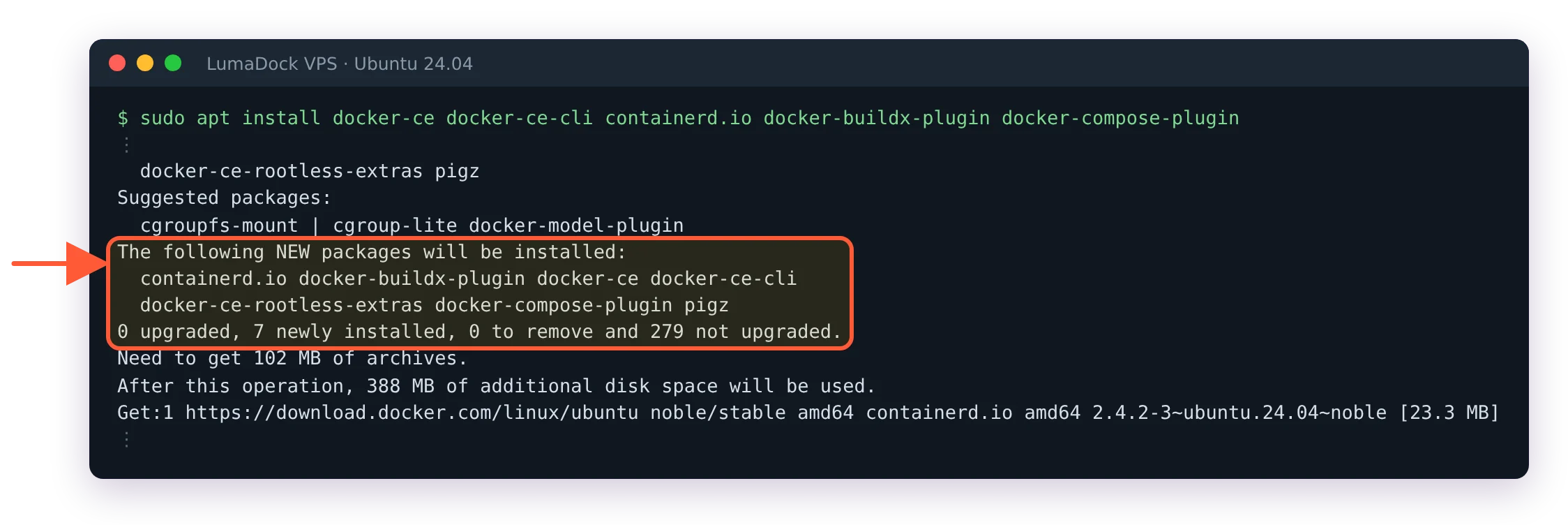
Seven new packages from Docker's own repository, 102 MB in all.
On this image the ca-certificates curl line only upgrades what is already there (four packages, counting the libcurl libraries); apt asks once and moves on. The last command pulled 102 MB and finished in about 20 seconds here, installing docker-ce 29.9.2 and the Compose plugin 5.6.1. Check both before going on:
sudo docker run hello-world
docker compose version
Expect Hello from Docker! in the first output and Docker Compose version v5.6.1 or newer in the second. Older write-ups talk about Compose v2 and a docker-compose binary with a hyphen. The plugin's command is docker compose with a space, and v5 is the current line.
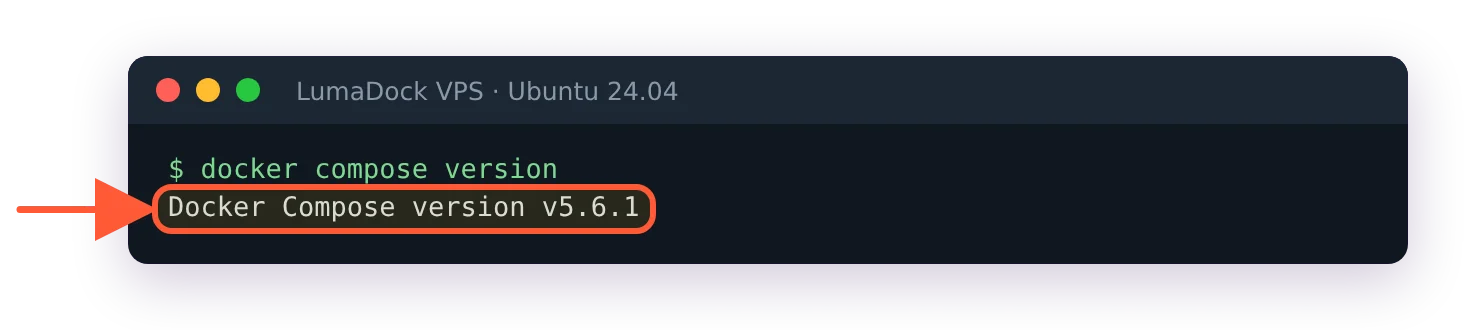
The line to look for; anything that starts with v2 or says docker-compose with a hyphen is an older install.
Step 2: Enable ufw before Docker publishes a port
ufw is installed on the image and switched off. Turn it on with SSH, HTTP and HTTPS allowed, in that order, because a firewall enabled without an SSH rule locks you out at your next login.
ufw allow OpenSSH
ufw allow 80/tcp
ufw allow 443/tcp
ufw enable
It asks Command may disrupt existing ssh connections. Proceed with operation (y|n)?, and y is the right answer once the OpenSSH rule is in. ufw status verbose should then list those three rules, each shown again for IPv6.
ufw has a blind spot with Docker. Docker writes its own iptables rules, and they sit in front of ufw's. A port published with -p or a ports: entry in a compose file is open to the internet even though ufw status never mentions it. Docker says so on the install page, in the "Firewall limitations" note, and it's easy to read past. We proved it on this server before Windmill existed: a throwaway nginx container published on 8080 answered 200 from another machine, while a plain Python web server on 8081 with no ufw rule timed out as it should.
docker run -d --name ufwtest -p 8080:80 nginx:alpine
# from any other machine:
curl -sS -o /dev/null -w '%{http_code}' http://YOUR_SERVER_IP:8080
docker rm -f ufwtest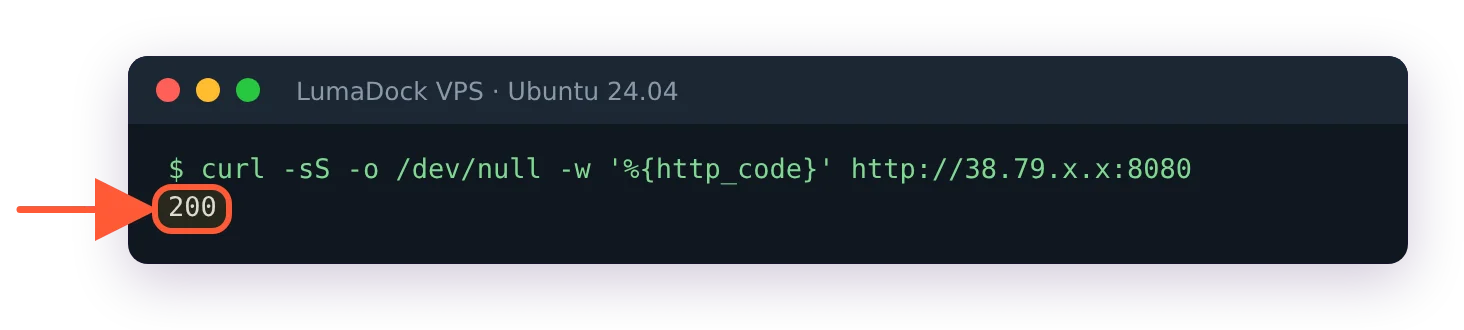
Run from a different machine, with the server's IP in place of ours.
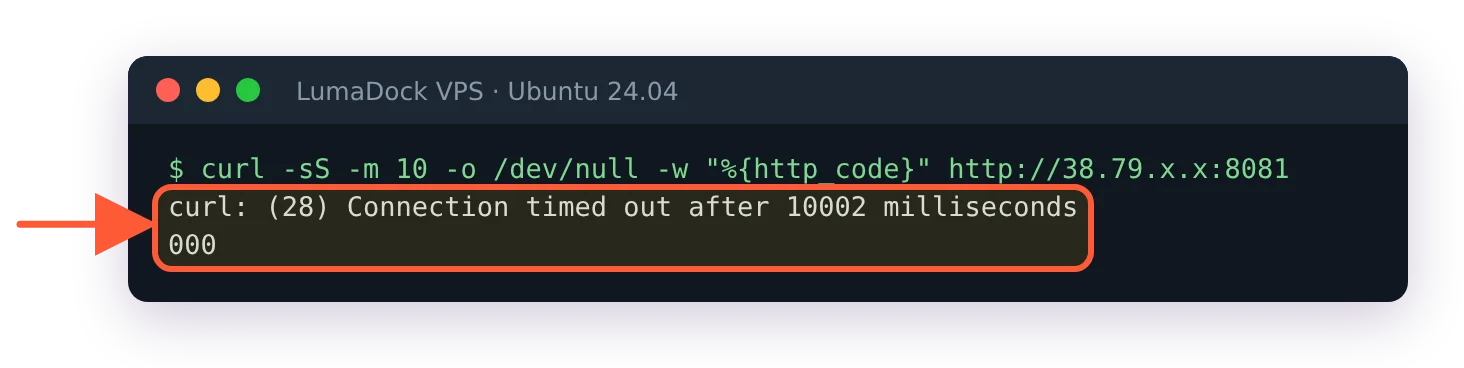
Same server, same minute, a plain Python web server on 8081 instead of a container: 10 seconds, then nothing.
Once ufwtest is gone, 8080 times out again. For the rest of this guide that means: ufw covers programs running directly on the server, so for Docker you decide what's exposed by what you publish. Windmill's compose publishes 80 and 25 by default (443 joins them when you enable HTTPS in step 7), and 25 is the one you'll comment out in step 8. If you ever need to filter a published port by source address, Docker's networking docs describe the DOCKER-USER chain made for that.
Step 3: Download Windmill's Docker Compose files
Create the folder as windmill, in your home directory, and fetch the three files exactly as Windmill's self-host page lists them.
mkdir ~/windmill && cd ~/windmill
curl https://raw.githubusercontent.com/windmill-labs/windmill/main/docker-compose.yml -o docker-compose.yml
curl https://raw.githubusercontent.com/windmill-labs/windmill/main/Caddyfile -o Caddyfile
curl https://raw.githubusercontent.com/windmill-labs/windmill/main/.env -o .env
Docker Compose names volumes after the project folder, so this layout gives you windmill_db_data, windmill_caddy_data and four more with the same prefix, and Windmill's own reset instructions assume the windmill_db_data name. Call the folder something else and every later command that names a volume needs translating.
Two things about these files. They come from Windmill's main branch, so what you download tracks the newest release and can differ in small ways from what this guide shows; on 29 October the files matched tag v1.853.1 byte for byte. And docker-compose.yml opens with version: "3.7", which Compose v5 flags on every single command: the attribute `version` is obsolete, it will be ignored. It's harmless. Delete the first line of the file if the warning bothers you.
Step 4: Change the Postgres password in both files
The shipped files use the password changeme in two places that have to agree: POSTGRES_PASSWORD in docker-compose.yml, which is what the Postgres container sets on its first start, and DATABASE_URL in .env, which is what Windmill uses to connect. Generate a password and put the same one in both. The two sed lines below do exactly that; grep -c changeme at the end should report 0 for both files.
PGPASS=$(openssl rand -hex 24)
sed -i "s/POSTGRES_PASSWORD: changeme/POSTGRES_PASSWORD: $PGPASS/" docker-compose.yml
sed -i "s|postgres://postgres:changeme@|postgres://postgres:$PGPASS@|" .env
grep -c changeme docker-compose.yml .env
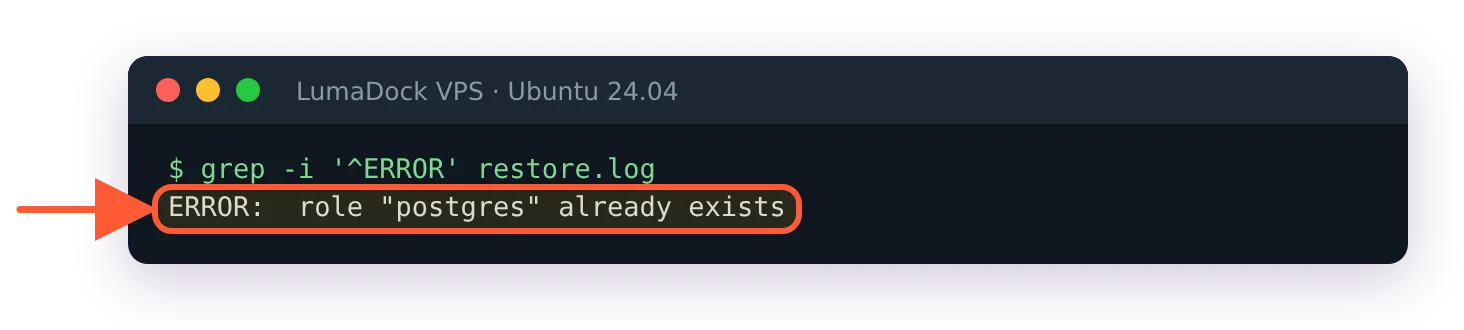
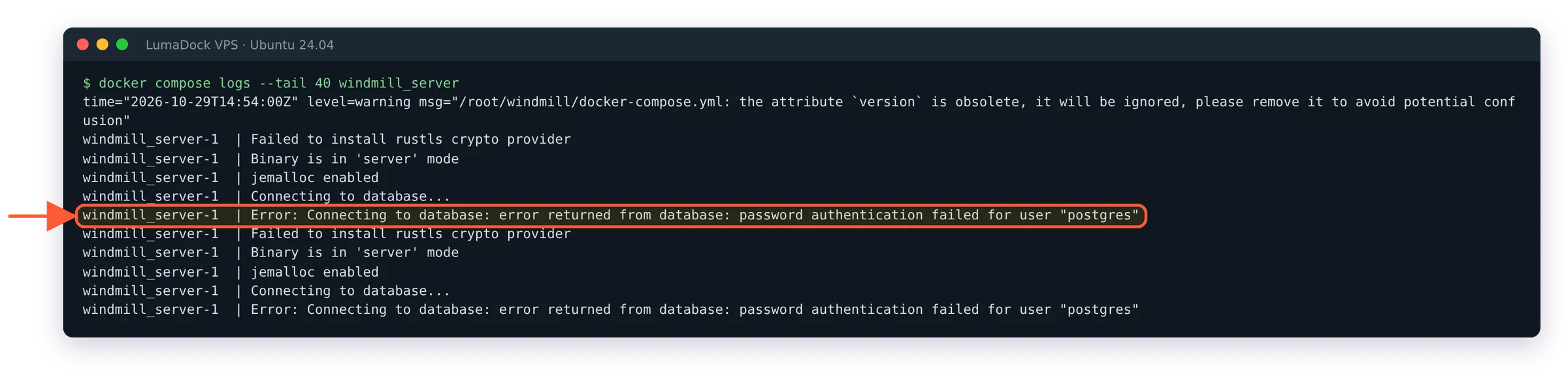
Do this before the first docker compose up. Postgres reads POSTGRES_PASSWORD only when its data volume is empty, so a password changed after the first start does nothing until the volume is deleted. A half-changed password was the first failure we hit, and it doesn't look like a password problem; the troubleshooting section describes it.
While you're in .env, pin the Windmill version. As shipped, the WM_IMAGE line points at the floating :main tag, and the compose file sets pull_policy: always, so every docker compose up -d you ever run would pull whatever main points at that minute and upgrade you without asking. main moved at least once during our test day with no release in between. Open Windmill's releases page and take the newest tag without the leading v. On 29 October that was 1.853.1, which is the tag used below:
sed -i 's|^WM_IMAGE=.*|WM_IMAGE=ghcr.io/windmill-labs/windmill:1.853.1|' .env
chmod 600 .env docker-compose.yml
The chmod is there because both files now hold the database password and were created world-readable. I'd pin every production Windmill: an unattended upgrade in the middle of a restart makes an incident harder to diagnose. The cost of pinning is on you: Windmill's release lifecycle page says security fixes ship only in the latest release, so a pinned install has to be upgraded on purpose and often.
Step 5: Start Windmill
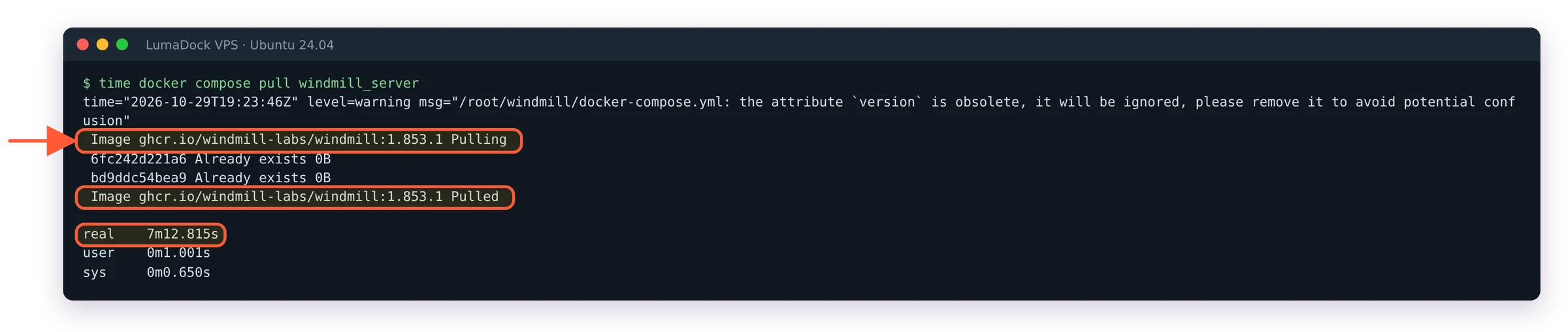
docker compose up -dThe first start downloads about 4.2 GB of compressed images. On our server it took 11 minutes 12 seconds, almost all of it in the pull, with one layer of the windmill-extra image crawling at about 1 MB/s from GitHub's registry. The self-host page's "less than a minute" describes a start with the images already cached (20 seconds here). If the terminal shows Pulling lines for ten minutes, nothing is wrong.
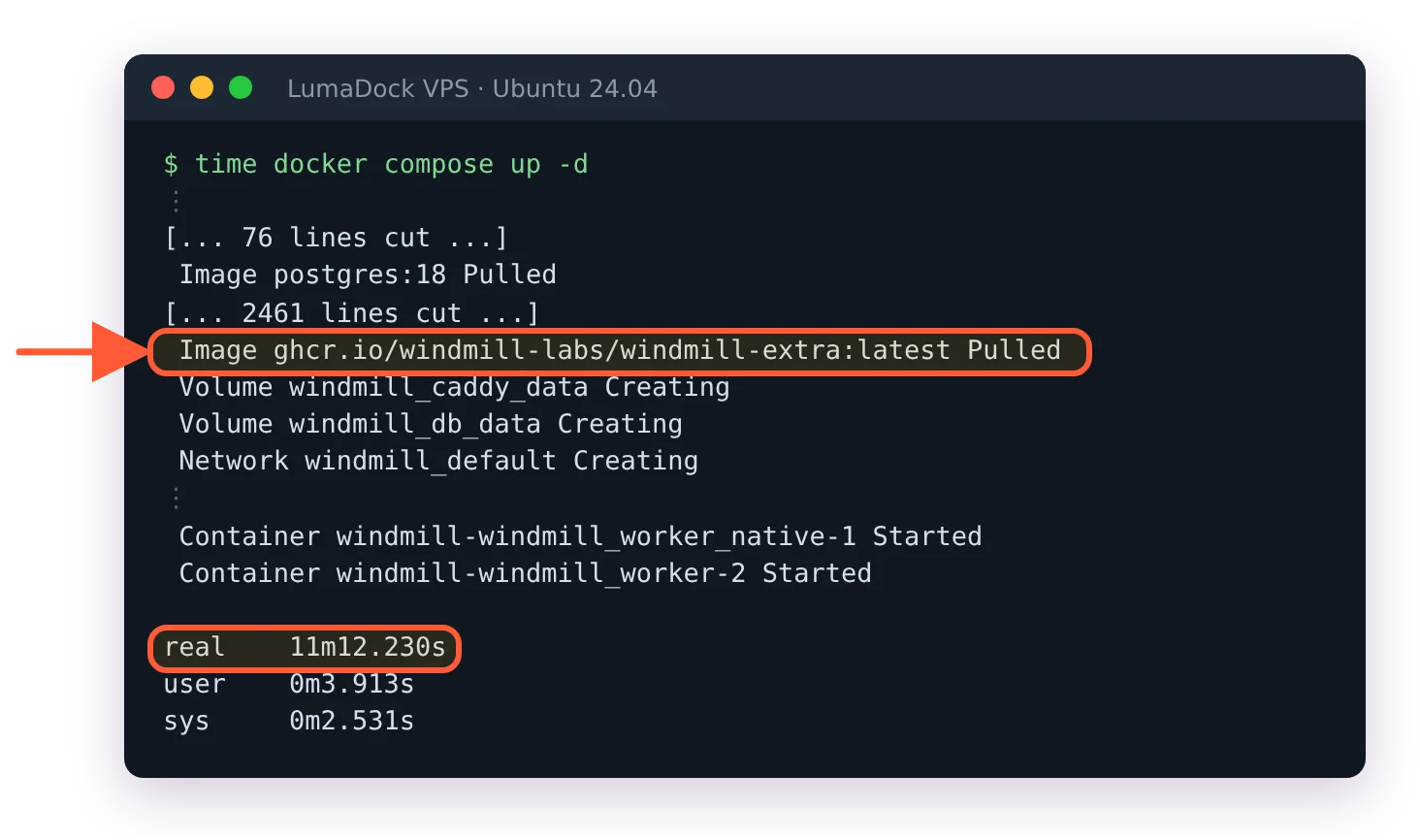
Compose cut most of the progress lines; the two that matter are the last image pulled and the time at the bottom.
docker compose ps
curl http://localhost/api/version
curl http://localhost/api/health/status
You want eight containers Up: db, windmill_server, three windmill_worker replicas, windmill_worker_native, windmill_extra and caddy. The version call returns CE v1.853.1 (or whatever you pinned) and the health call returns {"status":"healthy",...,"workers_alive":11}. Eleven is right: the single native worker container spawns eight native subworkers, as the worker groups page in Windmill's docs explains, and 3 + 8 = 11.

Check the PORTS column on the caddy row: 80 and 25 published, 443 listed but not mapped yet.

If workers_alive is lower than 11 a minute after the start, a worker container is still restarting; check docker compose ps -a.
Look at the PORTS column of docker compose ps for the caddy container while you're here. As shipped it publishes 0.0.0.0:80 and 0.0.0.0:25, and after step 2 you know what that means. Port 25 as shipped accepts a TCP connection and closes it, because no mail server runs until an email domain is configured; still, as shipped it's a published port doing nothing useful, and it goes away in step 8.
Step 6: Run the Quick setup
Open http://YOUR_SERVER_IP in a browser. Chrome may first show This site doesn't support a secure connection with a Continue to site button; that's Chrome's HTTPS-first mode objecting to plain HTTP on an IP address, and it goes away once HTTPS is on in the next step. Click through.
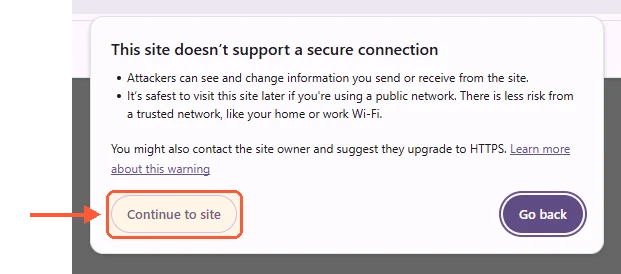
Chrome's HTTPS-first mode objecting to plain HTTP on an IP address. Continue to site; HTTPS comes in step 7.
The login form comes prefilled: "Default credentials [email protected] / changeme have been prefilled." The login stays prefilled with the default account until step 4 of the wizard replaces it, for you and for anyone else who reaches the address. Do the setup now, in one sitting, and if the VPS is going to sit for a while before you get to it, stop the proxy with docker compose stop caddy until you do.
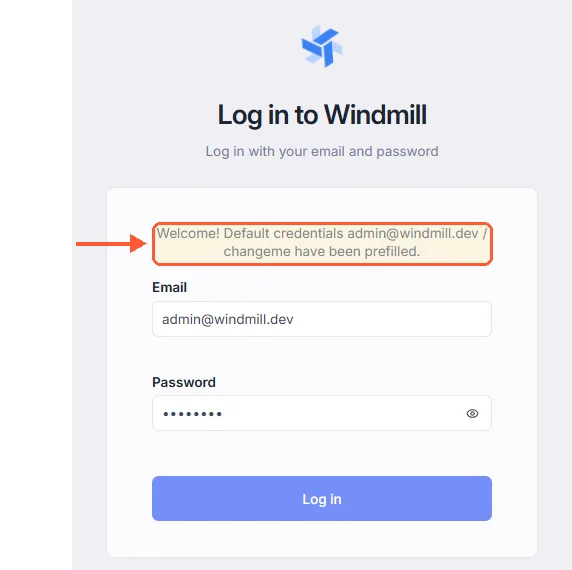
The first login page fills the default account in for you, and for anyone else who reaches the address.
After the first login Windmill shows a Welcome page with three choices: Skip, Advanced setup and Quick setup. Windmill's docs describe the earlier flow (log in, get redirected to Instance settings, create a new account, create a workspace); the release we tested runs a four-step Quick setup instead. The screens below were captured on 1.852.0.
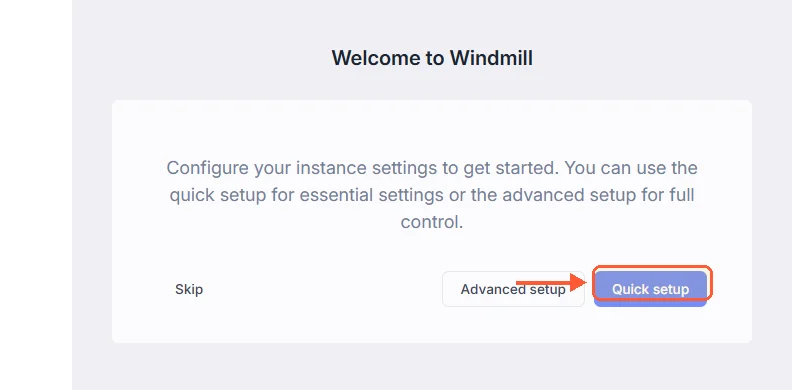
Quick setup is the right-hand button. Skip leaves the default account in place.
The four steps:
- Core. Base url is auto-detected from your browser as
http://YOUR_SERVER_IPand marked "not yet saved". Below it: License key (Enterprise only), Email domain, Job isolation and retention. Leave Job isolation exactly as it is: the three buttons show nothing selected, yet isolation is on for the default workers through the compose file, and we didn't test what clicking one does. Save & Next. - Authentication. Single sign-on toggles ("Limited to 10 SSO users" on the Community Edition) and a Disable password login switch. Keep password login on until SSO is configured and tested in another browser.
- AI. Providers and models, all off. Next.
- Root login & Resource Types. "Replace the default superadmin account with a secure email and password." This is the step that matters. Enter your own email and a strong password, then Set account & finish. The resource types were already synced from Windmill's Hub when the page loaded (282 of them on our install), with the daily sync switched on.
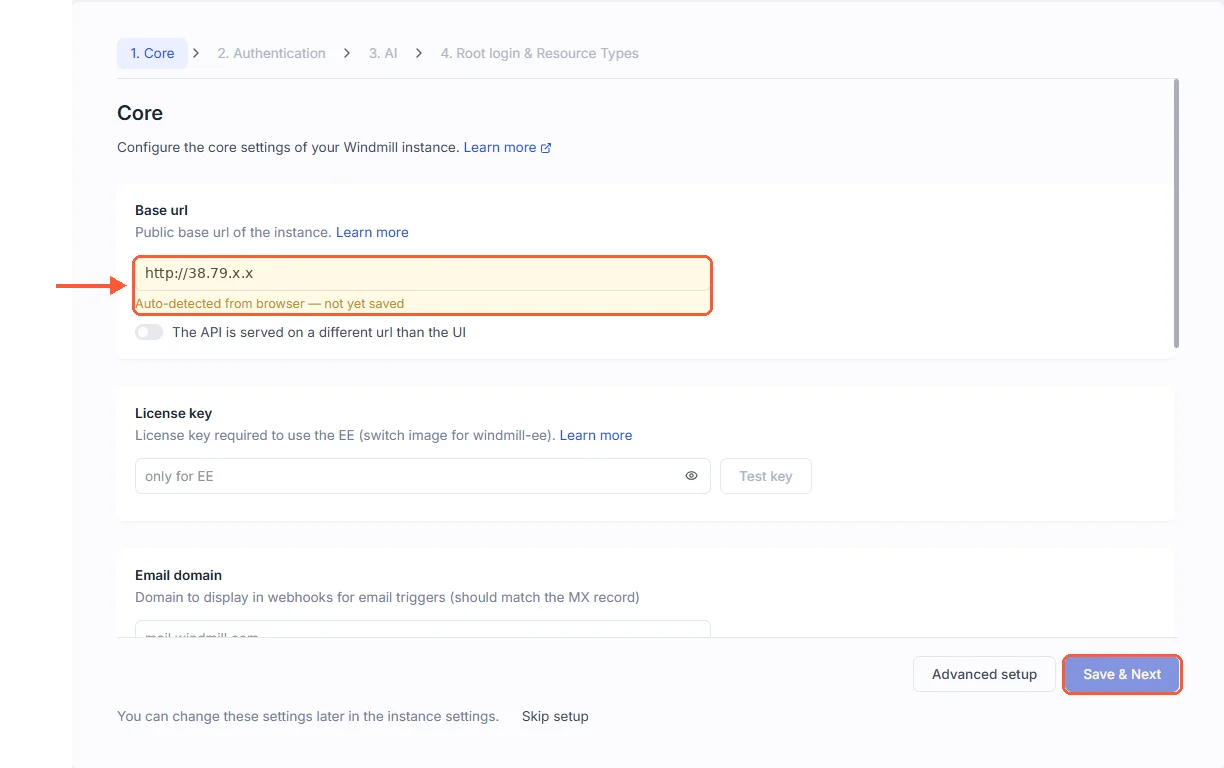
The orange note under Base url means the value is a guess from your browser; it is saved when you click Save & Next.
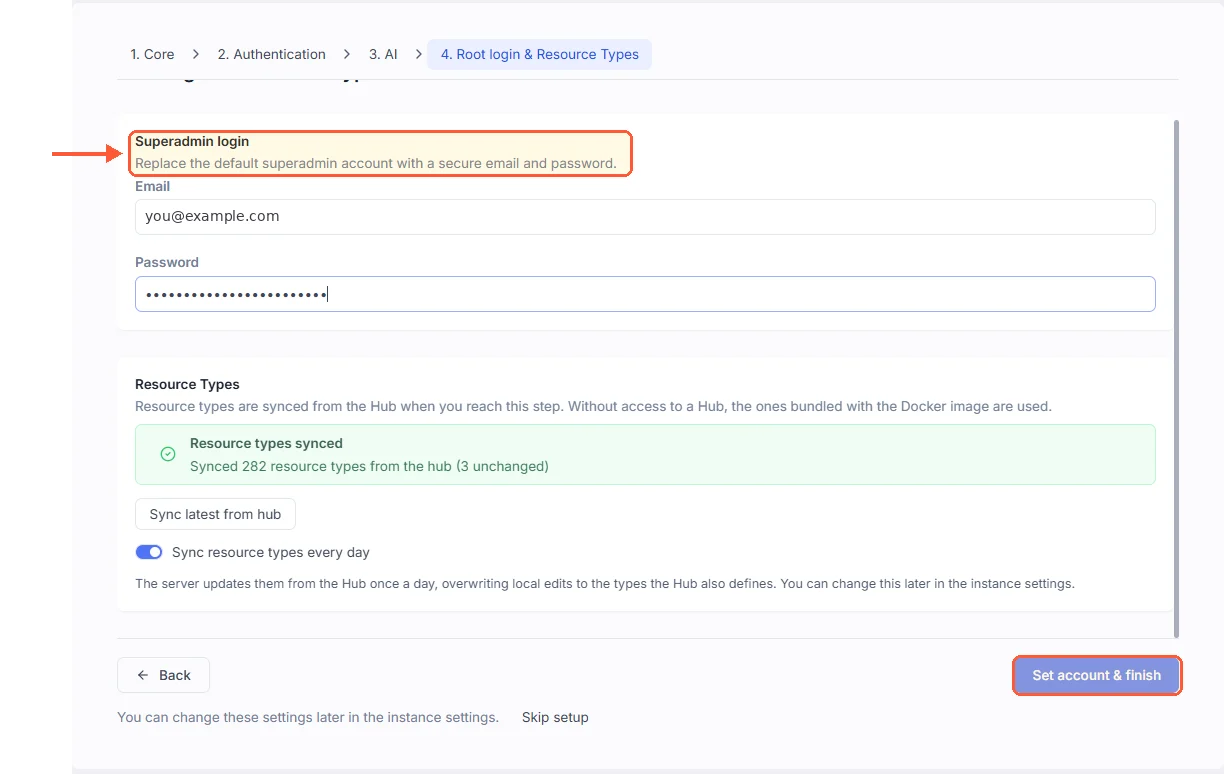
Both fields filled, Set account & finish lights up. The resource types were synced on their own when the page loaded.
Windmill then logs you out, and the login form is no longer prefilled. Sign in with the account you just created. The password table on our install held only the new account afterwards; [email protected] was replaced, and trying it against the API returned 400 Bad request: Invalid login. The wizard never forces this though. Every step carries a Skip link, and a reader who skips step 4 keeps changeme live and prefilled. If that's you, open Instance settings, Users, add yourself as Superadmin, then delete the default account.
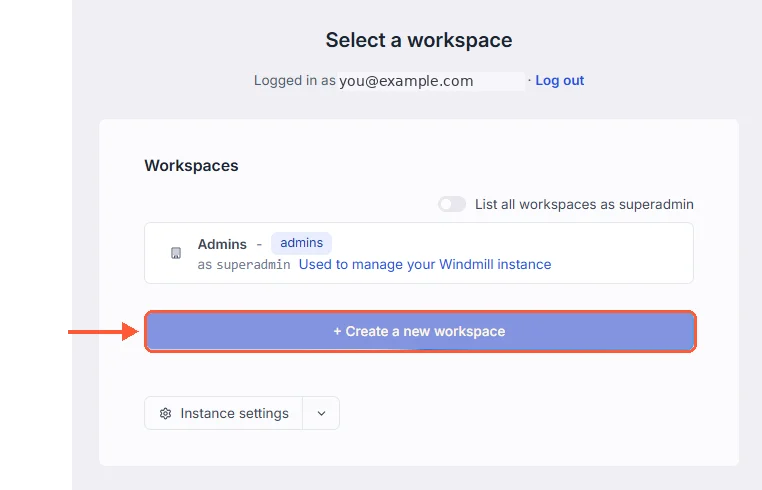
Admins is Windmill's own management workspace; your scripts go in the one you create here.
You land on "Select a workspace" with only Admins listed. Click + Create a new workspace, give it a name and an ID and you're in. Open Workers from the left menu once: the default group shows three workers at 35 MB each with a 2048 MB limit, the native group eight and a reports group with zero. The reports group comes from a commented-out service in the compose file, so zero is right.
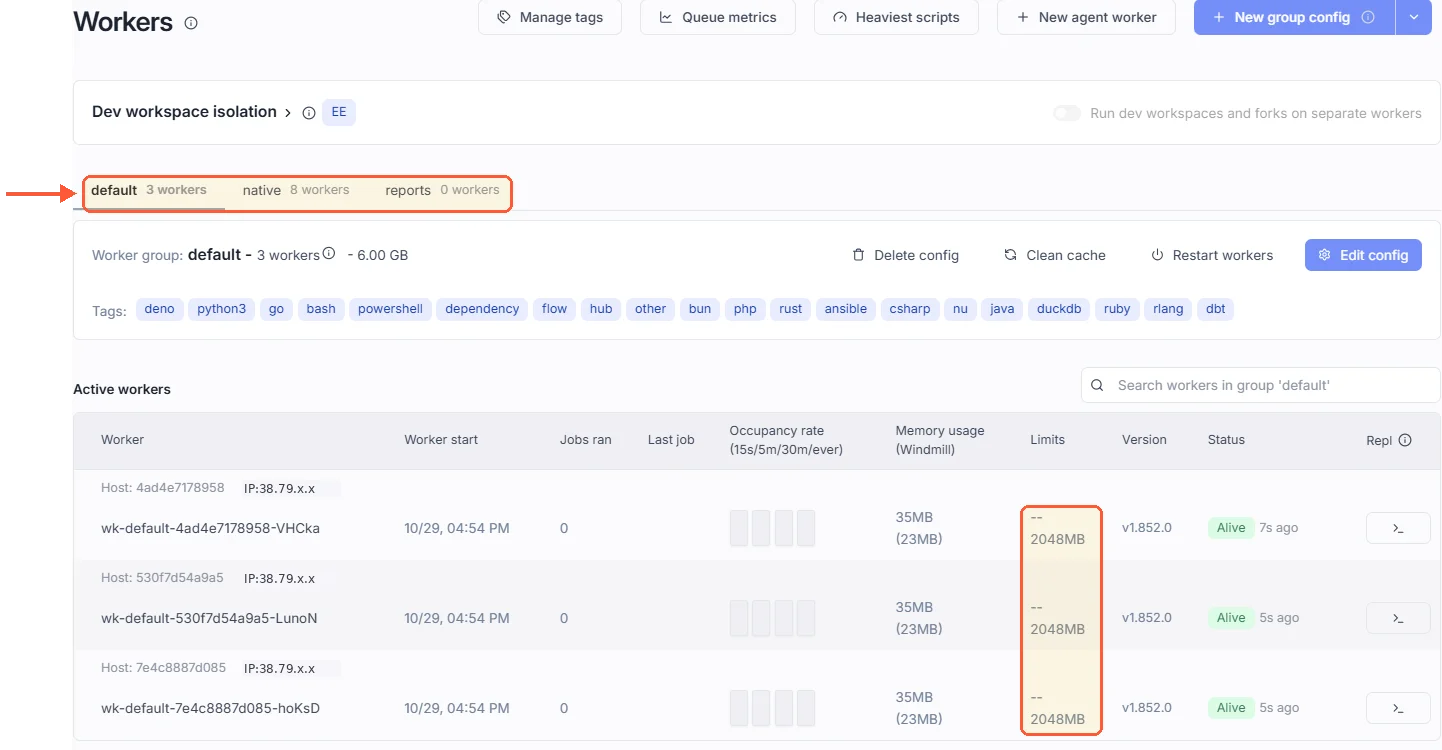
The Limits column is where the 2048 MB cap from the compose file shows up; the reports tab stays at zero on the shipped file.
Step 7: Put Windmill on your domain with HTTPS
The caddy container in the compose file is already a full reverse proxy with automatic certificates; it just starts in plain-HTTP mode. Two edits in the caddy: service of docker-compose.yml switch it over. Comment out - BASE_URL=":80", put your domain in the commented BASE_URL=mydomain.com line below it and uncomment - 443:443 in the ports list. The compose comments next to those lines describe the same change. With a domain called windmill.example.com:
sed -i -e 's|^      - BASE_URL=":80"|      # - BASE_URL=":80"|' \
       -e 's|^      # - BASE_URL=mydomain.com .*|      - BASE_URL=windmill.example.com|' \
       -e 's|^      # - 443:443 .*|      - 443:443|' docker-compose.yml
docker compose up -d
Only the caddy container was recreated here, in 4 seconds. Caddy then asks Let's Encrypt for a certificate on its own, and on our server it had one about 5 seconds later, using the tls-alpn-01 challenge on port 443. The issuer was Let's Encrypt's YE1 intermediate, valid for 90 days; renewing it is Caddy's job and the log shows the maintenance task starting, though 90 days is longer than our test. Windmill's docs say to expose 443 "instead of" 80. Keep 80 open as well: it serves the redirect from http to https, and it carries the http-01 challenge Caddy falls back to when the tls-alpn-01 one fails, which happened once on our server while 443 was briefly firewalled.
docker compose logs caddy | grep -E "certificate|challenge"
curl -sSI http://windmill.example.com
echo | openssl s_client -connect windmill.example.com:443 -servername windmill.example.com 2>/dev/null | openssl x509 -noout -issuer -dates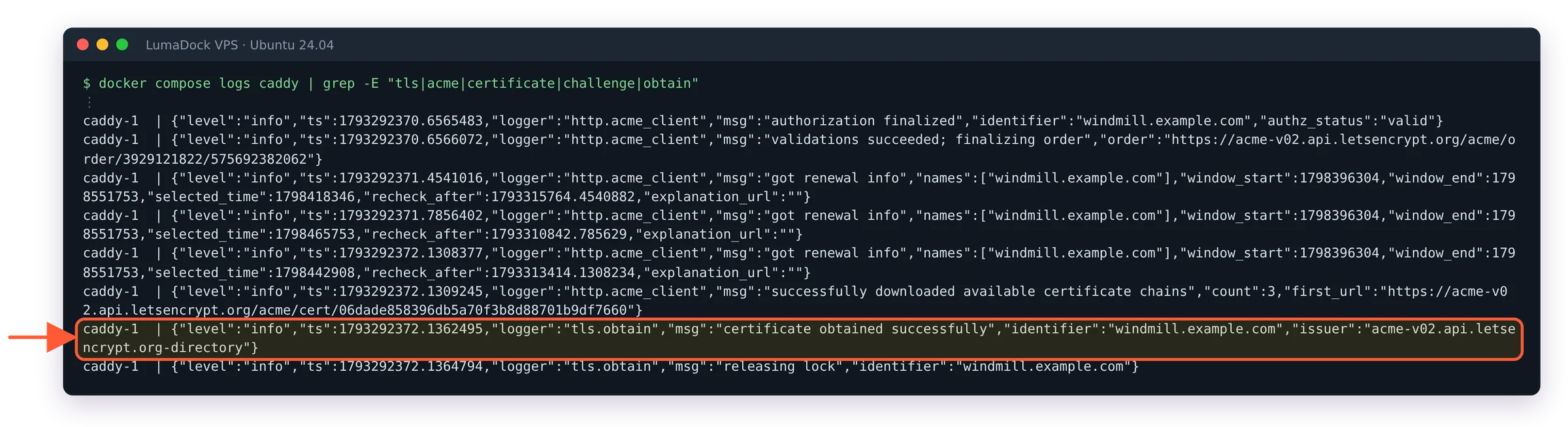
The line to wait for. If the log shows "Timeout during connect" and "retrying" instead, a firewall is in front of 80 or 443.
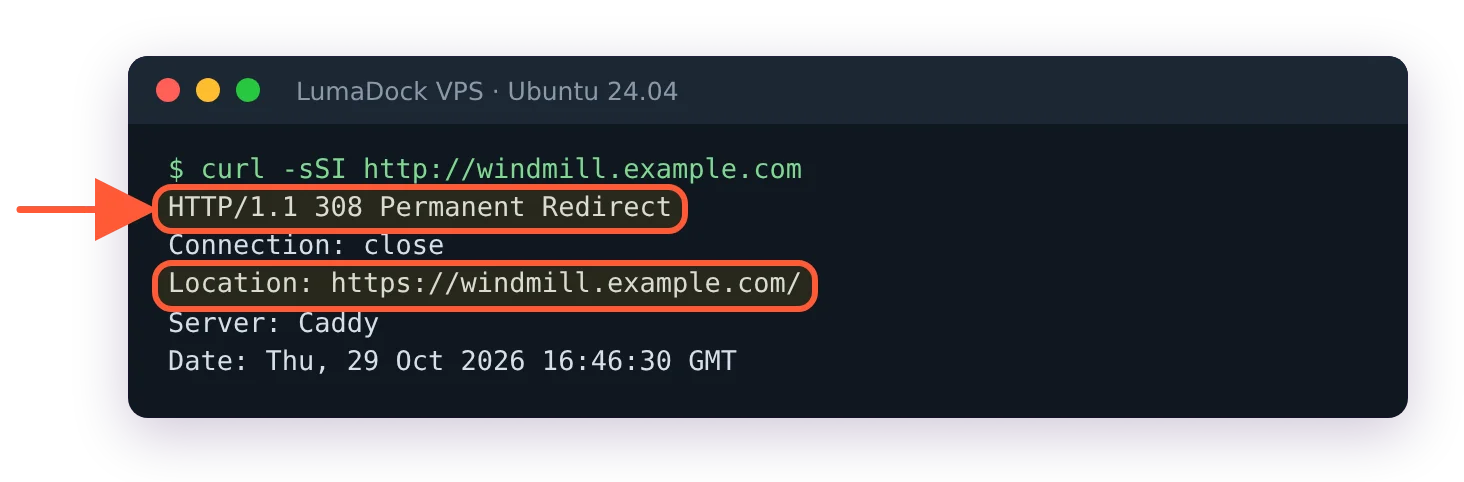
A 308 here is Caddy, so the proxy is up; a connection refused would mean the container didn't start.

The notAfter date is the one to diary if you ever stop Caddy for long; it renews only while running.
The log shows certificate obtained successfully, the HTTP request answers 308 Permanent Redirect to the https address, and openssl prints the issuer and the dates. One side effect to expect: the old http://YOUR_SERVER_IP address stops working. Caddy redirects it to https://YOUR_SERVER_IP, for which it has no certificate, and a browser tab still open on the IP fails with errors like "Could not load worker groups: TypeError: Failed to fetch". Close that tab and use the domain. The same applies to curl http://localhost/api/... on the server itself, which now gets the 308; health checks go to the domain from here on.
Caddy's BASE_URL never reaches the Windmill server, which has its own idea of its address. The Quick setup saved http://YOUR_SERVER_IP as Base url, and that is now wrong: it's the address Windmill uses for OAuth and SSO callbacks and for the resume links of approval steps. Log in over https, open Instance settings from the Settings menu at the bottom left, then Core, and change Base url to https://windmill.example.com. Review changes, then Save settings. One thing to know about the Review changes box: on our install it showed jwt_secret, the key that signs every session token, in plain text alongside the change. Don't screenshot it and don't save settings while screen-sharing.
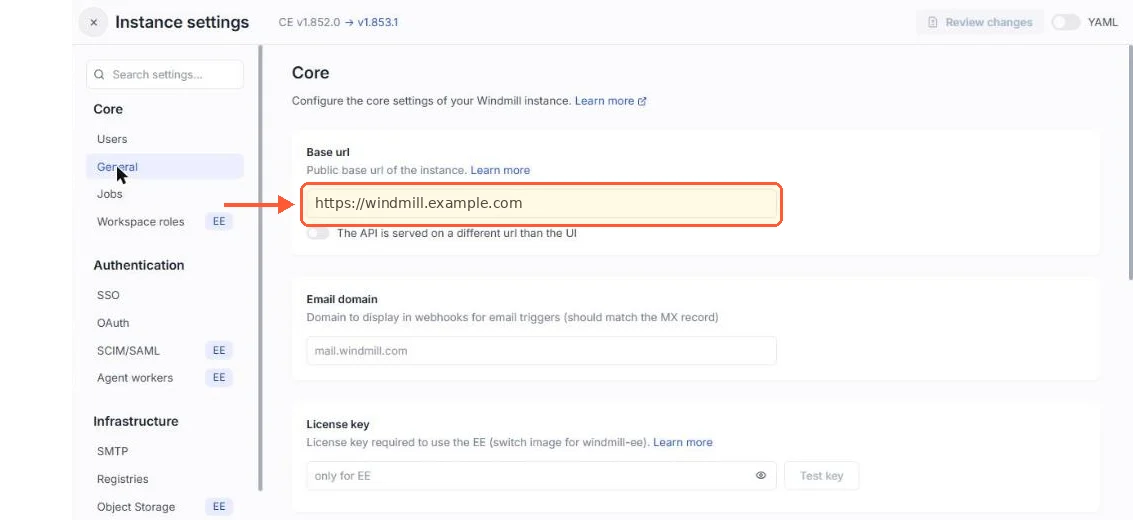
Core is the first entry in the left column; the field is at the top.
Step 8: Close port 25
Port 25 exists for Windmill's email triggers, which also need an MX record and the Email domain setting from step 6. If you're not going to receive mail into Windmill, comment the mapping out and restart Caddy:
sed -i 's|^      - 25:25|      # - 25:25|' docker-compose.yml
docker compose up -d
ss -tulpn | grep -E ':(25|80|443) '
Only 80 and 443 should remain, and nc -v YOUR_SERVER_IP 25 from the server answers Connection refused. HTTPS survives the restart; the certificate lives in the windmill_caddy_data volume.
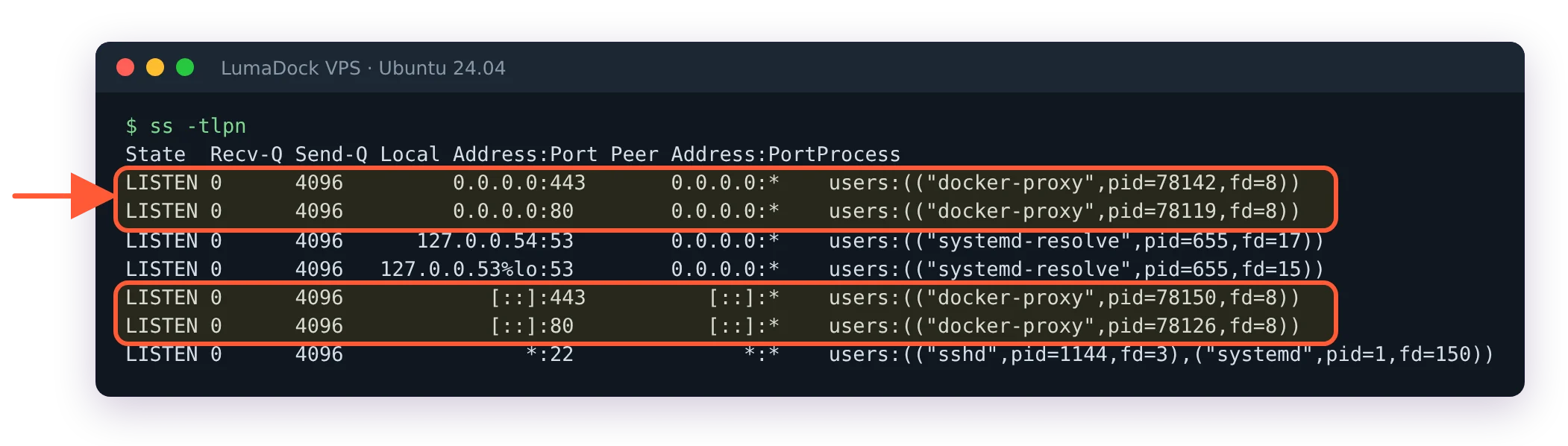
docker-proxy is Docker's own listener for published ports, which is why these rows never appear in ufw.
A few things the shipped compose already gets right, so you don't have to: container logs rotate at 20 MB with 10 files kept, compressed, on all eight containers (up to 200 MB of logs per container; .env has commented LOG_MAX_SIZE and LOG_MAX_FILE lines to lower that); the Postgres port is not published; the Docker socket is not mounted into the workers, and the compose comment above that line explains why you should leave it that way. The three default workers do run with privileged: true plus FAVOR_UNSHARE_PID=true, the pair that gives them PID namespace isolation for jobs, and the native worker has neither.
Step 9: Decide on telemetry
Telemetry is on by default. Instance settings, Advanced, Telemetry describes it as anonymous usage data and lists what goes out:
- Instance version and base URL, so your domain is in there
- Job counts and durations per language
- Login types, user and seat counts
- Worker count, vCPUs and memory
- Development instance status
- Feature usage and adoption counts, including AI model and public Hub names
- Counts of workspaces, scripts, flows and apps
The switch underneath the list, Disable telemetry, turns it off entirely. I turn it off on anything that handles customer data and leave it on for a sandbox, since the counts are how a small open-source team learns what people run.
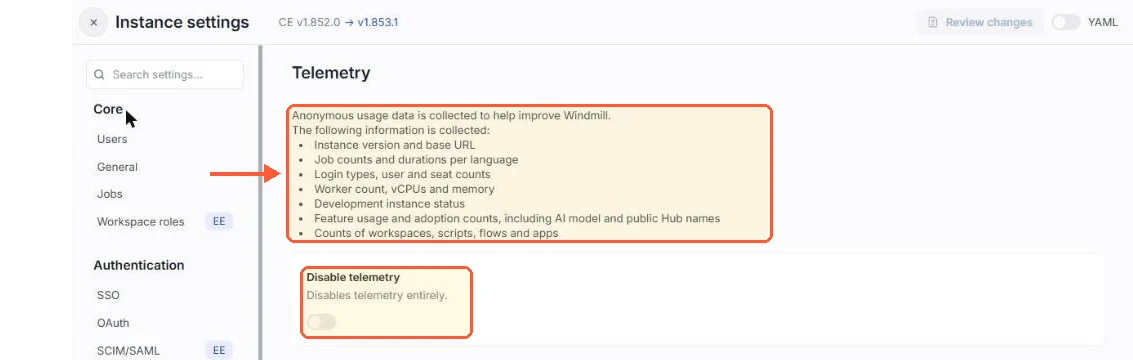
Search for "telemetry" in the settings search box; the page sits under Advanced.
That is the shape the stack keeps from here on: two public ports, a superadmin you created, a pinned image and telemetry set the way you want it.