





.svg)
.svg)
.svg)
.svg)

.svg)
.svg)
.svg)


Run three checks in this order: does the client reach Pi-hole, does Pi-hole block, does anything else answer. Each is one command, and the order matters because a blocking test on a client that's using a different resolver passes for the wrong reason. The addresses below are the ones from the Pi-hole on a VPS over WireGuard guide: the resolver at 10.100.0.1 on the tunnel, the first client at 10.100.0.2. A Pi-hole on a home LAN works the same way with its LAN address in place of the tunnel one.
Query Pi-hole directly with dig
With the tunnel connected, ask the resolver directly:
dig @10.100.0.1 example.com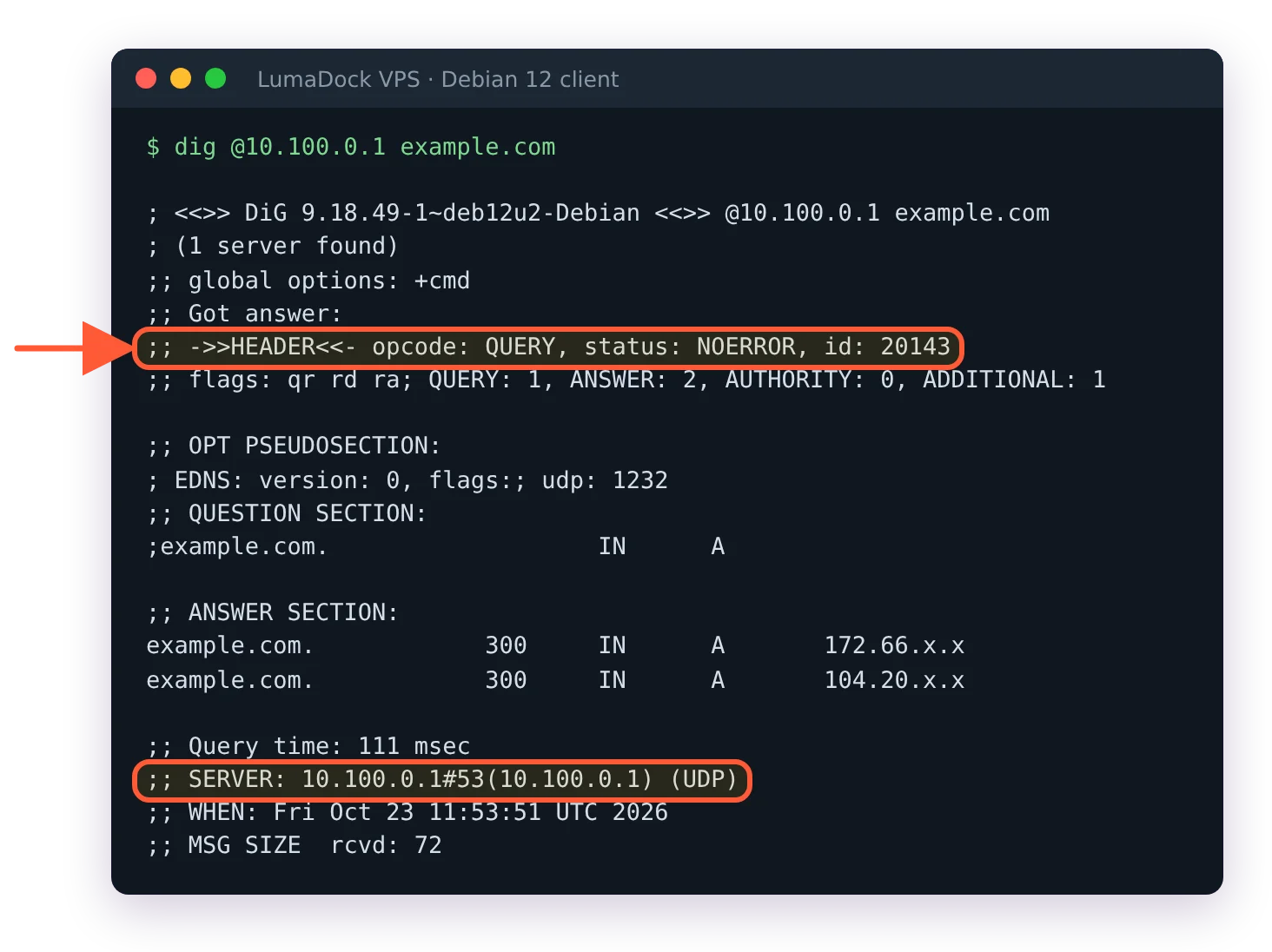
Pi-hole answers through the tunnel: NOERROR from 10.100.0.1.
A working Pi-hole returns status: NOERROR, an A record in the answer section and a SERVER: 10.100.0.1#53(10.100.0.1) (UDP) line at the bottom. A timeout here is a tunnel or firewall problem and nothing on this page will tell you more; the handshake and the wg0 firewall rules are the two places to look, and the blocking test below is pointless until this one passes. Windows and macOS have nslookup example.com 10.100.0.1 if dig isn't installed, with the same meaning.
That proves Pi-hole answers when asked by address. It doesn't prove the operating system uses it. Run the same lookup without the @:
nslookup example.comThe Server: line at the top of the output is the resolver the OS picked for this query, and it has to read 10.100.0.1. Any other address means the DNS = 10.100.0.1 line in the client config isn't being applied, which on a Linux laptop usually means wg-quick had no resolvconf to hand it to, and on a phone usually means a system setting sits above the tunnel's DNS. On Linux with systemd-resolved, resolvectl status lists the DNS server per interface, and wg0 should show the Pi-hole with the ~. routing domain next to it.
Resolve pi.hole from the client
nslookup pi.hole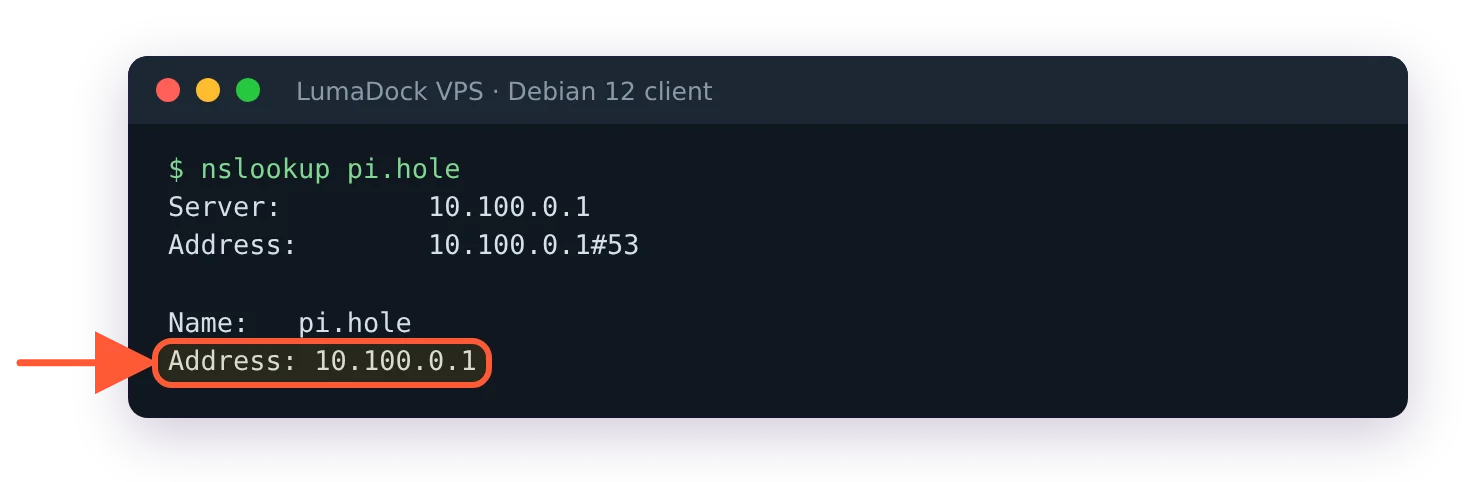
With the DNS line applied, pi.hole resolves to the tunnel address.
The name pi.hole is answered by Pi-hole itself, using the address of whichever interface received the query, so this returns 10.100.0.1 from a tunnel client and nothing useful from anywhere else. It's the quickest test to repeat after a reboot or a config change, because it fails the moment the client stops using Pi-hole, and it's also the reason http://pi.hole/admin/ opens on one device and not another. No answer, or an NXDOMAIN, means the previous check already failed and you skipped it.
Confirm blocking with pihole deny and dig
Don't guess at a domain that might be on the default list. Put one there yourself, on the VPS:
sudo pihole deny test.example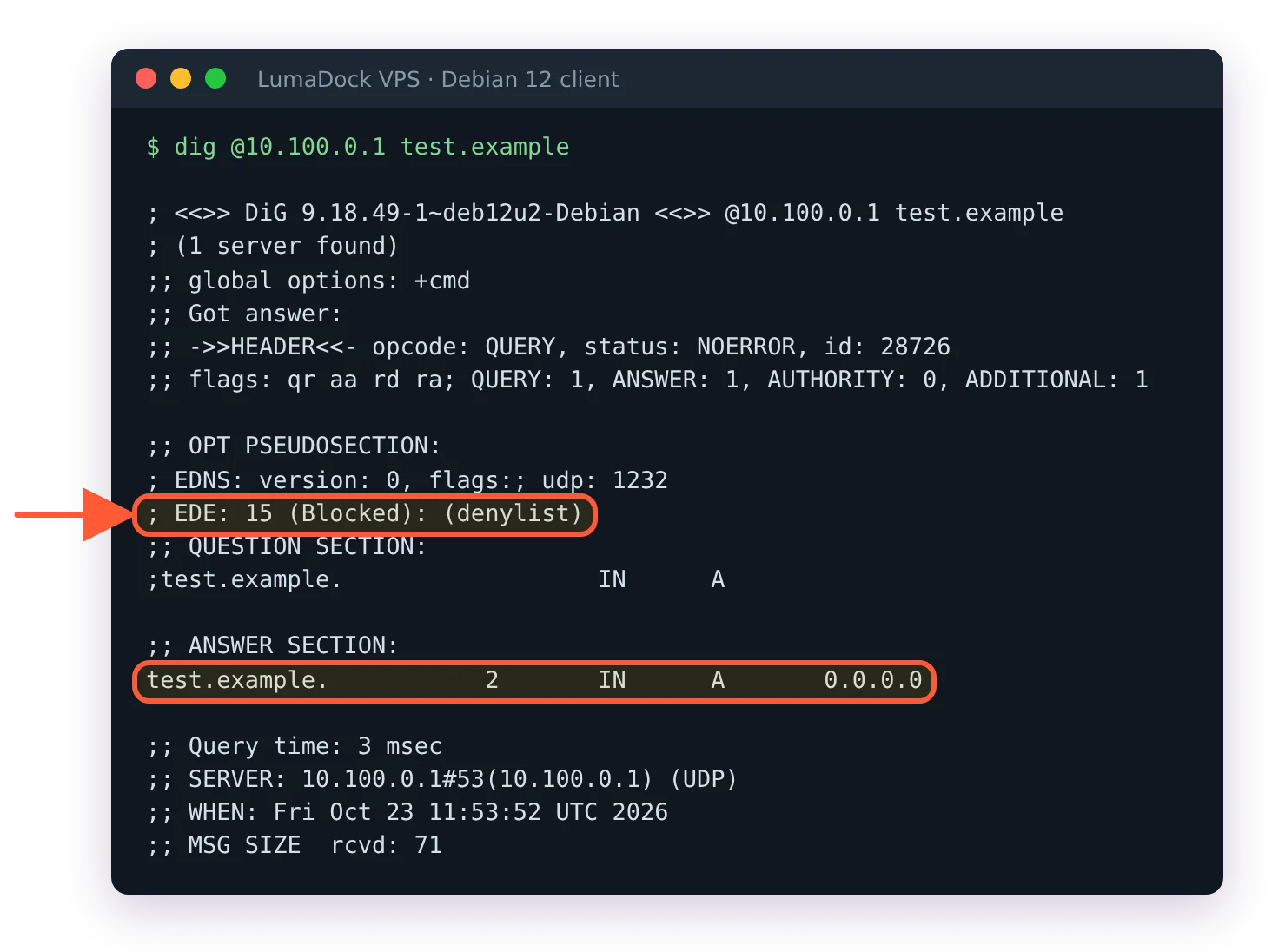
The denied test domain comes back as 0.0.0.0, marked Blocked (denylist).
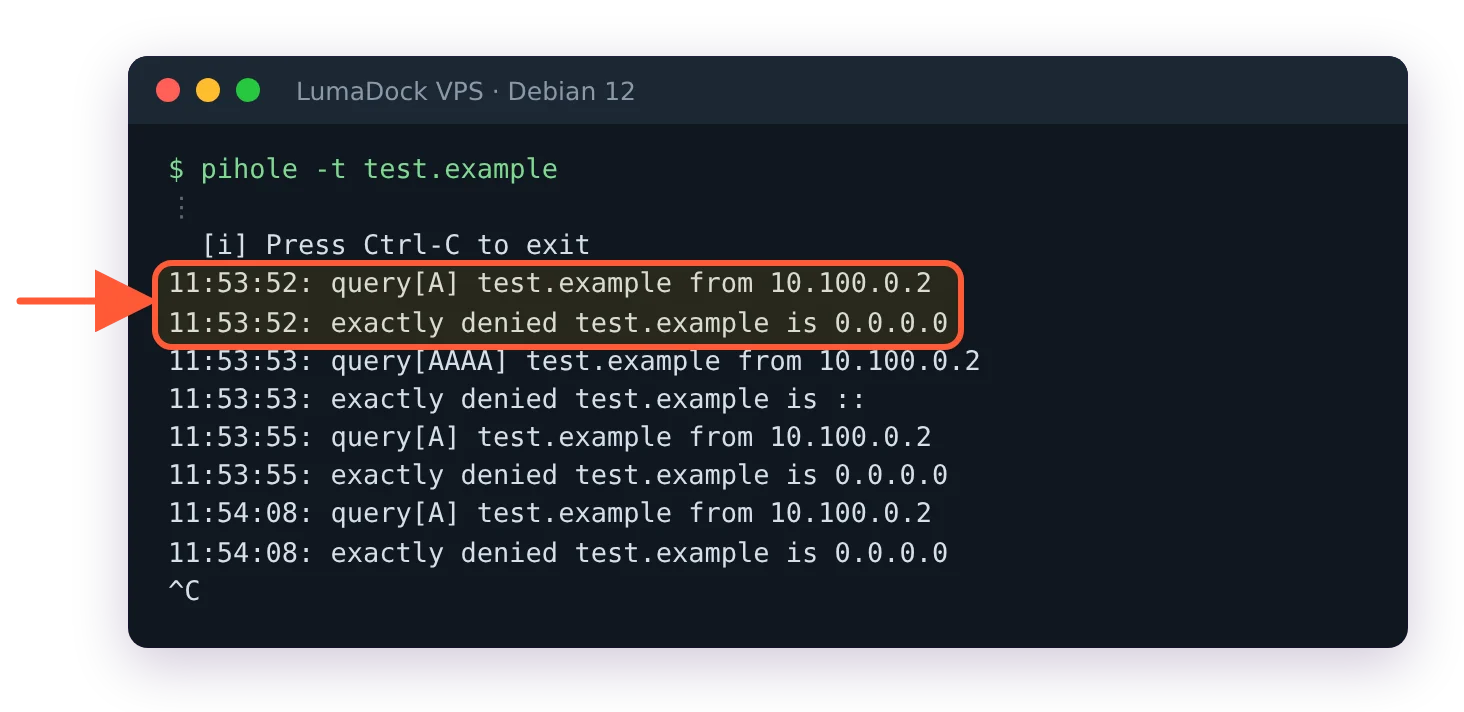
pihole -t shows the query and the denial as they happen.
The command adds the domain to the exact denylist and reloads FTL, so it takes effect at once. Now query it from the client:
dig @10.100.0.1 test.exampleIn the default blocking mode, which the blocking modes page calls NULL, a blocked name comes back as 0.0.0.0 for an A record and :: for AAAA, with status: NOERROR. That's the signature to look for. dig also prints the reason in the OPT section, EDE: 15 (Blocked): (denylist) for this test and (gravity) for a name caught by a subscribed list. If you changed dns.blocking.mode to NX (the value the FTL source uses for the NXDOMAIN mode) or NODATA the answer section is empty instead, and the status line is where the block shows. Typing NXDOMAIN, as the blocking modes page writes it, gets Config setting dns.blocking.mode is invalid and the mode stays as it was. Repeat the query without the @ to prove the OS path blocks too.
Open the Query Log in the web interface at http://10.100.0.1/admin/ while the queries are fresh. The test.example row shows the client as 10.100.0.2 and the status Blocked (exact); a real ad domain caught by a subscribed list shows Blocked (gravity) instead. On the server, pihole -t tails the same thing in the terminal and accepts a filter, so pihole -t test.example shows only that one name. Then take the test entry out:
sudo pihole deny -d test.exampleThe script confirms with a line saying the domain was removed from the list. pihole deny remove test.example is the long form of the same flag, and pihole deny -l lists what's currently on the denylist if you want to check it left. Forgetting this step costs nothing today and confuses you in a year when a real test.example appears in a log.
Blocking can also be off entirely. pihole status ends with Pi-hole blocking is enabled or Pi-hole blocking is disabled, and the dashboard shows the same state in the sidebar. A dashboard where total queries climb and blocked queries stay at zero for hours, on a client that browses normally, is the sign that the lists are empty. Run pihole -g and read its output; the retrieval failure it prints for a dead list URL is one of the strings the Pi-hole v6 errors page walks through, and the fix is a working list URL or a host that can resolve it. Until gravity holds domains, the deny-list test above is the only block you'll see.
Run a DNS leak test from the client
Everything so far asked Pi-hole on purpose. A leak test asks the question the other way round: when the browser resolves a name by itself, who answers? The Pi-hole project's own WireGuard client guide points at dnsleaktest.com for this and says what the result should be: only the DNS servers of whatever upstream Pi-hole forwards to, or only your WireGuard server's public IP when Unbound is that upstream. Your ISP's resolver in that list means the browser or the OS is going around the tunnel.
The usual culprits, each with its fix in why DNS still leaks past Pi-hole over WireGuard, have nothing to do with the VPS. A browser with its own DNS over HTTPS setting, an Android phone with Private DNS set to a provider, an iPhone with iCloud Private Relay on, a Windows laptop whose other network adapters still carry a resolver. Pi-hole disables two of those for well-behaved clients by default (it answers Firefox's canary domain and the Private Relay hostnames so both features back off), and the rest need a setting changed on the device.
Prove port 53 on the public IP times out from outside
The last check runs from outside the tunnel: a second VPS, a phone on mobile data with WireGuard switched off, a friend's laptop. Anything that reaches the VPS's public IP without a peer config. It's the one check on this page where the good outcome looks like a failure, and the timeout still gives me a jolt before I remember that it is the point.
dig @YOUR_SERVER_IP example.com +time=3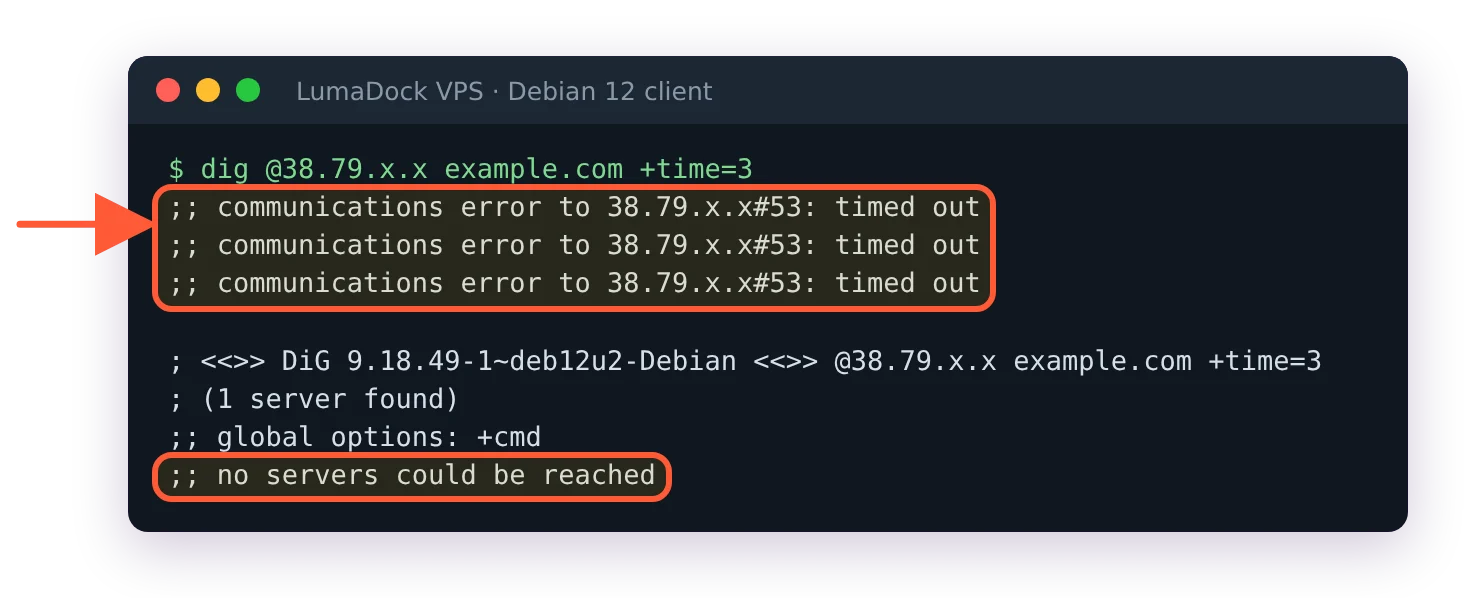
From outside the tunnel, port 53 on the public address never answers.
Wait about ten seconds, because dig tries three times. The correct result on dig 9.18 (Debian 12 and Ubuntu 24.04 both ship it) is three lines of ;; communications error to YOUR_SERVER_IP#53: timed out and then ;; no servers could be reached, and no other result is acceptable on a VPS. An answer means port 53 is open to the internet and your Pi-hole is an open resolver, which the project's documentation warns against in plain words and its moderators decline to support; the firewall section of the install article is where to go, before anything else. Any reply at all, even an error status with no records, means the port is reachable from outside and the firewall has a hole in it, even if the listening mode saved you this time.
On the VPS itself, the socket check looks alarming and isn't:
sudo ss -tulpn 'sport = :53'With the listening mode set to SINGLE on wg0, pihole-FTL appears on 0.0.0.0:53, because FTL opens the wildcard socket in all modes other than BIND and throws away what arrived on the wrong interface. The external dig above is the test that matters, since it exercises the firewall and the discard together. If it timed out, the socket line is cosmetic. If a non-tunnel client ever does get through and the mode is LOCAL, FTL logs it as ignoring query from non-local network, which the dnsmasq warnings page explains alongside the other lines FTL writes. Seeing that line on a VPS is good news and bad news in one: the discard worked, and something reached a port that should have been closed.
Run the outside test again after every firewall change and after every OS upgrade on the VPS. Ten seconds and three timeouts is the whole test, and it's the one command on this page whose wrong answer affects people other than you.

