Back to Article List

Webmin default login and password

Webmin default login and password

Updated and tested 25 September 2026

Webmin has no default login or password.

Search for one and the first page of results hands you a username and password pair with total confidence. Those pages are wrong, and they've been wrong for years. Webmin ships with no hard-coded credentials, so a credential list has nothing in it to try and the default username and password for Webmin isn't a thing that exists.

A fresh install creates one account, called root or admin, that reaches every module. Type a password into the Webmin login form and it gets checked against the server's own user database. Which account that leaves you logging in with depends on the distribution.

How Webmin authentication works

The official docs are direct about it: "A standard, out-of-the-box Webmin installation has only one user called root or admin, who can use every feature of every module." That entry is written into /etc/webmin/miniserv.users when the package installs. On a package install it's set up to validate through the operating system, using PAM or reading /etc/shadow, so Webmin keeps no password of its own for it.
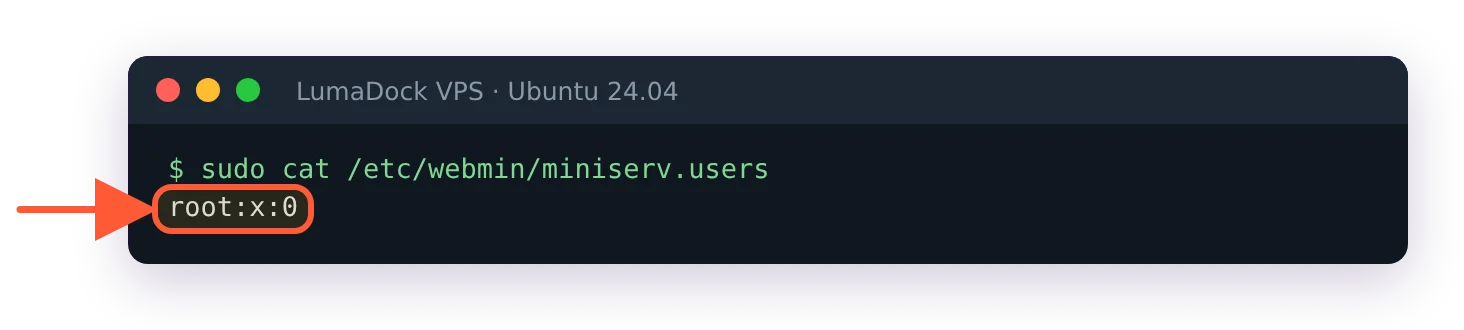
/etc/webmin/miniserv.users holds a single line, root:x:0, after a package install

A package install creates one Webmin user, checked against the system account.

If you can log in over SSH as root with a password, that same password gets you into the form at https://YOUR_SERVER_IP:10000. Changing the Webmin port moves that address, so on a server somebody else built, find out where it's listening before you decide the login is broken. If root has no usable password on the machine, root can't log in to Webmin either. Nothing gets invented for you.

The complete Webmin guide covers the rest of what sits under Webmin Configuration. For credentials, Webmin is exactly as strong as your Unix passwords and no stronger, which is why Webmin security hardening belongs in the install and not in a folder of things for later. There's an upside to the design as well. No extra credential sits in a database waiting to be rotated, and no panel account outlives the system account it was named after.

Webmin default credentials on Ubuntu, Debian and AlmaLinux

Ubuntu

Check root first:

sudo passwd -S root

P in the second field means root has a usable password and logs in to Webmin with it. LumaDock's Ubuntu 24.04 image ships like this, so on our servers root is the account the form accepts. L or NP is the stock Ubuntu install, where root is locked and Webmin doesn't work around it.
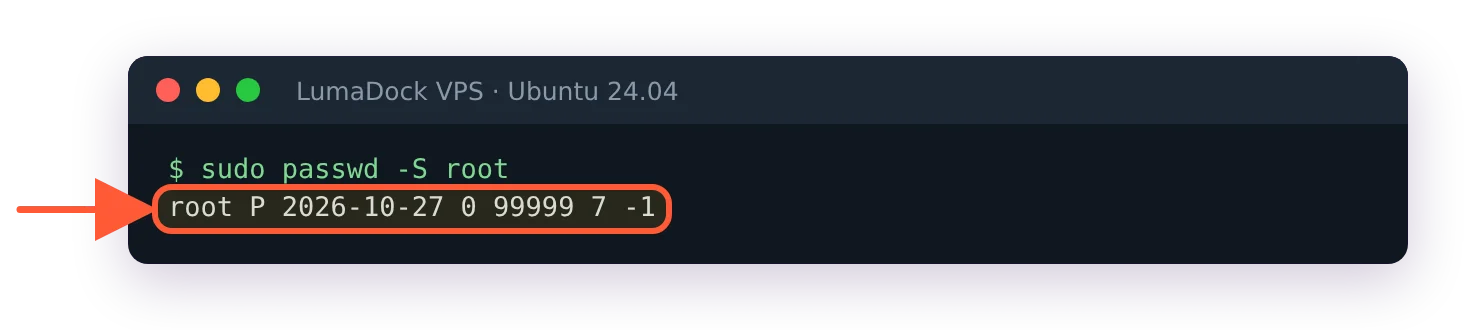
sudo passwd -S root prints root P, meaning root has a usable password

P in the second field: root has a password and can log in to Webmin with it.

A sudo user logs in either way. The account you used to install Webmin on Ubuntu 24.04 works with its normal system password, because the package sets Webmin to accept any member of the sudo group.

You can give a locked root a password with sudo passwd root. It works. Skip it on a public server anyway, since setting a root password to make a login tidier hands every brute-force script on the internet a username it already knows to try. Where root already has one, keeping port 10000 closed to everyone but you does most of the same job.

Debian

Debian's installer asks for a root password during setup, so on a normally installed Debian system root already has one and root is the account to use. Leave that field blank at install time and Debian gives the first user sudo rights. Provider images vary here too, so check:

sudo passwd -S root

A P in the second field means a usable password is set. L means the account is locked and NP means there's no password at all, and both of those put you back in the stock Ubuntu situation of logging in as your sudo user.

AlmaLinux, Rocky and other RHEL rebuilds

An ISO install of AlmaLinux or Rocky sets a root password during installation, so root works in Webmin from the first boot. Cloud images are the other story: plenty of them disable the root password and drop you in as a sudo-capable user with an SSH key. A Webmin login is a system login either way.

Unix authentication and Webmin-only passwords

Webmin supports both models, chosen per user. From the Webmin Users documentation: "If the new user has the same name as a Unix user, you can select Unix authentication instead to have Webmin use PAM or read the /etc/shadow file to validate the user." Choose that and Webmin holds no password for the account at all. Leave it off and Webmin stores its own hash in /etc/webmin/miniserv.users, with no connection to the system account of the same name even when the names match exactly.
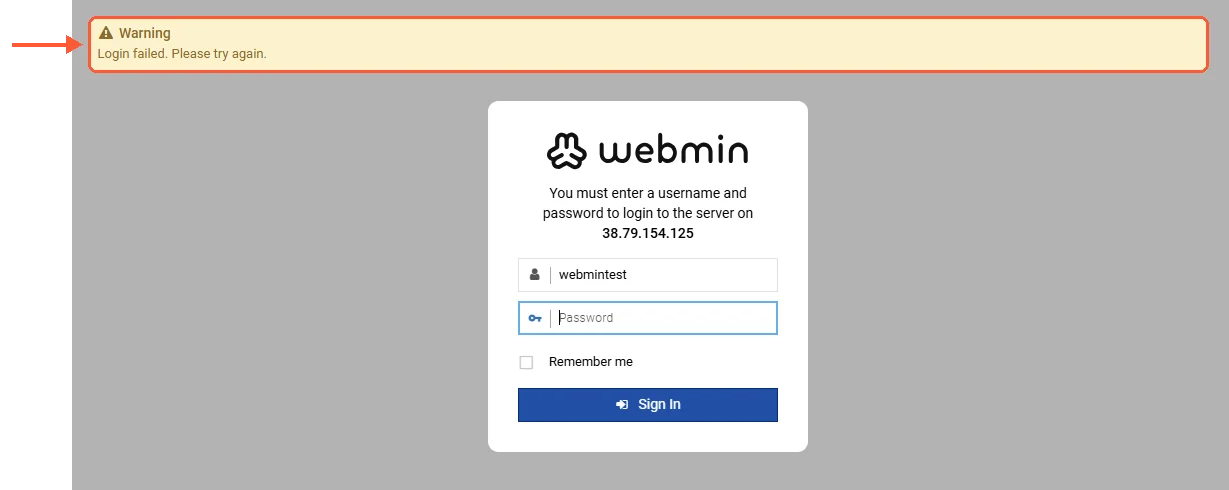
Webmin login page with a yellow Warning box: Login failed. Please try again.

A wrong password, or the wrong account for this server.

So if an account authenticates through Unix and you change its shell password, its Webmin password changed at the same moment. Webmin-only accounts don't move. The old password keeps working long after the system password it resembles has gone, and a good share of the "my Webmin password stopped working" reports start with somebody not knowing which kind of account they had.


Give your websites a server of their own

Launch a virtual server as simple as shared hosting, with guaranteed resources and stronger security.
Számlázási ciklus

Personal Web Hosting

69.46 kr Save  14 %
59.52 kr havonta
  • Ideális személyes oldalakhoz, blogokhoz és portfóliókhoz, gyors és megbízható online jelenlétet biztosít bonyodalmak nélkül.
  • 40 GB NVMe tárhely
  • 2 GB RAM memória
  • 2 vCPU AMD EPYC
  • ✔ IPv4 & IPv6 tartalmazza Az IPv6 támogatás jelenleg nem érhető el Franciaországban vagy Hollandiában.
  • ✔Korlátlan 1 Gbps hálózat
  • ✔Ingyenes automatikus mentés
  • ✔Tűzfal kezelés
  • ✔Ingyenes szerver felügyelet
  • ✔KVM elkülönítés

Business Web Hosting

238.38 kr Save  21 %
188.70 kr havonta
  • Ideal für etablierte Websites und stark ausgelastete Teams, mit genug Leistung für mehrere Projekte und stetiges Wachstum.
  • 250 GB NVMe Speicher
  • 8 GB RAM-Arbeitsspeicher
  • 4 vCPU AMD EPYC
  • ✔ IPv4 & IPv6 inklusive IPv6-Unterstützung ist derzeit in Frankreich oder den Niederlanden nicht verfügbar.
  • ✔Unbegrenztes 1-Gbps Netzwerk
  • ✔Kostenlose automatische Backups
  • ✔Firewall-Verwaltung
  • ✔Kostenloses Server-Monitoring
  • ✔KVM-Isolierung

Agency Web Hosting

447.06 kr Save  22 %
347.69 kr havonta
  • Nagyon nagy igényű felhasználóknak készült, kapacitást biztosít sok ügyfél és nagy terhelésű munkafolyamatok egyszerű kezeléséhez.
  • 600 GB NVMe tárhely
  • 16 GB RAM memória
  • 4 vCPU AMD EPYC
  • ✔ IPv4 & IPv6 tartalmazza Az IPv6 támogatás jelenleg nem érhető el Franciaországban vagy Hollandiában.
  • ✔Korlátlan 1 Gbps hálózat
  • ✔Ingyenes automatikus mentés
  • ✔Tűzfal kezelés
  • ✔Ingyenes szerver felügyelet
  • ✔KVM elkülönítés

Creating additional Webmin users

Extra accounts are managed in the Webmin Users module, where each one gets its own authentication choice and its own list of modules. A second administrative account saves you a trip to the provider console on the day the account you normally use breaks, through a lost second factor or a password change you didn't make.

The same page documents a way to suspend a login without deleting anything. "To prevent the user from logging in at all, select No password accepted." That suspends access without deleting the user and everything attached to it, which is the right state for an account that exists only to hold module permissions for something else. Setting a password again reverses it.

The file underneath all of this, /etc/webmin/miniserv.users, is one line per user with the hash in the second field. It reads like a very old /etc/shadow, which is more or less what it is. None of Webmin's newer configuration pages replaced it.

Reset a forgotten Webmin password from the shell

webmin passwd --user root

Run that as root. When the Webmin user is also a Unix user, which root always is, it asks a question first:

1. Change the Unix password and use Unix authentication in Webmin (recommended)
2. Set a separate Webmin-only password in miniserv.users
Select password type [1]:

webmin passwd warns the user is also a Unix user and asks: 1 change the Unix password, 2 set a Webmin-only password

For a user that is also a Unix user, webmin passwd asks which password to change.

Press Enter for option 1 unless you want Webmin and SSH to have different passwords. Option 1 changes the system password itself, so the new one also works for SSH. Webmin documents the path under changing a Webmin password when you can't log in. Forgot the Webmin password and still have SSH? That's the entire fix. The short form webmin passwd USERNAME does the same job, and --unix or --webmin-only force which of the two credential types you're changing when you want to be explicit.

There's a non-interactive form for provisioning scripts:

webmin passwd --user root --password NEW_PASSWORD

--password sets a Webmin-only password, so after it Webmin and the system account no longer share one. Run without a terminal, plain webmin passwd makes the same choice and skips the question. In a cloud-init template that's fine. Typed by hand on a live server it drops the password into your shell history and into the process list where anybody with a terminal can watch it go by, so the interactive form is the one to use outside automation. The CLI refuses to run as a non-root user, so sudo goes in front of it unless you're already root. webmin --list-commands --describe prints every subcommand your build accepts, and the Webmin command line reference documents the full set for changing a Webmin password from the command line and everything else.

Source and tar installs

The packaged install puts webmin on your PATH. A source or tar install doesn't, so you call the binary by path and tell it which configuration directory it belongs to. The three usual locations are /usr/share/webmin/bin/webmin on Debian-family layouts, /usr/libexec/webmin/bin/webmin on RHEL-family ones and /usr/local/webmin/bin/webmin for a manual prefix.

/usr/local/webmin/bin/webmin passwd --user root --config /path/to/webmin-config

Leave the --config off and the CLI looks for /etc/webmin/miniserv.conf, which a source install never created. On the packaged CLI that missing file shows up as Error: Failed to read Webmin essential config file: ... doesn't exist from passwd, and as Failed to open /etc/webmin/miniserv.conf from disable-twofactor. The writeup of common Webmin errors covers both, along with their other causes. I haven't run a source install myself, so the exact wording there may differ.

Getting back in after a two-factor lockout

Two-factor authentication lives under Webmin Configuration, on its own Two Factor Authentication page, with TOTP Authenticator and Authy as the two providers. TOTP Authenticator works with Google Authenticator or any other TOTP app, and older guides call it Google Authenticator for that reason. People pick one and stay with it. I don't have a view on which is better. The docs describe TOTP as the "TOPT protocol", a typo that has sat there long enough that people now quote it back in forum posts.

Enrol an account and reset the phone without saving the seed, and the login form takes your password and then stops. Password accepted, nothing behind it.

The shell gets you back in. Run this as root:

webmin disable-twofactor --user root

The --user is required; name the account that's locked out. That strips the second factor off the account so the password alone gets you in, at which point you enrol again from a device you still control.

One version note before you go back to the login form. Webmin releases before 2.640 carried a two-factor bypass over HTTP basic authentication, tracked as CVE-2026-42210 and CVE-2026-56022, where an account with 2FA enabled could be reached without the second factor being presented at all. Webmin was at 2.670 when this guide was tested and the fix has been in for several releases since. If yours reports anything older than 2.640, upgrade it before you spend another minute on credentials.

Questions?

What is the default Usermin login?

Usermin has no default login; it allows logins by any Unix user on the server, at https://YOUR_SERVER_IP:20000, with that user's normal system password. By default it reads /etc/shadow directly to check the password, and it can use PAM on setups that need it, so there is no separate Usermin password list to look up or reset. To change a password, change the user's Unix password with passwd.

About the author

William Ramsay

I've earned my living from technical writing for more than 20 years. There were a few other jobs before that: university IT, a spell doing Unix administration, some training/paid work. Over these years, writing became the part people kept asking me to do, so I stopped pretending it was secondary.

Most of my career has been in infrastructure. The names have changed. We had dedicated servers, then virtual servers, then cloud instances; now there are another dozen ways to rent somebody else's computer. But the underlying problems don't change nearly as quickly. I'm in Glasgow, where I've lived for most of my life. I keep paper notebooks, walk in the hills when my knees agree to it and repair old hand tools. I've never been particularly interested in gadgets for their own sake. I like knowing how things work and being able to fix them.

Move your sites to a server with room to grow

Pick cPanel, Plesk or ispmanager at checkout and manage every site from the panel you know, with full root access when you need it. Support is available 24/7.