





.svg)
.svg)
.svg)
.svg)

.svg)
.svg)
.svg)


Updated and tested 26 October 2026
Webmin ships with Authentic Theme, and on a current install that is the one to keep. What makes Webmin themes in 2026 interesting is how short the list of live alternatives has become, which shows up the moment you sort the official index by release date.
Which theme you get by default
The choice is baked into the source. The file defaulttheme in the webmin/webmin repository contains exactly one string, authentic-theme, and setup.sh reads it. The only fallback is gray-theme, the Framed Theme, which setup drops to if the Authentic directory is missing from the package.
Setup then records the decision in two places: theme=<theme> in /etc/webmin/config and preroot=<theme> in /etc/webmin/miniserv.conf. Reading both tells you what a box is running without logging into it:
grep '^theme=' /etc/webmin/config
grep '^preroot=' /etc/webmin/miniserv.conf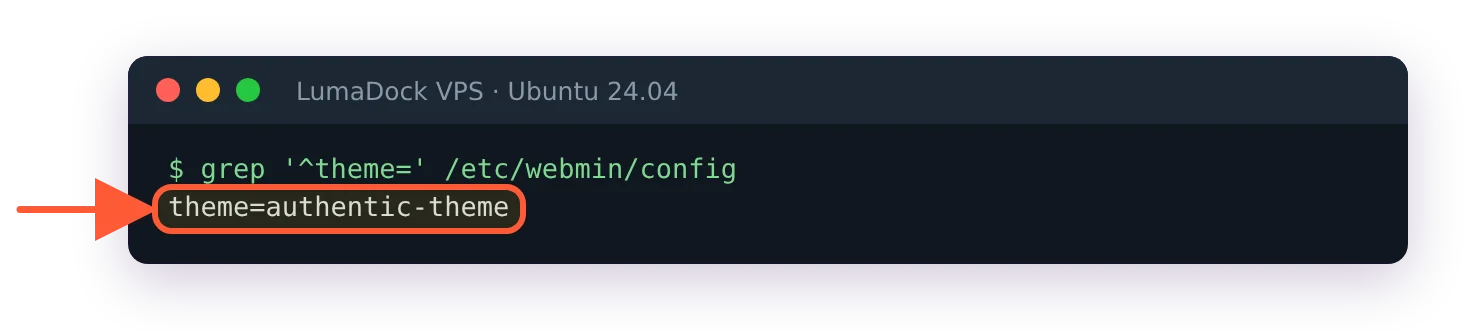
A fresh install records Authentic as the theme.
On any normal package install both come back as authentic-theme. If they disagree with each other, something has been half-changed by hand and Webmin will behave oddly until they match.
The best Webmin theme is Authentic, the only one under development
Ilia Rostovtsev maintains Authentic Theme on the authentic-theme repository, whose description calls it, without much modesty, the "Official theme for the best server management panel of the 21st Century" and whose README asks for Webmin 2.020 or newer. Its version numbers follow Webmin's own, with an optional patch level, and the current release is 26.70 from 20 September 2026, the version a Webmin 2.670 install ships and shows on its dashboard. In June it put out 26.50, 26.50.1 and 26.50.2 inside a fortnight, which is a project someone works on daily.
The numbering tells you which Webmin release a build goes with and nothing about what it breaks. Authentic 26.30, 26.40 and 26.70 carry the same release dates as Webmin 2.630, 2.640 and 2.670, which are 24 March, 4 May and 20 September 2026.
The official third-party theme index lists 22 entries. The newest that are not Authentic are Jamie Cameron's Caldera, MSC.Linux and Simple Blue, all marked 2.020 and dated 14 March 2023. Everything else on that page ranges from 2002 to 2015. The index also carries an Authentic entry of its own, listed at 20.11.1 from January 2023, which is almost four years behind what the project ships.
One caveat on all of that. Nobody upstream has announced a deprecation, no theme has been marked unsupported and the old ones are still on the site. The reading that one theme is developed and the rest are legacy is ours, taken from those dates. It is also hard to read them any other way.
Change the theme in the Webmin interface
Log in, open Webmin, then Webmin Configuration, then Webmin Themes. Pick a theme from the list and save. On 2.670 the list holds two entries, Authentic and Framed. The page reloads under the new theme immediately, which is disconcerting the first time because the entire navigation moves. Behind the scenes the save rewrites both keys from the previous section, so after picking Framed both read gray-theme.
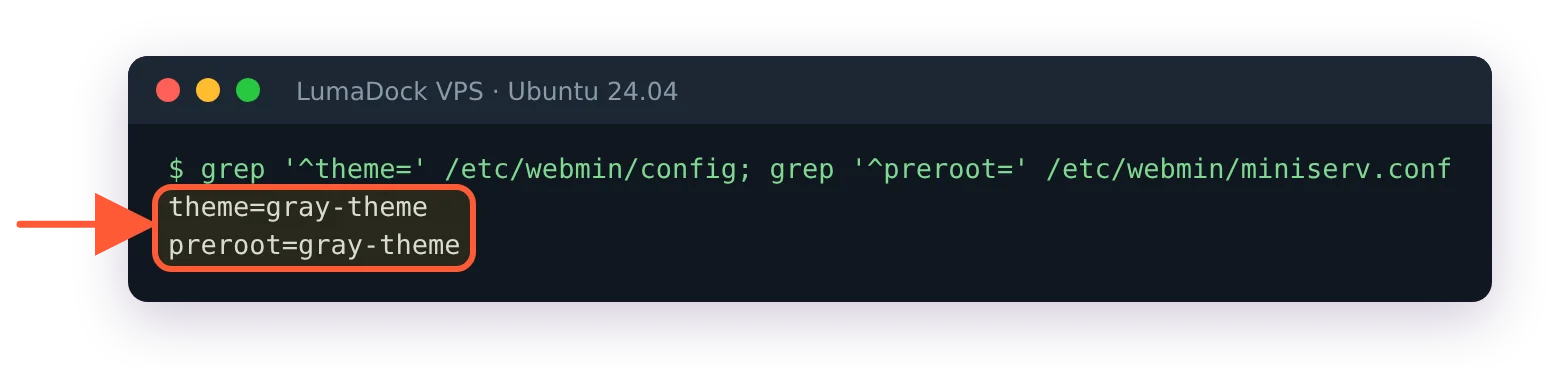
Picking Framed in Webmin Themes rewrote both keys.
There's a second route in the Webmin menu, Change Language and Theme, which sets a theme for your own login only and leaves everyone else's alone.
Webmin Themes sits in the same module as IP Access Control, Ports and Addresses and the SSL pages, all documented on the Webmin Configuration reference. A missing module in your sidebar means someone has trimmed it out of your user's access list.
Change the theme from the shell
Useful when Webmin will not render at all, which is the situation a broken theme puts you in. Set both keys and restart:
sed -i 's/^theme=.*/theme=gray-theme/' /etc/webmin/config
sed -i 's/^preroot=.*/preroot=gray-theme/' /etc/webmin/miniserv.conf
/etc/webmin/restart
The guide to reinstalling Webmin is the cleaner route when no theme change fixes it. Setup writes both keys, so change both and keep them in step. systemctl restart webmin does the same restart through the service unit if you prefer it. Swap gray-theme for authentic-theme to go back.
When the Framed theme is the right choice
There is one genuine case for gray-theme and it is bandwidth. Authentic is a modern design with the asset weight that implies, and over a satellite link, a throttled mobile connection or an out-of-band management path that tops out somewhere in the kilobits, the Framed Theme loads when Authentic does not. Same for a browser old enough that the JavaScript in Authentic stops working, which comes up on locked-down industrial machines more often than you would expect.
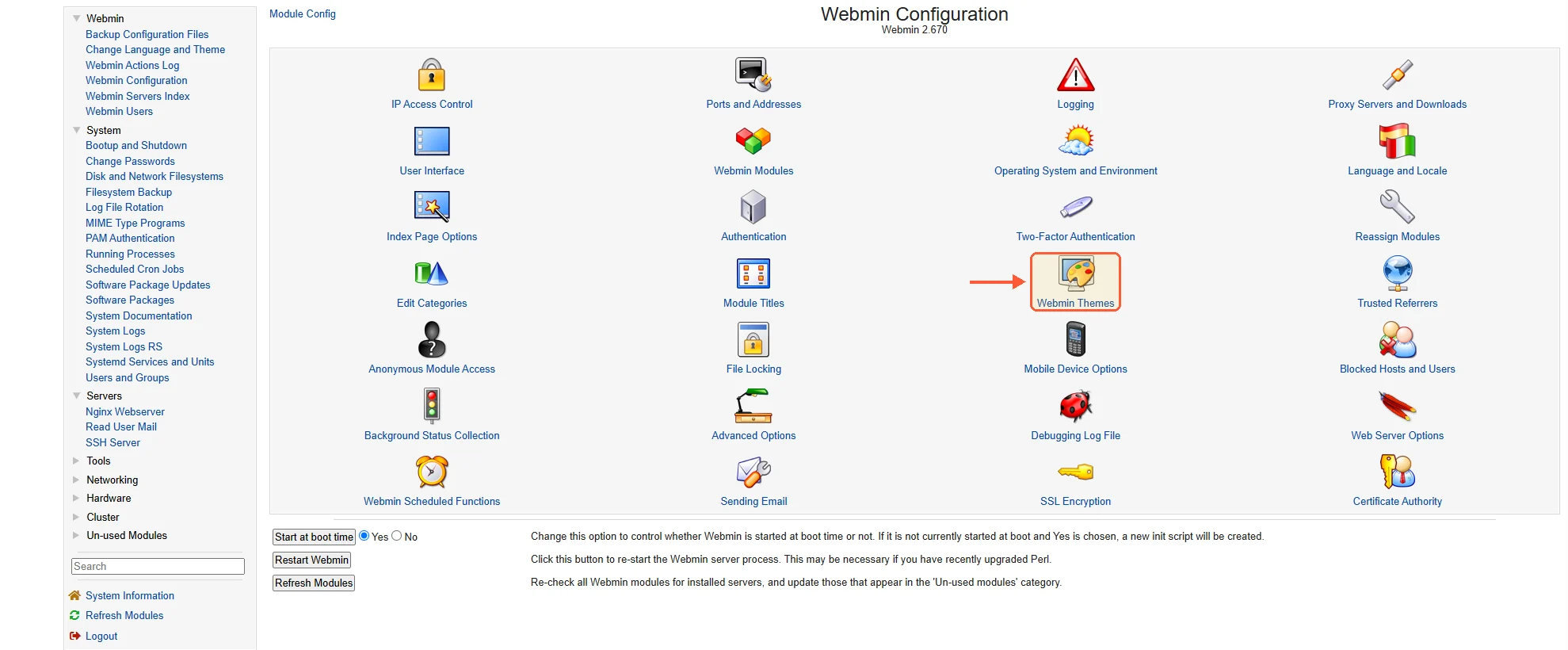
The same Webmin Configuration page in the Framed (gray) theme.
Outside those situations, no. The Framed Theme is a frameset from a different era of the web, and the search that makes Webmin's hundred-plus modules usable is not there.
Staying on Authentic Theme
Authentic updates in lockstep with Webmin through the same repository, so a normal apt-get upgrade or dnf upgrade keeps you on the current release with no extra work. Putting one of the 2023-and-older themes on a production panel is a way to find out which parts of a 2026 module the theme was never written for, and the failure mode is a page that renders with buttons missing.
The tour in the complete guide to Webmin is a better first stop than the theme picker if you have just built the box, and a clean setup is walked through in the Webmin install guide for Ubuntu 24.04. Readers coming from the other direction, comparing panels before committing, will get more from Webmin against Cockpit, where the design question is a real difference rather than a preference.
Webmin Themes is a page most people open once. Check that it says Authentic while you are in Webmin Configuration for something else.

