Back to Article List

Deploy any app as a Portainer stack

Deploy any app as a Portainer stack

Updated and tested 28 October 2026

Stacks are the feature that turns Portainer from a viewer into a deployer, and once the pattern clicks you can install nearly anything the self-hosted world publishes, because nearly everything publishes a docker-compose file and a stack is exactly that: a compose file Portainer runs and then manages as one unit. Learn it once and "how do I install Planka with Portainer" and "immich on portainer" and every future variant become the same five-minute answer. So here's the once: a complete worked example with Planka (the self-hosted Trello people keep asking about), then the general recipe, then the app-specific notes for the usual suspects.

Install Planka with a Portainer stack, start to finish

Planka wants two containers (the app plus Postgres), which makes it a perfect first stack: real enough to teach the pattern, small enough to read in one screen.

Create the stack

In Portainer: Stacks » Add stack, name it planka, choose the web editor and paste a compose definition based on Planka's official one:

services:
  planka:
    image: ghcr.io/plankanban/planka:latest
    restart: always
    ports:
      - "3015:1337"
    environment:
      - BASE_URL=http://YOUR_SERVER_IP:3015
      - DATABASE_URL=postgresql://postgres@postgres-server/planka
      - SECRET_KEY=CHANGE_ME_LONG_RANDOM
      - [email protected]
      - DEFAULT_ADMIN_PASSWORD=CHANGE_ME_ADMIN_PASSWORD
      - DEFAULT_ADMIN_NAME=Your Name
      - DEFAULT_ADMIN_USERNAME=admin
    depends_on:
      postgres-server:
        condition: service_healthy
    volumes:
      - data:/app/data

  postgres-server:
    image: postgres:16-alpine
    restart: always
    environment:
      - POSTGRES_DB=planka
      - POSTGRES_HOST_AUTH_METHOD=trust
    volumes:
      - planka-db:/var/lib/postgresql/data
    healthcheck:
      test: ["CMD-SHELL", "pg_isready -U postgres -d planka"]
      interval: 10s
      timeout: 5s
      retries: 5

volumes:
  data:
  planka-db:

Before deploying, edit the values that are yours: BASE_URL to the address users will visit (your domain once a proxy fronts it), SECRET_KEY to a long random string (openssl rand -hex 32 makes a good one) and the four DEFAULT_ADMIN_ lines, which create the first admin account when Planka starts. Planka's own file ships those four commented out and notes that keeping DEFAULT_ADMIN_EMAIL set protects that account from being edited or deleted. Always check the app's own repository for the current compose reference too; projects move, and their README outranks any tutorial's snapshot, mine included.

The data volume and the healthcheck come from Planka's official file. Planka 2.x keeps its files in /app/data, so that one volume is the one to back up, and the healthcheck holds Planka back until Postgres accepts connections. I haven't run this exact file on my server. I ran the older four-volume version of it: Planka 2.2.1 answered only after restarting twice, because it started before Postgres was ready, and it wrote its files to an anonymous volume at /app/data while the four named volumes stayed unused.

With the old four-volume compose, Planka 2.2.1 mounts an anonymous volume at /app/data and the named ones go unused

With the guide's old four-volume compose, Planka 2.2.1 wrote to an anonymous volume at /app/data on my server.

Deploy and create the admin

Hit Deploy the stack. Portainer pulls the images, wires the containers onto a shared network (note how DATABASE_URL just says postgres-server; container names resolve inside a stack) and both containers should go green in the stack view. Planka 2.x creates the first admin from the DEFAULT_ADMIN_ lines (the other route is Planka's db:create-admin-user script), so open http://YOUR_SERVER_IP:3015 and log in with that email or username and the password you set. You now have a kanban board whose data lives on your own disk.
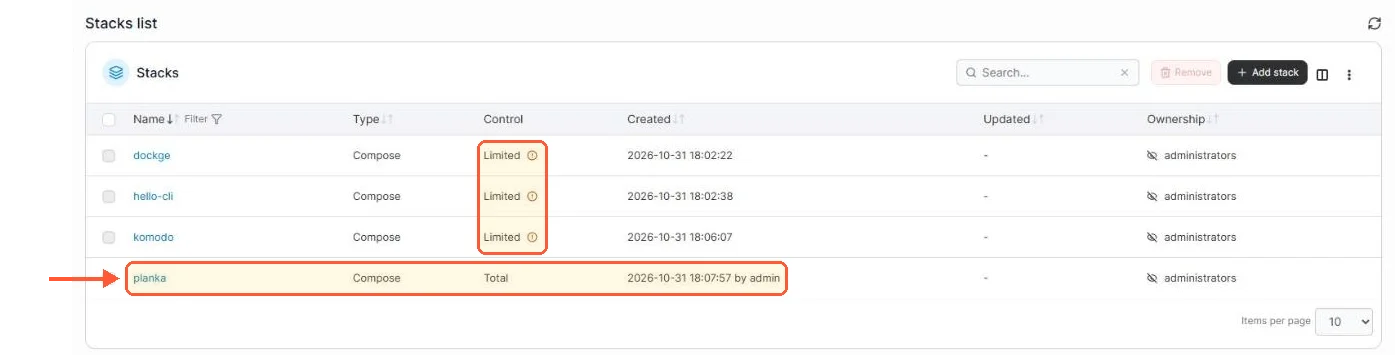
Portainer stacks list: planka created in Portainer shows Control Total, three stacks started from the CLI show Limited

My planka stack, deployed from Portainer, has Total control; the stacks I started with docker compose on the CLI show Limited.

Manage it as a unit

The stack view is the payoff: logs per container, restart the whole app in one action, and the editor holds your compose definition for tweaks. Redeploying after an edit recreates only what changed. Updates ride the Update the stack button with re-pull enabled, the flow our Portainer update guide covers alongside its warnings about :latest tags, which apply to the Planka image above verbatim.
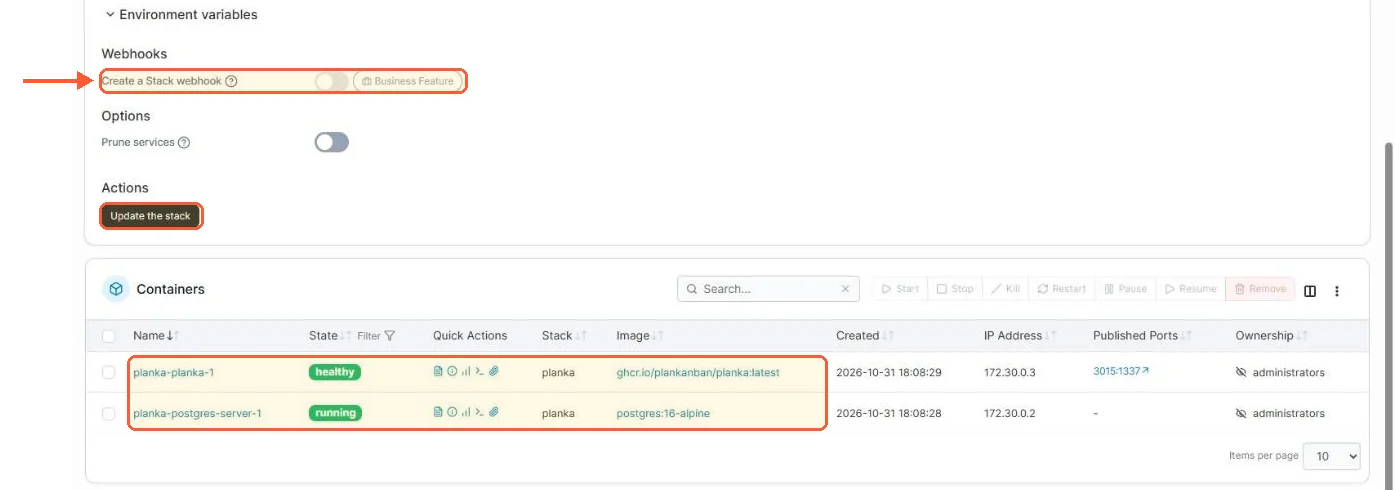
Planka stack in CE 2.45.3: Create a Stack webhook marked Business Feature, Update the stack button, both containers up

Below the editor: the stack webhook is a Business feature in CE 2.45.3, Update the stack is not, and both Planka containers are up.

Webhooks for redeploying from a URL call are marked as a Business feature on an existing stack and on containers in the CE 2.45 UI. The Add stack form for a Git repository still shows a webhook toggle when you create the stack.

Your idea deserves better hosting

24/7 support 30-day money-back guaranteeRefund covers the VPS plan on your first order. Cancel anytime
مدة الإشتراك

VPS.S1

28.63 RON Save  17 %
23.85 RON شهري
  • 2 vCPU AMD EPYC
  • 2 GB RAMذاكرة
  • 30 GB NVMeتخزين
  • نطاق ترددي غير محدود
  • IPv4 & IPv6دعم IPv6 غير متاح حاليًا في فرنسا وفنلندا أو هولندا. مشمول

VPS.S3

71.64 RON Save  33 %
47.75 RON شهري
  • 4 vCPU AMD EPYC
  • 6 GB RAMذاكرة
  • 70 GB NVMeتخزين
  • نطاق ترددي غير محدود
  • IPv4 & IPv6دعم IPv6 غير متاح حاليًا في فرنسا وفنلندا أو هولندا. مشمول

VPS.S4

95.54 RON Save  20 %
76.42 RON شهري
  • 6 vCPU AMD EPYC
  • 8 GB RAMالذاكرة
  • 80 GB NVMeالتخزين
  • نطاق ترددي غير محدود
  • IPv4 & IPv6دعم IPv6 غير متاح حاليًا في فرنسا وفنلندا أو هولندا. مشمول

EPYC VPS.P1

42.97 RON Save  22 %
33.41 RON شهري
  • 2 vCPU AMD EPYC
  • 4 GB RAMذاكرة
  • 40 GB NVMeتخزين
  • نطاق ترددي غير محدود
  • IPv4 & IPv6دعم IPv6 غير متاح حاليًا في فرنسا وفنلندا أو هولندا. مشمول
  • نسخ احتياطي تلقائي مجانييشمل خانة نسخ احتياطي واحدة يمكنك ضبطها للتشغيل يوميًا أو أسبوعيًا أو شهريًا.

EPYC VPS.P2

81.20 RON Save  24 %
62.08 RON شهري
  • 2 vCPU AMD EPYC
  • 8 GB RAMذاكرة
  • 80 GB NVMeتخزين
  • نطاق ترددي غير محدود
  • IPv4 & IPv6دعم IPv6 غير متاح حاليًا في فرنسا وفنلندا أو هولندا. مشمول
  • نسخ احتياطي تلقائي مجانييشمل خانة نسخ احتياطي واحدة يمكنك ضبطها للتشغيل يوميًا أو أسبوعيًا أو شهريًا.

EPYC VPS.P4

143.33 RON Save  23 %
109.88 RON شهري
  • 4 vCPU AMD EPYC
  • 16 GB RAMذاكرة
  • 160 GB NVMeتخزين
  • نطاق ترددي غير محدود
  • IPv4 & IPv6دعم IPv6 غير متاح حاليًا في فرنسا وفنلندا أو هولندا. مشمول
  • نسخ احتياطي تلقائي مجانييشمل خانة نسخ احتياطي واحدة يمكنك ضبطها للتشغيل يوميًا أو أسبوعيًا أو شهريًا.

EPYC VPS.P5

191.13 RON Save  25 %
143.33 RON شهري
  • 8 vCPU AMD EPYC
  • 16 GB RAMذاكرة
  • 180 GB NVMeتخزين
  • نطاق ترددي غير محدود
  • IPv4 & IPv6دعم IPv6 غير متاح حاليًا في فرنسا وفنلندا أو هولندا. مشمول
  • نسخ احتياطي تلقائي مجانييشمل خانة نسخ احتياطي واحدة يمكنك ضبطها للتشغيل يوميًا أو أسبوعيًا أو شهريًا.

EPYC VPS.P6

286.71 RON Save  25 %
215.02 RON شهري
  • 8 vCPU AMD EPYC
  • 32 GB RAMذاكرة
  • 200 GB NVMeتخزين
  • نطاق ترددي غير محدود
  • IPv4 & IPv6دعم IPv6 غير متاح حاليًا في فرنسا وفنلندا أو هولندا. مشمول
  • نسخ احتياطي تلقائي مجانييشمل خانة نسخ احتياطي واحدة يمكنك ضبطها للتشغيل يوميًا أو أسبوعيًا أو شهريًا.

EPYC VPS.P7

334.50 RON Save  29 %
238.92 RON شهري
  • 16 vCPU AMD EPYC
  • 32 GB RAMذاكرة
  • 240 GB NVMeتخزين
  • نطاق ترددي غير محدود
  • IPv4 & IPv6دعم IPv6 غير متاح حاليًا في فرنسا وفنلندا أو هولندا. مشمول
  • نسخ احتياطي تلقائي مجانييشمل خانة نسخ احتياطي واحدة يمكنك ضبطها للتشغيل يوميًا أو أسبوعيًا أو شهريًا.

Genoa VPS.G2

119.44 RON Save  20 %
95.54 RON شهري
  • 2 vCPUمعالج AMD EPYC Genoa من الجيل الرابع 9xx4 بسرعة 3.25 GHz أو ما يماثله، على معمارية Zen 4. AMD EPYC G4
  • 4 GB DDR5ذاكرة
  • 50 GB NVMeتخزين
  • نطاق ترددي غير محدود
  • IPv4 & IPv6دعم IPv6 غير متاح حاليًا في فرنسا وفنلندا أو هولندا. مشمول
  • نسخ احتياطي تلقائي مجانييشمل خانة نسخ احتياطي واحدة يمكنك ضبطها للتشغيل يوميًا أو أسبوعيًا أو شهريًا.

Genoa VPS.G4

215.02 RON Save  22 %
167.23 RON شهري
  • 4 vCPUمعالج AMD EPYC مع أنوية vCPU مخصصة، على عتاد خوادم للمؤسسات. AMD EPYC G4
  • 8 GB DDR5ذاكرة
  • 100 GB NVMeتخزين
  • نطاق ترددي غير محدود
  • IPv4 & IPv6دعم IPv6 غير متاح حاليًا في فرنسا وفنلندا أو هولندا. مشمول
  • نسخ احتياطي تلقائي مجانييشمل خانة نسخ احتياطي واحدة يمكنك ضبطها للتشغيل يوميًا أو أسبوعيًا أو شهريًا.

Genoa VPS.G6

430.09 RON Save  22 %
334.51 RON شهري
  • 8 vCPUمعالج AMD EPYC مع أنوية vCPU مخصصة، على عتاد خوادم للمؤسسات. AMD EPYC G4
  • 16 GB DDR5ذاكرة
  • 200 GB NVMeتخزين
  • نطاق ترددي غير محدود
  • IPv4 & IPv6دعم IPv6 غير متاح حاليًا في فرنسا وفنلندا أو هولندا. مشمول
  • نسخ احتياطي تلقائي مجانييشمل خانة نسخ احتياطي واحدة يمكنك ضبطها للتشغيل يوميًا أو أسبوعيًا أو شهريًا.

Genoa VPS.G7

764.64 RON Save  22 %
597.37 RON شهري
  • 8 vCPUمعالج AMD EPYC مع أنوية vCPU مخصصة، على عتاد خوادم للمؤسسات. AMD EPYC G4
  • 32 GB DDR5ذاكرة
  • 250 GB NVMeتخزين
  • نطاق ترددي غير محدود
  • IPv4 & IPv6دعم IPv6 غير متاح حاليًا في فرنسا وفنلندا أو هولندا. مشمول
  • نسخ احتياطي تلقائي مجانييشمل خانة نسخ احتياطي واحدة يمكنك ضبطها للتشغيل يوميًا أو أسبوعيًا أو شهريًا.

AMD Ryzen VPS.R1

81.20 RON Save  18 %
66.86 RON شهري
  • 1 CPU مخصص معالج AMD Ryzen 9 7950X بسرعة 4.5 GHz أو ما يماثله، على معمارية Zen 4. vCPU
  • 4 GB DDR5ذاكرة
  • 50 GB NVMeتخزين
  • نطاق ترددي غير محدود
  • IPv4 & IPv6 مشمول دعم IPv6 غير متاح حاليًا في فرنسا وفنلندا أو هولندا.
  • نسخ احتياطي تلقائي مشمول

AMD Ryzen VPS.R2

143.33 RON Save  17 %
119.44 RON شهري
  • 2 CPU مخصصان معالج AMD Ryzen 9 7950X بسرعة 4.5 GHz أو ما يماثله، على معمارية Zen 4. vCPU
  • 8 GB DDR5ذاكرة
  • 100 GB NVMeتخزين
  • نطاق ترددي غير محدود
  • IPv4 & IPv6 مشمول دعم IPv6 غير متاح حاليًا في فرنسا وفنلندا أو هولندا.
  • نسخ احتياطي تلقائي مشمول

AMD Ryzen VPS.R4

525.68 RON Save  18 %
430.09 RON شهري
  • 8 CPU مخصصة معالج AMD Ryzen 9 7950X بسرعة 4.5 GHz أو ما يماثله، على معمارية Zen 4. vCPU
  • 32 GB DDR5ذاكرة
  • 400 GB NVMeتخزين
  • نطاق ترددي غير محدود
  • IPv4 & IPv6 مشمول دعم IPv6 غير متاح حاليًا في فرنسا وفنلندا أو هولندا.
  • نسخ احتياطي تلقائي مشمول

*VAT excluded.

INCLUDED WITH EVERY PLAN

✓ No setup fees ✓1 Gbps network
✓ Full root access on KVM ✓ Free server monitoring ✓ Firewall management ✓24/7 support

The general recipe for any app

Every stack deployment is the same six decisions, and after Planka you've made them all once. Find the project's official compose file. Paste it into a new stack. Change the host-side ports if they collide with anything (left side only). Replace every CHANGE_ME (secrets, passwords, base URLs). Swap bind-mount paths for named volumes or real paths you chose deliberately, because "wherever the tutorial's author kept files" is not a storage plan. Deploy, then check the logs of anything that isn't green. That's the entire craft; the rest is app-specific seasoning.

Two Portainer-specific habits upgrade the experience. Use the environment variables section of the stack editor for secrets instead of hardcoding them into the compose text, which keeps the definition shareable. And when an image lives somewhere that needs login (GHCR private images, Docker Hub rate limits), add the registry once under Registries with a token, and every stack pull on the machine authenticates automatically from then on.

App notes for Immich, n8n, Nextcloud and NetBox

Immich deploys fine as a stack (four containers, one compose file) with one strong caveat: use the release's own compose file and .env, never a simplified copy, because the project evolves fast. Our Immich install guide covers the variables that matter; in Portainer, its .env contents go into the stack's environment variables section. n8n is a gentle single-container stack for starters (the n8n self-hosting guide has the full production shape with Postgres and workers when you outgrow that). Nextcloud and NetBox both follow the Planka pattern exactly, app plus database, with NetBox adding Redis; their official compose files paste in clean. The through-line: nothing here needed a Portainer-specific tutorial, which was the point of learning the pattern.

Verify a stack the same way every time

Green containers in the stack view, the app answering on its port, and logs free of restart loops; those three checks catch practically every failed deploy, and the log line names the cause when one fails (a taken port, a missing secret, a typo'd volume path lead the league). Stacks also make the cleanup honest: removing one removes its containers and networks together, with volumes preserved unless you tick otherwise. It's tidy enough that trying apps stops feeling like commitment, and that, more than the buttons, is what Portainer stacks change about self-hosting on a Portainer VPS: the cost of "let's just see" drops to nearly nothing.

Questions?

Where do stack files live on the server?

Inside Portainer's data volume, in a numbered folder per stack under /data/compose; the error quoted in issue #12151, /data/compose/35/stack.env not found, shows the layout. Portainer writes and manages those files itself, so change a stack through its editor and leave the copy on disk alone. A backup of portainer_data carries them along, and a Git-based stack keeps the compose file in your repository instead.

Deploy your next project in seconds

Bring your winning ideas online faster, with modern hardware and unmetered bandwidth. Join a European cloud trusted by thousands of developers and businesses worldwide.