Back to Article List

How to install Portainer CE on a VPS

How to install Portainer CE on a VPS

Updated and tested 31 October 2026

Portainer is the control panel Docker never shipped: containers, stacks, images, volumes and logs in a web UI instead of a terminal scroll. I resisted it for a year out of CLI pride and gave in the day I had to explain docker logs -f --tail 200 over the phone. Installing Portainer CE takes about five minutes on any machine that runs Docker, and this guide does it the official way on Ubuntu or Debian, with the two or three decisions that separate a clean install from a confusing one.

Requirements before installing

You need a Linux server with Docker Engine installed and root or docker-group access, and that's the whole list. Any small VPS handles Portainer itself; the app is light and your real resource budget belongs to the containers you'll manage with it. Docker missing? curl -fsSL https://get.docker.com | sh gets you current on Ubuntu 24.04 or Debian 12, or start from our Docker VPS template and skip that step. The commands below are identical on both distros, which is why this one guide covers the ubuntu and debian variants people search separately.

Step 1: create the data volume

docker volume create portainer_data

Everything Portainer knows (users, environments, stack definitions) lives in this volume. Name it exactly portainer_data unless you enjoy adjusting every maintenance command you'll ever copy from documentation, including the password-reset one you'll want someday.

Step 2: run the Portainer CE container

The official install command, straight from the Portainer CE docs:

docker run -d -p 8000:8000 -p 9443:9443 --name portainer --restart=always \
  -v /var/run/docker.sock:/var/run/docker.sock \
  -v portainer_data:/data \
  portainer/portainer-ce:lts

Three lines deserve translation. The docker.sock mount is how Portainer sees and controls your Docker engine; forget it and you'll meet the environment errors covered in our local environment fix. The :lts tag pins you to the long-term support line (the 2.45 series, 2.45.3 when I last ran this install on 31 October 2026), which is the right home for a server you want boring; the alternative tags chase newer features and newer bugs. And --restart=always means Portainer outlives reboots, an option people notice missing only after the first kernel update.

Port-wise, 9443 serves the UI over HTTPS and 8000 exists for Edge agents you probably don't use yet; the full map, including the legacy 9000 question, is the Portainer ports guide.

Step 3: create the admin account inside 5 minutes

First, the setup token. Since version 2.43 a new Portainer instance won't create the admin account without it, and on my test server the API answered 403 "Invalid or missing setup token" until I supplied it. Run docker logs portainer and copy the value after setup_token= at the top of the log.
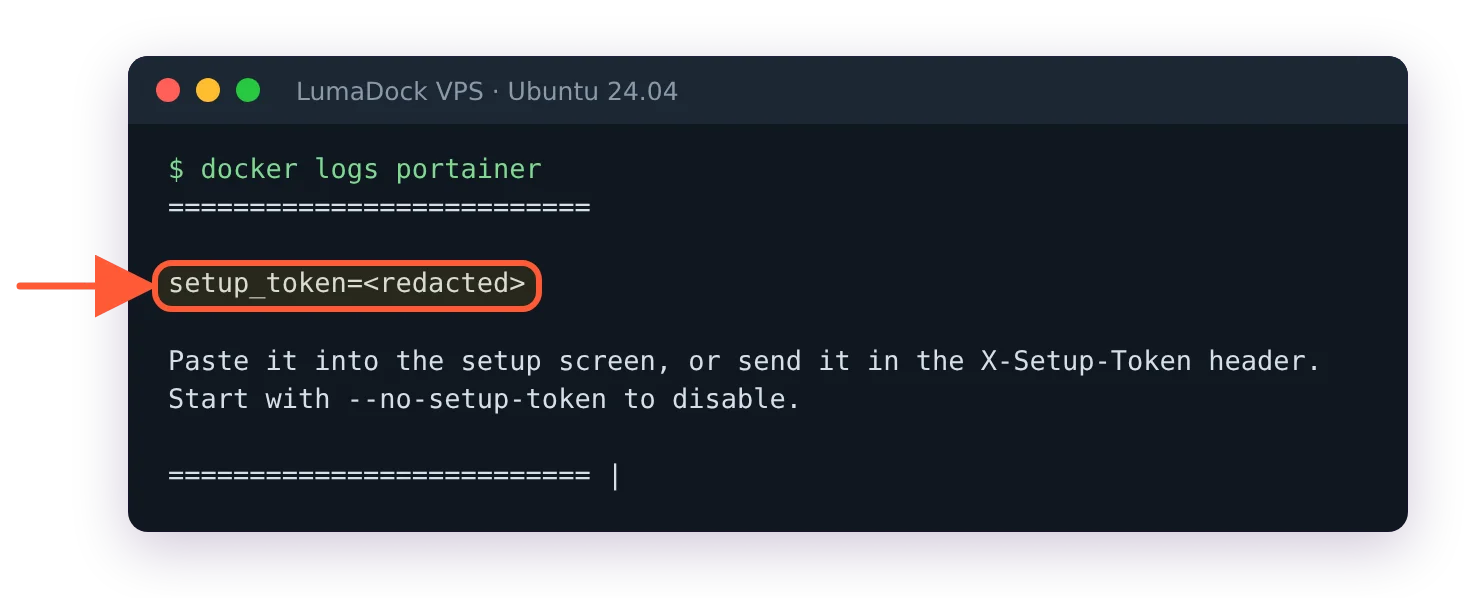
docker logs portainer prints a setup_token= line, value hidden, and says to paste it into the setup screen

On my server the fresh install printed its one-time setup token at the top of the log; I hid the value.

Open https://YOUR_SERVER_IP:9443, accept the self-signed certificate warning (expected on a fresh install), paste the token into the setup screen and create the admin user. Do it promptly: Portainer disables itself if no admin exists within about five minutes of starting, a deliberate security measure against abandoned instances. Miss the window and you'll see the famous "timed out for security purposes" screen; the fix is a simple docker restart portainer (it prints a new setup token, so copy that one), and the details live in our restart guide. Use a real password here, this account can start and stop everything on the machine.

After the account, the setup wizard offers environments to manage. Pick "Get started" for the local Docker engine and you land on the dashboard with your containers listed, Portainer itself among them.
Your idea deserves better hosting

24/7 support 30-day money-back guaranteeRefund covers the VPS plan on your first order. Cancel anytime
Ciclo de Pagamento

VPS.S1

$5.99 Save  17 %
$4.99 Mensalmente
  • 2 vCPU AMD EPYC
  • 2 GB RAMMEMÓRIA
  • 30 GB NVMeDISCO
  • Largura de banda ilimitada
  • IPv4 & IPv6O suporte a IPv6 está indisponível de momento em França, Finlândia ou nos Países Baixos. incluídos

VPS.S3

$14.99 Save  33 %
$9.99 Mensalmente
  • 4 vCPU AMD EPYC
  • 6 GB RAMMEMÓRIA
  • 70 GB NVMeDISCO
  • Largura de banda ilimitada
  • IPv4 & IPv6O suporte a IPv6 está indisponível de momento em França, Finlândia ou nos Países Baixos. incluídos

VPS.S4

$19.99 Save  20 %
$15.99 Mensalmente
  • 6 vCPU AMD EPYC
  • 8 GB RAMMEMÓRIA
  • 80 GB NVMeDISCO
  • Largura de banda ilimitada
  • IPv4 & IPv6O suporte a IPv6 está indisponível de momento em França, Finlândia ou nos Países Baixos. incluídos

EPYC VPS.P1

$8.99 Save  22 %
$6.99 Mensalmente
  • 2 vCPU AMD EPYC
  • 4 GB RAMMEMÓRIA
  • 40 GB NVMeDISCO
  • Largura de banda ilimitada
  • IPv4 & IPv6O suporte a IPv6 está indisponível de momento em França, Finlândia ou nos Países Baixos. incluídos
  • Backup automático grátisInclui um espaço de backup que pode configurar para diário, semanal ou mensal.

EPYC VPS.P2

$16.99 Save  24 %
$12.99 Mensalmente
  • 2 vCPU AMD EPYC
  • 8 GB RAMMEMÓRIA
  • 80 GB NVMeDISCO
  • Largura de banda ilimitada
  • IPv4 & IPv6O suporte a IPv6 está indisponível de momento em França, Finlândia ou nos Países Baixos. incluídos
  • Backup automático grátisInclui um espaço de backup que pode configurar para diário, semanal ou mensal.

EPYC VPS.P4

$29.99 Save  23 %
$22.99 Mensalmente
  • 4 vCPU AMD EPYC
  • 16 GB RAMMEMÓRIA
  • 160 GB NVMeDISCO
  • Largura de banda ilimitada
  • IPv4 & IPv6O suporte a IPv6 está indisponível de momento em França, Finlândia ou nos Países Baixos. incluídos
  • Backup automático grátisInclui um espaço de backup que pode configurar para diário, semanal ou mensal.

EPYC VPS.P5

$39.99 Save  25 %
$29.99 Mensalmente
  • 8 vCPU AMD EPYC
  • 16 GB RAMMEMÓRIA
  • 180 GB NVMeDISCO
  • Largura de banda ilimitada
  • IPv4 & IPv6O suporte a IPv6 está indisponível de momento em França, Finlândia ou nos Países Baixos. incluídos
  • Backup automático grátisInclui um espaço de backup que pode configurar para diário, semanal ou mensal.

EPYC VPS.P6

$59.99 Save  25 %
$44.99 Mensalmente
  • 8 vCPU AMD EPYC
  • 32 GB RAMMEMÓRIA
  • 200 GB NVMeDISCO
  • Largura de banda ilimitada
  • IPv4 & IPv6O suporte a IPv6 está indisponível de momento em França, Finlândia ou nos Países Baixos. incluídos
  • Backup automático grátisInclui um espaço de backup que pode configurar para diário, semanal ou mensal.

EPYC VPS.P7

$69.99 Save  29 %
$49.99 Mensalmente
  • 16 vCPU AMD EPYC
  • 32 GB RAMMEMÓRIA
  • 240 GB NVMeDISCO
  • Largura de banda ilimitada
  • IPv4 & IPv6O suporte a IPv6 está indisponível de momento em França, Finlândia ou nos Países Baixos. incluídos
  • Backup automático grátisInclui um espaço de backup que pode configurar para diário, semanal ou mensal.

Genoa VPS.G2

$24.99 Save  20 %
$19.99 Mensalmente
  • 2 vCPUAMD EPYC Genoa 4ª geração 9xx4 com 3,25 GHz ou similar, na arquitetura Zen 4. AMD EPYC G4
  • 4 GB DDR5MEMÓRIA
  • 50 GB NVMeDISCO
  • Largura de banda ilimitada
  • IPv4 & IPv6O suporte a IPv6 está indisponível de momento em França, Finlândia ou nos Países Baixos. incluídos
  • Backup automático grátisInclui um espaço de backup que pode configurar para diário, semanal ou mensal.

Genoa VPS.G4

$44.99 Save  22 %
$34.99 Mensalmente
  • 4 vCPUProcessador AMD EPYC com núcleos vCPU dedicados, em hardware de servidor empresarial. AMD EPYC G4
  • 8 GB DDR5MEMÓRIA
  • 100 GB NVMeDISCO
  • Largura de banda ilimitada
  • IPv4 & IPv6O suporte a IPv6 está indisponível de momento em França, Finlândia ou nos Países Baixos. incluídos
  • Backup automático grátisInclui um espaço de backup que pode configurar para diário, semanal ou mensal.

Genoa VPS.G6

$89.99 Save  22 %
$69.99 Mensalmente
  • 8 vCPUProcessador AMD EPYC com núcleos vCPU dedicados, em hardware de servidor empresarial. AMD EPYC G4
  • 16 GB DDR5MEMÓRIA
  • 200 GB NVMeDISCO
  • Largura de banda ilimitada
  • IPv4 & IPv6O suporte a IPv6 está indisponível de momento em França, Finlândia ou nos Países Baixos. incluídos
  • Backup automático grátisInclui um espaço de backup que pode configurar para diário, semanal ou mensal.

Genoa VPS.G7

$159.99 Save  22 %
$124.99 Mensalmente
  • 8 vCPUProcessador AMD EPYC com núcleos vCPU dedicados, em hardware de servidor empresarial. AMD EPYC G4
  • 32 GB DDR5MEMÓRIA
  • 250 GB NVMeDISCO
  • Largura de banda ilimitada
  • IPv4 & IPv6O suporte a IPv6 está indisponível de momento em França, Finlândia ou nos Países Baixos. incluídos
  • Backup automático grátisInclui um espaço de backup que pode configurar para diário, semanal ou mensal.

AMD Ryzen VPS.R1

$16.99 Save  18 %
$13.99 Mensalmente
  • 1 CPU dedicado AMD Ryzen 9 7950X com 4,5 GHz ou similar, na arquitetura Zen 4. vCPU
  • 4 GB DDR5MEMÓRIA
  • 50 GB NVMeDISCO
  • Largura de banda ilimitada
  • IPv4 & IPv6 incluídos O suporte a IPv6 está indisponível de momento em França, Finlândia ou nos Países Baixos.
  • Backup automático incluído

AMD Ryzen VPS.R2

$29.99 Save  17 %
$24.99 Mensalmente
  • 2 CPU dedicados AMD Ryzen 9 7950X com 4,5 GHz ou similar, na arquitetura Zen 4. vCPU
  • 8 GB DDR5MEMÓRIA
  • 100 GB NVMeDISCO
  • Largura de banda ilimitada
  • IPv4 & IPv6 incluídos O suporte a IPv6 está indisponível de momento em França, Finlândia ou nos Países Baixos.
  • Backup automático incluído

AMD Ryzen VPS.R4

$109.99 Save  18 %
$89.99 Mensalmente
  • 8 CPU dedicados AMD Ryzen 9 7950X com 4,5 GHz ou similar, na arquitetura Zen 4. vCPU
  • 32 GB DDR5MEMÓRIA
  • 400 GB NVMeDISCO
  • Largura de banda ilimitada
  • IPv4 & IPv6 incluídos O suporte a IPv6 está indisponível de momento em França, Finlândia ou nos Países Baixos.
  • Backup automático incluído

*VAT excluded.

INCLUDED WITH EVERY PLAN

✓ No setup fees ✓1 Gbps network
✓ Full root access on KVM ✓ Free server monitoring ✓ Firewall management ✓24/7 support

Installing Portainer with Docker Compose instead

Some of us keep every service in compose files as policy, and Portainer plays along. The equivalent docker-compose.yml:

services:
  portainer:
    image: portainer/portainer-ce:lts
    container_name: portainer
    restart: always
    ports:
      - "8000:8000"
      - "9443:9443"
    volumes:
      - /var/run/docker.sock:/var/run/docker.sock
      - portainer_data:/data

volumes:
  portainer_data:
    name: portainer_data

Then docker compose up -d from the file's directory. Keep the name: portainer_data line, which Portainer's own compose file has too. Without it Compose prefixes the volume with the folder name, and the update and password-reset commands in the next guides would point at an empty new volume. With it, the result is functionally identical to the run command; operationally nicer because the config is a file you can version. My take on which to use: compose, for the same reason all infrastructure should be text. There's a small philosophical comedy in managing your container manager through a compose file, and it's the correct comedy.

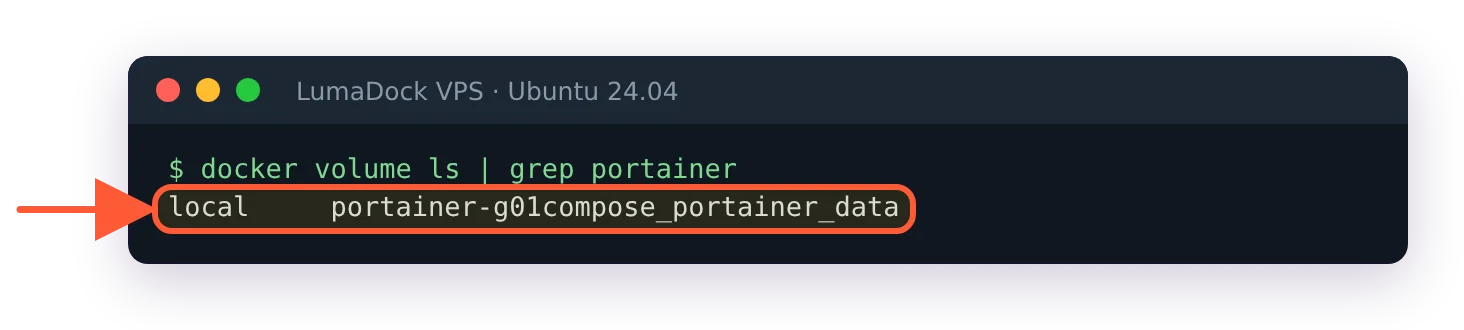
docker volume ls shows portainer-g01compose_portainer_data, a project-prefixed name, for a compose file without name:

Without the name: line, Compose gave my test volume the folder name as a prefix.

One thing NOT to do, whichever route you took: don't manage the Portainer container from inside Portainer's own UI. Recreating the thing you're standing on ends sessions in confusing ways. Portainer gets maintained from the terminal, everything else gets maintained from Portainer; that division, plus the update routine, is the whole operational story.

Verify the install

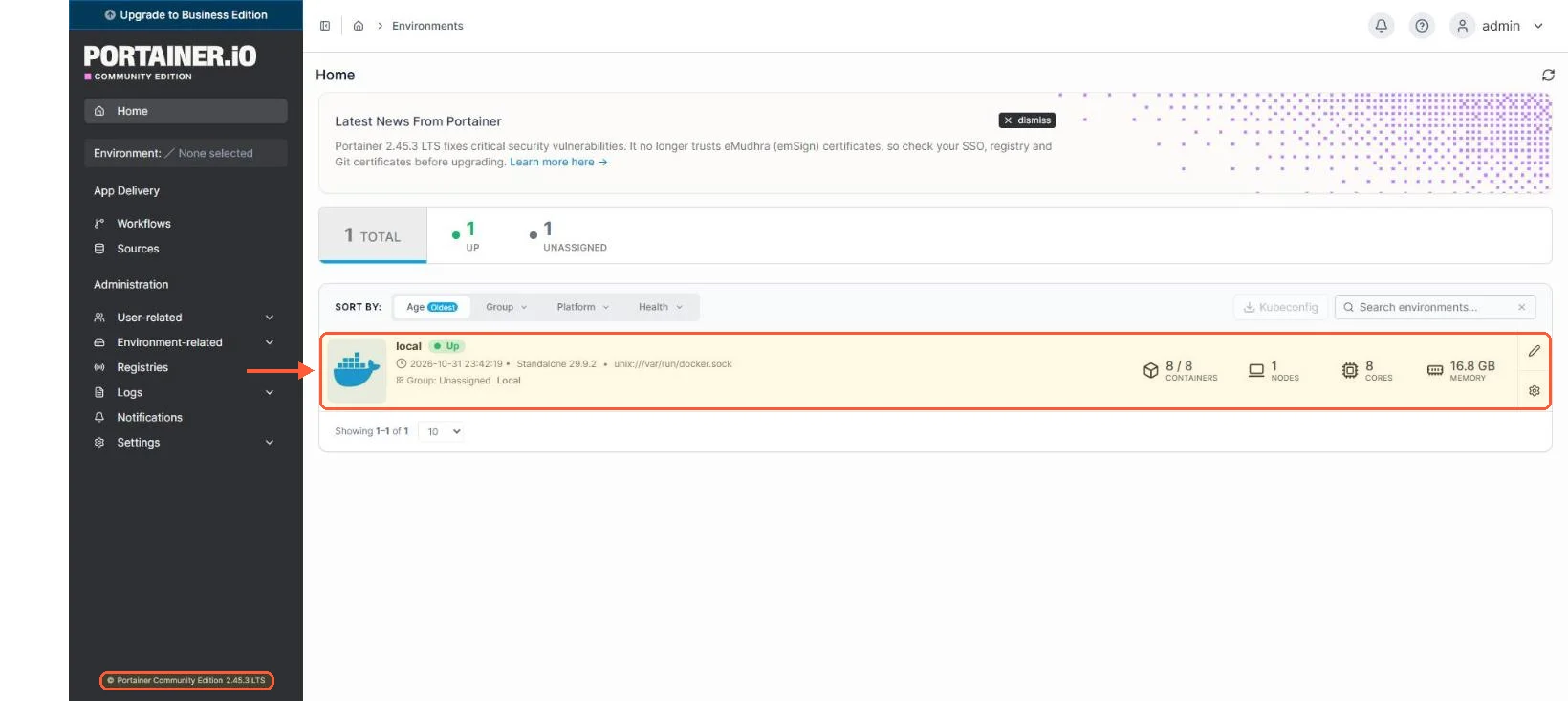
Three quick proofs. docker ps shows the portainer container Up. The dashboard at :9443 lists your local environment with a container count that matches reality. And a test action (open any container's logs from the UI) round-trips through the socket without errors. From here the interesting work starts, which is deploying things: the Portainer stacks guide covers that properly, and if you'd rather begin with Portainer preinstalled, the Portainer VPS template deploys this whole page in one click alongside the OS.

Portainer CE 2.45.3 home: the local environment is Up on unix:///var/run/docker.sock, version in the footer

The home screen on my test server: the local environment up through the Docker socket and the version in the bottom-left corner.

Questions?

Does Portainer work with Podman or only Docker?

It works with Podman through Podman's Docker-compatible API socket, and Portainer's docs give Podman its own install page. That page is written for Podman 5 running as root on CentOS 9, and it says Portainer with rootless Podman "may work but is currently not officially supported". On a fresh VPS where you pick the engine, Docker is what the commands on this page were written and tested for.

Deploy your next project in seconds

Bring your winning ideas online faster, with modern hardware and unmetered bandwidth. Join a European cloud trusted by thousands of developers and businesses worldwide.