






.svg)
.svg)
.svg)
.svg)

.svg)
.svg)
.svg)


Updated and tested 18 October 2026
The password the installer printed at the end can't be read back, so a lost one is replaced, from a shell on the server:
sudo pihole setpasswordIt prompts Enter New Password (Blank for no password): and Confirm Password: , then prints New password set. Press Enter at the first prompt and it prints Password Removed without asking for a confirmation: the dashboard then opens without a login, and the authentication page of the API docs confirms that requests to the API need no session either in that state. To set it in one line, put the password in single quotes so the shell leaves it alone: sudo pihole setpassword 'new-password'. Mismatched prompts give Passwords don't match. Your password has not been changed and nothing is written. The v5 form pihole -a -p is gone; the v6 script has no -a option.
If the page itself won't load, the password isn't the problem. The guide to pi.hole/admin not working covers the 403 or 404 on the bare address, the port change and the login page that reloads after a correct password. None of those is fixed by anything on this page.
What pihole setpassword writes
The script passes the value to pihole-FTL --config webserver.api.password, FTL hashes it and stores the hash as webserver.api.pwhash in /etc/pihole/pihole.toml. The plaintext is never written anywhere. The pihole.toml guide explains why the CLI route is preferred over editing the file: FTL validates what the CLI hands it and rewrites a hand edit it can't accept. Every open session is dropped when the hash changes, so a browser tab that was logged in lands on the login page on its next click.
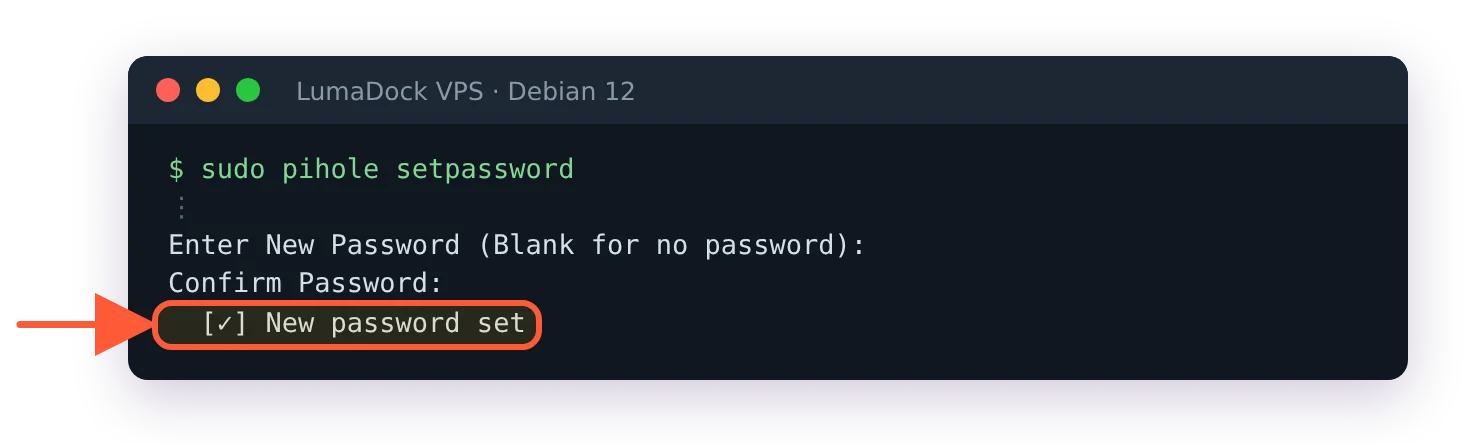
Run without an argument, setpassword asks twice and confirms.
Reset the password inside the Docker container
A container started with FTLCONF_webserver_api_password in its environment treats the password as read-only, so setpassword inside the container can't change it; edit the compose file and recreate the container. Without that variable, FTL picks a random password at first start and prints it to the container log, where docker logs pihole and a search for "random password" find it, and from then on docker exec pihole pihole setpassword works as on bare metal. An empty password set with setpassword doesn't survive a container restart; to run without a login, set FTLCONF_webserver_api_password: '' explicitly. WEBPASSWORD_FILE reads it from a Docker secret, so the value stays out of the compose file.
An app password for scripts
Scripts that call the API shouldn't carry the dashboard password, and with 2FA on most of them can't use it. The settings page in the web interface generates one application password, shows it once, and stores its hash as webserver.api.app_pwhash. Sessions opened with it can read and manage lists but not change settings, because webserver.api.app_sudo is false by default; turn it on only for an application that has to write config. The same dialog has a Remove currently set app password button, and generating a new one logs out every application using the old one.
Skip the password on the CLI with the pihole group
Every pihole command goes through the same API, as the post-install page in the docs explains, and on a box with a password set each command would need it. FTL writes a temporary CLI password to /etc/pihole at every start (webserver.api.cli_pw, on by default) and members of the pihole group use it without typing anything. One command adds you:
sudo usermod -aG pihole $USERLog out and in again for the group to apply. Sessions started with the CLI password can't change settings or passwords; setpassword runs under sudo and writes the config directly.
Clear a lost 2FA secret
With a TOTP secret set, the login form adds a six-digit field and the API expects a totp value next to the password. The secret lives in webserver.api.totp_secret, is write-only, and the CLI shows ******** in its place, so nobody can read it back from the server either; the configuration reference lists it next to the app password keys. A wrong or expired code gives Invalid 2FA token on the login page and opens the box headed Wrong 2FA token.
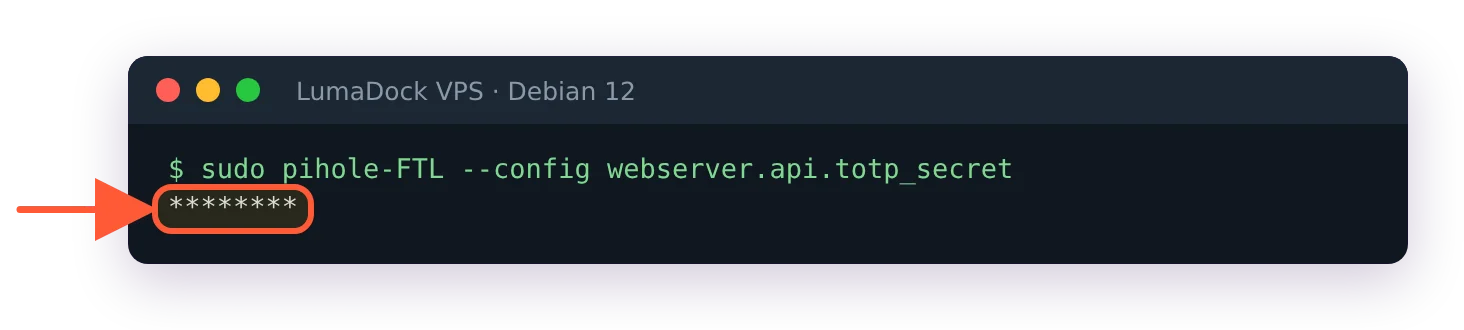
The 2FA secret is write-only: the CLI prints stars.
Lose the phone and the way back in is a shell on the server. sudo pihole-FTL --totp prints the six-digit code that is valid right now, computed from the stored secret, which is enough for one login. To turn 2FA off for good, clear the secret; the 2FA dialog in the web interface says the same, disable on the command line and re-enable to get a new secret:

The six-digit code from pihole-FTL --totp logs in like the one from the authenticator app.
sudo pihole-FTL --config webserver.api.totp_secret ""
