





.svg)
.svg)
.svg)
.svg)

.svg)
.svg)
.svg)


Updated and tested 18 October 2026
When this is done you have a Pi-hole on a small VPS that answers DNS on 10.100.0.1, the server's address inside a WireGuard tunnel, and on nothing else. Your phone, your laptop and anything else holding a peer config gets ad blocking wherever it happens to be. Anyone scanning the VPS's public IP sees a closed port 53 and a UDP port that doesn't reply.
That last sentence is the design. The project's own WireGuard guide opens with a warning about it. A Pi-hole with port 53 open to the internet is the thing it describes:
Setting up a DNS server has become a simple task with Pi-hole's automated installer, which has resulted in many people knowingly--or unknowingly--creating an open resolver, which aids in DNS Amplification Attacks.
So nothing below opens 53 on the public interface. Pi-hole listens on wg0, the web interface is bound to 10.100.0.1, and the firewall only lets DNS and HTTP in from the tunnel. Debian 12 is the OS throughout, with the Ubuntu 24.04 differences called out where they exist.
What you need before installing Pi-hole
A VPS running Debian 12 or Ubuntu 24.04, with root or sudo. The Pi-hole prerequisites page asks for 512 MB of RAM and 2 GB of free disk (4 GB recommended), which any current plan clears.
WireGuard already up on wg0 with the server at 10.100.0.1/24 listening on 51820/udp and at least one peer at 10.100.0.2/32 that can reach it. This article assumes that part exists and shows only the minimum. The package install, the keys, the first peer and the wg syncconf reload are in the Debian 12 WireGuard server guide, which uses the same addresses and port as this page so the two can be followed back to back. A VPS ordered with the one-click WireGuard template skips that article entirely: WireGuard comes pre-installed and you scan a QR code or load the config to add a device. Either way, sudo wg show has to print interface: wg0 before you go on.
No IPv6 inside the tunnel in these examples, since a cheap VPS may have none. The Pi-hole guide runs fd08:4711::/64 alongside the IPv4 range, and you can add it back without changing anything else here.
Step 1: Check the WireGuard tunnel before installing
The installer lists the interfaces it finds up (it runs ip --oneline link show up and drops loopback), so wg0 has to exist before Pi-hole does, or it won't be offered.
sudo wg show
ip -br a
The first command prints interface: wg0, its listening port and one peer: block per client; a peer that has connected recently shows a latest handshake line. The second lists every interface with its addresses. Note which one carries the public IP. It's eth0 in this article, on some images it's ens3 or enp1s0, and the firewall rules in Step 6 need the real name. wg0 should show 10.100.0.1/24.
From the client, with the tunnel connected, ping 10.100.0.1 has to answer. If it doesn't, check sudo wg show on the server before anything else. A recent latest handshake for the peer means the tunnel works and a firewall is dropping ping (the ruleset in Step 6 allows it, and so does the WireGuard guide's Step 4 with its icmp lines). No handshake at all means nothing in the rest of this page will work either, so fix the tunnel first.
Step 2: Free port 53 from systemd-resolved
Ubuntu's cloud images run systemd-resolved with a stub listener on 127.0.0.53:53, and so do Debian 12 images that ship it, LumaDock's included (there it holds 127.0.0.54:53 as well). FTL can't share the port with it. The installer handles this itself: if systemd-resolved is active it writes a drop-in and reloads the service.
# /etc/systemd/resolved.conf.d/90-pi-hole-disable-stub-listener.conf
[Resolve]
DNSStubListener=no
The comment on that function in the installer source says it breaks name resolution on the host until FTL is up, which is why it runs late, after the downloads. You don't write the file yourself. You do want to know it exists, because it's the first place to look if the host loses DNS after someone tidies the resolved config. On Debian 12 the installer prints [✓] Disabling systemd-resolved DNSStubListener when it does this.
Check what holds the port before you install:
sudo ss -tulpn 'sport = :53'Header only means the port is free, and systemd-resolved on 127.0.0.53 and 127.0.0.54 is the case the installer handles. If a dnsmasq, unbound or named process appears, stop and disable it first. FTL refuses to start while another resolver holds 53 (the Pi-hole v6 errors page has the exact log line for that case) and no number of restarts fixes it until the port is free. The installer itself has no port check, so it will run to the end and leave you with a Pi-hole that can't start.
Step 3: Install Pi-hole v6
curl -sSL https://install.pi-hole.net | bashIf you'd rather read the script before it runs, the docs offer the same thing in two steps: wget -O basic-install.sh https://install.pi-hole.net, then sudo bash basic-install.sh once you've looked at it. Either way you get dialog screens, and these are the ones that matter here.
Static IP Needed. Three information screens come first, and on the third one the highlighted button is Exit. Pressing Enter there ends the installer with Installer exited at static IP message. Press the left arrow or Tab to select Continue, then Enter. A VPS's public address is already static, so there's nothing to change.
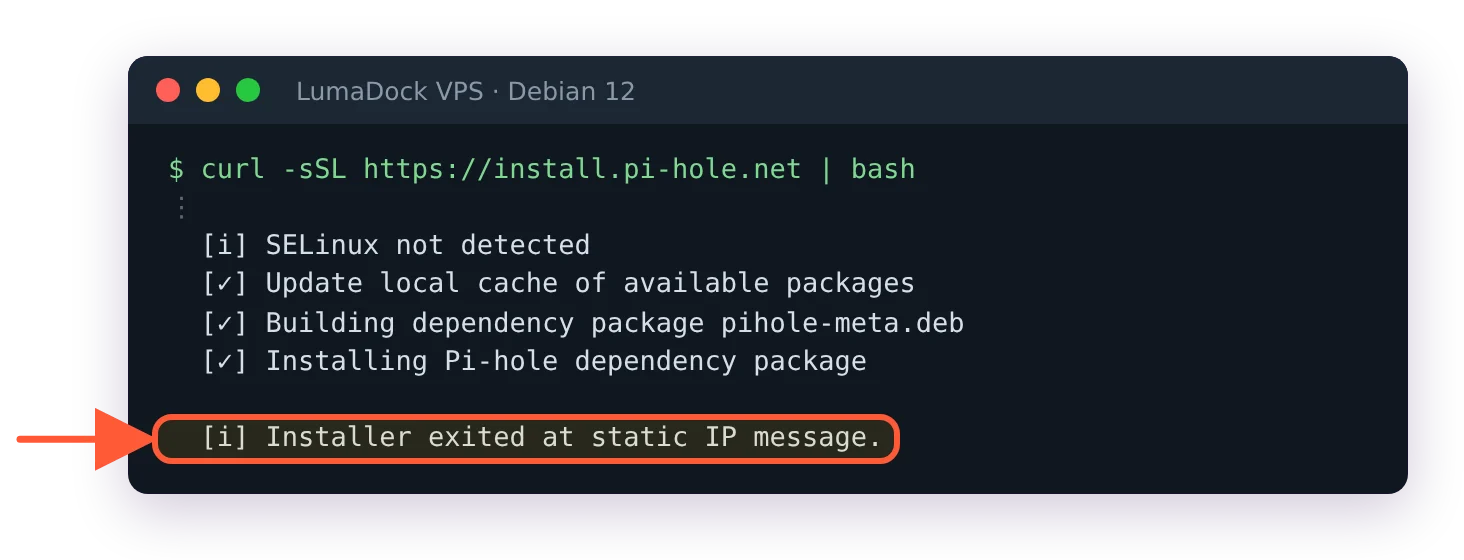
Enter on the Static IP Needed screen picks Exit, and the installer stops here.
Choose An Interface. Select wg0. The list starts with eth0 marked, so move down to wg0, press Space to mark it, then Enter. If the VPS has only one interface up the installer skips this screen and picks it, which is exactly what happens when the tunnel wasn't up yet. Back to Step 1 in that case.
Select Upstream DNS Provider. Any of the listed ones will do for now. If you plan to run Unbound as a local recursive resolver, the Pi-hole with Unbound on the same VPS article changes this value after Unbound is up. The installer only needs an upstream that works today; the choice lands in dns.upstreams and is one line to change later.
Blocklists. The single suggestion is StevenBlack's Unified Hosts list, and it's the only list the installer knows about. Say yes. More lists go in through the web interface later, under Group Management.
Enable Logging, then the privacy mode. Two screens. Logging on and privacy level 0 ("Show everything") show every query with its client in the Query Log, which is what you want while testing the tunnel. Raise the level later if other people's devices will use the resolver.
At the end the installer prints a random eight-character web interface password and the line This can be changed using 'pihole setpassword'. It also prints an admin URL built from the address the VPS uses to reach the internet (the installer reads it from ip route get 8.8.8.8), which on a VPS is the public IP; ignore that URL, since Step 5 moves the page onto the tunnel address. The same goes for the line telling you to point your devices at that IPv4 address: clients use 10.100.0.1. Change the password now, in single quotes:
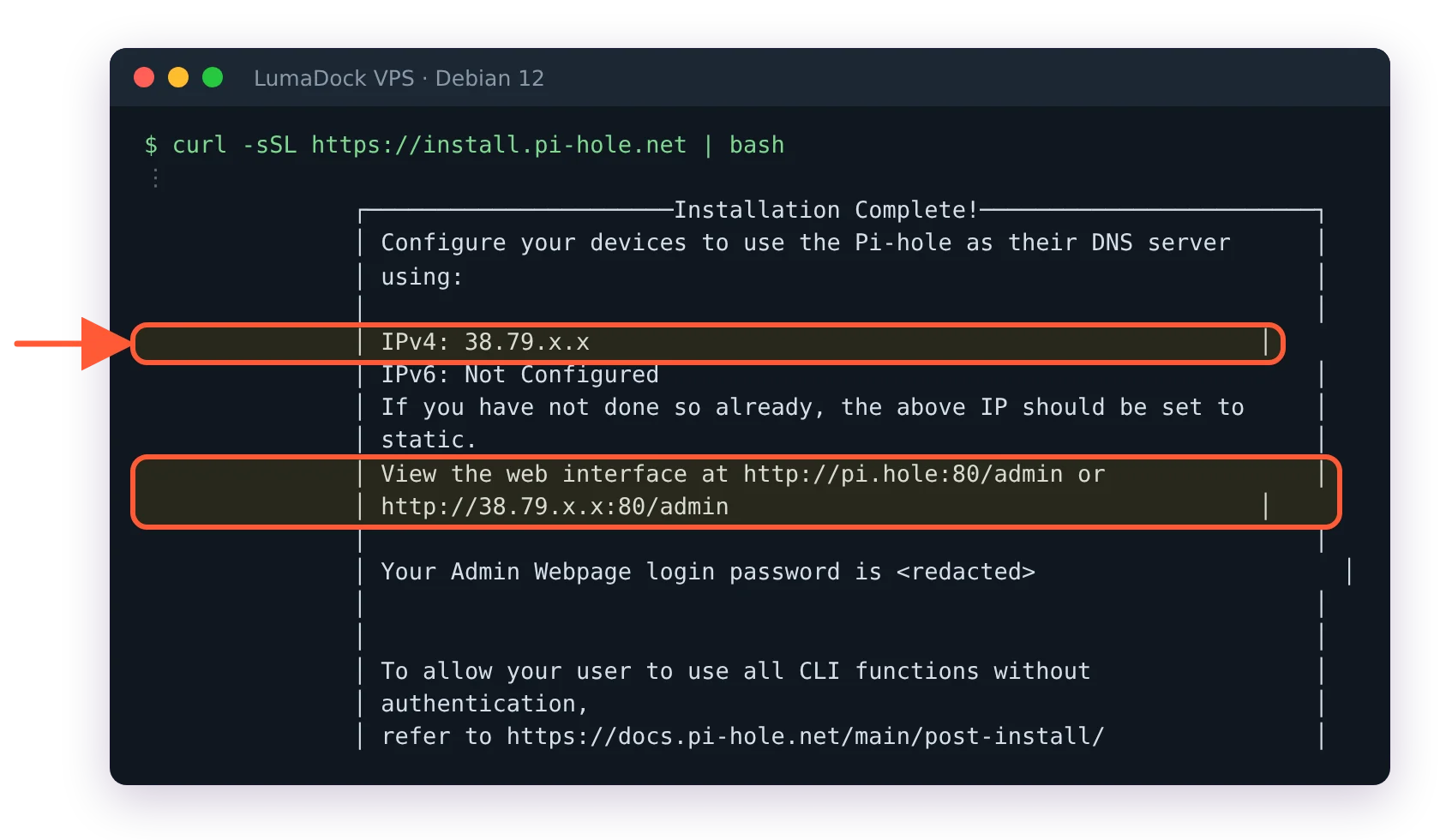
The installer prints the public address; ignore it, clients use 10.100.0.1 through the tunnel.
sudo pihole setpassword 'a-long-passphrase'Every pihole command in v6 goes through the API, so the CLI asks for that password too unless your user is in the pihole group. sudo usermod -aG pihole $USER and a new login takes care of it.
Step 4: Make Pi-hole listen on wg0 only
The installer wrote dns.interface = "wg0" into /etc/pihole/pihole.toml and left the listening mode at its default, LOCAL. Both keys are set from the command line, and each one restarts FTL by itself, so there's no separate restart step.
sudo pihole-FTL --config dns.interface wg0
sudo pihole-FTL --config dns.listeningMode SINGLE
The first line repeats what the installer did, and running it again costs nothing. The second is the decision, and the config reference describes every listening mode by the dnsmasq option it turns into. Four of them matter on a VPS:
| Mode | What FTL does | On a VPS |
|---|---|---|
| LOCAL | Binds the wildcard address and answers only clients whose address is on a subnet the server has an interface in (dnsmasq local-service). The installer default. | Works, because tunnel peers are one hop away on 10.100.0.0/24. Stops working the moment a peer carries a LAN behind it. |
| SINGLE | Binds the wildcard address and answers only queries that arrived on the named interface, plus lo (interface=wg0). | The setting used here. A query arriving on eth0 is discarded even if a firewall rule slips. |
| BIND | Binds only the named interface's address (interface=wg0 plus bind-interfaces). | Strictest. The docs warn it can misbehave when the interface goes down, and wg0 does go down on every restart. |
| ALL | Answers on every interface, from every origin (except-interface=nonexisting). | Never on a machine with a public IP. This is the open-resolver setting. |
The Pi-hole guide's server page prefers LOCAL for WireGuard, since peers are recognised as one hop away. I think SINGLE is the better choice on a VPS, because it's tied to the interface name instead of to subnets: a query that reaches FTL on eth0 is dropped no matter what source address it carries, so a gap in the firewall exposes nothing. The cost is one more thing to remember if you ever rename the interface. BIND is tighter still, in that the socket isn't even open on the public address; I haven't tested how it behaves across a wg-quick down and up on wg0, and the docs' own warning about interfaces going down is reason enough to stay on SINGLE.
Read a value back with the same command and no argument:
sudo pihole-FTL --config dns.listeningModeIt prints SINGLE. That form works for any key and is quicker than opening the toml file, which FTL rewrites on every change anyway.
Step 5: Bind the admin interface to the tunnel address
By default the web server listens on every address (80o,443os,[::]:80o,[::]:443os), which puts the login page on the public IP. Move it:
sudo pihole-FTL --config webserver.port '10.100.0.1:80o,10.100.0.1:443os'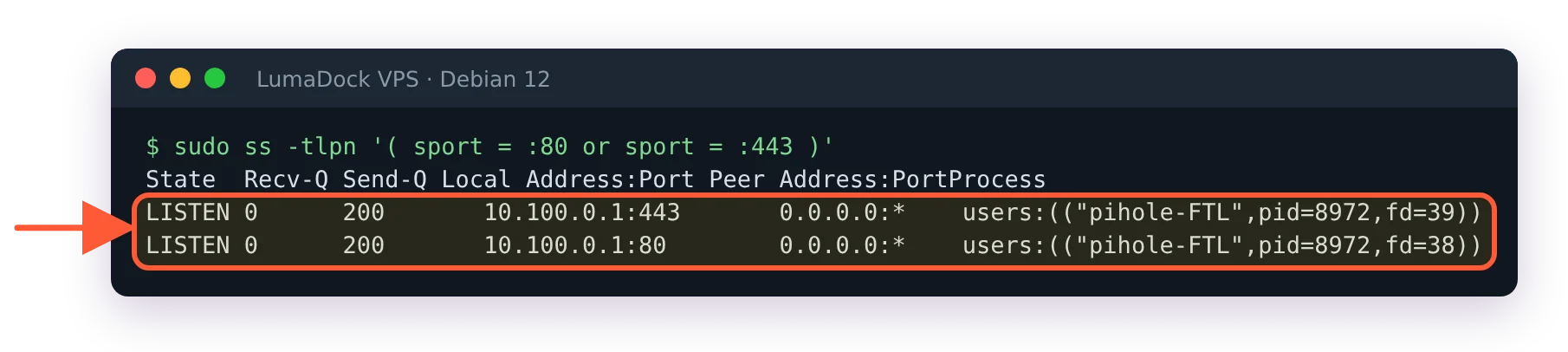
After the webserver.port change, the admin interface listens on the tunnel address only.
The letters after each port are from the config reference. s makes the port TLS and o marks it optional; there's also an r that redirects plain HTTP to the first TLS port if you want to force HTTPS. On a VPS the optional flag does real work: the reference says inability to use an optional port is not considered an error, so if wg0 gets its address after FTL has started, the web server comes up without it instead of failing. When a Pi-hole moderator answered this exact question in the forum thread on Pi-hole with WireGuard, the suggested value was '10.100.0.1:80,[fd08:4711::1]:80'. The form above drops the IPv6 half and adds the TLS port.
That optional flag has a cost you meet at the first reboot. pihole-FTL.service waits for network-online.target and nothing else, so FTL starts before wg-quick@wg0 has given wg0 its address, every time. DNS recovers on its own, but both web ports are skipped (webserver.log says cannot bind to 10.100.0.1:80o: 99 (Address not available)), and the admin page and every pihole command stay dead until FTL restarts. Tell FTL to wait for the tunnel:
sudo pihole-FTL --config misc.delay_startup 10After the next reboot FTL.log shows Sleeping for 10 seconds as requested by configuration and the web server binds 10.100.0.1 normally. Ten seconds is plenty on a VPS, where wg0 has its address well under a second after FTL starts.
Once the firewall in Step 6 lets the web ports in from wg0, the interface is at http://10.100.0.1/admin/ on a connected client, with the trailing /admin/. (If you followed the WireGuard guide, its firewall drops 80 and 443 on wg0 until then.) The bare IP returns a 404, because the redirect to /admin/ only fires when the browser sent pi.hole as the host name, and with webserver.serve_all at its default the web server serves nothing outside /admin/ and /api. http://pi.hole/admin/ works as well once the client uses Pi-hole for DNS, since Pi-hole answers that name itself. The reasons the page won't open at all, most of them cookies or a taken port, are collected in pi.hole/admin not working in Pi-hole v6. https://10.100.0.1/admin/ uses the self-signed certificate FTL generated at install, /etc/pihole/tls.pem, so expect a browser warning the first time.
A second lock, if you want one. webserver.acl takes a list of subnets with a plus or minus in front. The last match wins, and once the list is non-empty everything unmatched is denied:
sudo pihole-FTL --config webserver.acl '+10.100.0.0/24'With the port already bound to 10.100.0.1 this is redundant. It's also the line that keeps the admin page private if you ever widen webserver.port again for a reverse proxy, which is why it's worth setting now.
One interaction to know about if you also run the full tunnel from the WireGuard guide's Step 7. Its masquerade rule has to be limited to the tunnel subnet (ip saddr 10.100.0.0/24 oifname "eth0" masquerade, the form that guide uses). A bare masquerade also rewrites the VPS's own requests to 10.100.0.1 so they come from the public address, the ACL refuses them, and every pihole command on the server stops with API not available. Please check FTL.log. Because Step 6's flush ruleset removes that NAT table until the next WireGuard restart, the error tends to appear days later, after a reboot.
Step 6: Firewall the VPS
Everything so far is Pi-hole discarding what it shouldn't answer. The firewall is the layer in front of that, and it's what makes port 53 invisible from outside, where Pi-hole on its own only leaves it unanswered.
nftables on Debian 12
#!/usr/sbin/nft -f
flush ruleset

table inet filter {
    chain input {
        type filter hook input priority 0; policy drop;

        iif "lo" accept
        ct state established,related accept
        ct state invalid drop

        tcp dport 22 accept
        udp dport 51820 accept

        iifname "wg0" udp dport 53 accept
        iifname "wg0" tcp dport 53 accept
        iifname "wg0" tcp dport { 80, 443 } accept

        ip protocol icmp accept
        ip6 nexthdr icmpv6 accept
    }
    chain forward {
        type filter hook forward priority 0; policy drop;
    }
    chain output {
        type filter hook output priority 0; policy accept;
    }
}
Save it as /etc/nftables.conf and change 22 if your SSH listens elsewhere. Keep the current SSH session open, then parse the file before loading it:
sudo nft -c -f /etc/nftables.conf
sudo systemctl enable --now nftables
sudo systemctl reload nftables
-c checks without applying; silence means the file is valid. The reload line matters if you followed the WireGuard guide: nftables is already running from its Step 4, so enable --now changes nothing and the old rules, which drop DNS on wg0, stay loaded. reload reads the new file. Confirm with sudo nft list ruleset that the wg0 lines are there, then open a second SSH session to check you still can before closing the first. The three lines with iifname "wg0" do the real work: DNS and the web ports are accepted only when the packet arrived through the tunnel. Nothing accepts 53 on eth0, and the policy is drop, so a scan of the public IP gets no reply from 53. It gets no reply from 51820 either, because WireGuard answers nothing to a packet it can't authenticate, which is why nmap reports that port as open|filtered and not open. FTL also runs an NTP server on UDP 123 on every address; nothing here accepts 123, so it stays private too, and the ntp.ipv4.active and ntp.ipv6.active keys switch it off if no device needs it.
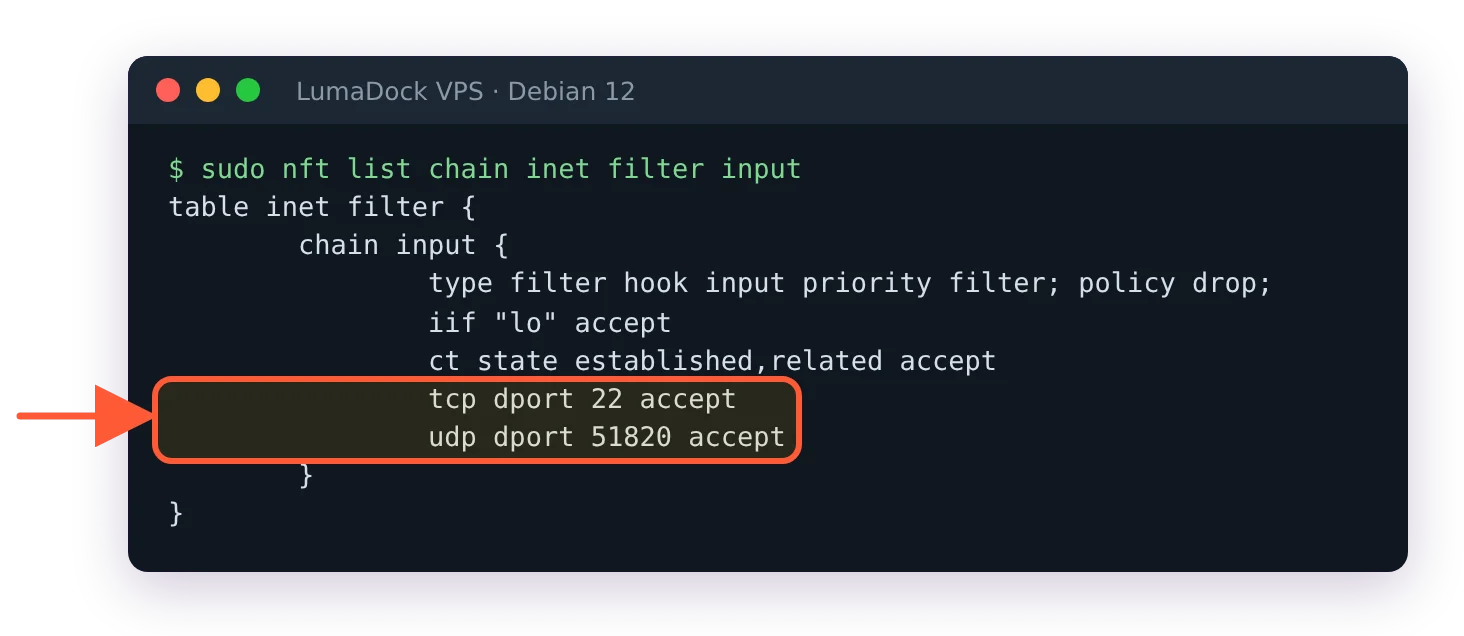
If nftables was already running, enable --now leaves the old rules loaded: no DNS or web lines on wg0 yet.
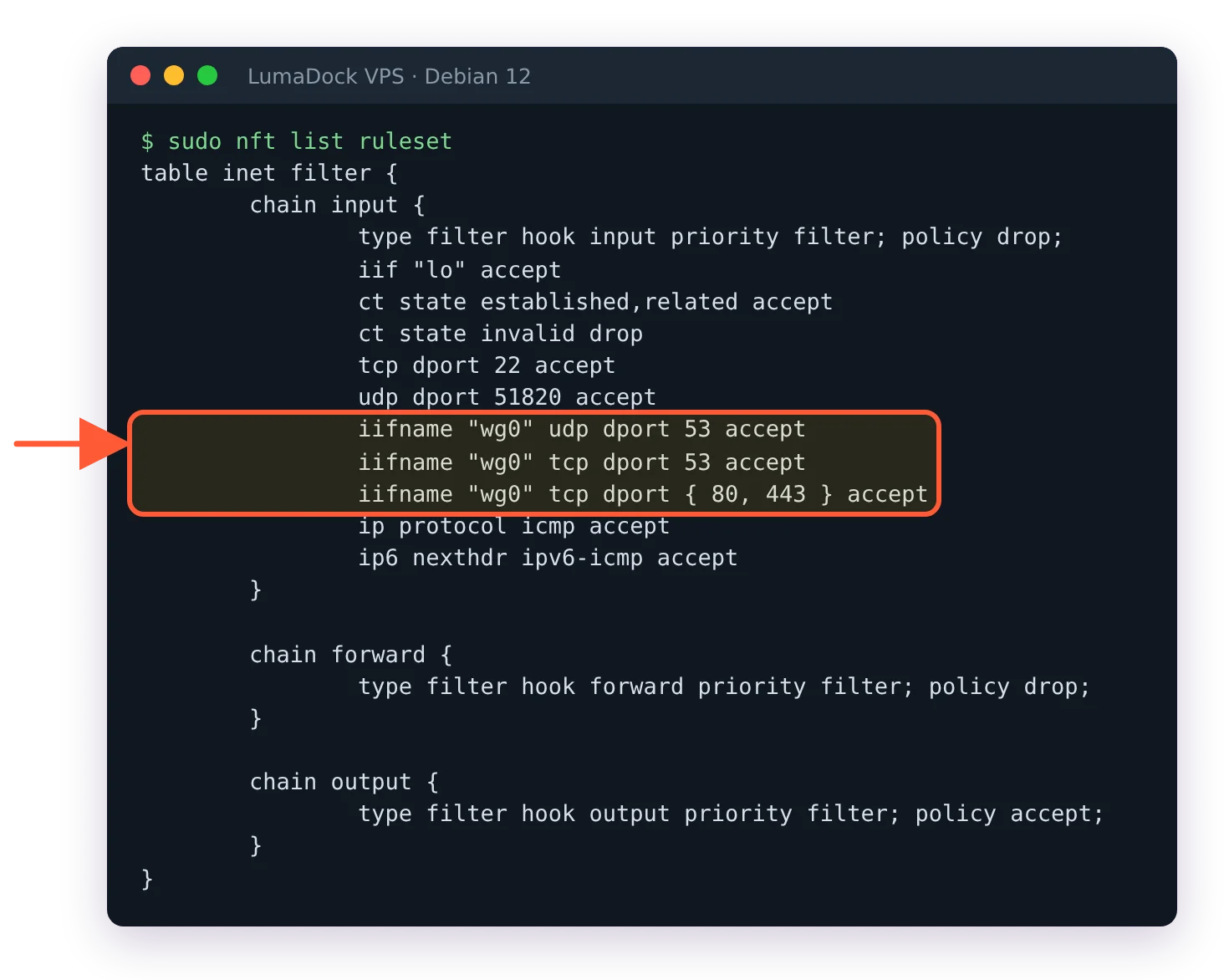
After the reload, DNS and the admin ports are open on wg0 only; everything else is dropped.
The forward chain drops everything, which is right for a DNS-only tunnel. If you also set up the full tunnel from the WireGuard guide's Step 7, this file breaks it twice: flush ruleset deletes the NAT table its PostUp created, and the forward policy drops the client's traffic. Add two rules to the forward chain:
    chain forward {
        type filter hook forward priority 0; policy drop;
        iifname "wg0" oifname "eth0" accept
        iifname "eth0" oifname "wg0" ct state established,related accept
    }
Then load the file as above and run sudo systemctl restart wg-quick@wg0, so PostUp creates the NAT table again. Full-tunnel clients get their internet back, and DNS-only clients don't notice.
ufw on Ubuntu 24.04
sudo ufw allow 22/tcp
sudo ufw allow 51820/udp
sudo ufw allow in on wg0 to any port 53
sudo ufw allow in on wg0 to any port 80 proto tcp
sudo ufw allow in on wg0 to any port 443 proto tcp
sudo ufw enable
The SSH line comes first because ufw enable on a box with no allow rule for 22 ends the session you're typing in. The line never to type is sudo ufw allow 53: without in on wg0 it opens the port on every interface, including the public one, and the default deny no longer protects anything.
If your provider's panel has a firewall of its own in front of the VPS, mirror these rules there: 51820/udp open, 53 closed, 22 as you need it. Two layers in front of a DNS port is normal, since it takes one wrong rule in either to undo Step 4.
Step 7: Write the DNS-only client config
The client peer needs to reach one address through the tunnel, the resolver. That keeps the config short:
[Interface]
Address = 10.100.0.2/32
DNS = 10.100.0.1
PrivateKey = CLIENT_PRIVATE_KEY

[Peer]
PublicKey = SERVER_PUBLIC_KEY
PresharedKey = PRESHARED_KEY
Endpoint = YOUR_SERVER_IP:51820
AllowedIPs = 10.100.0.1/32
PersistentKeepalive = 25
AllowedIPs = 10.100.0.1/32 is what makes this a split tunnel. Only packets for the Pi-hole go through WireGuard; everything else takes its normal route. The DNS line tells the client's OS to use the Pi-hole for every lookup while the tunnel is up, and how firmly that is enforced depends on the platform: the iOS and macOS apps send every query to the tunnel DNS once the line is set, Windows sets it on the tunnel adapter and, with a split tunnel like this one, leaves its usual multi-adapter resolution in place, while on a Linux laptop wg-quick hands the line to resolvconf, which a Debian 12 install without systemd-resolved doesn't have. The platform differences, the keepalive and the two other shapes the config can take are in WireGuard split tunnel for DNS only, which is the page to send someone who asks why their laptop still uses the hotel's resolver. On the server, nothing changes for this peer no matter which shape the client picks; its [Peer] block keeps AllowedIPs = 10.100.0.2/32.
For a phone, make a QR code on the server with qrencode -t ansiutf8 < client.conf (package qrencode) and scan it from the add button in the WireGuard app. The file holds the client's private key, so it stays under /etc/wireguard with mode 600 and gets deleted once the phone has it.
Step 8: Test from inside and outside the tunnel
Three checks, each one command. From the connected client:
nslookup pi.hole 10.100.0.1
dig @10.100.0.1 doubleclick.net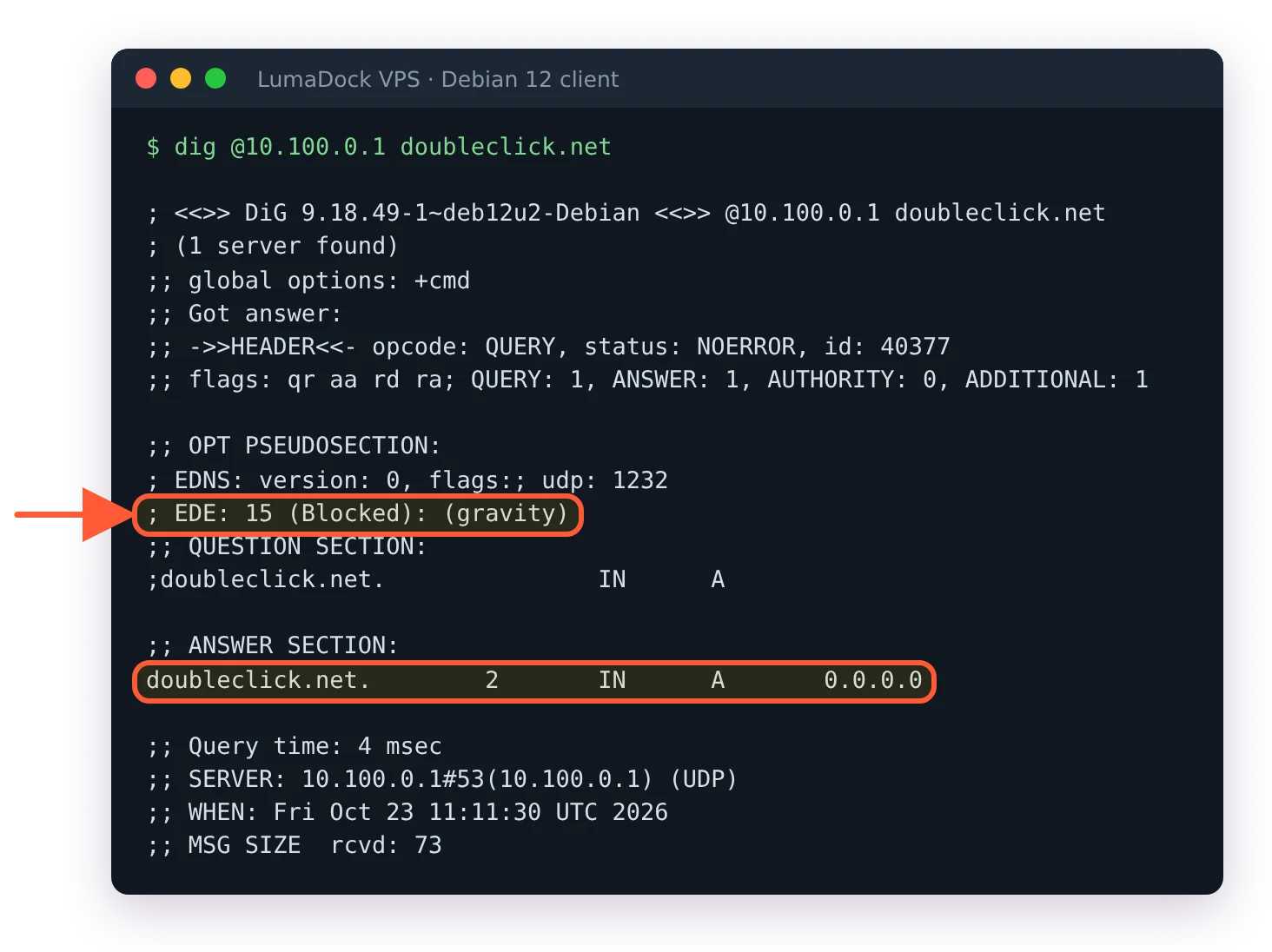
Through the tunnel, a domain on the blocklist comes back as 0.0.0.0 with a Blocked (gravity) note.
The first returns 10.100.0.1, since Pi-hole answers its own name with the address of the interface the query came in on. The second uses the domain the blocking-mode docs use as their example, and in the default NULL mode a blocked name comes back as 0.0.0.0 for A and :: for AAAA. Then open the Query Log at http://10.100.0.1/admin/: both queries are there with 10.100.0.2 as the client. If the client column shows anything else, look at how the peer connects; a home router as the peer puts a whole LAN behind one tunnel address, which matters for the rate limit below.
Now from any machine that is not on the tunnel, a second VPS or a phone on mobile data with WireGuard off:
dig @YOUR_SERVER_IP example.com +time=3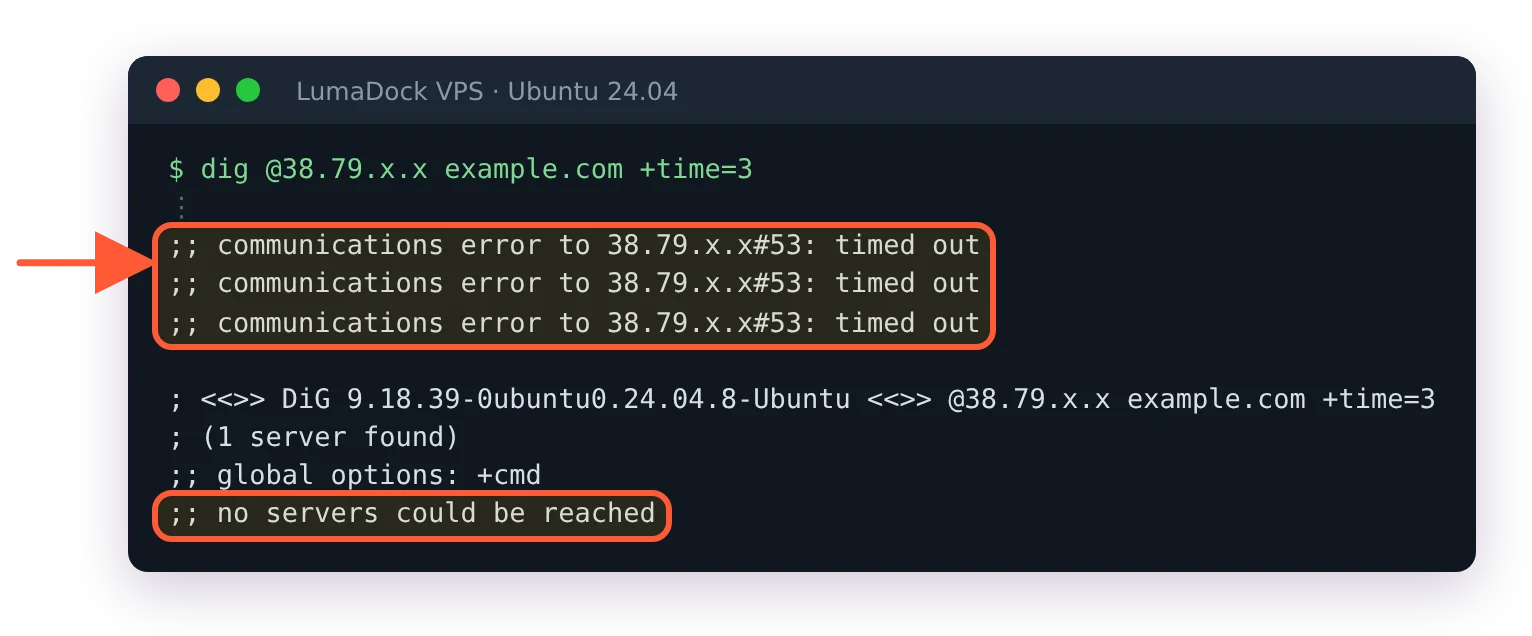
From a machine outside the tunnel, the public address does not answer DNS.
It must time out with no answer. An answer here means port 53 is reachable from the internet; go back to Step 6 before anything else.
Last, on the VPS:
sudo ss -tulpn 'sport = :53'With SINGLE mode this shows pihole-FTL on 0.0.0.0:53, and that is correct. The interface binding page in the docs explains why: FTL binds the wildcard address in every mode except BIND and discards queries that arrived on the wrong interface, which is how the external dig got nothing even though the socket exists. Only BIND would show 10.100.0.1:53 here. The longer set of checks in how to test that Pi-hole is working adds a leak test from the client and the dashboard counters, but these three settle the VPS question. That wildcard socket is also the reason Step 6 isn't optional.


