Back to Article List

Portainer vs Dockge for a homelab or a single VPS

Portainer vs Dockge for a homelab or a single VPS

Updated and tested 31 October 2026

Portainer and Dockge both run as a container, both mount /var/run/docker.sock and both give you a browser tab where you start, stop and inspect what Docker is running. Past that point they have very little in common. Dockge is a compose file editor with a start button attached. Portainer is a management layer over the entire Docker API, plus Swarm, Kubernetes and Podman. This comparison is about which of the two belongs on a single machine, a homelab box or one VPS, because that's where the "dockge vs portainer" question comes from. Fleet management is a different conversation and Komodo enters it, which is covered separately in Komodo vs Portainer for a fleet.

What Dockge manages and what it ignores

Dockge describes itself in its README as "A fancy, easy-to-use and reactive self-hosted docker compose.yaml stack-oriented manager", and the word doing the work in that sentence is stack-oriented. Each stack is a directory under /opt/stacks holding a compose.yaml, and Dockge reads, edits and runs those files. The interface is split down the middle: a YAML editor on one side, a form view of the same services on the other, and typing in either updates the other. Under that sits a live terminal streaming the output of docker compose pull and docker compose up as it happens, which is the feature people remember after they've used it once.

Containers you started with docker run don't appear in Dockge at all. Neither do images, volumes or networks as first-class objects. There's a converter that takes a docker run command and rewrites it as a compose service, and that's the intended path: everything becomes a stack or Dockge doesn't see it. Existing compose projects need to be moved into /opt/stacks/<stackName>/compose.yaml before Dockge picks them up, which the Dockge repository confirms in its README FAQ: stop the stack, move the file, then run Scan Stacks Folder from the menu at the top right. Anything running out of a home directory shows up greyed out in the stack list, and opening it gives "This stack is not managed by Dockge." until you move it.
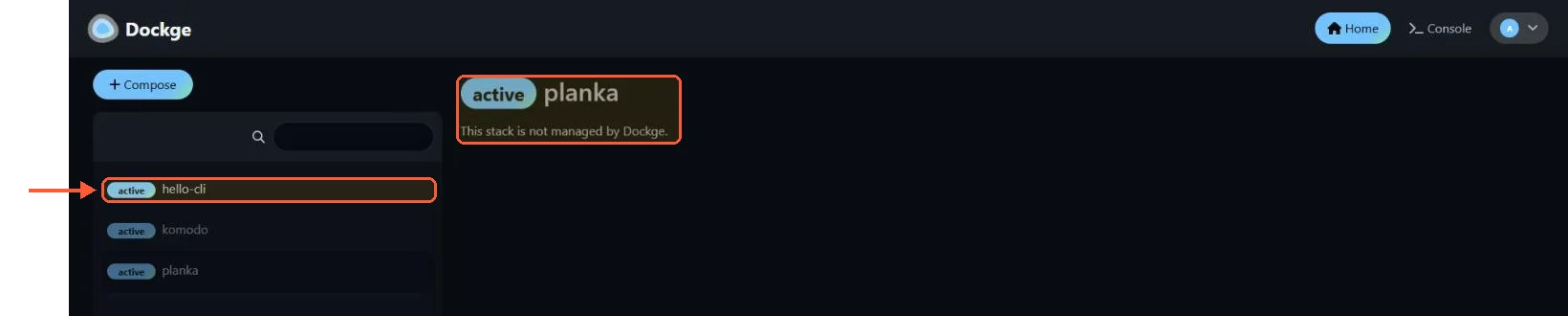
Dockge stack list: hello-cli managed, komodo and planka greyed out, planka marked This stack is not managed by Dockge

A stack I started with plain docker compose in /opt/stacks shows up as a normal Dockge stack; ones elsewhere are greyed out.

The stacks directory is also the one thing that bites people on install. The path has to be identical on the host and inside the Dockge container, because Dockge hands those paths straight to the Docker daemon, which resolves them on the host. Change one side of the bind mount without the other and stacks get written somewhere you didn't intend. The official compose.yaml carries a warning comment about exactly this.

What Portainer adds on top of compose stacks

Portainer has stacks too, deployed from a pasted compose file, an uploaded one or a git repository. In CE 2.45.3 the git route starts from a saved Source and the form offers a "Create a Webhook" toggle when you create the stack, while the webhook on an existing stack carries a Business Feature label; I found no polling option on that form. The existing guide to deploying apps with Portainer stacks walks through that. Around the stacks sits everything else the Docker API exposes: a container list with exec and log views, images with a pull and build screen, volumes, networks, registries, events. Then the parts that have no equivalent in Dockge at all: Swarm services, Kubernetes namespaces and Helm, Podman environments, app templates, users and teams with per-environment access and the Edge Agent for machines behind NAT.

Default ports, for reference. Portainer serves HTTPS on 9443, keeps 9000 as the older plain HTTP port and opens 8000 for Edge Agent tunnels. The standard agent listens on 9001. Dockge listens on 5001 over plain HTTP.

Access control is the one line in Portainer CE that's thinner than people expect. CE has users, teams and environment-level access. Roles with fine-grained permissions (the RBAC feature) are Business Edition only, per the Portainer roles documentation. Dockge has a single admin login and no user model beyond that, so for a homelab with one operator neither product loses anything here.
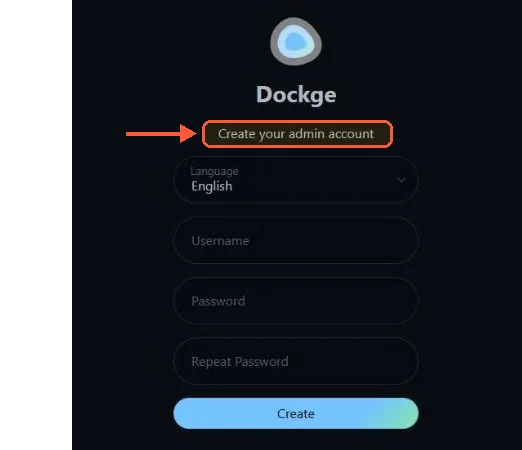
Dockge first-run screen Create your admin account with language, username, password and repeat password fields

Dockge asks for one admin account on first visit, and that is its whole user model.

Install Dockge and Portainer side by side

Dockge needs Docker 20 or newer, or Podman (with the podman-docker package on Debian), and its install is four commands from the README:

mkdir -p /opt/stacks /opt/dockge
cd /opt/dockge
curl https://raw.githubusercontent.com/louislam/dockge/master/compose.yaml --output compose.yaml
docker compose up -d

Portainer CE is a volume and one docker run, using the lts tag that the official install command uses:

docker volume create portainer_data
docker run -d -p 8000:8000 -p 9443:9443 --name portainer --restart=always \
  -v /var/run/docker.sock:/var/run/docker.sock \
  -v portainer_data:/data portainer/portainer-ce:lts

Then open https://YOUR_SERVER_IP:9443, paste the setup token from docker logs portainer (the setup_token= line, required on new installs since 2.43) and create the admin account within five minutes, or the container locks the setup page and needs a restart. That timeout catches a lot of first installs and the fix is in how to install Portainer if you hit it.

DockgePortainer CE
Latest tagged release1.5.0, 30 March 20252.45.3 LTS, 21 October 2026
Web port5001 (HTTP)9443 (HTTPS), 9000 (HTTP)
ManagesCompose stacks in /opt/stacksContainers, images, volumes, networks, stacks, Swarm, Kubernetes, Podman
Multiple hostsDockge agents (since 1.4.0)Portainer Agent on 9001, Edge Agent over 8000
UsersSingle adminUsers and teams; RBAC roles in Business Edition
Git deploysNoYes, from a repository Source
Architecturesamd64, arm64, armv7amd64, arm64 (check the Docker Hub tags for anything older)
LicenceMITzlib

Release cadence and maintenance

This is the row in that table to read twice. Dockge's most recent tagged release is 1.5.0 from 30 March 2025, with no version cut in the nineteen months since. The project isn't dead: the author also maintains Uptime Kuma, and Docker Hub shows a nightly image that was rebuilt on 31 October 2026. But the latest, 1 and 1.5.0 tags all point at the same March 2025 build, so whatever Docker CLI and Compose binary that image bundles date from then, and those are the two things Dockge wraps.
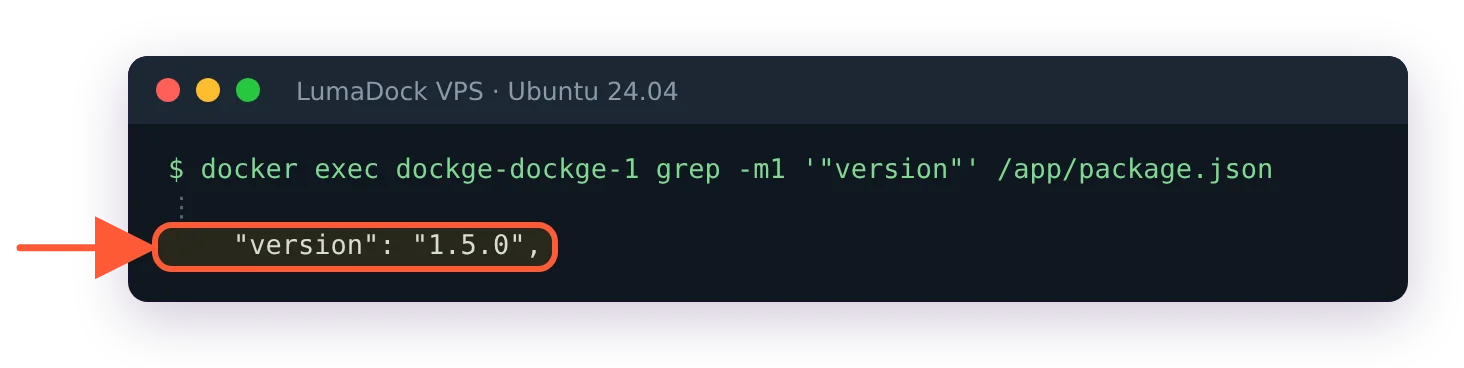
docker exec dockge-dockge-1 grep version in /app/package.json prints "version": "1.5.0"

After pulling the :1 tag on my test server, the Dockge container reports 1.5.0, the March 2025 release.

Portainer put out 2.45.0 as a new LTS line on 27 August 2026 and was at 2.45.3 by 21 October, with the previous 2.39 LTS supported until November 2026 according to the Portainer lifecycle page. Whatever you think of the product, it ships. One thing to know before you commit to it: Portainer has called 2.45 the last 2.x line and released 3.0.0 on 29 October 2026 as a Kubernetes-first short-term-support release for Business Edition only, with Community Edition staying on 2.x, which Portainer CE vs Portainer Business Edition goes through.

Small digression on that point, since it's relevant to the choice. Komodo now covers the compose-first, more-than-one-server case and Arcane the single-host case with a modern interface, and both release often (Komodo 2.3.4 on 22 October 2026, Arcane 2.17.1 on 25 October). That doesn't make Dockge worse at the thing it does, but it changes the answer to "what will this look like in two years".

Memory and CPU on a small box

Both are light. Dockge is a Node.js application, Portainer is a single Go binary, and on a 2 GB VPS with a dozen containers neither one is the process you'll notice in htop. There's no fair number here for Dockge during a full pull-and-up of a large stack, because the memory spike there belongs to docker compose itself, which Dockge shells out to, and the same spike shows up under Portainer when it does the equivalent.

Your idea deserves better hosting

24/7 support 30-day money-back guaranteeRefund covers the VPS plan on your first order. Cancel anytime
Faktureras

VPS.S1

23.61 zł Save  17 %
19.67 zł Månadsvis
  • 2 vCPU AMD EPYC
  • 2 GB RAMMINNE
  • 30 GB NVMeLAGRING
  • Omätt bandbredd
  • IPv4 & IPv6IPv6-stöd är för närvarande inte tillgängligt i Frankrike, Finland eller Nederländerna. ingår

VPS.S3

59.09 zł Save  33 %
39.38 zł Månadsvis
  • 4 vCPU AMD EPYC
  • 6 GB RAMMINNE
  • 70 GB NVMeLAGRING
  • Omätt bandbredd
  • IPv4 & IPv6IPv6-stöd är för närvarande inte tillgängligt i Frankrike, Finland eller Nederländerna. ingår

VPS.S4

78.80 zł Save  20 %
63.03 zł Månadsvis
  • 6 vCPU AMD EPYC
  • 8 GB RAMMINNE
  • 80 GB NVMeLAGRING
  • Omätt bandbredd
  • IPv4 & IPv6IPv6-stöd är för närvarande inte tillgängligt i Frankrike, Finland eller Nederländerna. ingår

EPYC VPS.P1

35.44 zł Save  22 %
27.55 zł Månadsvis
  • 2 vCPU AMD EPYC
  • 4 GB RAMMINNE
  • 40 GB NVMeLAGRING
  • Omätt bandbredd
  • IPv4 & IPv6IPv6-stöd är för närvarande inte tillgängligt i Frankrike, Finland eller Nederländerna. ingår
  • Gratis auto-backupInnehåller en backupplats som du kan ställa in på daglig, veckovis eller månatlig körning.

EPYC VPS.P2

66.97 zł Save  24 %
51.20 zł Månadsvis
  • 2 vCPU AMD EPYC
  • 8 GB RAMMINNE
  • 80 GB NVMeLAGRING
  • Omätt bandbredd
  • IPv4 & IPv6IPv6-stöd är för närvarande inte tillgängligt i Frankrike, Finland eller Nederländerna. ingår
  • Gratis auto-backupInnehåller en backupplats som du kan ställa in på daglig, veckovis eller månatlig körning.

EPYC VPS.P4

118.22 zł Save  23 %
90.62 zł Månadsvis
  • 4 vCPU AMD EPYC
  • 16 GB RAMMINNE
  • 160 GB NVMeLAGRING
  • Omätt bandbredd
  • IPv4 & IPv6IPv6-stöd är för närvarande inte tillgängligt i Frankrike, Finland eller Nederländerna. ingår
  • Gratis auto-backupInnehåller en backupplats som du kan ställa in på daglig, veckovis eller månatlig körning.

EPYC VPS.P5

157.63 zł Save  25 %
118.22 zł Månadsvis
  • 8 vCPU AMD EPYC
  • 16 GB RAMMINNE
  • 180 GB NVMeLAGRING
  • Omätt bandbredd
  • IPv4 & IPv6IPv6-stöd är för närvarande inte tillgängligt i Frankrike, Finland eller Nederländerna. ingår
  • Gratis auto-backupInnehåller en backupplats som du kan ställa in på daglig, veckovis eller månatlig körning.

EPYC VPS.P6

236.47 zł Save  25 %
177.34 zł Månadsvis
  • 8 vCPU AMD EPYC
  • 32 GB RAMMINNE
  • 200 GB NVMeLAGRING
  • Omätt bandbredd
  • IPv4 & IPv6IPv6-stöd är för närvarande inte tillgängligt i Frankrike, Finland eller Nederländerna. ingår
  • Gratis auto-backupInnehåller en backupplats som du kan ställa in på daglig, veckovis eller månatlig körning.

EPYC VPS.P7

275.89 zł Save  29 %
197.05 zł Månadsvis
  • 16 vCPU AMD EPYC
  • 32 GB RAMMINNE
  • 240 GB NVMeLAGRING
  • Omätt bandbredd
  • IPv4 & IPv6IPv6-stöd är för närvarande inte tillgängligt i Frankrike, Finland eller Nederländerna. ingår
  • Gratis auto-backupInnehåller en backupplats som du kan ställa in på daglig, veckovis eller månatlig körning.

Genoa VPS.G2

98.51 zł Save  20 %
78.80 zł Månadsvis
  • 2 vCPUAMD EPYC Genoa 4:e generationen 9xx4 med 3,25 GHz eller liknande, på Zen 4-arkitektur. AMD EPYC G4
  • 4 GB DDR5MINNE
  • 50 GB NVMeLAGRING
  • Omätt bandbredd
  • IPv4 & IPv6IPv6-stöd är för närvarande inte tillgängligt i Frankrike, Finland eller Nederländerna. ingår
  • Gratis auto-backupInnehåller en backupplats som du kan ställa in på daglig, veckovis eller månatlig körning.

Genoa VPS.G4

177.34 zł Save  22 %
137.92 zł Månadsvis
  • 4 vCPUAMD EPYC processor med dedikerade vCPU-kärnor, på serverhårdvara för företag. AMD EPYC G4
  • 8 GB DDR5MINNE
  • 100 GB NVMeLAGRING
  • Omätt bandbredd
  • IPv4 & IPv6IPv6-stöd är för närvarande inte tillgängligt i Frankrike, Finland eller Nederländerna. ingår
  • Gratis auto-backupInnehåller en backupplats som du kan ställa in på daglig, veckovis eller månatlig körning.

Genoa VPS.G6

354.72 zł Save  22 %
275.89 zł Månadsvis
  • 8 vCPUAMD EPYC processor med dedikerade vCPU-kärnor, på serverhårdvara för företag. AMD EPYC G4
  • 16 GB DDR5MINNE
  • 200 GB NVMeLAGRING
  • Omätt bandbredd
  • IPv4 & IPv6IPv6-stöd är för närvarande inte tillgängligt i Frankrike, Finland eller Nederländerna. ingår
  • Gratis auto-backupInnehåller en backupplats som du kan ställa in på daglig, veckovis eller månatlig körning.

Genoa VPS.G7

630.65 zł Save  22 %
492.69 zł Månadsvis
  • 8 vCPUAMD EPYC processor med dedikerade vCPU-kärnor, på serverhårdvara för företag. AMD EPYC G4
  • 32 GB DDR5MINNE
  • 250 GB NVMeLAGRING
  • Omätt bandbredd
  • IPv4 & IPv6IPv6-stöd är för närvarande inte tillgängligt i Frankrike, Finland eller Nederländerna. ingår
  • Gratis auto-backupInnehåller en backupplats som du kan ställa in på daglig, veckovis eller månatlig körning.

AMD Ryzen VPS.R1

66.97 zł Save  18 %
55.15 zł Månadsvis
  • 1 dedikerad CPU AMD Ryzen 9 7950X med 4,5 GHz eller liknande, på Zen 4-arkitektur. vCPU
  • 4 GB DDR5MINNE
  • 50 GB NVMeLAGRING
  • Omätt bandbredd
  • IPv4 & IPv6 ingår IPv6-stöd är för närvarande inte tillgängligt i Frankrike, Finland eller Nederländerna.
  • Auto-backup ingår
Beställ nu Upptagen - Tillgänglig

AMD Ryzen VPS.R2

118.22 zł Save  17 %
98.51 zł Månadsvis
  • 2 dedikerade CPU AMD Ryzen 9 7950X med 4,5 GHz eller liknande, på Zen 4-arkitektur. vCPU
  • 8 GB DDR5MINNE
  • 100 GB NVMeLAGRING
  • Omätt bandbredd
  • IPv4 & IPv6 ingår IPv6-stöd är för närvarande inte tillgängligt i Frankrike, Finland eller Nederländerna.
  • Auto-backup ingår
Beställ nu Upptagen - Tillgänglig

AMD Ryzen VPS.R4

433.56 zł Save  18 %
354.72 zł Månadsvis
  • 8 dedikerade CPU AMD Ryzen 9 7950X med 4,5 GHz eller liknande, på Zen 4-arkitektur. vCPU
  • 32 GB DDR5MINNE
  • 400 GB NVMeLAGRING
  • Omätt bandbredd
  • IPv4 & IPv6 ingår IPv6-stöd är för närvarande inte tillgängligt i Frankrike, Finland eller Nederländerna.
  • Auto-backup ingår
Beställ nu Upptagen - Tillgänglig

*VAT excluded.

INCLUDED WITH EVERY PLAN

✓ No setup fees ✓1 Gbps network
✓ Full root access on KVM ✓ Free server monitoring ✓ Firewall management ✓24/7 support

Multiple hosts with Dockge agents or the Portainer Agent

Dockge grew multi-host support in 1.4.0 (January 2024). Every host runs a full Dockge instance, and one of them is told about the others through the agent screen, which then lets you pick a host from a dropdown and manage its stacks. It works and it's fine for two or three boxes. There's no central login, no per-host permissions and the connection is Dockge talking to Dockge over the same web port it serves the UI on.

Portainer's model is one server and N agents. The agent is a separate container listening on 9001 that the server connects to, or an Edge Agent that dials out to the server on 8000 so nothing inbound has to be open on the managed host. A single login covers every environment and you can restrict a team to one of them. This is where Portainer stops being heavy for the sake of it and starts justifying its size, and it's the point where Komodo becomes the third option in the conversation.

Which one to run

On a single homelab box where everything is already a compose file, Dockge is the one I'd install of the two, because the YAML editor with a live terminal underneath is a better daily interface for compose than Portainer's stack screen, and the whole thing is a directory of plain files you can edit with vim if the UI ever goes away. The release gap is the caveat that goes with that recommendation, so check the releases page and the Docker Hub tag dates before you commit.

On a VPS, or anywhere a second person will log in, or anywhere Swarm or Kubernetes might show up later, Portainer. It reads state straight from the Docker API so nothing has to be reorganised to fit it, and it's the one with a supported LTS line and a route to more servers that doesn't involve running a copy of the UI on every host. If it's a fresh server, LumaDock's Portainer VPS template installs Portainer CE as a one-click app, so the manual install step goes away.

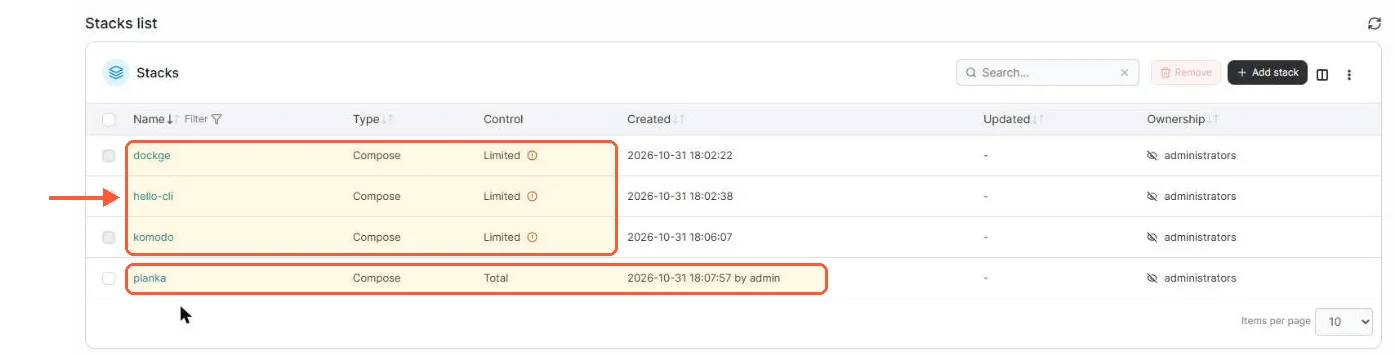
Running both on the same host is also a legitimate answer. They read the same socket, Dockge for stacks under /opt/stacks and Portainer for everything else. Portainer lists those Dockge stacks with "Limited" control, which is accurate, and Dockge lists a stack Portainer created but greys it out as not managed by Dockge.

Portainer stacks list: dockge, hello-cli and komodo show Limited control, planka shows Total, created by admin

Portainer gives only Limited control over stacks it didn't create; the one I deployed through Portainer shows Total.

Questions?

How do I change the Dockge port?

Change the host side of the 5001:5001 line in Dockge's compose.yaml, for example to 8080:5001, and run docker compose up -d again in that folder. The README also links a generated compose.yaml that takes port and stacksPath as query strings, if you'd rather download the file already changed. Dockge serves plain HTTP on any port you choose, so put a reverse proxy with TLS in front of it before it faces the internet.

About the author

Lucía Elena Navarro

I was born in Zaragoza and have lived in Valencia since my twenties. My first work with language was translation: training materials and software interfaces. Then several years in customer education.

I have 3 kids, so my working day is organised carefully. I work very early. I like having a quiet hour before the house wakes up, especially when I need to understand something new before I can explain it. Professionally, I have written a lot about Linux servers and cloud services. In recent years I have done more editing. I enjoy this part because two writers can understand the same technical subject and still choose completely different ways to explain it. At home, we have been playing in the same Minecraft world for nearly 5 years. I am responsible mainly for storage rooms and keeping the animals where they are supposed to be.

Deploy your next project in seconds

Bring your winning ideas online faster, with modern hardware and unmetered bandwidth. Join a European cloud trusted by thousands of developers and businesses worldwide.