.svg)
.svg)
.svg)
.svg)

.svg)
.svg)
.svg)

By default a storage VPS arrives as one large unformatted block device. There's a small NVMe or SSD system disk with the OS on it, and next to it /dev/vdb (or a single big /dev/vda with the bulk space unpartitioned), backed by hard disks in the host, which you partition, format and mount yourself. That's the whole product: a virtual machine whose disk is measured in terabytes and priced for capacity, with the same root access, IP and firewall as any other VPS. Object storage and a NAS solve the same "where do I put 8 TB" problem with completely different shapes, and choosing between the three is mostly about which shape the data and the software reading it prefer.
Commands assume Ubuntu 24.04 LTS.
The three storage models
Storage VPS
A VM on a host built for capacity: many HDDs in a redundant array, sometimes with an SSD tier for the OS disks or as a cache, and a hypervisor that carves the array into large virtual disks. You get a block device and POSIX on top of it once you've formatted it. Any Linux software works, because from inside the VM this is a disk. What differs from a standard VPS, beyond the size, is latency: random reads go to spinning platters. The general shape of a VPS, and the buying checklist for one, is in what a VPS server is; everything there about KVM, bandwidth terms and snapshots applies here unchanged. Snapshots of a multi-terabyte disk are slow, and some providers cap them by size.
Each random read on an HDD-backed volume costs a head seek plus half a rotation on a 7,200 rpm platter, somewhere around 8 to 15 ms, where an NVMe disk answers in the hundreds of microseconds. The array behind the VM helps with throughput and with parallel requests but can't make a single seek faster, while sequential reads in large blocks stream at hundreds of megabytes per second. Spinning disks stream well and seek badly, and that single fact sorts the use cases below.
S3-style object storage
An HTTP API. You PUT a blob under a key in a bucket and GET it back later. There's no filesystem, no directories in the real sense (the slashes in keys are a convention that listing calls emulate), no partial writes and no POSIX semantics: you can't open an object and seek into it to modify byte 4,000. Pricing is per gigabyte-month plus per request plus per gigabyte of egress, so the bill depends on how the data is used as much as on how much of it there is. The durability marketing is real as far as it goes: AWS designs S3 for eleven nines of durability ("11 nines" in its own docs), achieved by storing objects "across a minimum of three Availability Zones in an AWS Region" per their durability documentation, and the S3-compatible providers make similar claims with their own replication. That protects against drives and datacenters. It does nothing against you deleting the wrong prefix, which is why the same page tells you to turn on versioning.
NAS at home or in the office
A box with drives in it on your LAN. Synology, QNAP, TrueNAS on an old PC, a Raspberry Pi with a USB enclosure. You buy the hardware up front, you pay for the electricity, and the data sits within reach of a burst pipe, a burglar, a house move or a lightning strike. Access from outside runs over your home upload, which for most residential connections is a fraction of the download and the reason a NAS is a poor origin for anything people fetch from the internet. On the LAN it's the fastest of the three by a wide margin, ten gigabit if you've wired for it, and it needs no monthly payment.
Use cases and where they fit
Backups
A restic or Borg repository is a set of large, immutable chunk files that get written once and read back during a restore or a prune. Sequential-friendly, append-mostly, and the software does its own encryption and deduplication so the target only needs to hold files. A storage VPS with SSH is the natural repository target for either tool, and the systemd timers and prune schedule from automated VPS backups with restic and Borg point at it with a one-line change to the repository URL. Object storage works too, with restic talking S3 directly and Borg needing rclone in front of it. The choice between them for backups is bill shape: object storage charges for the restore egress, which is fine if you restore once a year and unpleasant if you test restores monthly like you should.
Media libraries
Jellyfin and Plex read large files sequentially at a bitrate of a few megabits to a few tens of megabits per stream. That is the friendliest possible pattern for an HDD, and a storage VPS serving a family's library over unmetered bandwidth is one of the two or three best uses of the product. The metadata database (SQLite for Jellyfin) and the transcode cache want the NVMe system disk, so mount the bulk volume for the library only and leave the config directory where it is. The port list and reverse proxy layout from the Jellyfin ports guide don't change on a storage VPS; only the library path does. Hardware transcoding is the one thing this product can't give you.
Nextcloud and Immich
Both keep a database (Postgres for Immich, Postgres or MariaDB for Nextcloud) and a large tree of user files. The database and the application go on the NVMe system disk, the files go on the bulk volume via the data directory setting. Immich's thumbnail generation and machine-learning pass read every photo once, which is a long sequential job on first import and then rarely again. The compose file from the Immich port guide needs one edit for this layout, the UPLOAD_LOCATION path. If you put the Postgres data directory on the HDD volume instead, expect the web UI to feel slow in a way no amount of CPU fixes.
Archives, seedboxes and log retention
Cold archives are the easy case: written once, read rarely, sequentially. Storage VPS or object storage both fit; object storage wins if you want the multi-site durability without running anything, a storage VPS wins if you want a filesystem you can grep and rsync against. A seedbox is a storage VPS use case almost by definition, since it's all sequential I/O in both directions and egress-heavy, and the unmetered bandwidth is the product. Long-term log retention (a year of Loki chunks or compressed syslog) is sequential on write and rare on read, and a storage VPS with logrotate compressing into the bulk volume does it well.
Database files
Not on HDD. A Postgres or MySQL data directory does random 8 KB or 16 KB reads and writes all day, and every one of them is a seek at 10 ms. A query that touches a thousand pages the cache doesn't hold takes ten seconds where NVMe takes a tenth of one. Keep databases on NVMe, on the storage VPS's system disk if they're small or on a separate standard VPS if they're not. The same applies to anything with a similar pattern: mail spools, Docker's image layers, package caches, a busy Nextcloud file cache table.
Redundancy is the provider's job, backups are yours
The HDD array under a storage VPS is redundant. Drives fail regularly at scale and the provider's RAID or replication absorbs it without the VM noticing, the same as on any VPS. That covers a drive. It does not cover an rm -rf in the wrong directory, a ransomware process encrypting your library, a corrupted filesystem after a hard reset or a billing dispute that ends with the VM deleted. Those need a second copy somewhere else, and a storage VPS holding the only copy of a photo collection is a NAS with extra steps. My own arrangement is a storage VPS as the primary and an object storage bucket as the second copy, synced nightly, on the theory that the two fail for different reasons. Reading a provider's note on where your data lives and who can access it before deciding what the second copy needs to be is a habit I'd recommend, because it tells you which failures the provider covers and which are yours. The list of yours is always longer.
Filesystem choice on the bulk volume
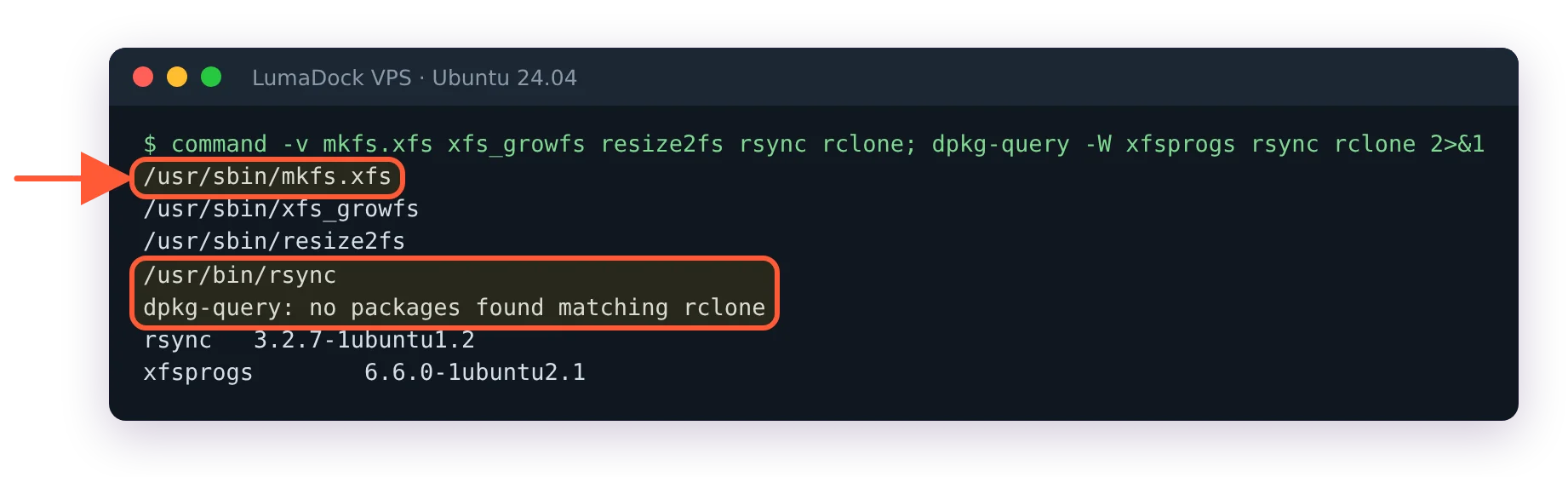
ext4 or XFS. Both are fine, both are in the Ubuntu kernel, and the difference for a multi-terabyte volume of large files is small enough that I'd pick XFS and not think about it again. XFS handles very large files and very large directories with less fuss, its allocation groups parallelise better on a big device, and it was designed for exactly this shape of storage. ext4 is the safer pick if you might need to shrink the filesystem later, since XFS can't shrink at all.
sudo mkfs.xfs -L bulk /dev/vdb
sudo mkdir -p /mnt/bulk
echo 'LABEL=bulk /mnt/bulk xfs defaults,noatime 0 2' | sudo tee -a /etc/fstab
sudo systemctl daemon-reload
sudo mount /mnt/bulk
noatime stops every read from becoming a metadata write, which on a media library saves a seek per file open. If the provider grows the volume later, xfs_growfs /mnt/bulk expands the filesystem online; the ext4 equivalent is resize2fs.
ZFS is the one people ask about and the one I'd leave alone inside a VM. Its strengths (checksums that self-heal from a mirror, snapshots, send/receive) mostly need ZFS to see the raw disks, and on a VPS it sees one virtual device that the provider's RAID already sits under. The OpenZFS hardware guide makes the general point that a RAID layer beneath ZFS "will limit opportunities for ZFS to perform self healing on checksum failures", and a virtual disk is that situation exactly: ZFS will detect a corrupt block and have no second copy to repair it from, unless you set copies=2 and halve your capacity. Add the ARC's appetite for RAM on a VM that was sized for storage, and ext4 or XFS plus a good backup is the better trade. On a dedicated server with the drives exposed, ZFS is a different conversation.