





.svg)
.svg)
.svg)
.svg)

.svg)
.svg)
.svg)


Updated and tested 29 September 2026
This page is a lookup table. Each heading is an error string or a symptom written the way you'd see it, such as E: Unable to locate package webmin, so use your browser's find function for the exact text in front of you, and under each heading is what the message means and the fix. Most Webmin troubleshooting is a matter of matching the message you got against the one thing that produces it, and the messages are less generic than they look. Nearly all of this applies to any distribution, with the per-OS and per-firewall splits marked where they differ.
Check if Webmin is running and listening
A good share of the reports on this page end here, so start with it before anything else. The systemd unit is webmin.service, and its status is the first thing to read:
systemctl status webminAn active (running) line means the daemon is up. Webmin's own CLI answers the same question and takes the other service actions too:
webmin server statusThe server subcommand accepts status, start, stop, restart, reload, force-restart, kill and stats, either positionally as above or through --command ACTION (stats works only positionally). Once you know the service state, check what's bound to the port:
ss -tulpn | grep 10000A line showing miniserv.pl against :10000 means Webmin is listening. An empty result means the daemon is down or Webmin has been moved, and webmin list-config --option port reads the configured port back out of /etc/webmin/miniserv.conf. Webmin runs a persistent miniserv.pl process with no socket activation involved, so absence from ss means it genuinely isn't running. A udp line on 10000 next to the tcp ones is Webmin's broadcast listener and is normal.
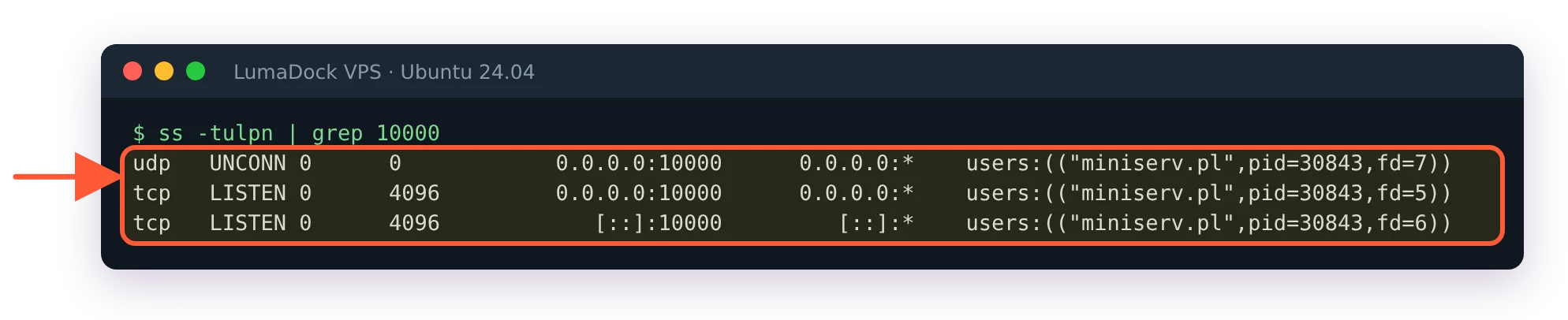
Two tcp lines for the web port, one udp line for Webmin's broadcast listener.
For logs, journalctl -u webmin gives you what systemd captured from the service. Every start logs a line like pam_unix(webmin:auth): authentication failure; ... user=root right before Webmin starting. That's Webmin checking PAM at startup, not somebody guessing your root password. Webmin's own logging is configured inside Webmin Configuration, on the Logging page.
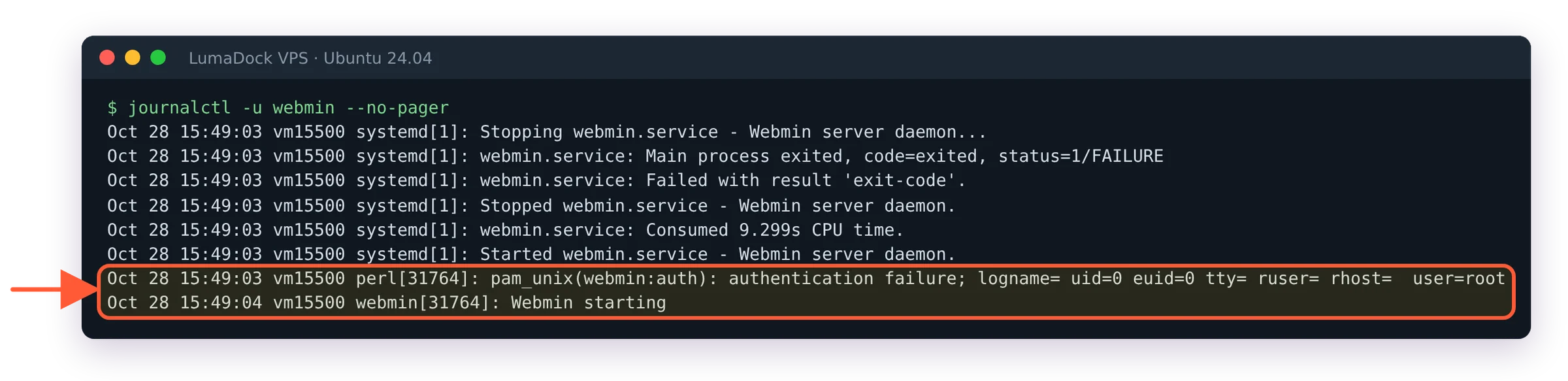
The pam_unix line at every start is Webmin's own PAM check, not an attack.
What Chrome and curl show when you can't connect to Webmin
Each failure below was produced on purpose on a test server with Webmin 2.670, then loaded in Chrome and with curl -k from another machine. Find the line that matches your screen, then jump to the section for its cause.
| Chrome shows | curl -k shows | Cause |
|---|---|---|
This site can't be reached, refused to connect, ERR_CONNECTION_REFUSED | curl: (7) ... Couldn't connect to server, within milliseconds | Webmin is stopped, or nothing listens on that port (it was moved) |
This site can't be reached, took too long to respond, ERR_CONNECTION_TIMED_OUT | curl: (28) Connection timed out | A firewall drops the port, on the server or in front of it |
This site can't provide a secure connection, sent an invalid response, ERR_SSL_PROTOCOL_ERROR | curl: (35) ... wrong version number | https:// to a Webmin running with ssl=0 |
| The login form loads over plain HTTP with a NOT SECURE banner | HTTP/1.0 200 Document follows | http:// to a Webmin running with ssl=0 |
The address bar switches to https:// and the page loads | HTTP/1.0 302 Moved Temporarily | http:// to a normal Webmin; nothing is wrong |
| A yellow Warning box: Login failed. Please try again. | Login failed. Please try again. | Wrong password, or the wrong account for this server |
Chrome shows the timeout only after a long white page, and curl without --max-time waited more than two minutes before giving up, so a timeout feels like a hang before it reads as an error.
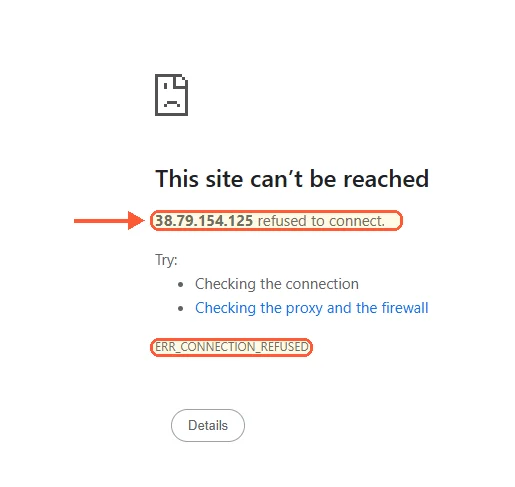
Webmin stopped: Chrome is refused straight away.
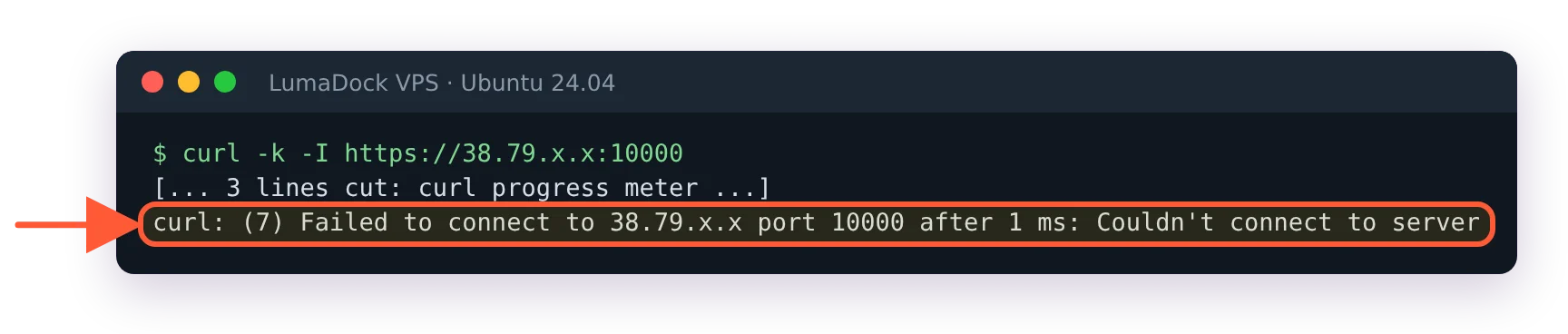
Webmin stopped: curl is refused within a millisecond.
E: Unable to locate package webmin
This is apt's generic message for a package name it can't find in any configured source, so it's not a Webmin bug and not a broken mirror. Webmin is simply not in Debian or Ubuntu. The Debian package tracker entry for webmin states "This package is not part of any Debian distribution" and still carries the news item recording its removal from testing in January 2006, and the only related hit in the Ubuntu archive is python3-webmin-xmlrpc, a client library with nothing to do with Webmin. Add the official repository, refresh the index and install:
curl -o webmin-setup-repo.sh https://raw.githubusercontent.com/webmin/webmin/master/webmin-setup-repo.sh
sudo sh webmin-setup-repo.sh
sudo apt-get update
sudo apt-get install webmin --install-recommends
The script refuses to run without root (must be run as root!), so keep the sudo.
Installing Webmin on Ubuntu 24.04 and installing Webmin on Debian take the same route with the per-distro detail filled in. Confirm with apt-cache policy webmin, which should now print a candidate version. If it still comes up empty, look at /etc/apt/sources.list.d/webmin-stable.list. That's the filename the current script writes, and a lot of older guides tell you to check webmin.list, which the script doesn't create. The matching keyring is at /usr/share/keyrings/ubuntu-webmin-developers.gpg on Ubuntu and /usr/share/keyrings/debian-webmin-developers.gpg on Debian, referenced by a signed-by= entry in the repo line. A guide that has you running apt-key add for Webmin is reproducing a pattern from years ago and you can ignore it. One thing this error is never about is your distro release being too new: the APT repository is a single flat suite called stable serving _all.deb packages, with no bookworm or trixie or noble split, so there's nothing to wait for.
Failed to open /etc/webmin/miniserv.conf
Something is trying to read a Webmin configuration directory that's not where it expects. The wording depends on the command. webmin disable-twofactor prints Failed to open /etc/webmin/miniserv.conf, list-config and set-config print Unable to open /etc/webmin/miniserv.conf., and webmin server or webmin passwd print Error: Failed to read Webmin essential config file: /etc/webmin/miniserv.conf doesn't exist. Same cause in all three. Start by looking:
ls -l /etc/webmin/miniserv.confIf the file is missing while the package still reports itself as installed, you're looking at a half-removed or failed install, and the full removal and rebuild described in the guide to reinstalling Webmin is the cleanest way out. Deleting fragments by hand tends to leave you with a stranger problem an hour later.
If the file is present and the CLI still complains, you're running a source or tar install's binary against the packaged default path. Point it at the right directory:
/usr/local/webmin/bin/webmin list-config --option port --config /path/to/webmin-configIt's fixed when that command returns a port number rather than the error. The config directory is /etc/webmin on every distribution for packaged installs; only the program directory differs, at /usr/share/webmin on Debian family and /usr/libexec/webmin on RHEL family.
The connection to https://YOUR_SERVER_IP:10000 timed out
Connection refused and connection timed out are different failures. Refused means the packet arrived and nothing was listening, which sends you back to the service check above. A timeout means the packet went into a filter somewhere and never came back. There are two filters to check.
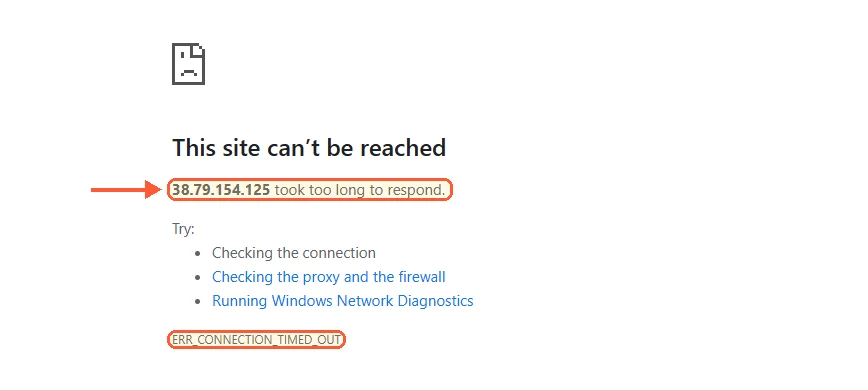
A firewall dropping the port: Chrome waits, then times out.
The host firewall
On Ubuntu, run ufw status first. LumaDock's Ubuntu 24.04 image ships with UFW inactive, and then UFW is not your timeout. With UFW enabled:
ufw allow 10000/tcp
ufw status
On AlmaLinux, Rocky or anything else running firewalld:
firewall-cmd --permanent --add-port=10000/tcp
firewall-cmd --reload
firewall-cmd --list-ports
If neither is in play, dump the raw ruleset with nft list ruleset and look for a drop rule that catches the port. Opening 10000 to the entire internet is the crude version of this fix, and restricting the source addresses at the same time is covered in the notes on hardening a Webmin install. The ufw status and firewall-cmd --list-ports lines above are what you read afterwards to confirm the rule landed.
The provider's network firewall
Cloud and VPS platforms run their own filtering in front of your instance, entirely separate from anything ufw status shows you, and this layer accounts for a lot of "I opened the port and it still times out" tickets. Log in to the provider panel and check that port 10000 is permitted inbound there as well. If you're moving Webmin off 10000 anyway, the Webmin port 10000 guide covers doing it without locking yourself out mid-change.
Test from somewhere other than the server itself, because a local curl proves nothing about the path in:
curl -k -I https://YOUR_SERVER_IP:10000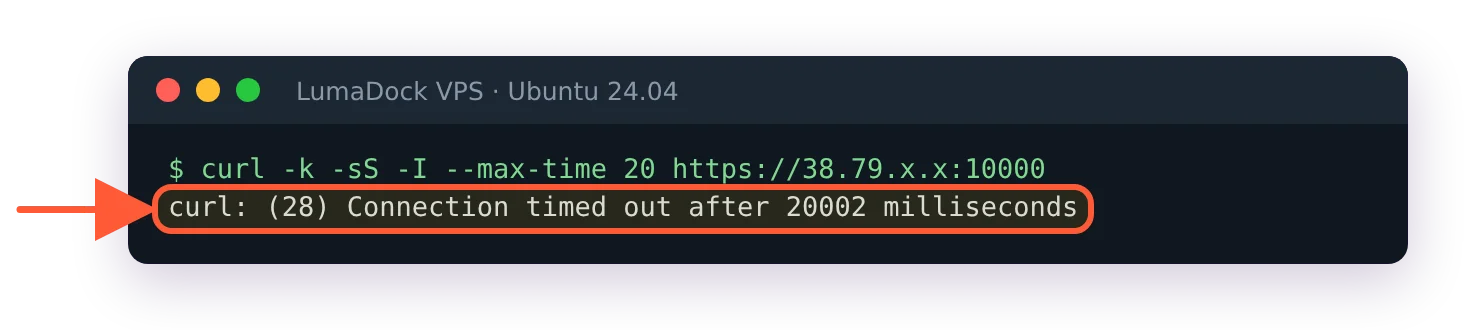
A firewall drop: no answer at all until curl gives up.
A response header, even an error one, means the port is reachable.
Webmin redirects to the server hostname instead of the domain
You type https://panel.example.com:10000, the browser bounces to https://vps-01:10000 and the load fails because that name resolves nowhere outside the machine. Webmin is building the redirect from its configured web server hostname. The field is on the Ports and Addresses page under Webmin Configuration, and its default, "Work out from browser", never causes this, so someone has typed a fixed name there. Put it back to that option, which suits a box answering to several names, or set the fully qualified name you use. If Webmin sits behind nginx or Apache, webmin enable-proxy prepares it for that and webmin disable-proxy puts it back to serving HTTPS itself.
The browser shows a certificate warning on first login
Expected behaviour on any fresh install. The setup generates a self-signed certificate so Webmin can speak HTTPS from the first boot, and no browser trusts a certificate it has never seen signed by anyone. Click through the warning once and log in. Replacing it is a job for Webmin Configuration, on the SSL Encryption page, whose last tab is SSL Provider.
An SSL or protocol error on port 10000
Different symptom, different cause. Here the browser reports that the site sent an invalid response or failed the protocol negotiation outright, with no certificate warning involved. Nearly always the ssl setting in miniserv.conf disagrees with the scheme you typed in the address bar.
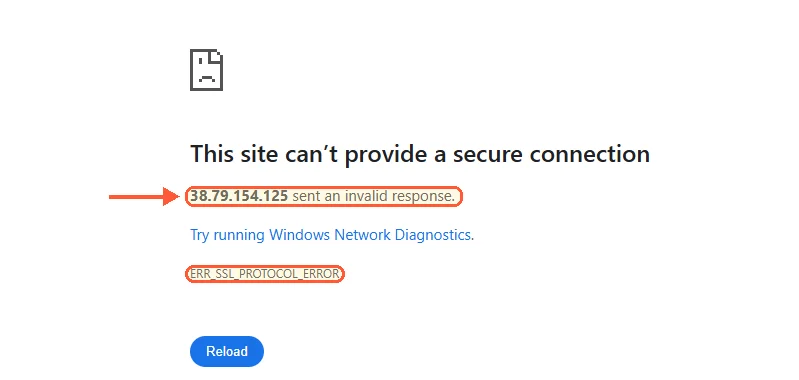
https:// against a Webmin running with ssl=0.
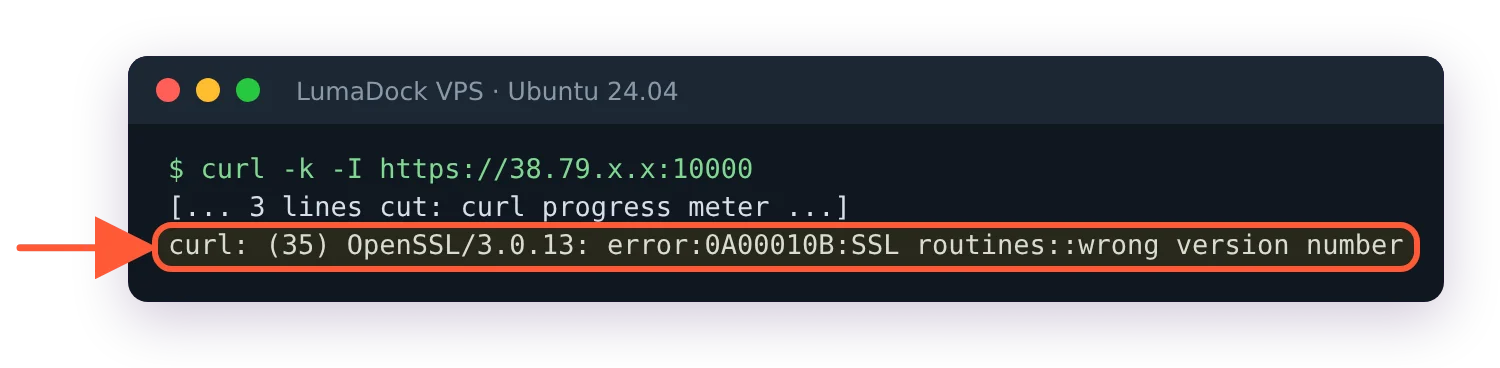
https:// against a Webmin serving plain HTTP: the TLS handshake gets an HTTP answer.
grep '^ssl=' /etc/webmin/miniserv.conf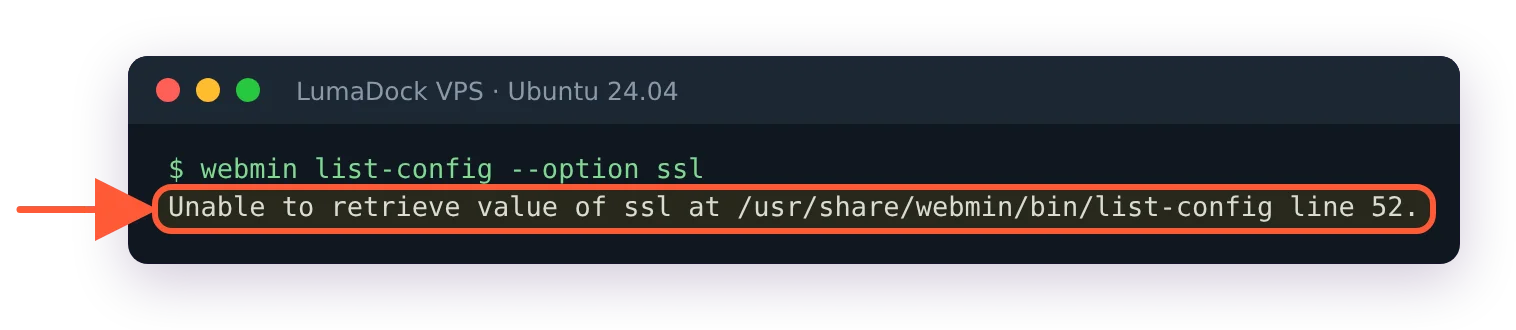
list-config can't print ssl when its value is 0; grep the file instead.
Use grep here, not webmin list-config --option ssl. The CLI prints 1 when SSL is on, but when the value is 0 it fails with Unable to retrieve value of ssl, which is exactly the case you're checking for. ssl=0 means Webmin is serving plain HTTP and your https:// request is being answered with something the browser can't parse (Chrome says the site "sent an invalid response"). Request http:// to get in, where the login form loads with a NOT SECURE banner, or turn SSL back on:
webmin set-config --option ssl --value 1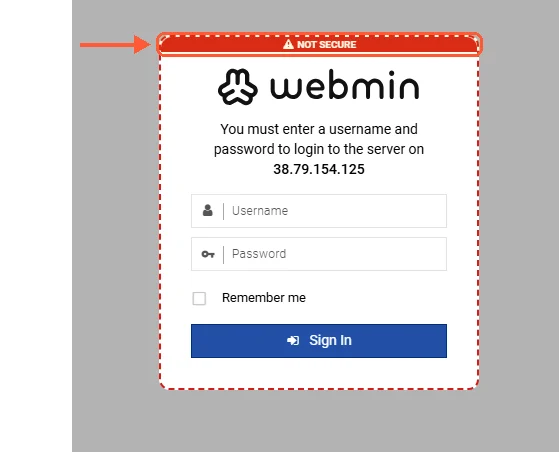
With ssl=0, the login form loads over http:// with a NOT SECURE banner.
That writes the value and restarts Webmin for you, which is the difference between set-config on a core option and on a module option. Editing miniserv.conf by hand works as well, and Webmin's own FAQ tells you to run /etc/webmin/restart afterwards so the daemon rereads it. When the service won't come back cleanly, /etc/webmin/restart-by-force-kill sits in the same directory for exactly that case.
Replacing the self-signed certificate makes the whole category go away, and a Let's Encrypt certificate for Webmin is the procedure, including which validation method works while Webmin is on 10000. The workflow lives on the SSL Provider tab in current Webmin. Older guides still call it a "Let's Encrypt tab" and that label has not existed for a while.
Login is rejected with credentials you believe are correct
Webmin has no default password to have got wrong, and the article on the Webmin default login and password unpicks the two causes that cover most of these. On a package install the root or admin account authenticates against the system account, so the password it wants is a Unix password. The first cause is a root account with no usable password, as on a stock Ubuntu install: sudo passwd -S root shows L or NP, root can never log in and you use your sudo user. (LumaDock's Ubuntu image gives root a password, shown as P, and there root logs in fine.) The second is a user configured with a Webmin-stored password, where the shell password and the Webmin password drifted apart at some point.
Five wrong passwords in a row from one address change the message to blocked because of too many authentication failures. That's Webmin's own lock, and it lifts after 60 seconds. Wait it out before you try the password you've just reset.
To reset from the shell, as root:
webmin passwd --user rootWebmin documents this path officially under changing a Webmin password when you can't log in. It prompts, writes the credential and needs no service restart afterwards.
Locked out after enabling two-factor authentication
Phone reset, seed gone, password accepted and then nothing.
webmin disable-twofactor --user rootRun that as root, naming the locked account after --user (it's required), and the second factor comes off the account, so the password alone gets you in and you can re-enrol from a device you still have. Check the version while you're there: releases before 2.640 had a second-factor hole on the HTTP basic authentication path, filed as CVE-2026-42210 and CVE-2026-56022, which is a bad thing to be running while you rebuild your 2FA setup.
webmin: command not found, or the CLI refusing to run
Two problems that arrive looking similar. command not found means the wrapper isn't on your PATH, which is normal for a source or tar install: call the binary directly at /usr/share/webmin/bin/webmin, /usr/libexec/webmin/bin/webmin or /usr/local/webmin/bin/webmin depending on where it was installed, and add --config as shown earlier. A refusal to run when the command clearly exists means you're not root. The Webmin CLI declines to operate as a non-root user, so prefix it with sudo and try again.
A third variant is a subcommand that doesn't exist. The official webmin command line reference carries the real forms, and webmin --list-commands --describe prints what your own build supports. webmin server restart is the documented form, and the shorter webmin restart works too on 2.670, whatever older answers say. There's no webmin version: it fails with Unrecognized subcommand: version, because the global flag --version handles that.
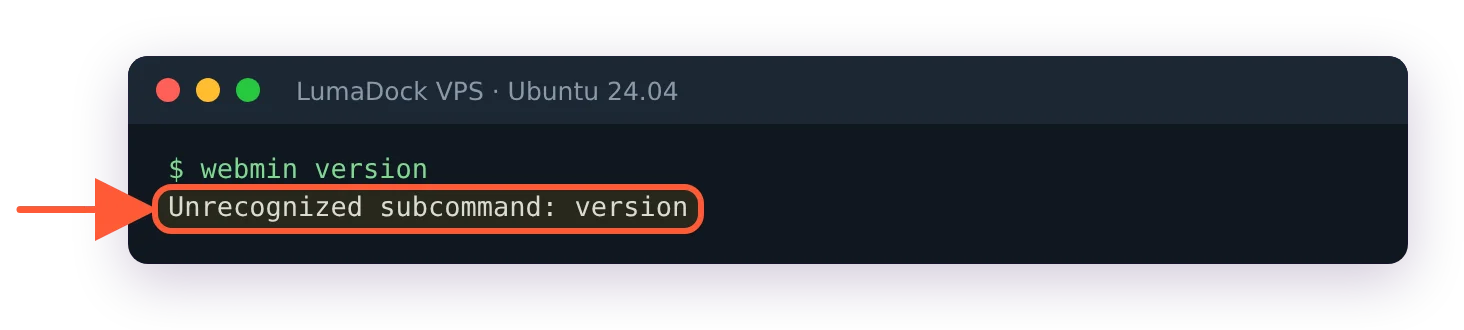
There's no version subcommand; the flag is --version.
Webmin runs but a module reports the wrong OS or missing packages
Webmin records the operating system it detected at install time and every module reads that record to decide which paths, init scripts and package names to use. Upgrade the distribution underneath it and the record goes stale, at which point modules start looking in the wrong places and reporting daemons as missing that are installed and running perfectly well.
The reset is inside Webmin Configuration, on the Operating System and Environment page, where you set the detected OS and release to what the machine now is. If a module reports a package as missing after that, install the daemon itself. Webmin configures services and doesn't bundle them.
A stale Webmin on a current OS produces the same class of confusion, so check the build before you chase module behaviour. Webmin 2.620 added support for the Ubuntu 26.04 development preview, and 2.650 brought in the Systemd Services and Units, GRUB 2 Boot Loader and Kea DHCP Server modules along with Alpine Linux support, so a build from a couple of years ago on a recent distribution will misreport plenty. This guide was tested on 2.670.
Some symptoms never resolve into a cause. A module that misbehaves once and then works, a login that fails and then doesn't, a service that reports itself down while ss shows it listening on 10000: I stopped trying to explain those from the symptom alone a long time ago. Upgrade to current, restart Webmin, then reproduce the thing deliberately with journalctl -u webmin running in a second terminal so there's something to read when it happens again. If it doesn't happen again, it doesn't happen again, and chasing a single occurrence off one screenshot is not a good use of an evening.

