Back to Article List

Pi-hole v6 complete guide

Pi-hole v6 complete guide

Pi-hole is a DNS server you run yourself and point your devices at. When a device asks it for the address of an ad or tracking domain, it answers with nothing instead of the real address, so the ad never loads, in every app and every browser on that device, without an extension. The project calls this a DNS sinkhole. It runs on anything from a Raspberry Pi to a container, and version 6, released on 18 February 2025, moved the web interface and the whole configuration into the DNS daemon itself.

Everything below shares one setup: a Debian 12 VPS, Pi-hole listening only on a WireGuard interface, port 53 closed to the internet. A Pi at home does the same job with less of this page applying to it.

What Pi-hole does with a DNS query

A query arrives from a client. Pi-hole checks its cache first and answers from it if the name is known. If not, it checks the name against gravity, which is the merged, deduplicated set of domains from every blocklist you subscribe to, plus your own deny and allow entries. A match gets a block reply. Anything else is forwarded to an upstream resolver, which is a public DNS provider you chose at install or an Unbound instance on the same machine, and the answer is cached on the way back so the next client asking for the same name gets it without a round trip.

The block reply is what makes Pi-hole different from a browser extension. In the default mode, called NULL, a blocked A query returns 0.0.0.0 and a blocked AAAA query returns ::, the unspecified address, and the client has nowhere to connect to. No block page is needed, and the browser doesn't sit waiting on an HTTPS connection to a server that will never answer. Four other modes exist (IP, IP with no AAAA data, NODATA and NXDOMAIN, which the config spells NX) and the documentation explains when each one helps, but NULL is the default and the recommended choice.

Pi-hole only sees the queries that reach it. A device with a hard-coded resolver or an app that does its own DNS over HTTPS never asks Pi-hole and is never blocked. Most "Pi-hole isn't blocking X" questions live on that boundary.

What changed in Pi-hole v6

The v6 announcement lists the changes; the ones that matter day to day are these. The web interface and a REST API now live inside the pihole-FTL binary, so lighttpd and PHP are gone from the install. All configuration moved into one file, /etc/pihole/pihole.toml, which replaced setupVars.conf, pihole-FTL.conf and the /etc/dnsmasq.d snippets v5 users edited by hand. HTTPS is built in, with a self-signed certificate created at install. Subscribed allowlists (the project calls them Antigravity) work like blocklists in reverse. The settings page has a Basic and an Expert mode and the Docker image moved to Alpine. One more change the announcement doesn't list but the configuration reference does: FTL is an NTP server by default now (ntp.ipv4.active and ntp.ipv6.active both default to true), on port 123.

A few v5 habits break. pihole -a -p became pihole setpassword. pihole -w and pihole -b became pihole allow and pihole deny. pihole restartdns is gone and the service is restarted with sudo service pihole-FTL restart, while pihole reloaddns reloads lists and flushes the cache without a restart. Files in /etc/dnsmasq.d are ignored until you set misc.etc_dnsmasq_d to true. Every one of those changes, the migration backup directory and the order to do things in are in upgrade Pi-hole from v5 to v6 on a server. The short version: pihole -up performs a one-way migration, and a Teleporter export comes before it.

The config file deserves its own mention because it behaves unlike a config file people are used to. FTL owns pihole.toml: it writes the file, annotates every non-default value with a ### CHANGED comment, watches it for edits, applies a valid hand edit on its own and throws an invalid one away, rewriting the file with the last good configuration. The supported way to change a value is sudo pihole-FTL --config key.name value, which validates before writing. How that works, which keys restart FTL and why a Docker environment variable makes a key read-only are in the pihole.toml explainer. A nano edit still works, as long as the result is valid.

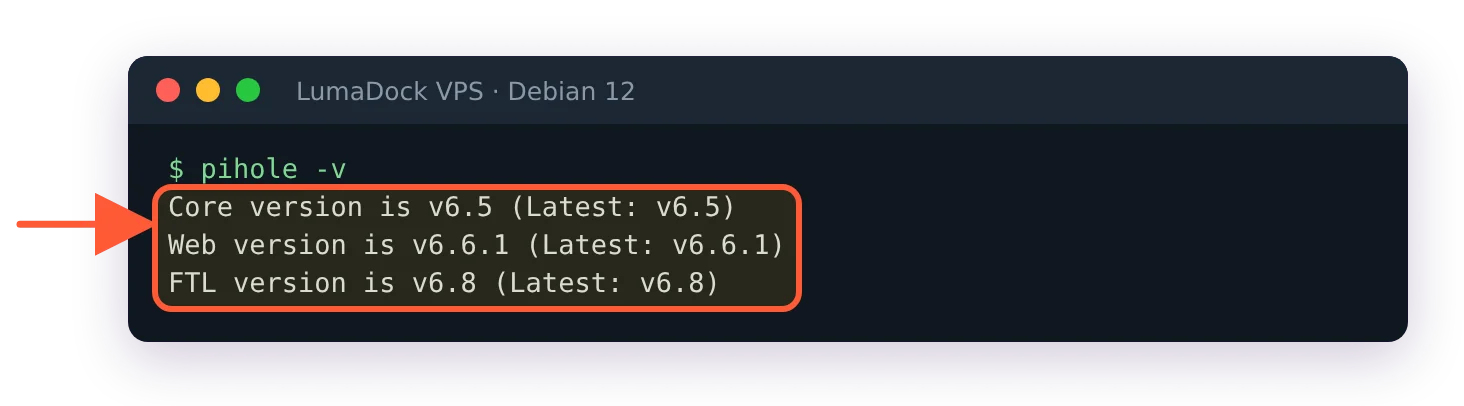
Versions, for anyone reading this later: FTL is at v6.8 at the time of writing, Core at v6.5 and Web at v6.6.1. The FTL v6.7.1 release of 19 September 2026 is a security release, and since then misc.dnsmasq_lines and webserver.advancedOpts can only be set in pihole.toml, through an environment variable or with pihole-FTL --config; the API and the web interface refuse to change them.

Where to run Pi-hole

The prerequisites page lists 512 MB of RAM, 2 GB of free disk and a static address. The supported systems are Debian, Ubuntu, Fedora, CentOS Stream, Alpine, Armbian and Raspberry Pi OS. That rules nothing out. The real question is who the Pi-hole is for.

Where it runsDevices it servesWhat's exposedWeak point
Raspberry Pi at homeEverything on the LAN, via the router's DNS settingNothing outside the LAN, as long as the router never forwards port 53Phones lose blocking the moment they leave the Wi-Fi
VPS over WireGuardAny device holding a peer config, on any networkOne UDP port for WireGuard; DNS and the admin page answer on the tunnel onlyOne wrong firewall rule turns it into an open resolver
Docker on a server you already runWhatever that host's network reachesThe ports the compose file publishesThe official compose example uses listening mode ALL on a bridge network, leaving the host firewall as the only guard

The home Pi is the classic, and for devices that stay in the house it's the right answer. The VPS is for a phone and a laptop that spend their day on other people's networks. I think a VPS behind WireGuard is the correct home for that Pi-hole, because a home Pi stops blocking the moment the phone leaves Wi-Fi, and fixing that from home means running a VPN into the house anyway.

The project's position on public resolvers is blunt: a Pi-hole that answers port 53 on a public address is an open resolver, usable for DNS amplification attacks against other people, and the Pi-hole team declines to support that setup. On a VPS the tunnel is the design, and every article in this series assumes it.

Where the VPS sits matters more than for a web server, because DNS latency is paid per query and never amortised. Pick a location near the devices that will use it, then build the server half of the VPN with the WireGuard server install on Debian 12; the server side is a package, two keys and one file. The client half, and the three shapes a client config can take depending on how much traffic you want in the tunnel, is in the DNS-only split tunnel article. Neither side needs IPv6 inside the tunnel.

Trusted worldwide

Deploy across the globe

UK
UK
London
germany
Germany
Frankfurt
united_states
United States
New York
netherlands
Netherlands
Amsterdam
france
France
Paris
Finland
Finland
Helsinki
poland
Poland
Warsaw
romania
Romania
Bucharest
spain
Spain
Madrid
italy
Italy
Milan

Install Pi-hole on Debian 12

One command, run as a user with sudo:

curl -sSL https://install.pi-hole.net | bash

The installer asks which interface to listen on, which upstream resolver to use, if you want the one default blocklist and how much to log. Before those questions come three information screens, and the third, Static IP Needed, has Exit highlighted, so Enter there ends the install; move to Continue first. At the end it prints a random password for the web interface, which you change with sudo pihole setpassword. On a VPS the interface answer is wg0, which has to exist before the installer runs, and two settings get changed straight after: dns.listeningMode to SINGLE so FTL only answers queries that arrived on the tunnel, and webserver.port bound to the tunnel address so the login page isn't on the public IP. That second change needs misc.delay_startup as well, because FTL starts before wg0 on every boot and would otherwise come up with no web interface. Those two changes, the nftables and ufw rules, the installer dialogs and the first test are the whole of Pi-hole v6 on a VPS behind WireGuard. It assumes the WireGuard server from the article above and uses its addresses, 10.100.0.1 for the server and 10.100.0.2 for the first client, so the two can be followed one after the other.

Where systemd-resolved runs, it holds port 53 before Pi-hole arrives. That's the case on Ubuntu 24.04 and on LumaDock's Debian 12 image, and the installer handles it itself: it writes a drop-in that turns the stub listener off.

Blocklists in Pi-hole v6

The installer offers exactly one list, StevenBlack's unified hosts file. Everything beyond that is your choice, added in the web interface under Group Management and then Lists, where a list is a URL plus a type, block or allow. The installer's own wording is that Pi-hole "relies on third party lists" and that you can add your own after installation; it suggests no other list, and neither does this page. A list is a trust decision about whoever maintains it, and a bad one blocks things you need with no error message anywhere.

Gravity is the job that fetches every subscribed list, merges them and writes the result into /etc/pihole/gravity.db. It runs on its own once a week and on demand with pihole -g. A list URL that stops working shows up in that command's output, and until gravity succeeds at least once a fresh install blocks nothing.

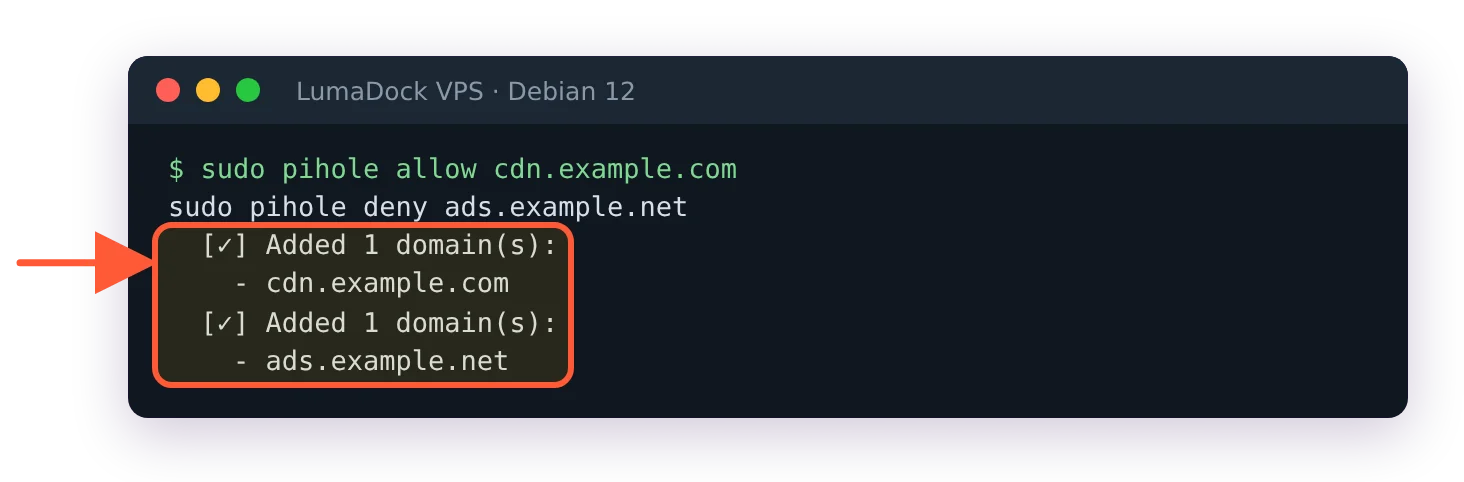
Single domains go on the allowlist or the denylist, from the web interface or the command line:

sudo pihole allow cdn.example.com
sudo pihole deny ads.example.net

pihole allow cdn.example.com and pihole deny ads.example.net, each answered Added 1 domain(s)

pihole allow and pihole deny confirm each entry they add.

Both take several domains at once, both reload FTL when they finish and both accept remove (or -d) to take an entry out again. Regex and wildcard variants exist for patterns. Allowing a domain is how you unbreak a site that a list caught by mistake: find the name in the Query Log, allow it, reload the page.

Client groups in Pi-hole v6

Every client and every domain belongs to a group, and a list or a domain entry only applies to clients in the same group. New clients and new entries land in the Default group, id 0, so until you create a second group every rule applies to everyone. Groups are for the exception: a child's tablet with a stricter list, a work laptop that needs a tracker allowed, a TV that gets no blocking at all because its apps break. On a VPS behind WireGuard, clients are identified by their tunnel address, 10.100.0.2 and up, so each peer config is also a client identity.

A home router added as a single WireGuard peer carries its whole LAN behind one tunnel address, so Pi-hole sees one client, and FTL's per-client rate limit of 1000 queries per 60 seconds applies to the whole household at once. The two keys that raise or disable it are in the install article.

Admin interface, passwords, REST API

The web interface is at http://pi.hole/admin/ on any device that uses the Pi-hole for DNS, and at http://<address>/admin/ from anywhere else that can reach the port. The trailing /admin/ is required; the bare address returns a 404 (a 403 before FTL v6.8) unless the browser sent pi.hole as the host name. If port 80 or 443 was taken by another web server when Pi-hole first started, FTL fell back to 8080 and 8443, and a page that refuses to load on a server that also runs nginx or Caddy is usually that. Those cases, the v5 lighttpd leftover and a login page that keeps reloading are taken apart in the pi.hole/admin troubleshooting page. On the VPS build the page only opens with the tunnel up, by design.

The password is the one the installer printed, or whatever you set after. It's stored as a hash in webserver.api.pwhash, never in clear, and a lost one is replaced with sudo pihole setpassword. 2FA is a TOTP secret, and an application password exists for scripts that shouldn't hold the real one. The password reset page has each of those in a few lines. Members of the pihole group skip the password on the command line, which matters more in v6 than it did, because every pihole command now talks to the API.

That API is the other half of the rewrite. It lives under /api, documents itself at /api/docs on your own install, and takes a session id from POST /api/auth. The docs accept it in a header, a cookie, the URL or the payload; for a script, use the X-FTL-SID header or ?sid= in the URL, because a bare cookie sent from curl gets a 401. Everything the web interface does goes through it, so anything you can click you can script.

Unbound as the upstream

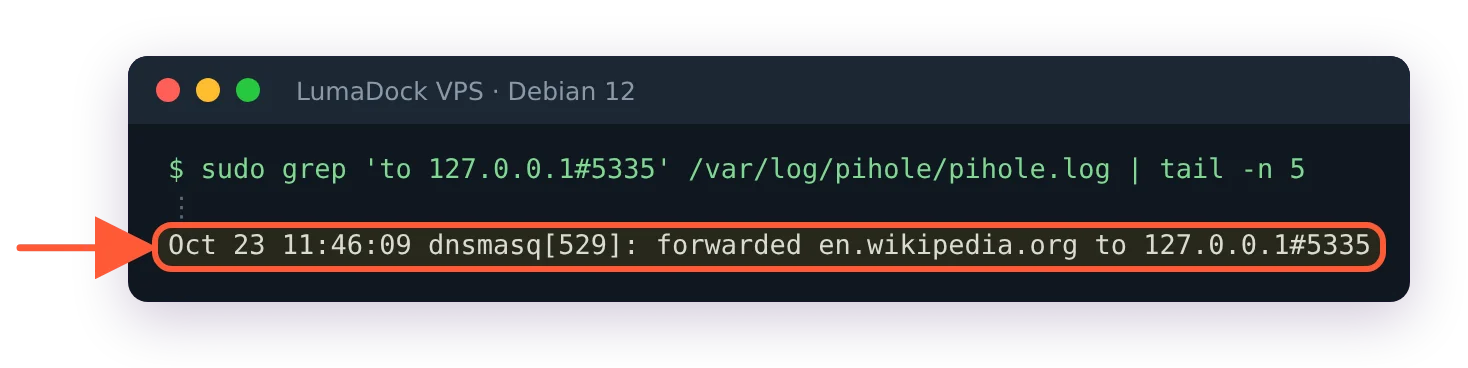
Out of the box Pi-hole forwards to a public resolver, which means that provider sees every name your devices ask for. Unbound on the same machine replaces it with a recursive resolver that asks the root servers, then the TLD servers, then the authoritative servers itself, on port 5335 of the loopback address. First lookups get slower and nobody outside sees the whole picture. The Pi-hole docs publish the exact Unbound config to use and a Debian-specific trap that rewrites /etc/resolv.conf; both are worked through in the Unbound on the same VPS guide. DNSSEC stays off on the Pi-hole side when Unbound validates, and that page says why.

pihole.log line: forwarded en.wikipedia.org to 127.0.0.1#5335

Queries from the tunnel now go to Unbound on 127.0.0.1#5335.

Your idea deserves better hosting

24/7 support 30-day money-back guaranteeRefund covers the VPS plan on your first order. Cancel anytime
Számlázási ciklus

VPS.S1

€5.35 Save  17 %
€4.45 havonta
  • 2 vCPU AMD EPYC
  • 2 GB RAMMEMÓRIA
  • 30 GB NVMeTÁRHELY
  • Korlátlan sávszélesség
  • IPv4 & IPv6Az IPv6 támogatás jelenleg nem érhető el Franciaországban, Finnországban vagy Hollandiában. mellékelve

VPS.S3

€13.38 Save  33 %
€8.92 havonta
  • 4 vCPU AMD EPYC
  • 6 GB RAMMEMÓRIA
  • 70 GB NVMeTÁRHELY
  • Korlátlan sávszélesség
  • IPv4 & IPv6Az IPv6 támogatás jelenleg nem érhető el Franciaországban, Finnországban vagy Hollandiában. mellékelve

VPS.S4

€17.84 Save  20 %
€14.27 havonta
  • 6 vCPU AMD EPYC
  • 8 GB RAMMEMÓRIA
  • 80 GB NVMeTÁRHELY
  • Korlátlan sávszélesség
  • IPv4 & IPv6Az IPv6 támogatás jelenleg nem érhető el Franciaországban, Finnországban vagy Hollandiában. mellékelve

EPYC VPS.P1

€8.02 Save  22 %
€6.24 havonta
  • 2 vCPU AMD EPYC
  • 4 GB RAMMEMÓRIA
  • 40 GB NVMeTÁRHELY
  • Korlátlan sávszélesség
  • IPv4 & IPv6Az IPv6 támogatás jelenleg nem érhető el Franciaországban, Finnországban vagy Hollandiában. mellékelve
  • Ingyenes auto mentésEgy mentési helyet tartalmaz, amelyet napi, heti vagy havi futásra állíthatsz be.

EPYC VPS.P2

€15.16 Save  24 %
€11.59 havonta
  • 2 vCPU AMD EPYC
  • 8 GB RAMMEMÓRIA
  • 80 GB NVMeTÁRHELY
  • Korlátlan sávszélesség
  • IPv4 & IPv6Az IPv6 támogatás jelenleg nem érhető el Franciaországban, Finnországban vagy Hollandiában. mellékelve
  • Ingyenes auto mentésEgy mentési helyet tartalmaz, amelyet napi, heti vagy havi futásra állíthatsz be.

EPYC VPS.P4

€26.76 Save  23 %
€20.52 havonta
  • 4 vCPU AMD EPYC
  • 16 GB RAMMEMÓRIA
  • 160 GB NVMeTÁRHELY
  • Korlátlan sávszélesség
  • IPv4 & IPv6Az IPv6 támogatás jelenleg nem érhető el Franciaországban, Finnországban vagy Hollandiában. mellékelve
  • Ingyenes auto mentésEgy mentési helyet tartalmaz, amelyet napi, heti vagy havi futásra állíthatsz be.

EPYC VPS.P5

€35.69 Save  25 %
€26.77 havonta
  • 8 vCPU AMD EPYC
  • 16 GB RAMMEMÓRIA
  • 180 GB NVMeTÁRHELY
  • Korlátlan sávszélesség
  • IPv4 & IPv6Az IPv6 támogatás jelenleg nem érhető el Franciaországban, Finnországban vagy Hollandiában. mellékelve
  • Ingyenes auto mentésEgy mentési helyet tartalmaz, amelyet napi, heti vagy havi futásra állíthatsz be.

EPYC VPS.P6

€53.54 Save  25 %
€40.15 havonta
  • 8 vCPU AMD EPYC
  • 32 GB RAMMEMÓRIA
  • 200 GB NVMeTÁRHELY
  • Korlátlan sávszélesség
  • IPv4 & IPv6Az IPv6 támogatás jelenleg nem érhető el Franciaországban, Finnországban vagy Hollandiában. mellékelve
  • Ingyenes auto mentésEgy mentési helyet tartalmaz, amelyet napi, heti vagy havi futásra állíthatsz be.

EPYC VPS.P7

€62.46 Save  29 %
€44.61 havonta
  • 16 vCPU AMD EPYC
  • 32 GB RAMMEMÓRIA
  • 240 GB NVMeTÁRHELY
  • Korlátlan sávszélesség
  • IPv4 & IPv6Az IPv6 támogatás jelenleg nem érhető el Franciaországban, Finnországban vagy Hollandiában. mellékelve
  • Ingyenes auto mentésEgy mentési helyet tartalmaz, amelyet napi, heti vagy havi futásra állíthatsz be.

Genoa VPS.G2

€22.30 Save  20 %
€17.84 havonta
  • 2 vCPUAMD EPYC Genoa 4. generációs 9xx4 3,25 GHz-en vagy hasonló, Zen 4 architektúrán. AMD EPYC G4
  • 4 GB DDR5MEMÓRIA
  • 50 GB NVMeTÁRHELY
  • Korlátlan sávszélesség
  • IPv4 & IPv6Az IPv6 támogatás jelenleg nem érhető el Franciaországban, Finnországban vagy Hollandiában. mellékelve
  • Ingyenes auto mentésEgy mentési helyet tartalmaz, amelyet napi, heti vagy havi futásra állíthatsz be.

Genoa VPS.G4

€40.15 Save  22 %
€31.23 havonta
  • 4 vCPUAMD EPYC processzor dedikált vCPU magokkal, vállalati szerverhardveren. AMD EPYC G4
  • 8 GB DDR5MEMÓRIA
  • 100 GB NVMeTÁRHELY
  • Korlátlan sávszélesség
  • IPv4 & IPv6Az IPv6 támogatás jelenleg nem érhető el Franciaországban, Finnországban vagy Hollandiában. mellékelve
  • Ingyenes auto mentésEgy mentési helyet tartalmaz, amelyet napi, heti vagy havi futásra állíthatsz be.

Genoa VPS.G6

€80.31 Save  22 %
€62.46 havonta
  • 8 vCPUAMD EPYC processzor dedikált vCPU magokkal, vállalati szerverhardveren. AMD EPYC G4
  • 16 GB DDR5MEMÓRIA
  • 200 GB NVMeTÁRHELY
  • Korlátlan sávszélesség
  • IPv4 & IPv6Az IPv6 támogatás jelenleg nem érhető el Franciaországban, Finnországban vagy Hollandiában. mellékelve
  • Ingyenes auto mentésEgy mentési helyet tartalmaz, amelyet napi, heti vagy havi futásra állíthatsz be.

Genoa VPS.G7

€142.78 Save  22 %
€111.55 havonta
  • 8 vCPUAMD EPYC processzor dedikált vCPU magokkal, vállalati szerverhardveren. AMD EPYC G4
  • 32 GB DDR5MEMÓRIA
  • 250 GB NVMeTÁRHELY
  • Korlátlan sávszélesség
  • IPv4 & IPv6Az IPv6 támogatás jelenleg nem érhető el Franciaországban, Finnországban vagy Hollandiában. mellékelve
  • Ingyenes auto mentésEgy mentési helyet tartalmaz, amelyet napi, heti vagy havi futásra állíthatsz be.

AMD Ryzen VPS.R1

€15.16 Save  18 %
€12.49 havonta
  • 1 dedikált CPU AMD Ryzen 9 7950X 4,5 GHz-en vagy hasonló, Zen 4 architektúrán. vCPU
  • 4 GB DDR5MEMÓRIA
  • 50 GB NVMeTÁRHELY
  • Korlátlan sávszélesség
  • IPv4 & IPv6 mellékelve Az IPv6 támogatás jelenleg nem érhető el Franciaországban, Finnországban vagy Hollandiában.
  • Auto mentés mellékelve

AMD Ryzen VPS.R2

€26.76 Save  17 %
€22.30 havonta
  • 2 dedikált CPU AMD Ryzen 9 7950X 4,5 GHz-en vagy hasonló, Zen 4 architektúrán. vCPU
  • 8 GB DDR5MEMÓRIA
  • 100 GB NVMeTÁRHELY
  • Korlátlan sávszélesség
  • IPv4 & IPv6 mellékelve Az IPv6 támogatás jelenleg nem érhető el Franciaországban, Finnországban vagy Hollandiában.
  • Auto mentés mellékelve

AMD Ryzen VPS.R4

€98.16 Save  18 %
€80.31 havonta
  • 8 dedikált CPU AMD Ryzen 9 7950X 4,5 GHz-en vagy hasonló, Zen 4 architektúrán. vCPU
  • 32 GB DDR5MEMÓRIA
  • 400 GB NVMeTÁRHELY
  • Korlátlan sávszélesség
  • IPv4 & IPv6 mellékelve Az IPv6 támogatás jelenleg nem érhető el Franciaországban, Finnországban vagy Hollandiában.
  • Auto mentés mellékelve

*VAT excluded.

INCLUDED WITH EVERY PLAN

✓ No setup fees ✓1 Gbps network
✓ Full root access on KVM ✓ Free server monitoring ✓ Firewall management ✓24/7 support

Keeping Pi-hole running

Update and back up

pihole -up updates all three components, and pihole -up --check-only tells you what it would do without updating any component (it does refresh Pi-hole's dependency package on the way). pihole -v prints what's installed. The docs ask you to read the release notes before updating, especially across a major version.

pihole -v: Core version v6.5, Web version v6.6.1, FTL version v6.8, each with the latest available version

pihole -v prints each component with the latest available version.

Teleporter is the backup. From the web interface it's Settings and then Teleporter; from the shell it's sudo pihole-FTL --teleporter, which writes a zip named after the host into the current directory. The archive holds pihole.toml, the lists, the domains, the groups and the clients, and it does not hold query history, which lives in /etc/pihole/pihole-FTL.db and needs a separate SQLite backup if you want it. A cron line, the API route for fetching the archive over the tunnel and the restore command are in back up Pi-hole v6 with Teleporter. Since FTL v6.7.1 an imported archive goes through the same validators as a config edit, so an archive carrying a value the validators refuse is no longer applied as it is.

When something breaks

Start with the two logs. /var/log/pihole/FTL.log is the daemon and /var/log/pihole/pihole.log is the query log, which pihole -t tails live. Right after the install FTL.log can stay nearly empty until FTL restarts for the first time; journalctl -u pihole-FTL has its messages until then. Most failures announce themselves there in a fixed string: a port 53 conflict, a dependency the installer couldn't fetch, a list that failed to download, a config edit that was discarded. Each string, which log it lives in and its fix are collected in Pi-hole v6 errors and how to fix them. That page ends on pihole -d, which generates the debug log the project's forum asks for.

Two situations look like failures and aren't. A client that resolves fine but shows no blocking is usually using another resolver, which is a client problem, and the checks that separate the two, from dig @10.100.0.1 through a deny-list test to an external query that must time out, are in the Pi-hole test checklist. And a tunnel that handshakes while DNS still goes to the ISP is a leak, which why DNS still leaks past Pi-hole over WireGuard takes apart cause by cause. All of the causes sit on the device: a browser's own DNS over HTTPS, Android's Private DNS, iCloud Private Relay, a missing DNS line in the peer config.

What Pi-hole can't block

Ads served from the same domain as the content. YouTube is the example everyone asks about: the video and the ad come from the same hostnames, so a DNS block that stops the ad stops the video too, and Pi-hole has no way to tell them apart because it never sees a URL, only a name. The same applies wherever a service serves ads from its own domains, which is common in streaming apps and mobile games. A browser extension that sees the page can remove those; a DNS sinkhole can't, and any list that claims to has broken something else to get there.

Apps that bring their own resolver. A device with Android's Private DNS pointed at a provider sends its queries to that provider over DNS over TLS and never asks the tunnel's resolver. A browser with DNS over HTTPS forced on does the same. Pi-hole does what it can for the cooperative cases: three keys under dns.specialDomains in the FTL configuration reference, all on by default, make it answer Firefox's canary domain so Firefox leaves DoH off and block the two iCloud Private Relay hostnames so Apple falls back to normal DNS; the third answers resolver.arpa with nothing so devices can't discover a designated resolver and walk around it. A setting a user turned on by hand is outside that; it has to be turned off on the device.

And anything that didn't come through DNS at all: an ad loaded from an IP address, a tracker inside a first-party request, a hard-coded endpoint. Watch the query log while an app runs and you'll see exactly which names it asks for, which is the fastest way to find out which of the three cases you're looking at:

pihole -t

Questions?

Can I run Pi-hole on Windows?

Not directly: every system on the supported list is a Linux distribution, and the prerequisites page warns that Pi-hole may not work on anything else. On a Windows machine people run the Docker image under Docker Desktop, which puts the container inside a Linux virtual machine such as WSL 2. I haven't tested that route, and I think a desktop that sleeps and reboots for updates is a poor home for a household's DNS. A Raspberry Pi or a small Linux VPS is the supported way to run it.

Barry Sandford
About the author

Barry Sandford

Barry spent nearly 15 years in network engineering, mostly with UK hosting providers and regional ISPs. He worked in NOC operations and network design, including infrastructure migrations, and still keeps a lab environment at home to test configurations before he writes about them. His favorite topics tend to be the parts of infrastructure that become visible when something goes wrong: routing, DNS, address planning, firewalls and connectivity between systems that each appear fine on their own. IPv6 has been running on his home network for years. Barry lives in West Yorkshire, has an allotment, follows non-league football and does quite a lot of walking, usually with an OS map folded into a pocket.

Deploy your next project in seconds

Bring your winning ideas online faster, with modern hardware and unmetered bandwidth. Join a European cloud trusted by thousands of developers and businesses worldwide.