





.svg)
.svg)
.svg)
.svg)

.svg)
.svg)
.svg)


Updated and tested 27 October 2026
A forgotten Portainer password feels worse than most lockouts because the thing you're locked out of controls everything else on the server. The calm news: if you have SSH access to the machine, Portainer ships an official reset tool that runs as a throwaway container, and the whole recovery takes five minutes. No SSH access, no reset, by design; the disk is the proof of ownership here.
Portainer default login (settling this first)
A chunk of the people searching this topic are hoping for a factory login, so: there is no Portainer default username or password. Nothing like admin/admin or admin/portainer exists to try. The admin account is created by whoever first opened the UI after install, within that five-minute window the install guide describes. On a fresh instance nobody's claimed yet, browsing to :9443 offers you the account-creation screen directly (or the timeout screen if the window lapsed); since version 2.43 that screen also asks for the setup token that docker logs portainer prints. On an instance someone HAS claimed, the reset below is the road, credentials guessing is not.
Reset the admin password with the helper container
Portainer's own reset-admin documentation ships this flow, and it's the one I trust because it edits the database with the project's own code rather than someone's SQL snippet.
Stop Portainer
docker stop portainerThe reset tool needs exclusive access to the database, so this step is not optional. Your other containers keep running; only the management UI pauses.
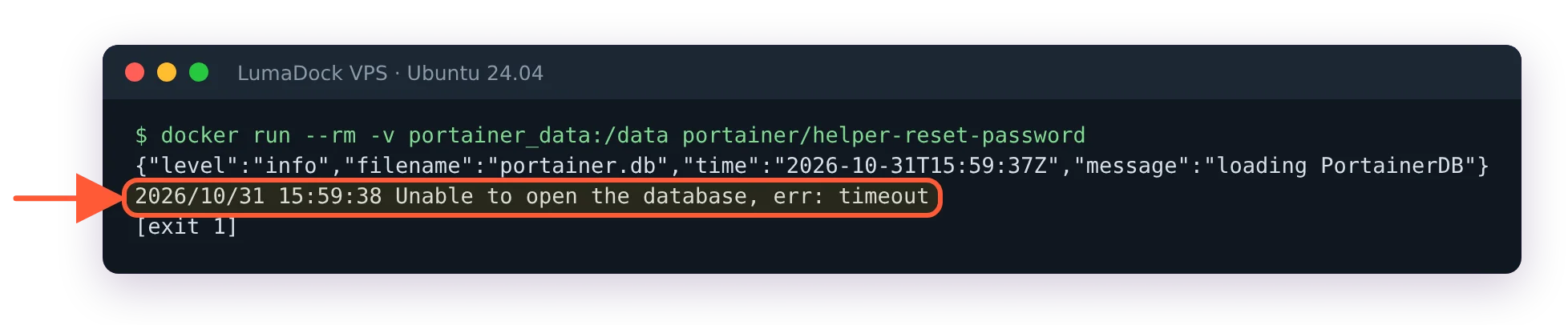
I ran the reset tool once with Portainer still up: it waited for the database and gave up with a timeout.
Run the reset tool against the data volume
docker pull portainer/helper-reset-password
docker run --rm -v portainer_data:/data portainer/helper-reset-password
The volume name is the one assumption: portainer_data if you installed the standard way. Different name or a bind mount? Point the -v at yours (docker volume ls lists candidates, and docker inspect portainer shows exactly what the container mounts at /data). The tool prints its result in plain text:
Password successfully updated for user: admin
Use the following password to login: <generated password>
Copy that generated password somewhere immediately; it's shown once. A useful bonus behavior: on an instance where no admin user exists at all, the tool creates one and prints its credentials, which quietly makes this the recovery for a couple of stranger situations too.
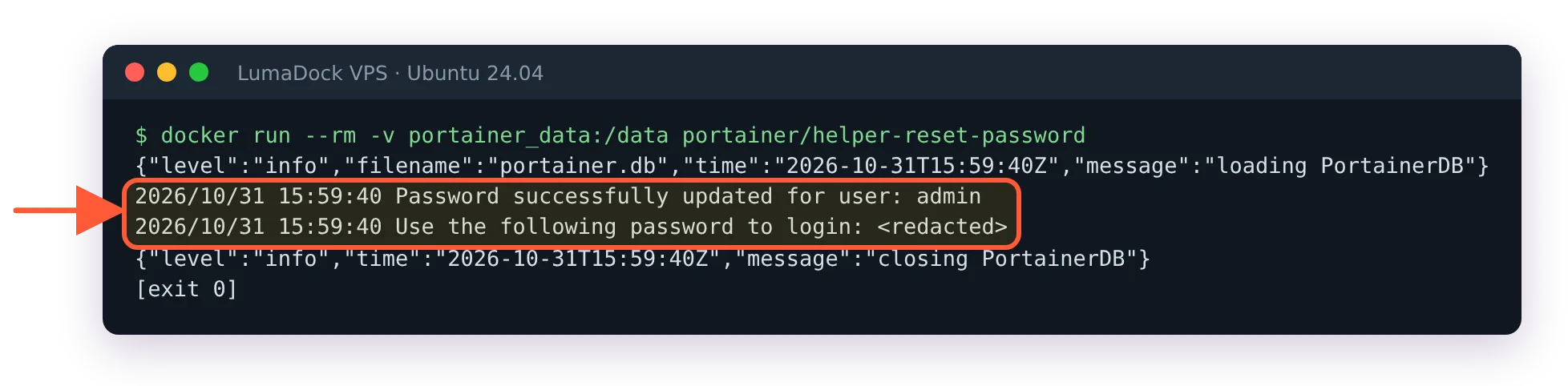
With Portainer stopped the tool rewrote the admin password at once; on my server each line came with a timestamp, and I hid the password.
Start Portainer and log in
docker start portainerLog in as admin with the generated password, then change it to something from your password manager right away, since the generated one is now sitting in your terminal scrollback (the tool printed it and you never typed it, so it isn't in your shell history; run clear once you've changed it).
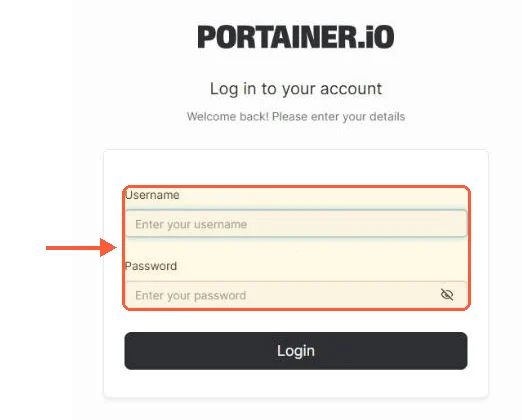
The normal login page again: admin plus the generated password got me in on the first try.
When the reset tool isn't the answer
Three neighboring lockouts get mistaken for this one. If you're a non-admin user on a team instance, any admin resets you from the Users screen in two clicks, no containers involved; the helper tool is specifically for the last admin standing. If the UI is unreachable rather than rejecting your password, that's not a credentials problem; check the container's state and the port path first, our ports guide has the ninety-second diagnosis. And if the login page says the instance timed out for security purposes, that's the unclaimed-install timer, cured by a restart rather than a reset; the terminal restart guide covers it and its cousins.
Worth stating for teams: anyone with SSH plus docker rights on the host can run this reset, which is not a Portainer weakness, it's the honest truth of who owns a server. Portainer admin passwords gate the convenient door; the machine's SSH keys gate the real one. Guard them accordingly, and park the new password in the manager so this page stays a one-visit article.

