Back to Article List

What is Portainer and how to run it on a VPS

What is Portainer and how to run it on a VPS

I'll open with the confession that shapes this whole guide: I spent a year refusing to install Portainer because real admins use the terminal, and then I spent the years after that managing every server through it while still telling people I mostly use the terminal. Both things are true, which turns out to be exactly how Portainer earns its place. This is the complete guide, from "what is Portainer" to the map of everything that matters about running it, with a dedicated deep-dive linked for each station; read it top to bottom before a first install, or jump to the section that's currently ruining your evening.

What is Portainer

Portainer is a web-based management UI for container environments: Docker on a single machine first and foremost, plus Swarm, Kubernetes, Podman and, as an experimental feature, Azure's ACI. It runs as a container itself, reads your Docker engine through its socket and turns the whole engine into pages you can see: containers with their logs and stats, images, volumes, networks and the stack deployments that group them into apps. The open-source project sits above 38,000 GitHub stars and ships in two editions: the free Community Edition this guide lives in, and Business Edition for teams that need role-based access and support contracts, which is free for up to 3 nodes. The split is laid out in Portainer CE vs Portainer Business Edition. In September 2026 Portainer announced a Kubernetes-first 3.0 and said Community Edition stays on 2.x, with 2.45 LTS as the last 2.x line. Version 3.0.0 shipped on 29 October 2026 for Business Edition only, so everything in this guide applies to the 2.45 line (2.45.3 when I tested it on 31 October 2026).
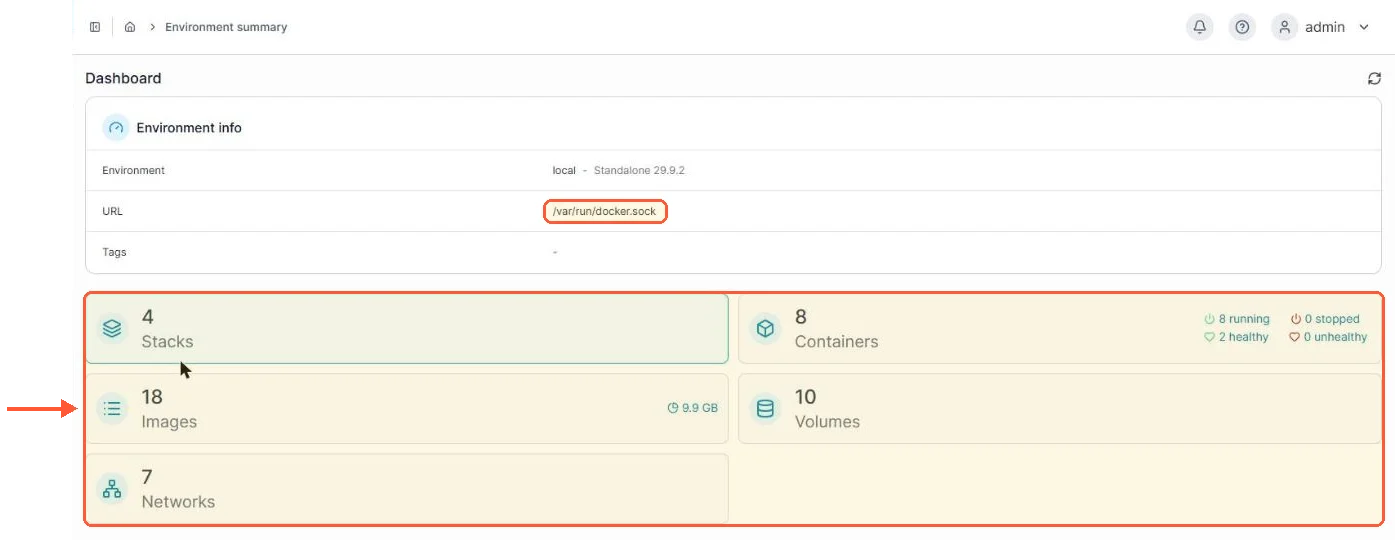
Portainer CE dashboard on /var/run/docker.sock: 4 stacks, 8 containers, 18 images, 10 volumes, 7 networks

The local environment on my test server, read through the Docker socket and laid out as pages.

What Portainer is not: a replacement for knowing what containers are. It removes the syntax, not the concepts, and people hoping the UI will spare them from understanding volumes discover it politely won't. My honest criticisms after years of daily use run to two: CE's interface enjoys reminding you that Business Edition exists, and the release cadence has had bumpy stretches (there's a whole story later about an error that shipped in a run of releases). Neither has been close to a reason to leave.
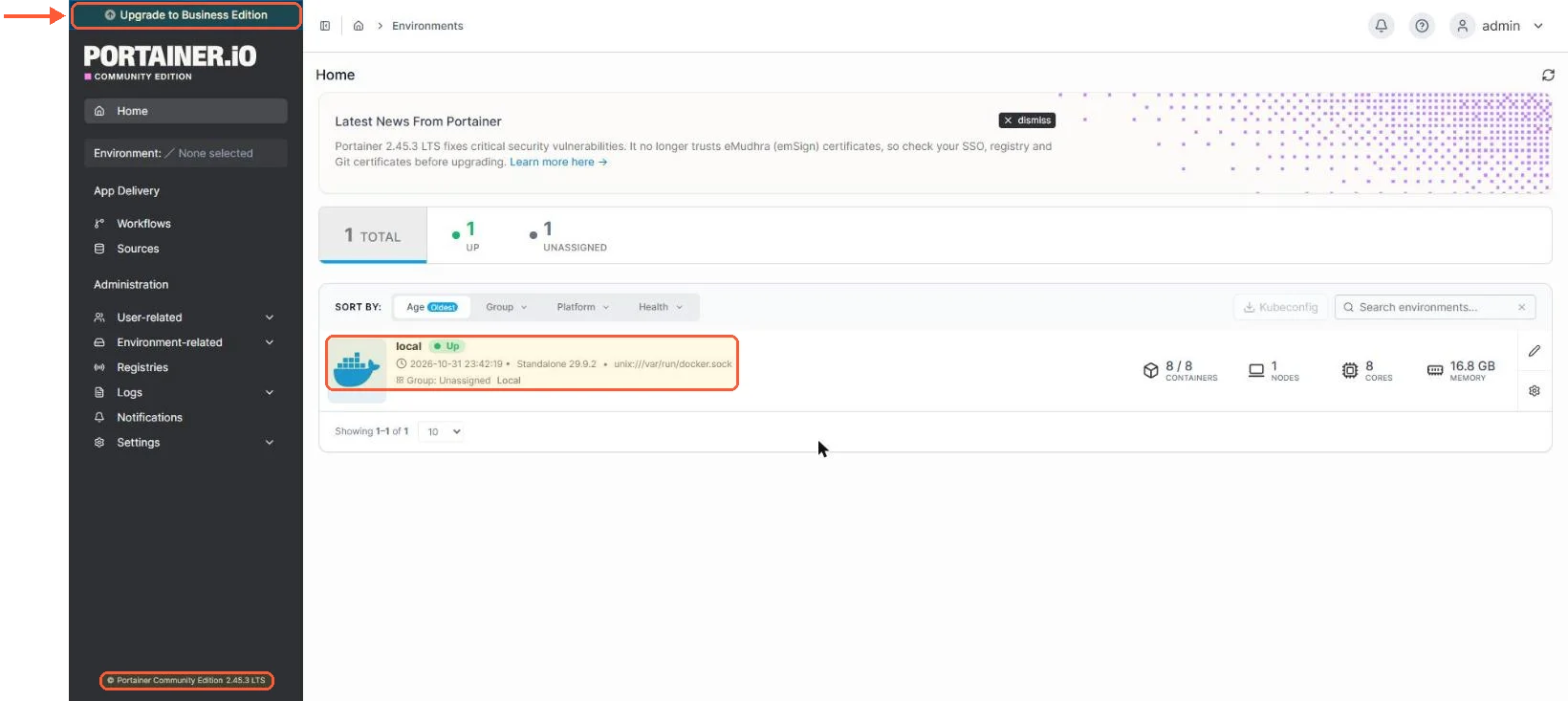
Portainer CE home with an Upgrade to Business Edition banner, the local Docker environment and the 2.45.3 LTS footer

Even on the home screen, CE keeps an Upgrade to Business Edition banner in the corner.

Do you need it if you know Docker

The question CLI people ask, so the answer from a recovering CLI person: need, no; want, probably. The terminal wins for one-off surgical work, and I still drop to it constantly. The UI wins everywhere visibility matters: eight containers' logs eyeballed in a minute, a stack's whole state on one screen, the volume you forgot existed sitting right there. It also wins the moment anyone less terminal-fluent than you needs to restart something while you're at dinner. The clincher for me is that choosing was never required; the panel and the shell manage the same engine, so you use whichever fits the moment. If the two names still blur together, Portainer vs Docker and what each one does draws the line between the engine and the panel.

Portainer setup, install and networking on day one

Install day is genuinely five minutes: a data volume, one docker run command (or the compose equivalent, my preference) with the socket mounted and the :lts image tag, then the first visit to port 9443, where you paste the setup token that new installs since 2.43 print in docker logs portainer (the setup_token= line) and create the admin account. The one ambush is a timer: if nobody creates the admin account within five minutes of the container's first start, Portainer times out for security and refuses setup until you restart it, so a fresh install left unattended greets you with a security timeout instead of a welcome screen. On my test server the container kept running after the timeout; only the setup was blocked. Every command, flag translation and the compose file live in the Portainer install guide, and the timeout's cure (a one-line restart) is part of the terminal restart guide, along with the boot-persistence settings that keep the panel self-healing on a box that reboots.
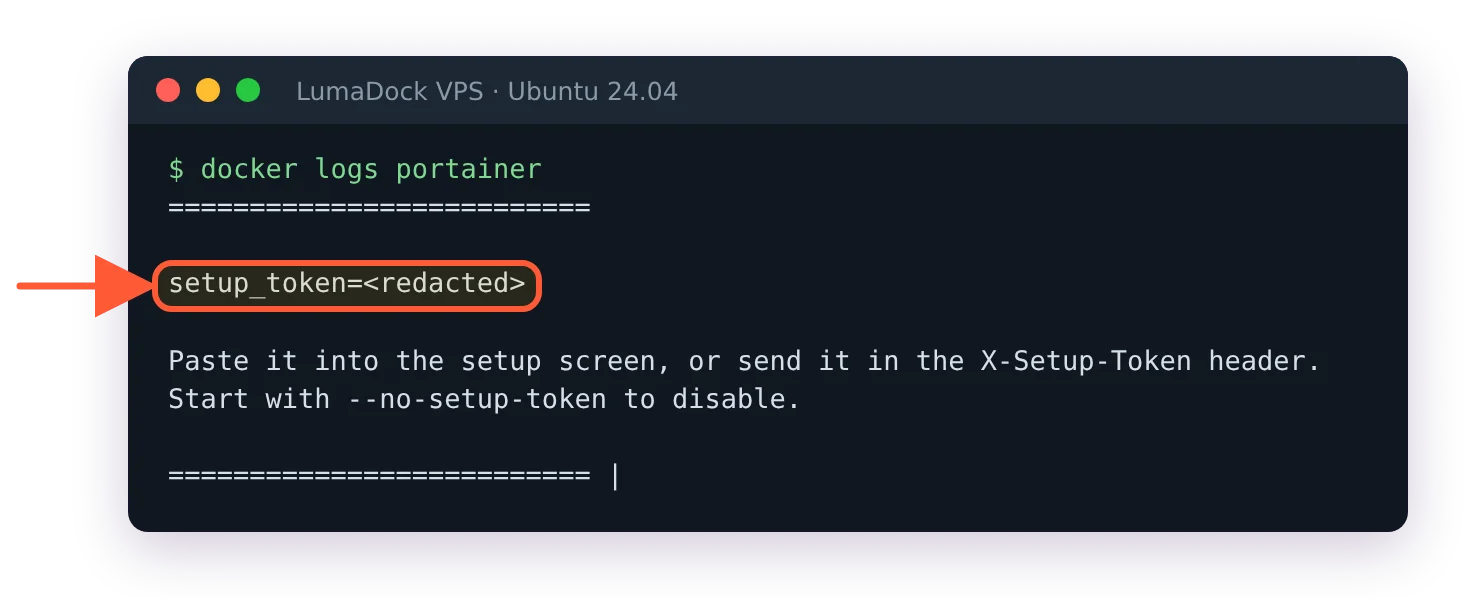
docker logs portainer prints a setup_token= line, value hidden, with instructions to paste it into the setup screen

A fresh install prints its one-time setup token in the container log; I hid the value here.

docker logs | tail -4 on an unclaimed Portainer 2.45.3 container ends with: instance timed out for security purposes

A throwaway install I left without an admin: five minutes in, Portainer logged that it had timed out and needed a restart.

Networking deserves a deliberate decision on day one rather than the default drift. The UI answers on 9443 over HTTPS, the old 9000 HTTP port is legacy and the sane public posture for a server is neither of them exposed, with an SSH tunnel or a reverse proxy carrying the traffic instead; the reasoning and the firewall rules per scenario are in the Portainer ports guide. One trap to know first: ufw rules don't apply to ports Docker publishes, so a ufw deny 9443/tcp left 9443 answering from another machine when I tested it, and tunnel-only access means publishing the port on 127.0.0.1 instead.

docker port portainer lists 8000/tcp and 9443/tcp published on 0.0.0.0 and [::], no 9000

The official run command publishes 8000 and 9443 on every address; 9000 isn't published at all.

A control panel that can start privileged containers is the most valuable login on the machine, worth treating that way from the first hour.

Your idea deserves better hosting

24/7 support 30-day money-back guaranteeRefund covers the VPS plan on your first order. Cancel anytime
Fatura Kesim Döngüsü

VPS.S1

28.66 RON Save  17 %
23.87 RON Aylık
  • 2 vCPU AMD EPYC
  • 2 GB RAMBELLEK
  • 30 GB NVMeDEPOLAMA
  • Sınırsız bant genişliği
  • IPv4 & IPv6IPv6 desteği şu anda Fransa, Finlandiya veya Hollanda'da mevcut değil. dahil

VPS.S3

71.71 RON Save  33 %
47.79 RON Aylık
  • 4 vCPU AMD EPYC
  • 6 GB RAMBELLEK
  • 70 GB NVMeDEPOLAMA
  • Sınırsız bant genişliği
  • IPv4 & IPv6IPv6 desteği şu anda Fransa, Finlandiya veya Hollanda'da mevcut değil. dahil

VPS.S4

95.63 RON Save  20 %
76.50 RON Aylık
  • 6 vCPU AMD EPYC
  • 8 GB RAMBELLEK
  • 80 GB NVMeDEPOLAMA
  • Sınırsız bant genişliği
  • IPv4 & IPv6IPv6 desteği şu anda Fransa, Finlandiya veya Hollanda'da mevcut değil. dahil

EPYC VPS.P1

43.01 RON Save  22 %
33.44 RON Aylık
  • 2 vCPU AMD EPYC
  • 4 GB RAMBELLEK
  • 40 GB NVMeDEPOLAMA
  • Sınırsız bant genişliği
  • IPv4 & IPv6IPv6 desteği şu anda Fransa, Finlandiya veya Hollanda'da mevcut değil. dahil
  • Ücretsiz otomatik yedeklemeGünlük, haftalık veya aylık çalışacak şekilde ayarlayabileceğiniz bir yedekleme alanı içerir.

EPYC VPS.P2

81.28 RON Save  24 %
62.14 RON Aylık
  • 2 vCPU AMD EPYC
  • 8 GB RAMBELLEK
  • 80 GB NVMeDEPOLAMA
  • Sınırsız bant genişliği
  • IPv4 & IPv6IPv6 desteği şu anda Fransa, Finlandiya veya Hollanda'da mevcut değil. dahil
  • Ücretsiz otomatik yedeklemeGünlük, haftalık veya aylık çalışacak şekilde ayarlayabileceğiniz bir yedekleme alanı içerir.

EPYC VPS.P4

143.47 RON Save  23 %
109.98 RON Aylık
  • 4 vCPU AMD EPYC
  • 16 GB RAMBELLEK
  • 160 GB NVMeDEPOLAMA
  • Sınırsız bant genişliği
  • IPv4 & IPv6IPv6 desteği şu anda Fransa, Finlandiya veya Hollanda'da mevcut değil. dahil
  • Ücretsiz otomatik yedeklemeGünlük, haftalık veya aylık çalışacak şekilde ayarlayabileceğiniz bir yedekleme alanı içerir.

EPYC VPS.P5

191.31 RON Save  25 %
143.47 RON Aylık
  • 8 vCPU AMD EPYC
  • 16 GB RAMBELLEK
  • 180 GB NVMeDEPOLAMA
  • Sınırsız bant genişliği
  • IPv4 & IPv6IPv6 desteği şu anda Fransa, Finlandiya veya Hollanda'da mevcut değil. dahil
  • Ücretsiz otomatik yedeklemeGünlük, haftalık veya aylık çalışacak şekilde ayarlayabileceğiniz bir yedekleme alanı içerir.

EPYC VPS.P6

286.99 RON Save  25 %
215.23 RON Aylık
  • 8 vCPU AMD EPYC
  • 32 GB RAMBELLEK
  • 200 GB NVMeDEPOLAMA
  • Sınırsız bant genişliği
  • IPv4 & IPv6IPv6 desteği şu anda Fransa, Finlandiya veya Hollanda'da mevcut değil. dahil
  • Ücretsiz otomatik yedeklemeGünlük, haftalık veya aylık çalışacak şekilde ayarlayabileceğiniz bir yedekleme alanı içerir.

EPYC VPS.P7

334.83 RON Save  29 %
239.15 RON Aylık
  • 16 vCPU AMD EPYC
  • 32 GB RAMBELLEK
  • 240 GB NVMeDEPOLAMA
  • Sınırsız bant genişliği
  • IPv4 & IPv6IPv6 desteği şu anda Fransa, Finlandiya veya Hollanda'da mevcut değil. dahil
  • Ücretsiz otomatik yedeklemeGünlük, haftalık veya aylık çalışacak şekilde ayarlayabileceğiniz bir yedekleme alanı içerir.

Genoa VPS.G2

119.55 RON Save  20 %
95.63 RON Aylık
  • 2 vCPUAMD EPYC Genoa 4. nesil 9xx4, 3,25 GHz veya benzeri, Zen 4 mimarisinde. AMD EPYC G4
  • 4 GB DDR5BELLEK
  • 50 GB NVMeDEPOLAMA
  • Sınırsız bant genişliği
  • IPv4 & IPv6IPv6 desteği şu anda Fransa, Finlandiya veya Hollanda'da mevcut değil. dahil
  • Ücretsiz otomatik yedeklemeGünlük, haftalık veya aylık çalışacak şekilde ayarlayabileceğiniz bir yedekleme alanı içerir.

Genoa VPS.G4

215.23 RON Save  22 %
167.39 RON Aylık
  • 4 vCPUKurumsal sunucu donanımında, ayrılmış vCPU çekirdeklerine sahip AMD EPYC işlemci. AMD EPYC G4
  • 8 GB DDR5BELLEK
  • 100 GB NVMeDEPOLAMA
  • Sınırsız bant genişliği
  • IPv4 & IPv6IPv6 desteği şu anda Fransa, Finlandiya veya Hollanda'da mevcut değil. dahil
  • Ücretsiz otomatik yedeklemeGünlük, haftalık veya aylık çalışacak şekilde ayarlayabileceğiniz bir yedekleme alanı içerir.

Genoa VPS.G6

430.51 RON Save  22 %
334.83 RON Aylık
  • 8 vCPUKurumsal sunucu donanımında, ayrılmış vCPU çekirdeklerine sahip AMD EPYC işlemci. AMD EPYC G4
  • 16 GB DDR5BELLEK
  • 200 GB NVMeDEPOLAMA
  • Sınırsız bant genişliği
  • IPv4 & IPv6IPv6 desteği şu anda Fransa, Finlandiya veya Hollanda'da mevcut değil. dahil
  • Ücretsiz otomatik yedeklemeGünlük, haftalık veya aylık çalışacak şekilde ayarlayabileceğiniz bir yedekleme alanı içerir.

Genoa VPS.G7

765.39 RON Save  22 %
597.95 RON Aylık
  • 8 vCPUKurumsal sunucu donanımında, ayrılmış vCPU çekirdeklerine sahip AMD EPYC işlemci. AMD EPYC G4
  • 32 GB DDR5BELLEK
  • 250 GB NVMeDEPOLAMA
  • Sınırsız bant genişliği
  • IPv4 & IPv6IPv6 desteği şu anda Fransa, Finlandiya veya Hollanda'da mevcut değil. dahil
  • Ücretsiz otomatik yedeklemeGünlük, haftalık veya aylık çalışacak şekilde ayarlayabileceğiniz bir yedekleme alanı içerir.

AMD Ryzen VPS.R1

81.28 RON Save  18 %
66.93 RON Aylık
  • 1 özel CPU AMD Ryzen 9 7950X, 4,5 GHz veya benzeri, Zen 4 mimarisinde. vCPU
  • 4 GB DDR5BELLEK
  • 50 GB NVMeDEPOLAMA
  • Sınırsız bant genişliği
  • IPv4 & IPv6 dahil IPv6 desteği şu anda Fransa, Finlandiya veya Hollanda'da mevcut değil.
  • Otomatik yedekleme dahil

AMD Ryzen VPS.R2

143.47 RON Save  17 %
119.55 RON Aylık
  • 2 özel CPU AMD Ryzen 9 7950X, 4,5 GHz veya benzeri, Zen 4 mimarisinde. vCPU
  • 8 GB DDR5BELLEK
  • 100 GB NVMeDEPOLAMA
  • Sınırsız bant genişliği
  • IPv4 & IPv6 dahil IPv6 desteği şu anda Fransa, Finlandiya veya Hollanda'da mevcut değil.
  • Otomatik yedekleme dahil

AMD Ryzen VPS.R4

526.19 RON Save  18 %
430.51 RON Aylık
  • 8 özel CPU AMD Ryzen 9 7950X, 4,5 GHz veya benzeri, Zen 4 mimarisinde. vCPU
  • 32 GB DDR5BELLEK
  • 400 GB NVMeDEPOLAMA
  • Sınırsız bant genişliği
  • IPv4 & IPv6 dahil IPv6 desteği şu anda Fransa, Finlandiya veya Hollanda'da mevcut değil.
  • Otomatik yedekleme dahil

*VAT excluded.

INCLUDED WITH EVERY PLAN

✓ No setup fees ✓1 Gbps network
✓ Full root access on KVM ✓ Free server monitoring ✓ Firewall management ✓24/7 support

Stacks and updates, the two core skills

Daily Portainer competence reduces to two learnable things, and stacks are the big one. A stack is a docker-compose file Portainer deploys and manages as a unit, and since practically every self-hosted app publishes a compose file, one pattern installs all of them; the stacks guide teaches it through a complete Planka deployment and then generalizes to Immich, n8n and whatever you find next. The second skill is updating without fear: Portainer itself via the terminal (four commands, data survives in the volume, LTS tag doing the stability work) and your containers via the stack editor's re-pull, both walked through in the update guide alongside my argument against letting anything update itself automatically.

With those two down, the question changes from how to run things to what's worth running, and that one I answered separately and opinionatedly in what to run in a homelab with Portainer: the proxy-monitoring-backups foundation, the daily drivers like Immich and Jellyfin, and the deploy order that keeps a homelab alive past the first burst of enthusiasm.

Troubleshooting lockouts, restarts and the environment error

Years of running Portainer have produced exactly three recurring incident shapes in my logbook, and all three have short pages. Locked out because the password evaporated from memory: the official reset container fixes it in five minutes with SSH access, covered with the default-login myth in the password reset guide. The panel unreachable or weird after a change: restart first, logs second, and the restart guide above sorts the variants. And the strangest one, "failed to find local environment", deserves its story told properly because for a run of releases before 2.27 LTS it was a genuine shipped bug rather than user error, and the 2.27.0 release notes list the fix; the local environment fix covers the version check first and the two configuration causes after. That bug is also why this guide keeps repeating one dull word, LTS: the long-term support track exists so that class of surprise happens to other people first.

Worth internalizing across all three: your containers never depend on Portainer being healthy. They belong to Docker, which keeps running them while the panel is down, restarting, or being reset. Every Portainer incident is an inconvenience, not an outage, and knowing that changes the blood pressure of the whole hobby.

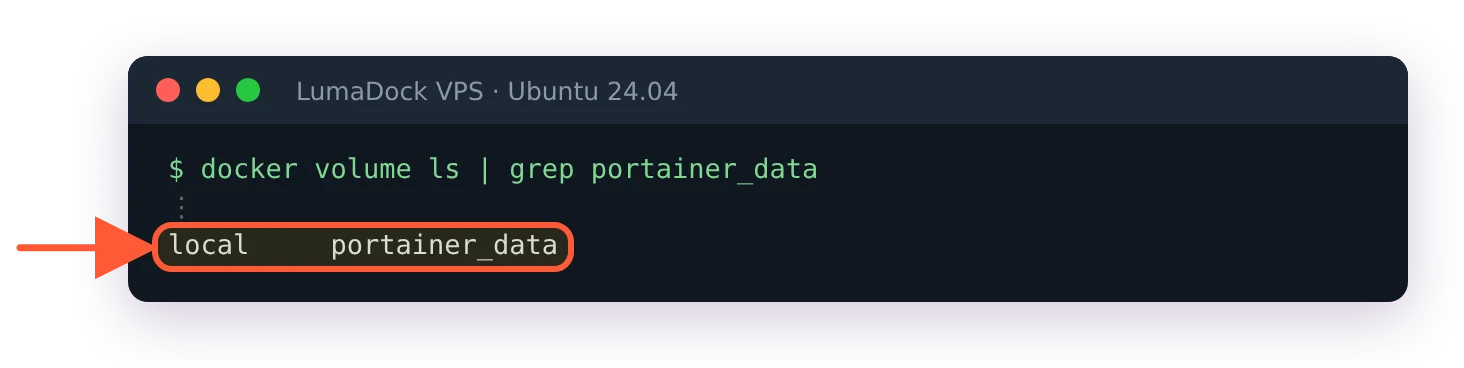
After docker rm -f portainer, docker volume ls still lists the local portainer_data volume

Deleting the Portainer container leaves its data volume in place, so the same run command brings the same install back.

Where to run Portainer, home server or VPS

Portainer itself runs anywhere Docker does, a Raspberry Pi included, so the real question is where the containers under it should live. Home hardware wins on monthly cost and physical ownership; a VPS wins on the static IP, the bandwidth, the not-depending-on-your-home-internet part, and the blast radius (a dead SD card takes the homelab, a dead VPS gets rebuilt from backups in an hour). I run the split most self-hosters converge on: experiments at home, everything the family relies on in the cloud. For the second half, our Portainer VPS one-click template deploys Portainer CE when you order the server, which is one less install-day checklist to keep.

Portainer isn't the only panel for the job, and the comparisons are worth a read before you commit. On one box where everything is already a compose file, Portainer vs Dockge is the one to read. Once a second and third server join, Komodo vs Portainer covers how each handles a fleet. The Portainer alternatives roundup lines up the rest, including the ones that stopped shipping.

What Portainer changes in practice

Portainer's actual product, after all the feature lists, is lowered friction: trying an app costs five minutes, checking on everything costs one glance and handing a household member a restart button costs nothing. Lowered friction compounds. The stack you deploy tonight because it was easy becomes the service the family depends on by winter, which is the whole self-hosting story in one sentence. Start with the install guide, claim the admin account inside the timer and add the first stack the same evening; the rest of the map is linked above whenever a station needs you.

Questions?

What is the Portainer Agent?

It is the piece that lets one Portainer Server manage another Docker host as an extra environment, and CE 2.45.3 now steers you towards the Edge version of it. When I opened Add environment for a Docker Standalone host, the wizard marked Edge Agent Standard as the recommended option and tucked the classic Agent, API and Socket connections under More options. The ports each of them needs are covered in the Portainer ports guide.

About the author

Lucía Elena Navarro

I was born in Zaragoza and have lived in Valencia since my twenties. My first work with language was translation: training materials and software interfaces. Then several years in customer education.

I have 3 kids, so my working day is organised carefully. I work very early. I like having a quiet hour before the house wakes up, especially when I need to understand something new before I can explain it. Professionally, I have written a lot about Linux servers and cloud services. In recent years I have done more editing. I enjoy this part because two writers can understand the same technical subject and still choose completely different ways to explain it. At home, we have been playing in the same Minecraft world for nearly 5 years. I am responsible mainly for storage rooms and keeping the animals where they are supposed to be.

Deploy your next project in seconds

Bring your winning ideas online faster, with modern hardware and unmetered bandwidth. Join a European cloud trusted by thousands of developers and businesses worldwide.