Back to Article List

Portainer ports 9443, 9000 and 8000 explained

Portainer ports 9443, 9000 and 8000 explained

Updated and tested 23 October 2026

Quick answer first, because most people arrive mid-task: the Portainer default port is 9443, HTTPS, for the web UI. Port 9000 is the old HTTP interface and modern installs don't publish it. Port 8000 belongs to Edge agents and stays closed unless you use them. That's the whole map; the rest of this page is what each one means in practice, when 9000 still earns a place and which ports face the internet on a real server.

What each Portainer port does

A standard install publishes two ports and people remember a third from older tutorials:

  • 9443/TCP, the UI over HTTPS with a self-signed certificate out of the box. Every current guide, including our Portainer install walkthrough, points you here.
  • 8000/TCP, a tunnel server for Edge agents (Portainer's mechanism for managing remote machines behind NAT). No Edge agents, no reason for this port to exist publicly; it rides along in the official run command and can be dropped from it entirely.
  • 9000/TCP, the legacy HTTP UI. Portainer served plain HTTP here for years, which is why the internet's muscle memory says 9000. It still works if you publish it (-p 9000:9000), and unencrypted admin panels stopped being acceptable a while ago, so treat it as a compatibility escape hatch rather than an option.

The one case where I still publish 9000 on purpose: behind a reverse proxy on the same machine, where the proxy terminates real HTTPS and talks plain HTTP to Portainer over localhost. Proxying to 9443's self-signed HTTPS works too but needs the proxy told to skip upstream verification, and plain-HTTP-on-localhost is the simpler contract. Either way the proxy owns the public side; the pattern is the same one our Nginx reverse proxy guide builds.

Firewall rules for each kind of setup

Three scenarios cover nearly everyone. On a home LAN box, allow 9443 from your local subnet and open nothing in the router; Portainer has no business being internet-reachable from a household setup. On a VPS you admin alone, my preferred arrangement is 9443 closed in the cloud firewall and reached through an SSH tunnel (ssh -L 9443:localhost:9443 user@server), which costs one command per session and removes the login page from the internet entirely; nothing else on the machine is worth more to an attacker than a panel that launches privileged containers. On a VPS a small team shares, the tunnel gets old, so front it with the reverse proxy on 443, restrict by IP where the team's addresses allow it and keep 9443 and 8000 off the public interface. The panel firewall on our Portainer VPS plans handles the cloud-side half of those rules.

Ubuntu-side, one trap first: Docker writes its own iptables rules for every port it publishes, and those rules sit outside ufw's reach. With sudo ufw deny 9443/tcp active on my test server, the login page still loaded from my other machine.
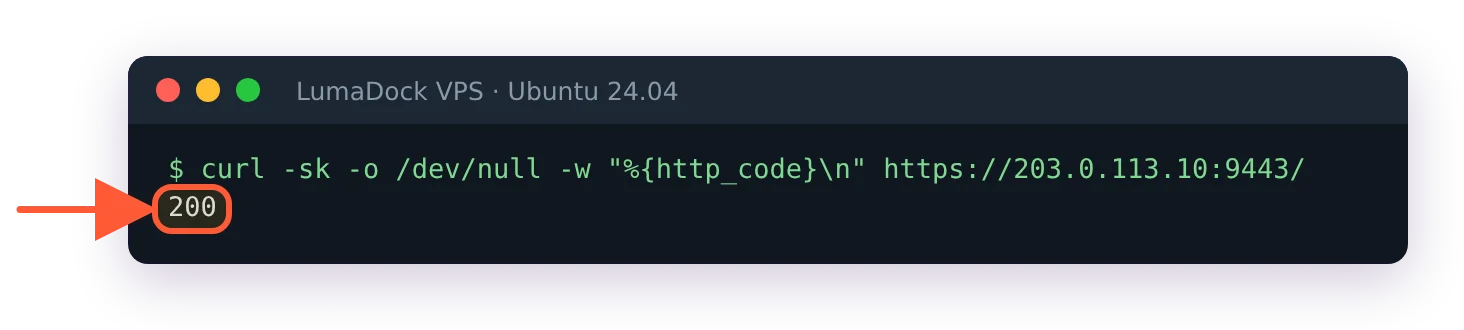
curl from another machine to port 9443 returns 200 while ufw deny 9443/tcp is active

My other machine got a 200 from port 9443 while the ufw deny rule was in place.

For the tunnel-only case, publish 9443 on localhost in the run command or compose file, so only the SSH tunnel above can reach it. I haven't tested this binding on my server, so check from another machine afterwards that 9443 no longer answers:

-p 127.0.0.1:9443:9443

For the LAN and team cases, filter in Docker's DOCKER-USER chain instead. The form below is the one in Docker's Docker with iptables page: the first rule drops anything arriving on the public interface (replace eth0) that doesn't come from your subnet, and the second, which lands above it because -I inserts at the top, lets replies to the containers' own outgoing connections through. Run them in this order. On my test server I filtered two single addresses with separate allow and drop rules, so this subnet version is the docs' rule, not one I ran. Either way the rules apply to every port Docker publishes on that interface, Portainer's included, and they're gone after a reboot unless you save them.

sudo iptables -I DOCKER-USER -i eth0 ! -s 192.168.1.0/24 -j DROP
sudo iptables -I DOCKER-USER -m state --state RELATED,ESTABLISHED -j ACCEPT

Your idea deserves better hosting

24/7 support 30-day money-back guaranteeRefund covers the VPS plan on your first order. Cancel anytime
Строк Оплати

VPS.S1

$5.99 Save  17 %
$4.99 Щомісячно
  • 2 vCPU AMD EPYC
  • 2 GB RAMПАМʼЯТЬ
  • 30 GB NVMeСХОВИЩЕ
  • Безлімітний трафік
  • IPv4 & IPv6Підтримка IPv6 наразі недоступна у Франції, Фінляндії чи Нідерландах. включено

VPS.S3

$14.99 Save  33 %
$9.99 Щомісячно
  • 4 vCPU AMD EPYC
  • 6 GB RAMПАМʼЯТЬ
  • 70 GB NVMeСХОВИЩЕ
  • Безлімітний трафік
  • IPv4 & IPv6Підтримка IPv6 наразі недоступна у Франції, Фінляндії чи Нідерландах. включено

VPS.S4

$19.99 Save  20 %
$15.99 Щомісячно
  • 6 vCPU AMD EPYC
  • 8 GB RAMПАМʼЯТЬ
  • 80 GB NVMeСХОВИЩЕ
  • Безлімітний трафік
  • IPv4 & IPv6Підтримка IPv6 наразі недоступна у Франції, Фінляндії чи Нідерландах. включено

EPYC VPS.P1

$8.99 Save  22 %
$6.99 Щомісячно
  • 2 vCPU AMD EPYC
  • 4 GB RAMПАМʼЯТЬ
  • 40 GB NVMeСХОВИЩЕ
  • Безлімітний трафік
  • IPv4 & IPv6Підтримка IPv6 наразі недоступна у Франції, Фінляндії чи Нідерландах. включено
  • Безкоштовний авто бекапМістить один слот резервного копіювання, який можна налаштувати на щоденний, щотижневий або щомісячний запуск.

EPYC VPS.P2

$16.99 Save  24 %
$12.99 Щомісячно
  • 2 vCPU AMD EPYC
  • 8 GB RAMПАМʼЯТЬ
  • 80 GB NVMeСХОВИЩЕ
  • Безлімітний трафік
  • IPv4 & IPv6Підтримка IPv6 наразі недоступна у Франції, Фінляндії чи Нідерландах. включено
  • Безкоштовний авто бекапМістить один слот резервного копіювання, який можна налаштувати на щоденний, щотижневий або щомісячний запуск.

EPYC VPS.P4

$29.99 Save  23 %
$22.99 Щомісячно
  • 4 vCPU AMD EPYC
  • 16 GB RAMПАМʼЯТЬ
  • 160 GB NVMeСХОВИЩЕ
  • Безлімітний трафік
  • IPv4 & IPv6Підтримка IPv6 наразі недоступна у Франції, Фінляндії чи Нідерландах. включено
  • Безкоштовний авто бекапМістить один слот резервного копіювання, який можна налаштувати на щоденний, щотижневий або щомісячний запуск.

EPYC VPS.P5

$39.99 Save  25 %
$29.99 Щомісячно
  • 8 vCPU AMD EPYC
  • 16 GB RAMПАМʼЯТЬ
  • 180 GB NVMeСХОВИЩЕ
  • Безлімітний трафік
  • IPv4 & IPv6Підтримка IPv6 наразі недоступна у Франції, Фінляндії чи Нідерландах. включено
  • Безкоштовний авто бекапМістить один слот резервного копіювання, який можна налаштувати на щоденний, щотижневий або щомісячний запуск.

EPYC VPS.P6

$59.99 Save  25 %
$44.99 Щомісячно
  • 8 vCPU AMD EPYC
  • 32 GB RAMПАМʼЯТЬ
  • 200 GB NVMeСХОВИЩЕ
  • Безлімітний трафік
  • IPv4 & IPv6Підтримка IPv6 наразі недоступна у Франції, Фінляндії чи Нідерландах. включено
  • Безкоштовний авто бекапМістить один слот резервного копіювання, який можна налаштувати на щоденний, щотижневий або щомісячний запуск.

EPYC VPS.P7

$69.99 Save  29 %
$49.99 Щомісячно
  • 16 vCPU AMD EPYC
  • 32 GB RAMПАМʼЯТЬ
  • 240 GB NVMeСХОВИЩЕ
  • Безлімітний трафік
  • IPv4 & IPv6Підтримка IPv6 наразі недоступна у Франції, Фінляндії чи Нідерландах. включено
  • Безкоштовний авто бекапМістить один слот резервного копіювання, який можна налаштувати на щоденний, щотижневий або щомісячний запуск.

Genoa VPS.G2

$24.99 Save  20 %
$19.99 Щомісячно
  • 2 vCPUAMD EPYC Genoa 4-го покоління 9xx4 з 3,25 GHz або подібний, на архітектурі Zen 4. AMD EPYC G4
  • 4 GB DDR5ПАМʼЯТЬ
  • 50 GB NVMeСХОВИЩЕ
  • Безлімітний трафік
  • IPv4 & IPv6Підтримка IPv6 наразі недоступна у Франції, Фінляндії чи Нідерландах. включено
  • Безкоштовний авто бекапМістить один слот резервного копіювання, який можна налаштувати на щоденний, щотижневий або щомісячний запуск.

Genoa VPS.G4

$44.99 Save  22 %
$34.99 Щомісячно
  • 4 vCPUПроцесор AMD EPYC з виділеними ядрами vCPU, на серверному обладнанні корпоративного класу. AMD EPYC G4
  • 8 GB DDR5ПАМʼЯТЬ
  • 100 GB NVMeСХОВИЩЕ
  • Безлімітний трафік
  • IPv4 & IPv6Підтримка IPv6 наразі недоступна у Франції, Фінляндії чи Нідерландах. включено
  • Безкоштовний авто бекапМістить один слот резервного копіювання, який можна налаштувати на щоденний, щотижневий або щомісячний запуск.

Genoa VPS.G6

$89.99 Save  22 %
$69.99 Щомісячно
  • 8 vCPUПроцесор AMD EPYC з виділеними ядрами vCPU, на серверному обладнанні корпоративного класу. AMD EPYC G4
  • 16 GB DDR5ПАМʼЯТЬ
  • 200 GB NVMeСХОВИЩЕ
  • Безлімітний трафік
  • IPv4 & IPv6Підтримка IPv6 наразі недоступна у Франції, Фінляндії чи Нідерландах. включено
  • Безкоштовний авто бекапМістить один слот резервного копіювання, який можна налаштувати на щоденний, щотижневий або щомісячний запуск.

Genoa VPS.G7

$159.99 Save  22 %
$124.99 Щомісячно
  • 8 vCPUПроцесор AMD EPYC з виділеними ядрами vCPU, на серверному обладнанні корпоративного класу. AMD EPYC G4
  • 32 GB DDR5ПАМʼЯТЬ
  • 250 GB NVMeСХОВИЩЕ
  • Безлімітний трафік
  • IPv4 & IPv6Підтримка IPv6 наразі недоступна у Франції, Фінляндії чи Нідерландах. включено
  • Безкоштовний авто бекапМістить один слот резервного копіювання, який можна налаштувати на щоденний, щотижневий або щомісячний запуск.

AMD Ryzen VPS.R1

$16.99 Save  18 %
$13.99 Щомісячно
  • 1 виділений CPU AMD Ryzen 9 7950X з 4,5 GHz або подібний, на архітектурі Zen 4. vCPU
  • 4 GB DDR5ПАМ'ЯТЬ
  • 50 GB NVMeСХОВИЩЕ
  • Безлімітний трафік
  • IPv4 & IPv6 включено Підтримка IPv6 наразі недоступна у Франції, Фінляндії чи Нідерландах.
  • Авто бекап включено

AMD Ryzen VPS.R2

$29.99 Save  17 %
$24.99 Щомісячно
  • 2 виділених CPU AMD Ryzen 9 7950X з 4,5 GHz або подібний, на архітектурі Zen 4. vCPU
  • 8 GB DDR5ПАМ'ЯТЬ
  • 100 GB NVMeСХОВИЩЕ
  • Безлімітний трафік
  • IPv4 & IPv6 включено Підтримка IPv6 наразі недоступна у Франції, Фінляндії чи Нідерландах.
  • Авто бекап включено

AMD Ryzen VPS.R4

$109.99 Save  18 %
$89.99 Щомісячно
  • 8 виділених CPU AMD Ryzen 9 7950X з 4,5 GHz або подібний, на архітектурі Zen 4. vCPU
  • 32 GB DDR5ПАМ'ЯТЬ
  • 400 GB NVMeСХОВИЩЕ
  • Безлімітний трафік
  • IPv4 & IPv6 включено Підтримка IPv6 наразі недоступна у Франції, Фінляндії чи Нідерландах.
  • Авто бекап включено

*VAT excluded.

INCLUDED WITH EVERY PLAN

✓ No setup fees ✓1 Gbps network
✓ Full root access on KVM ✓ Free server monitoring ✓ Firewall management ✓24/7 support

Changing the Portainer port

Port collisions happen (another panel, another app claiming 9443). The published port is yours to move in the run command or compose file; only the left side changes:

ports:
  - "9543:9443"

Portainer now answers on 9543 while the container still listens internally on 9443. Update bookmarks and any proxy upstreams, and note the same left-side-only rule applies if you ever remap 8000. There's no in-app setting for this; the mapping is Docker's job, one of the small ways Portainer stays a well-behaved container like any other.

Check which ports are live

When the UI won't load and you suspect ports, two commands settle it from the server:

docker port portainer
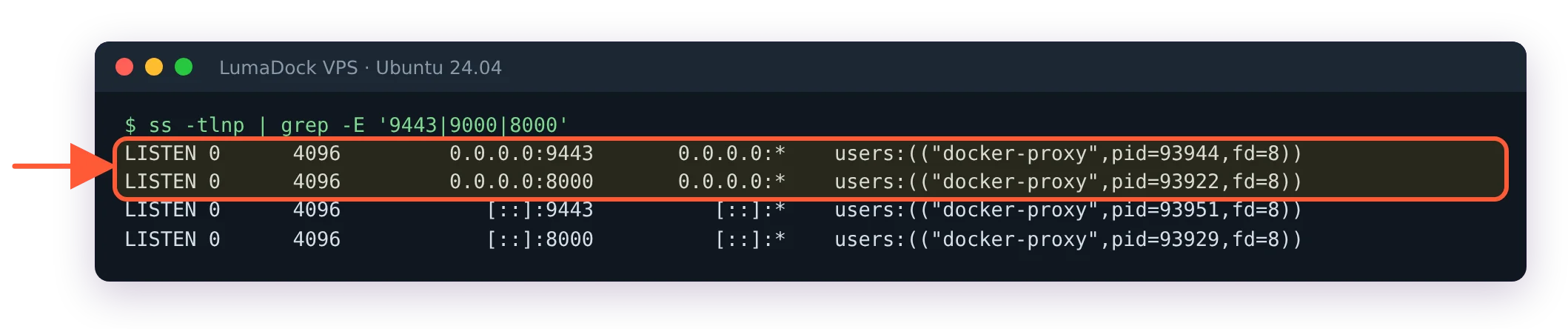
ss -tlnp | grep -E '9443|9000|8000'

The first prints the container's actual mappings (the truth beats whatever the compose file was supposed to say), the second shows what the host is listening on. Mappings correct but no answer from outside means firewall or security group; no mappings at all means the container isn't running, which is a restart-from-terminal situation rather than a networking one. Two commands, ninety seconds, and the port question stops being a mystery, which is about all a ports page can promise.

ss -tlnp shows docker-proxy listening on 0.0.0.0:9443 and 0.0.0.0:8000, and nothing on 9000

On my standard install the listeners on 9443 and 8000 belong to docker-proxy, and 9000 doesn't appear.

Questions?

Why does my browser warn about the certificate on 9443?

Portainer generates a self-signed certificate when it's installed, and browsers warn about any certificate that no public authority signed, even though the connection is encrypted. A Portainer maintainer explains in issue #10065 that the self-signed certificate is there so an install works with no outside connectivity, and advises against importing it into the browser. To lose the warning, replace it with your own certificate in Settings after installation, or start Portainer with --sslcert and --sslkey pointing at certificate files you mount into the container.

Deploy your next project in seconds

Bring your winning ideas online faster, with modern hardware and unmetered bandwidth. Join a European cloud trusted by thousands of developers and businesses worldwide.